Table of Contents
This practical guide explains how to connect Claude to work apps to get more done. Follow the steps in order, review the requirements first, and use the troubleshooting notes when a setting or option does not work as expected.
Claude works with more apps than you'd expect
Claude can connect to tools like Linear, Zapier, PayPal, Workato, and many more, making it one of the best AI chatbots for handling large conversations spanning multiple work contexts and data sources.
The technical setup varies by application, but most connections use OAuth authentication. This means that once linked, Claude can read, analyze, and process data across multiple platforms without having to constantly switch contexts, which can reduce productivity.
Here's how to connect the app to Claude:
- Navigate to Settings in the Claude interface.
- Select Connectors from the sidebar menu.
- Scroll down and click Browse Connectors to see all available integrations.
- Select the application you want to connect from the directory.
- Choosing between the web and desktop extensions depends on your workflow needs.
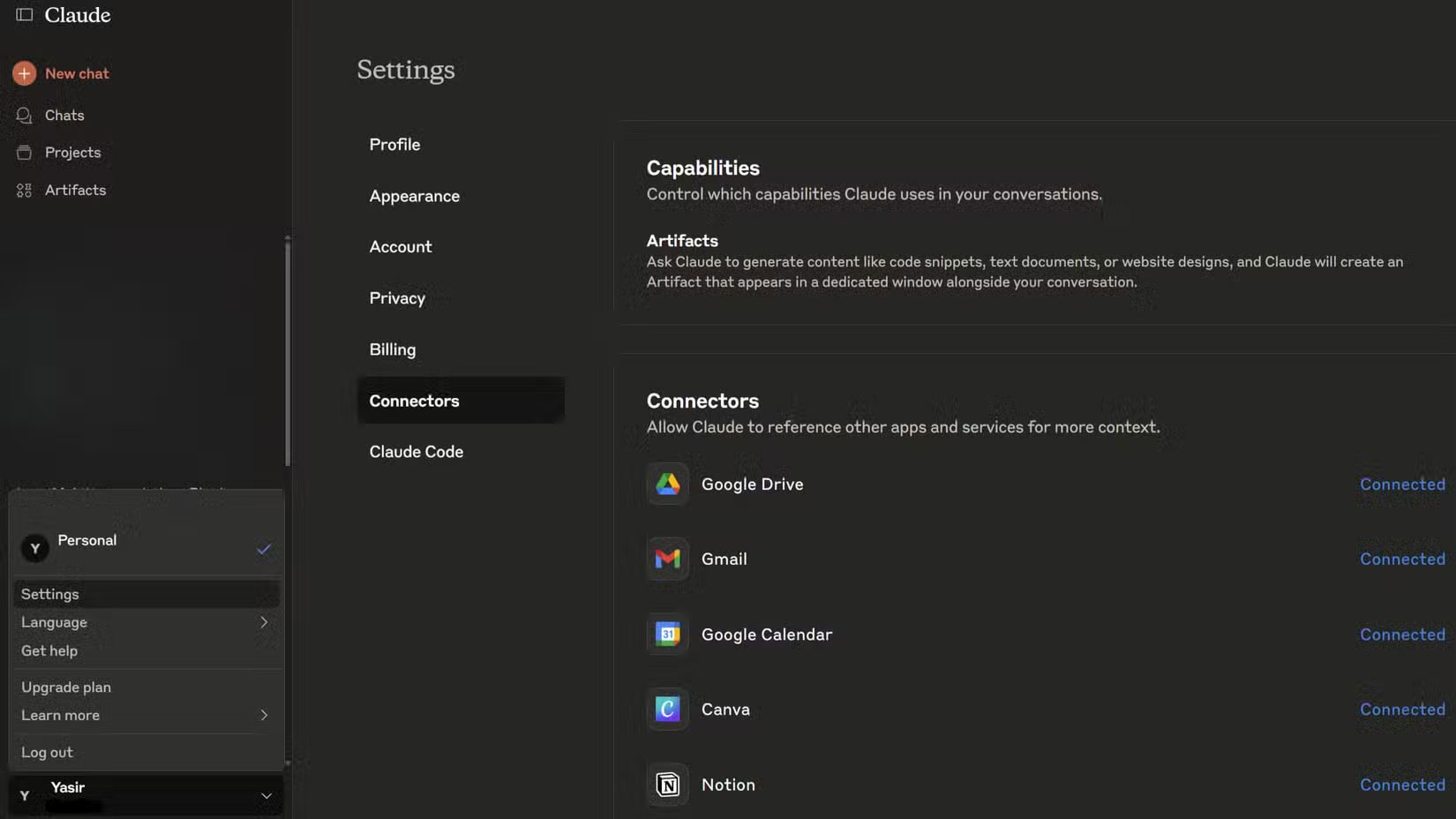
Note : Desktop Connect requires downloading Claude Desktop to function properly. The web version handles most integrations, but some advanced features require the desktop application.
- Download Claude (All Platforms)
To test it out, I asked Claude to check his calendar, find relevant documents in Drive, and update project status. That's when the tool went from being a useful tool to an essential part of the workflow.
Putting Claude at the center of Google Workspace
Google Workspace runs the entire business, so connecting Claude here will have the biggest impact.
For Gmail, Claude reads emails and understands the context and relationships between them. You can ask it to find all emails about a specific project from the past month, summarize long email threads, or compose responses that fit your writing style. The integration reads the thread history, so Claude knows what you're replying to without having to explain the context.
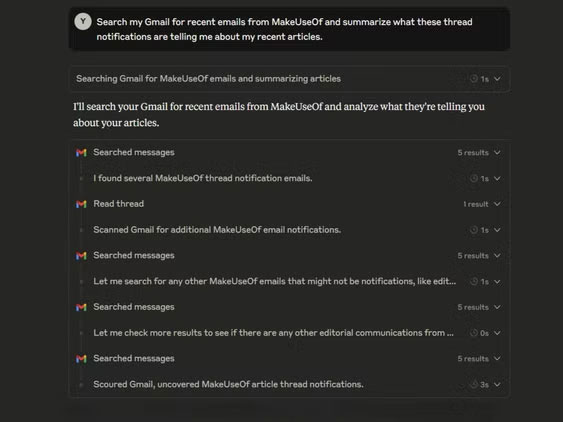
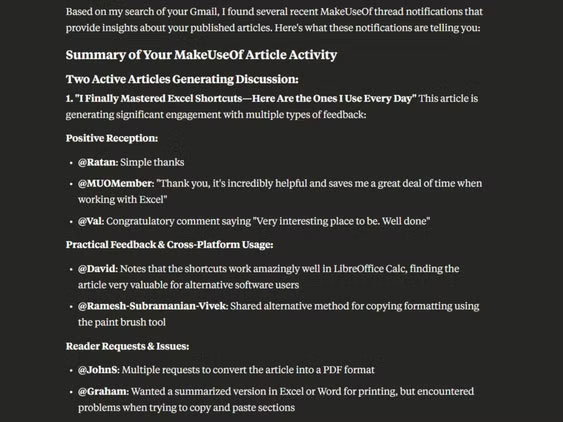
Document work in Google Drive has also changed. Claude can analyze spreadsheets and extract key points from long reports. When he needs to synthesize details from two different files, Claude takes the relevant data and creates a new document.
Additionally, Google Calendar integration helps with scheduling. Claude can check availability, suggest meeting times based on attendees' time zones, and even draft contextual meeting invites. It reads existing events to avoid conflicts, helping to avoid double bookings.
Claude can read email requests, check calendar availability, create meeting invites, and add relevant documents from Drive to the meeting agenda—all in one conversation.
Project management now works automatically
Connecting Claude to both Asana and Notion eliminated most of the manual project tracking work.
In Asana, Claude reads the project status of all active tasks and identifies bottlenecks before they become problems. When a project update is requested, it pulls task completion rates, identifies overdue items, and can even suggest prioritization adjustments. Asana's project tracking capabilities become much more powerful when Claude can automatically interpret patterns and dependencies.
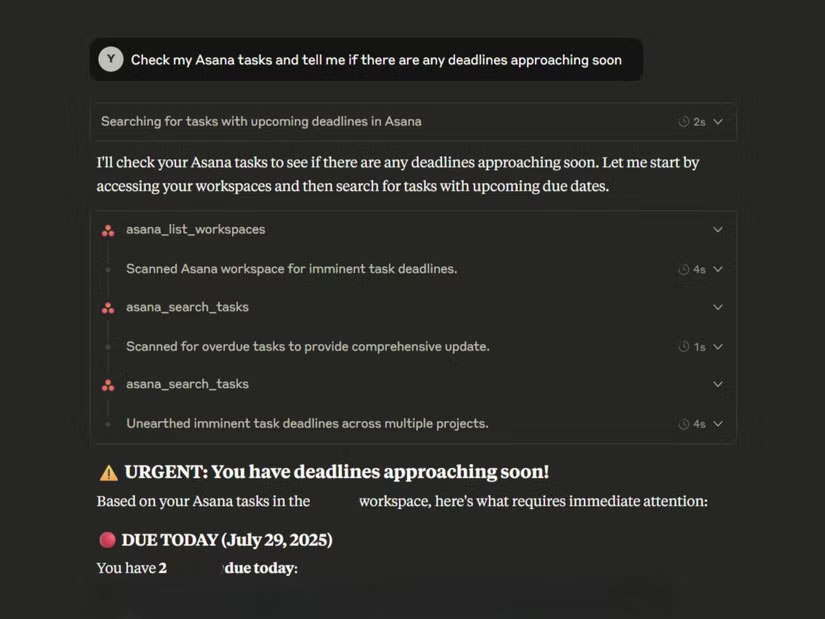
You can now create tasks via chat. Just tell Claude about a new project request, and it will create properly structured tasks with due dates and add them to the right project board. It reads existing project templates to maintain consistency.
You can also integrate Notion, which makes it easier to manage your personal workflow. Many people spend almost all of their time in Notion, and Claude makes it easy. It can update project pages, create meeting notes with action items, and cross-reference information between different databases.
The magic of automation happens when both tools work together. Claude can create weekly progress reports by pulling data from both platforms and updating project progress based on actual completion rates.
So what used to require daily manual updates can now be done with simple questions. People often ask Claude to check on the status of a project and it provides detailed information without having to touch any app.
Canva integration simplifies the design process
Claude can search the entire Canva library for specific designs, templates, or brand assets. When he needs to find a presentation template he created a few months ago, Claude can instantly find it by searching by title or design content. This alone cuts his design time in half.
The Claude integration is also useful for project organization. Claude reads design folders, identifies duplicates, and can suggest better organizational structures based on project type and usage patterns.
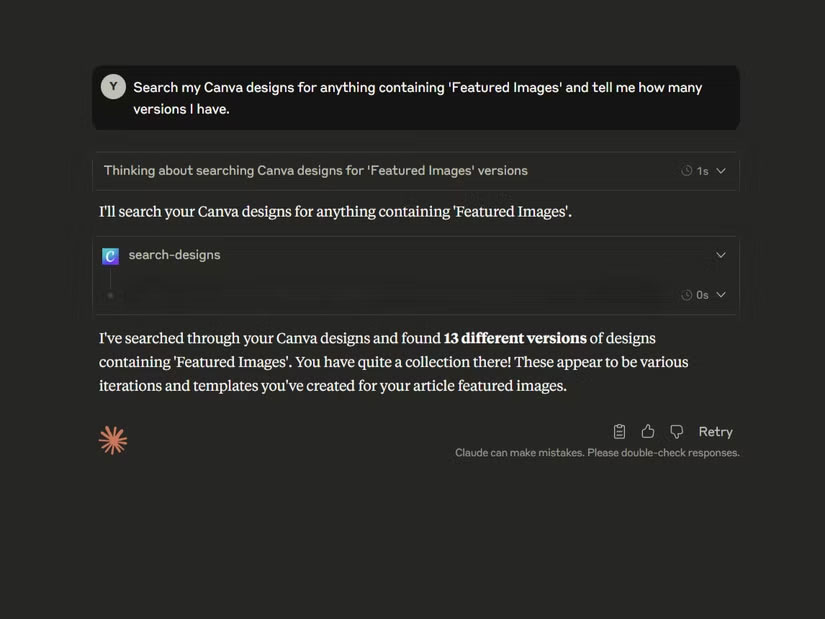
Collaboration features also work with group projects. Additionally, Claude can track which designs need approval and identify pending comments.
Connecting Claude to work applications is helpful for handling day-to-day tasks. The integrations aren't perfect and occasionally cause bugs, but they do remove some manual work. If you're swamped with scattered tools (that Claude can connect to), this setup can be as productive as you'd like.
FAQ
What should you know about claude works with more apps than you'd expect?
Claude can connect to tools like Linear, Zapier, PayPal, Workato, and many more, making it one of the best AI chatbots for handling large conversations spanning multiple work contexts and data sources.
What should you know about putting Claude at the center of Google Workspace?
Google Workspace runs the entire business, so connecting Claude here will have the biggest impact.
What should you know about project management now works automatically?
Connecting Claude to both Asana and Notion eliminated most of the manual project tracking work.
What should you know about canva integration simplifies the design process?
Claude can search the entire Canva library for specific designs, templates, or brand assets. When he needs to find a presentation template he created a few months ago, Claude can instantly find it by searching by title or design content. This alone cuts his design time in half.
Related Articles
 Prompt Classic AI: the Best AI for Work6 minutes read
 What Is Claude AI: Clear Explanation9 minutes read
 How to use Claude Skills to improve work efficiency4 minutes read
 How to Use the Connectors Feature in Claude AI12 minutes read
 What Are Claude Artifacts?: What You Need to Know10 minutes read
 How to Connect an MCP Server Filesystem to Claude Desktop7 minutes read
Reader Comments 0
Sign in with email or Google to join the discussion.