Table of Contents
It's not that Android doesn't have privacy features; they're just buried deep in many menus.
Despite improvements over the years, Android still has some notable privacy issues. Apps can track your location, data, monitor your phone usage, and do more to build profiles as you explore Android, or the broader Google ecosystem.
You can find privacy settings that help prevent big tech companies from tracking you, but finding some of them can feel like an archaeological dig. It's not that Android doesn't have privacy features; they're just buried deep in menus.
An important privacy setting you'll be hard-pressed to find
Android introduced the Nearby Devices permission in Android 12 as a privacy improvement. The idea is that instead of apps needing your full location permission just to connect to a Bluetooth device, they can use this more limited permission.
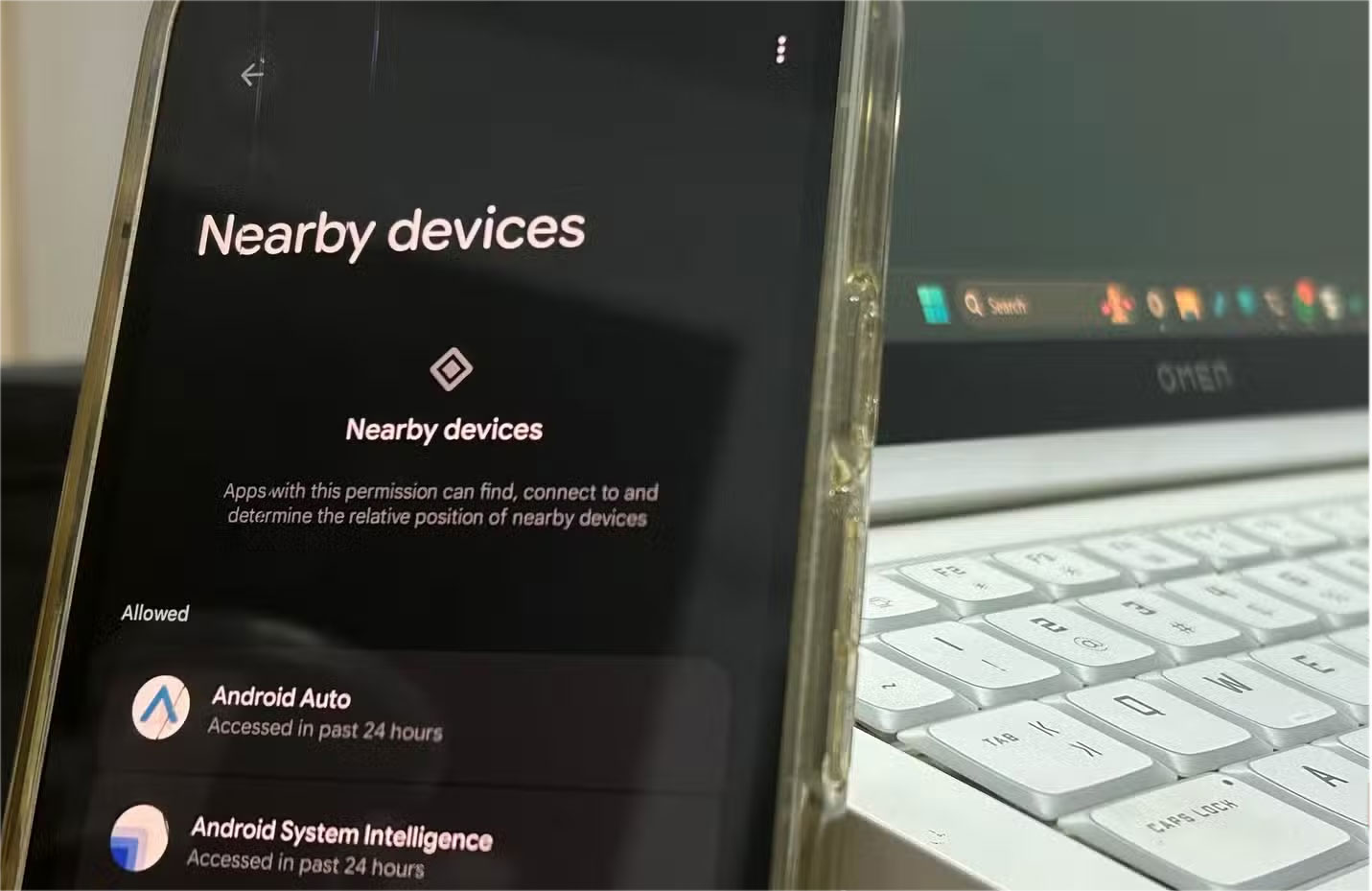
But even without location permissions, apps can still pinpoint your location by scanning for nearby Bluetooth devices. If you're sitting next to someone you've shared your location with Facebook, the app can pinpoint your location through Bluetooth scanning—even if you've never granted Facebook location permissions on your phone.
At first, this might not seem too alarming. After all, how accurate can a Bluetooth device's supposed location be, right? Except this data is combined with other data points like your connection to cell towers, Wi-Fi networks, distance to Bluetooth-enabled devices, etc. to create a very accurate estimate of your location. When combined with accelerometer and motion data from your phone, this estimate becomes frighteningly accurate.
Your phone will prompt you when apps ask for this permission, so unless you keep tapping "Yes" on every prompt that pops up, chances are not many apps will be able to do this. However, system apps on your phone use this permission by default.
These apps are often pre-installed and can be difficult to uninstall or disable. Depending on your version of Android, these features may include Android System Intelligence, Personal Data Intelligence, Android Auto, and Android Setup, among others.
How to check Nearby Devices permissions
Finding the Nearby Devices permission can be tricky unless you know where to look. If the Settings app on your phone has a search bar, we highly recommend using it. If not, follow these steps to find the Nearby Devices permission on Android 16.
- Go to your phone settings, scroll down and tap on Security and privacy .
- Scroll down and tap Privacy controls In the Privacy Section.
- Click on Permission manager .
- Tap Nearby devices From the list.
- You'll be able to see which apps are allowed to access this feature. Tap an app to control permissions.
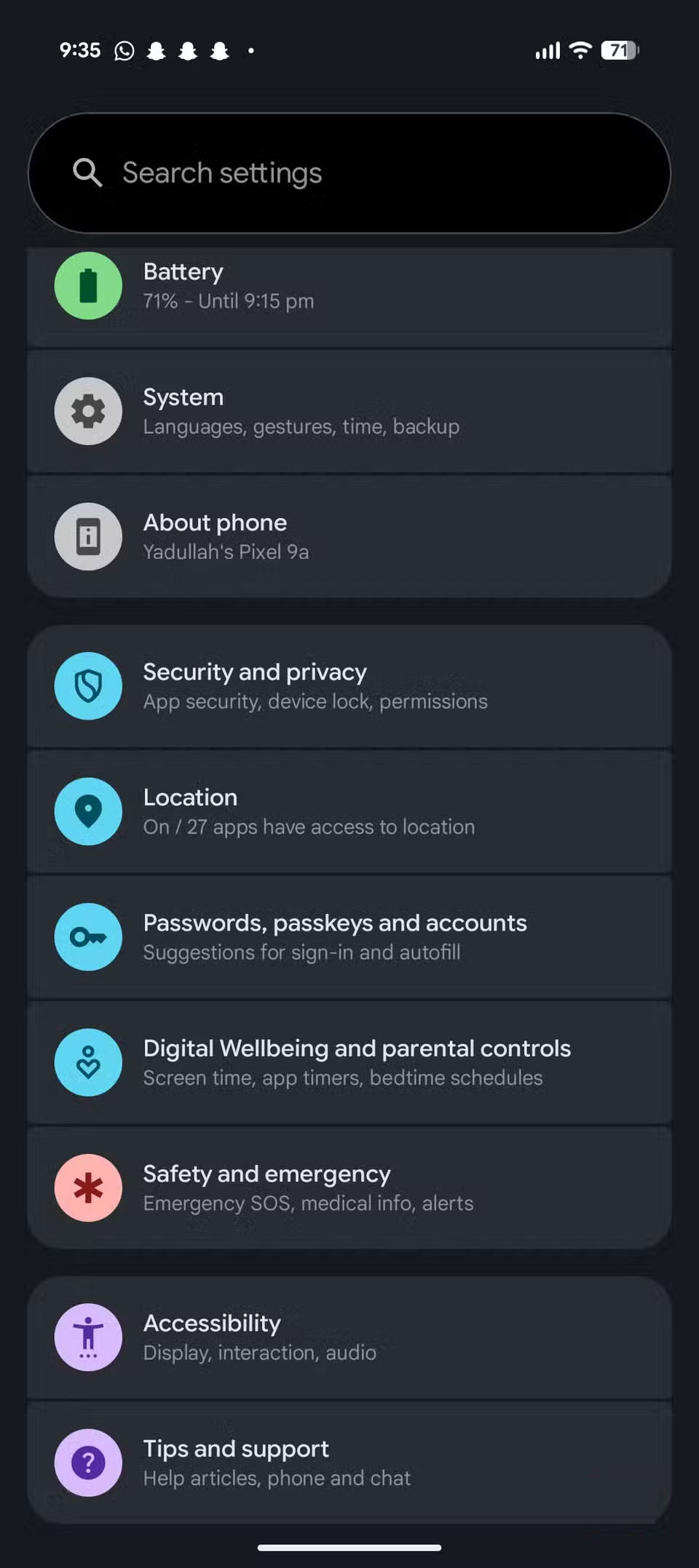
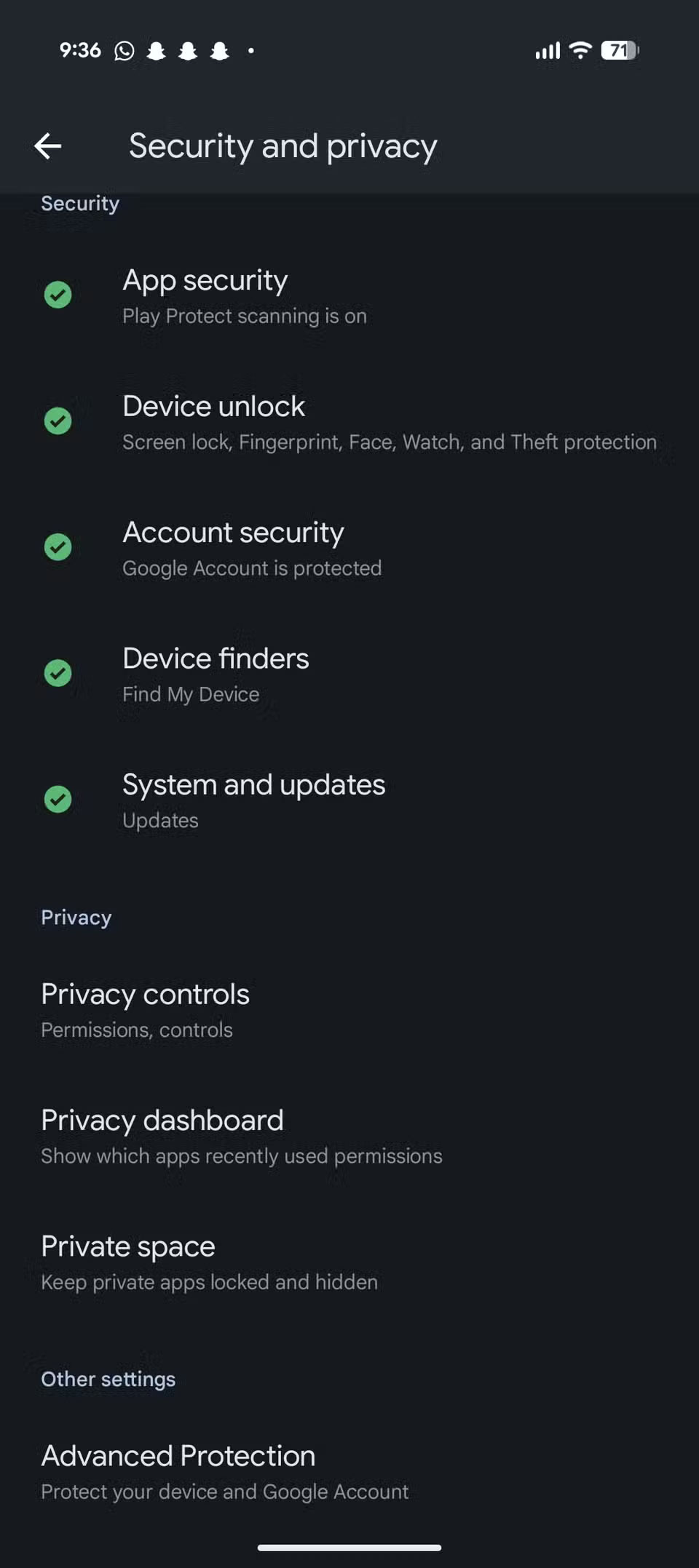
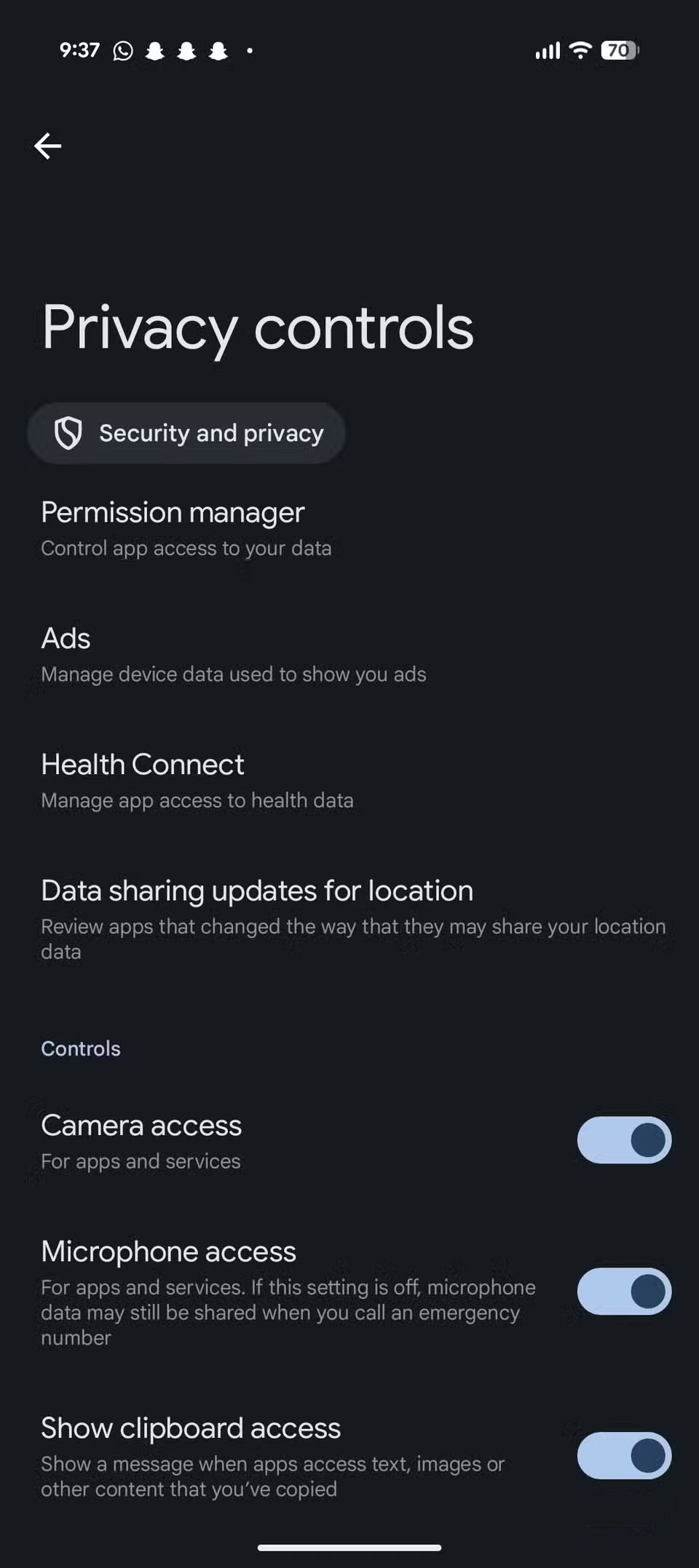
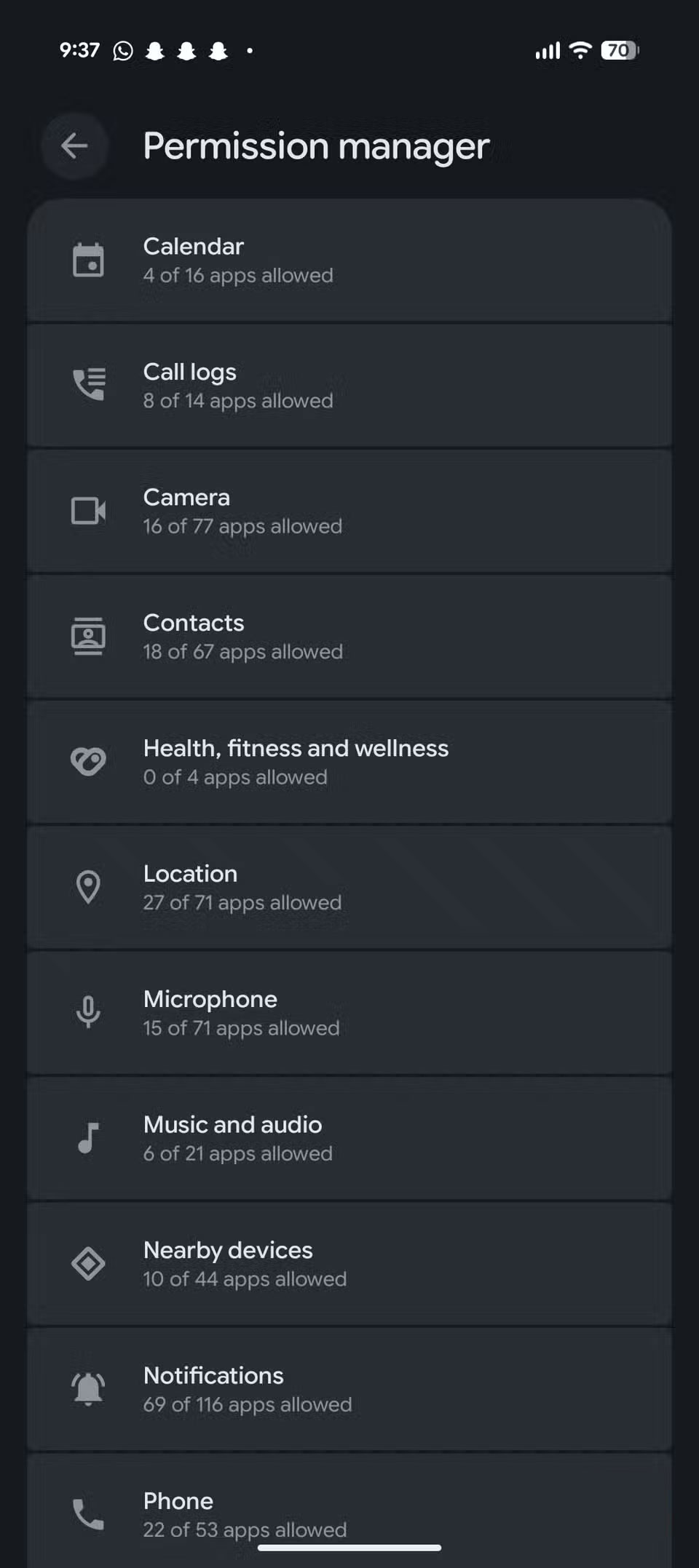
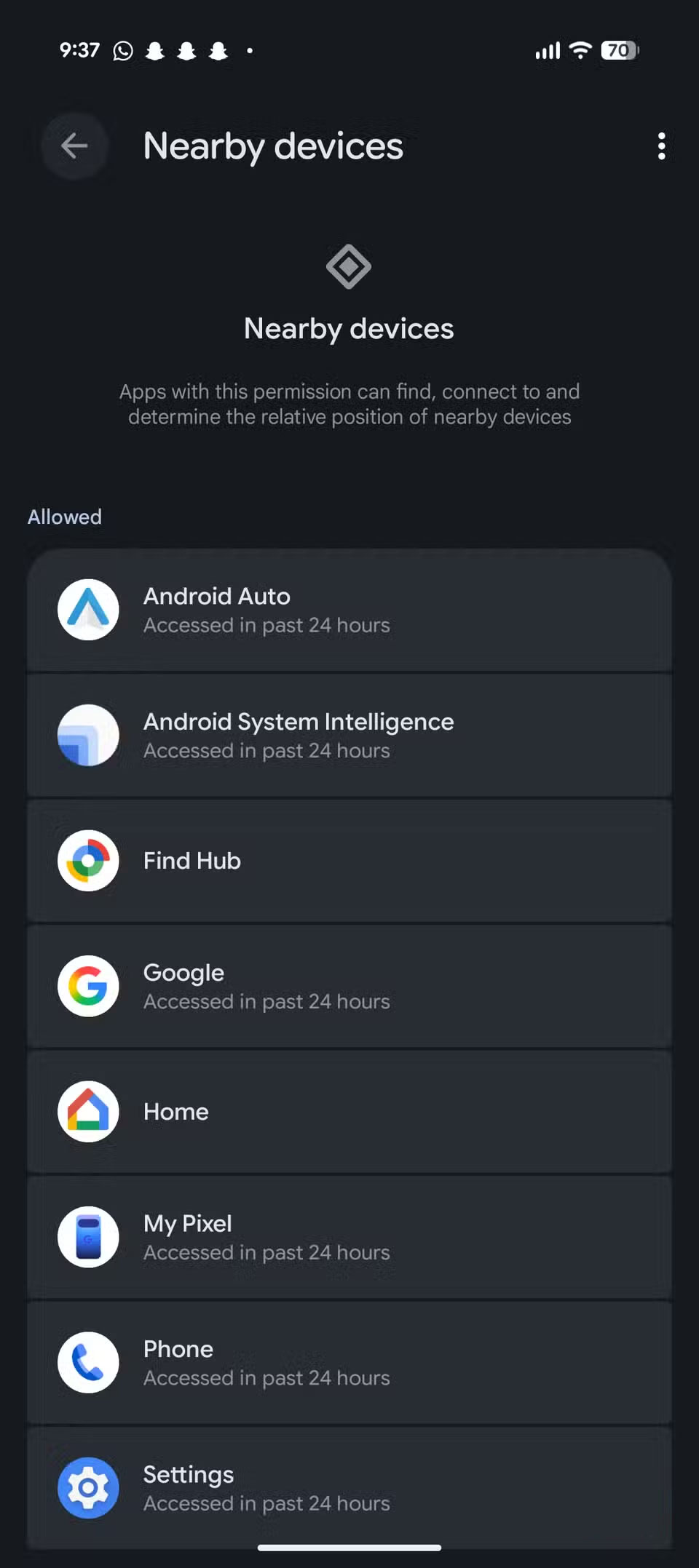
You'll see a few system apps here, and some of them actually need permissions. But there may also be other apps, like My Pixel if you're using a Google Pixel, and any other third-party apps you might have permissions for.
Remember that checking permissions on your Android phone isn't a one-time thing; it's an ongoing process. New system apps are often added via updates, and permissions can be reset in major Android upgrades. Manufacturers also often add their own privacy-invading system apps to Google's apps.
Your data belongs to you, not to sneaky apps you've accidentally given too many permissions to. Take a few minutes every now and then to dig through your privacy menus and disable permissions that are silently invading your privacy.
FAQ
How do you check nearby devices permissions on Android: step-by-step guide?
In practical terms, it's not that Android doesn't have privacy features; they're just buried deep in many menus.
What should you check before getting started?
Review the requirements, compatible device or software version, and any warnings described in the guide before making changes.
What should you do if the steps do not work?
Repeat the steps in order, confirm that your app or system is up to date, and review the troubleshooting details provided above.
Related Articles
 Why Should You Always Check App Permissions Before Pressing Install?8 minutes read
 How to Edit Application Permissions on Android5 minutes read
 Android's New Find Nearby Feature Helps Detect Unwanted Bluetooth4 minutes read
 How to Send Apps Between Android Devices via Nearby Share4 minutes read
 How to Use the Temporary Permission Feature of Android 11 on Any3 minutes read
 Steps to Use Nearby Share on Android Phones5 minutes read
Reader Comments 0
Sign in with email or Google to join the discussion.