Table of Contents
This guide provides a clear, practical overview of "Hidden Windows Features Make Software Installation Easy". It organizes the most useful details, explains important considerations, and highlights the steps or choices that matter most.
How to use WinGet to quickly install any application
Getting started with Winget is easy. First, check that you have Windows Package Manager installed by opening Command Prompt as administrator. Hit the Windows key, type cmd , and select Run as administrator . Running as administrator is important; it prevents each app installer from triggering its own UAC prompt, making the installation process go much more smoothly.
In the window that appears, type winget and press Enter . If you see a list of commands, you're good to go. If not, you'll need to install the App Installer from the Microsoft Store, which comes with WinGet. If you prefer, you can install WinGet from the app's GitHub repository.
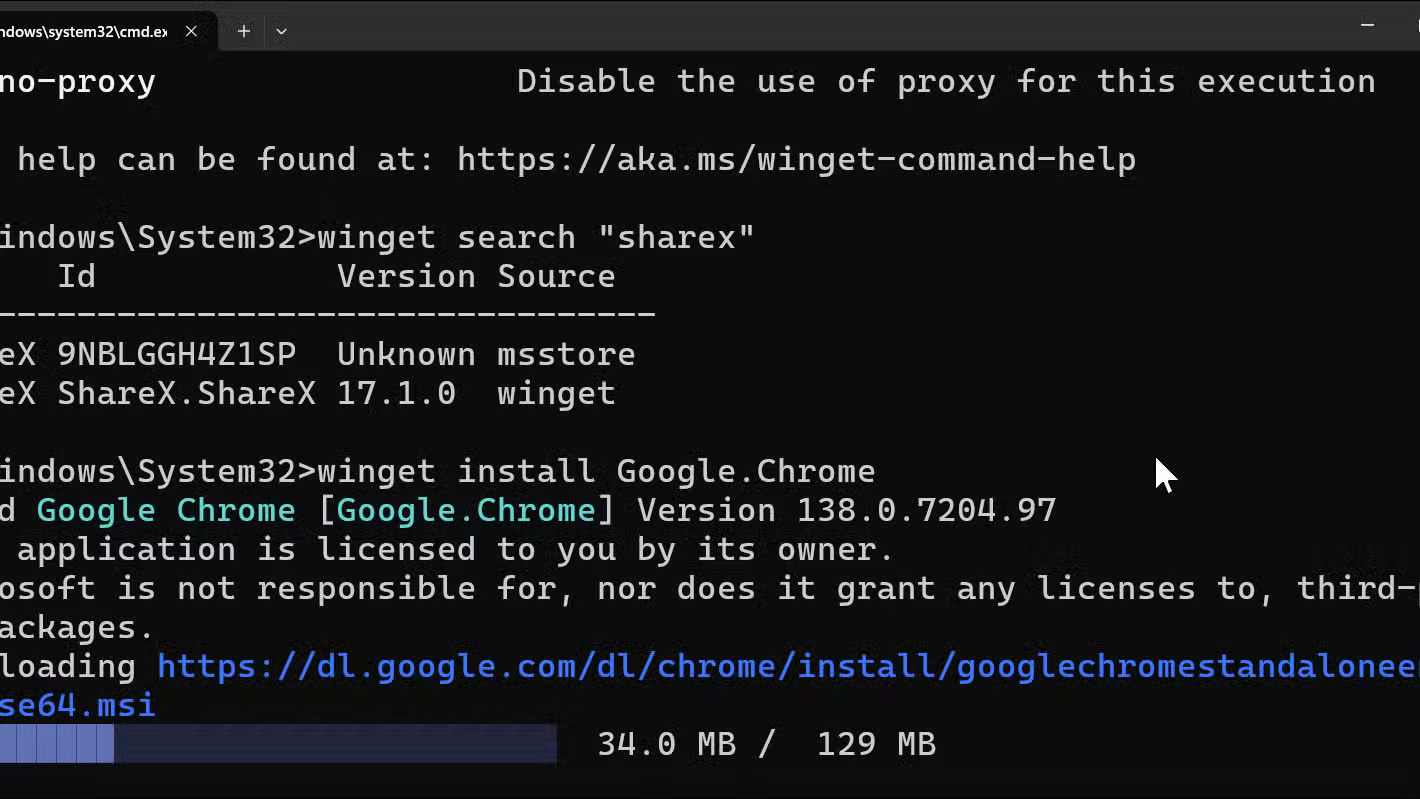
Let's see how it works by installing Google Chrome. Type:
winget install Google.ChromeAnd that's it! WinGet finds Chrome, downloads it from Google 's servers, and installs it automatically without you having to select Google's website or any installer. Same goes for almost any popular program:
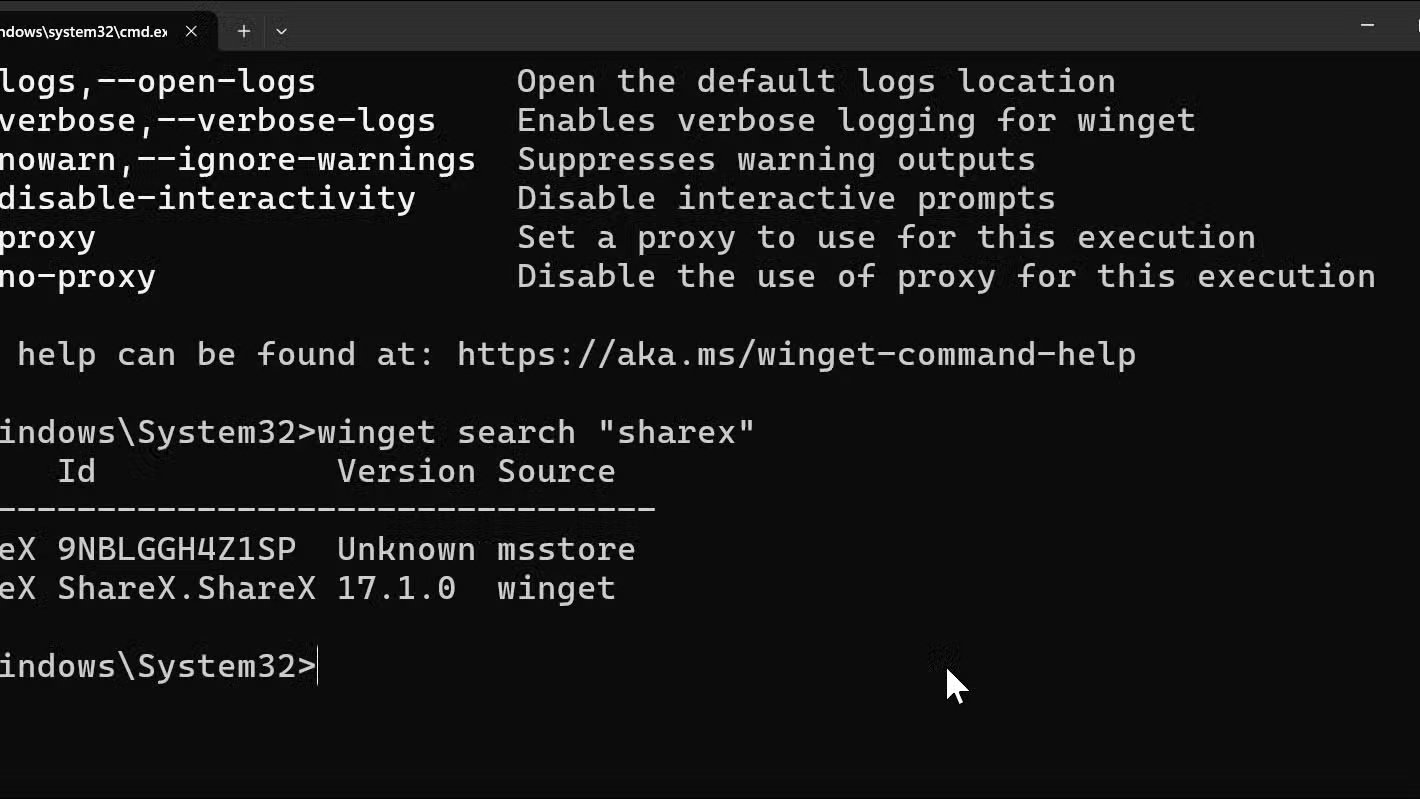
winget install Mozilla.Firefox winget install 7zip.7zip winget install Discord.Discord winget install OBS.OBSStudioBut how do you know the right name to use? Luckily, WinGet has a search feature. For example, if you're not sure what to type for ShareX, here's how you can search:
winget search "ShareX"The above command will show you all the programs that match their exact ID. You should see something like ShareX. ShareX , which is what you need to use with the install command.
Here's a useful tip: You can use the --silent flag to completely bypass any installer pop-ups:
winget install Spotify.Spotify --silentIf you want to see what is installed on your computer, type:
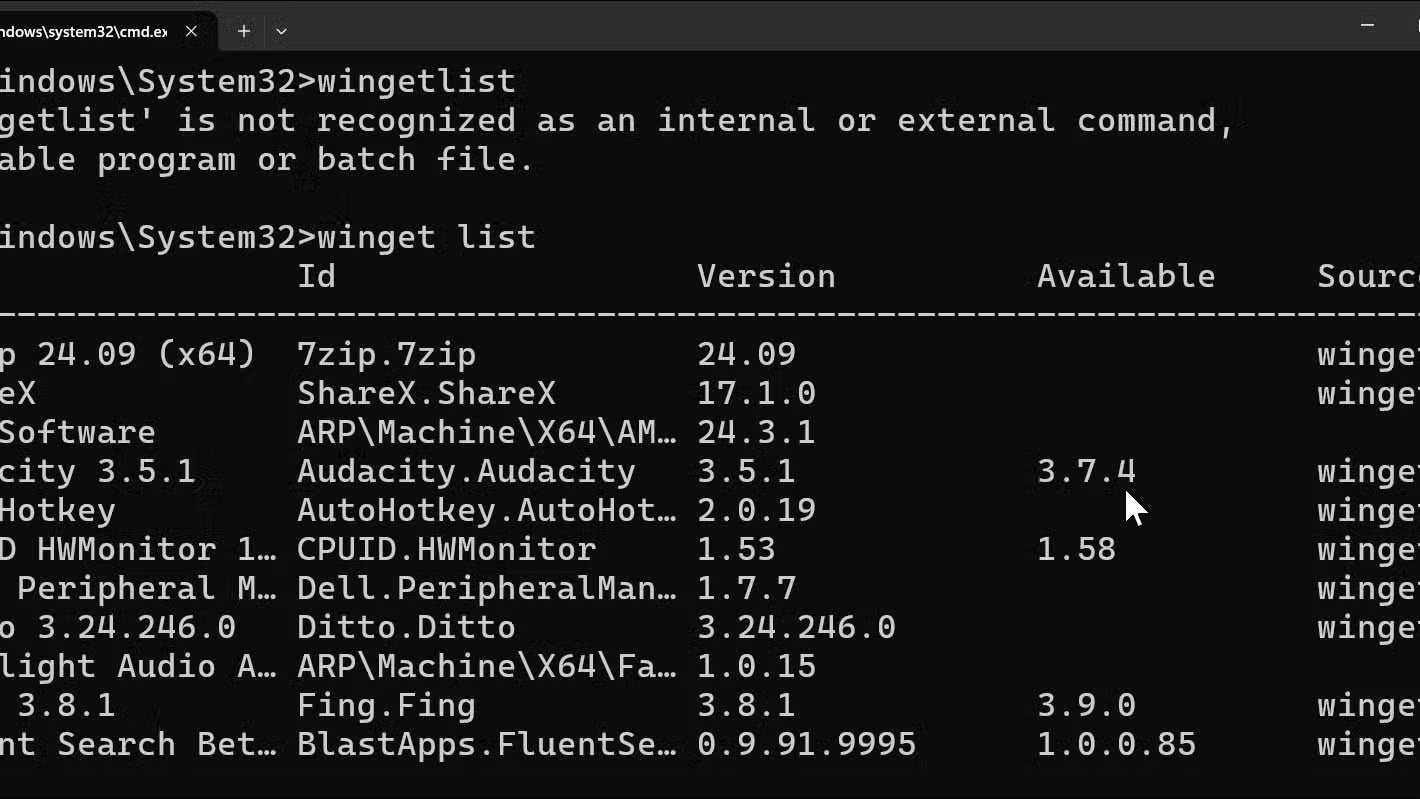
winget listThis shows every program WinGet knows about. To update everything at once, just run:
winget upgrade --allThe above command will check all programs for updates and install them. This is a better way to handle consistent update notifications for multiple programs.
How to install multiple applications using WinGet + Winstall
While WinGet is certainly impressive, you have to enter each application name individually or create a packages.json script to install them in bulk. That's where Winstall comes in — a free website that creates custom WinGet scripts to install all your applications at once.
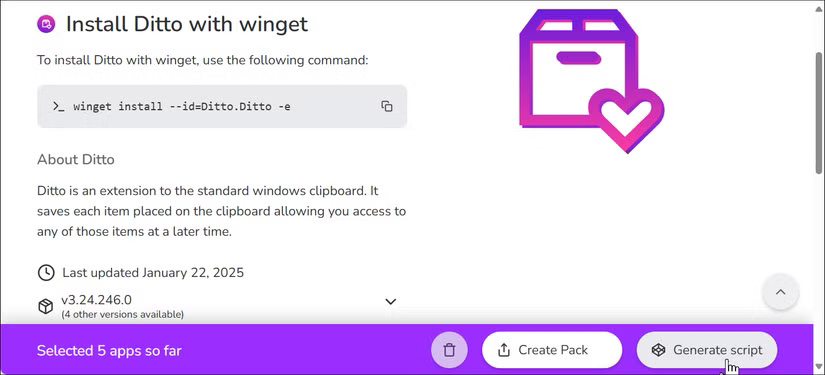
Go to winstall.app in your browser. You'll see a grid of popular programs. select any you want — Chrome, Discord, Steam, VLC, and Notepad++, for example. Each click will add that program to your package. If you don't find something, use the search bar at the top to search for any application in the WinGet repository. When you're done, click Generate Script at the bottom.
Winstall creates a batch file with all your choices. It looks like this (with the "-e" flag forcing an exact match):
winget install --id=Google.Chrome -e winget install --id=Discord.Discord -e winget install --id=Valve.Steam -e winget install --id=VideoLAN.VLC -e winget install --id=Notepad++.Notepad++ -eClick the Download.bat button to save the file. If you get a security warning, click Keep Anyway to continue. Once finished, right-click the file and select Run as administrator . Now sit back and watch Windows install everything automatically.
For even more convenience, you can save your list of favorite programs as a text file. Then, whenever you need to set up a new computer, just run the same script. It's like having a personal installer that sets up your computer exactly the way you want it, every time.
WinGet can be intimidating if you're not familiar with the command line, but it's simpler than traditional installers. You don't have to remember complicated commands; installing, searching, and upgrading covers 90% of what you need. Keep a simple text file with your favorite WinGet commands and you'll never have to fumble for a download link again.
FAQ
How to use WinGet to quickly install any application?
Getting started with Winget is easy. First, check that you have Windows Package Manager installed by opening Command Prompt as administrator. Hit the Windows key, type cmd, and select Run as administrator. Running as administrator is important; it prevents each app installer from triggering its own UAC prompt, making the.
How to install multiple applications using WinGet + Winstall?
While WinGet is certainly impressive, you have to enter each application name individually or create a packages.json script to install them in bulk. That's where Winstall comes in — a free website that creates custom WinGet scripts to install all your applications at once.
What does this guide cover?
This guide explains hidden Windows features make software installation easy, including the main steps, important details, and practical considerations.
Related Articles
 Most People Don't Use These Hidden Features in Windows Security9 minutes read
 10 Interesting Hidden Features of Windows 1111 minutes read
 Search and Activate Hidden Features in Windows 10 with Mach2 Tool9 minutes read
 Unlock Hidden Features on Windows 10 with Some Registry Tricks18 minutes read
 Top 5 Hidden Features Available on Windows 10 That You Do8 minutes read
 Offering Driver Easy Pro, the # 1 Driver Installation Tool for3 minutes read
Reader Comments 0
Sign in with email or Google to join the discussion.