Table of Contents
Anyone who uses a computer regularly knows how quickly certain tasks can become repetitive and tedious. For someone who regularly troubleshoots or repairs their computer, having a Windows feature that makes it easy to install software is always a useful tool.
WinGet is a game-changer. It makes these tasks significantly easier. But it does more than just install applications; processes that used to take hours now take minutes.
Note : Although WinGet is very powerful and best suited for professional users, some of the shared applications are also suitable for everyday use.
4. Configure WinGet
Manage the entire system status
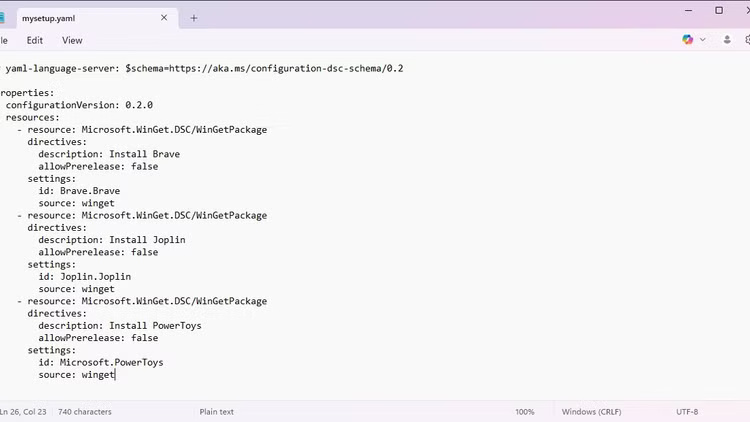
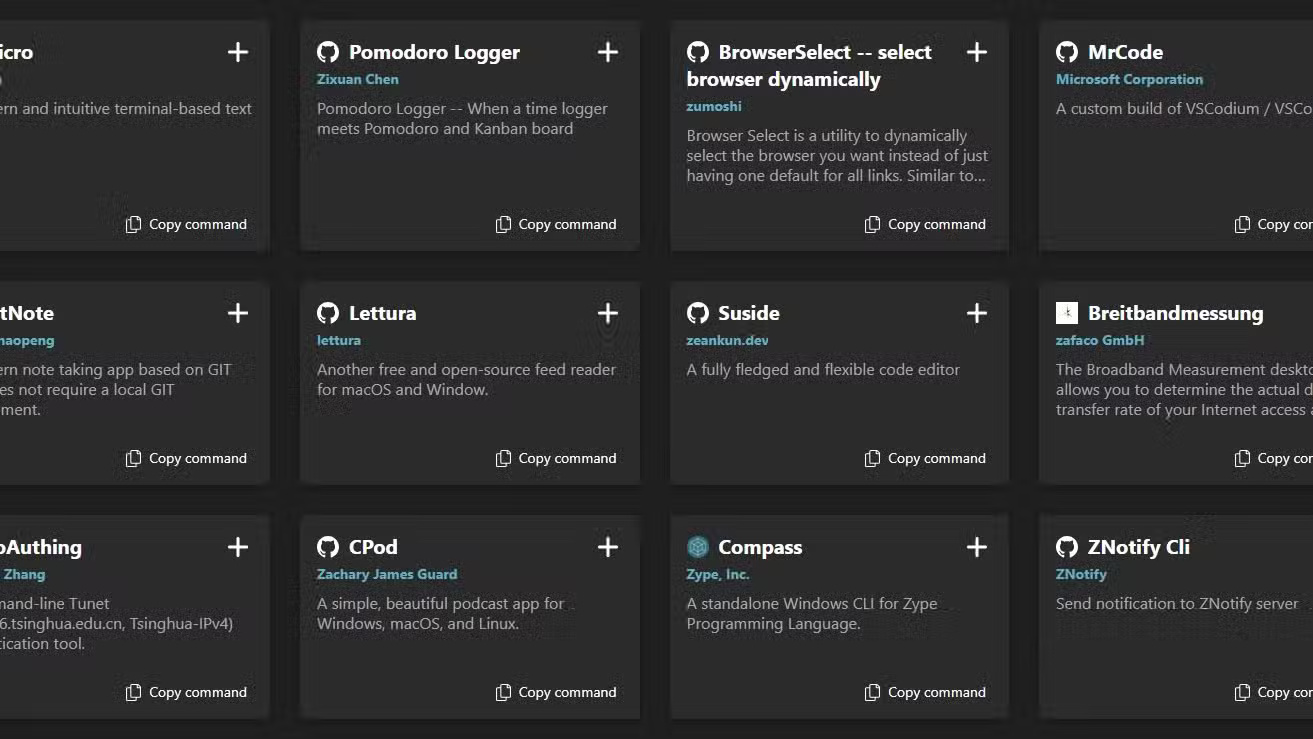
With a new computer, you need to install your most used applications, but installing them one by one is often very slow. While you can speed this up with WinGet, installing them one by one doesn't demonstrate its power. If your goal is to install them individually, you're better off using a regular GUI installer.
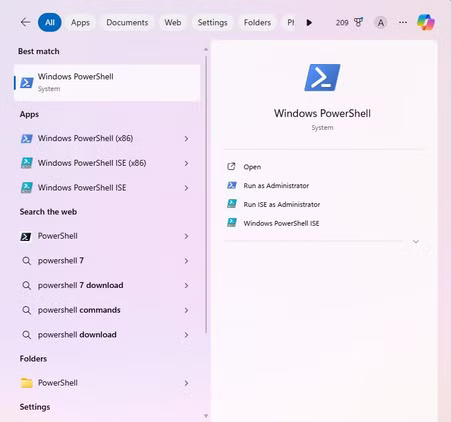
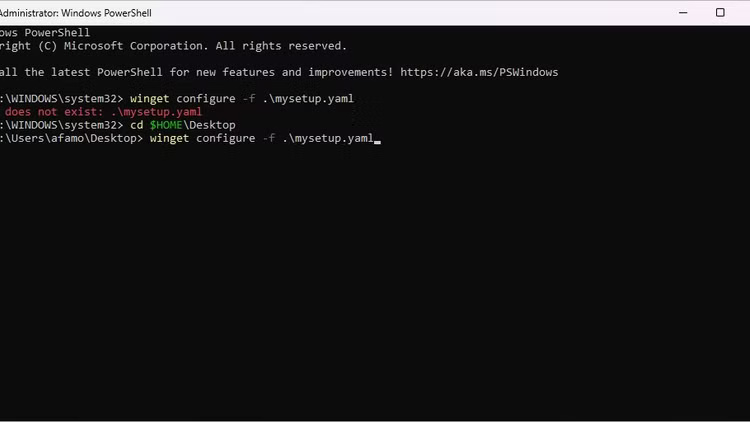
To complete this step, use the winget configure command. This requires a one-time initial setup, where you define the applications you want to install on any system and save them to a YAML file. Once done, just copy that file to the new computer, open PowerShell with admin rights, and run the command:
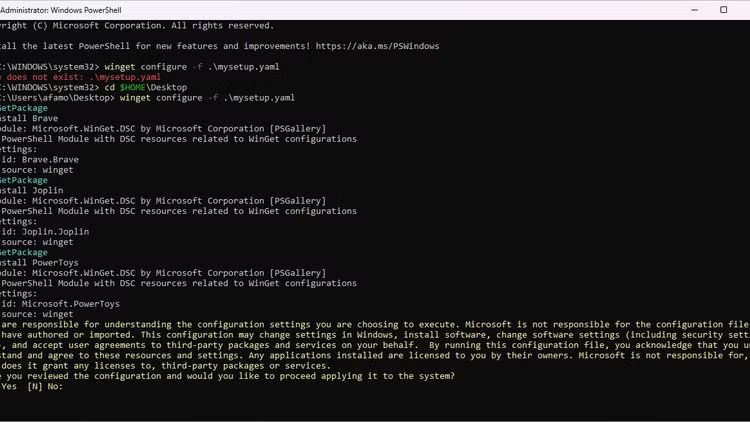
winget configure -f .mysetup.yamlWinGet will look up all included applications from their source, download installers and run them silently, and provide you with feedback once the installation is complete.
3. WinGet upgrade --all
One command to download the latest version of all applications
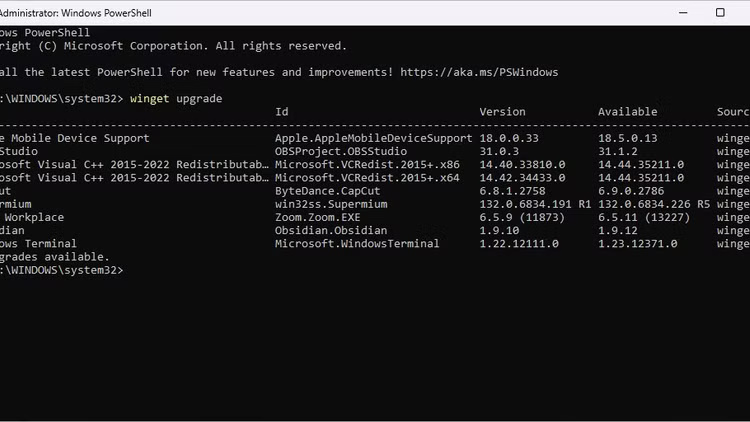
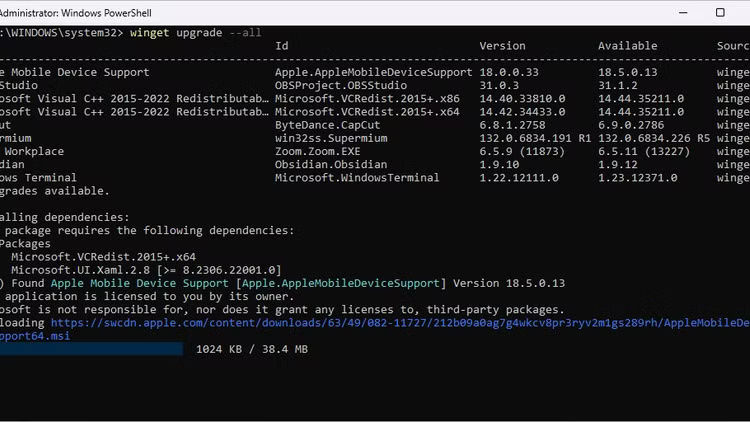
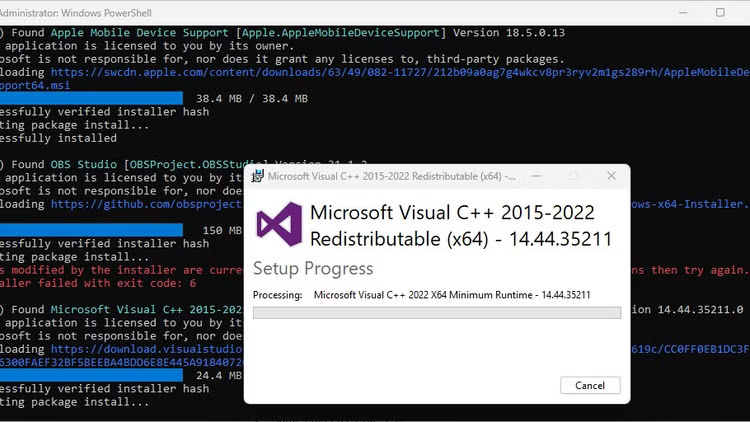
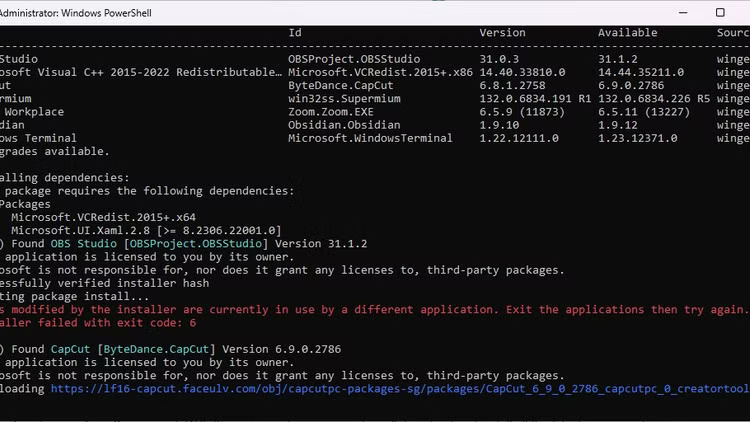
It's well known that keeping your apps up to date is important for security, as updates often come with security features and bug fixes. However, upgrading every single app on your computer can be a hassle.
WinGet provides a simple way to do this: The winget upgrade --all command. With this command, the computer will download and install all the latest versions of the application.
WinGet upgrade commands are useful when troubleshooting. For example, use this command to reinstall and update any application, including those with uncertain version information:
winget upgrade --all --include-unknown --force2. WinGet pin
Avoid any accidental app updates
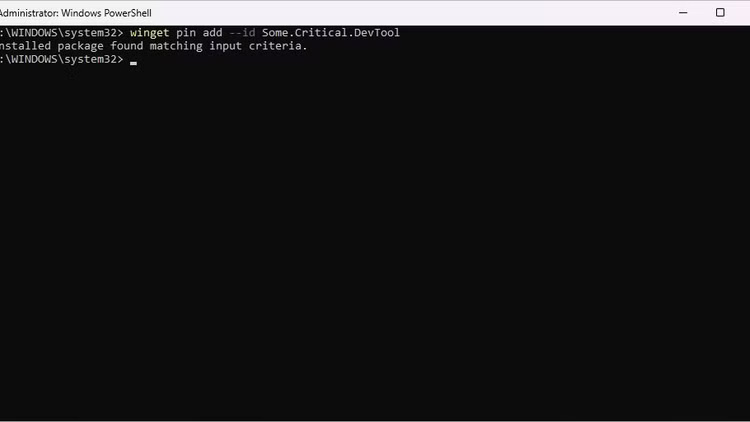
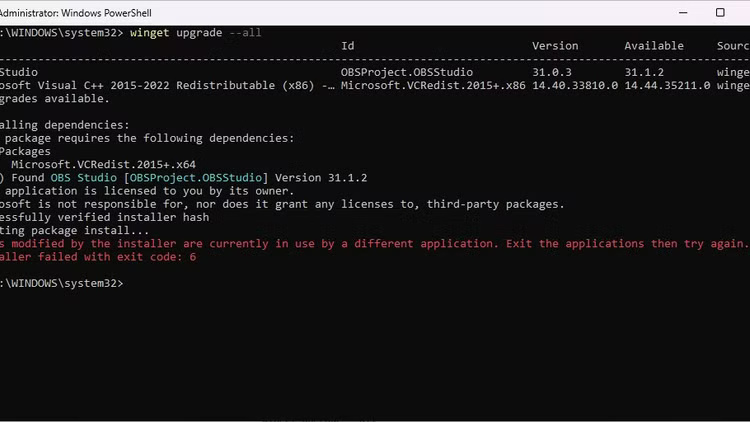
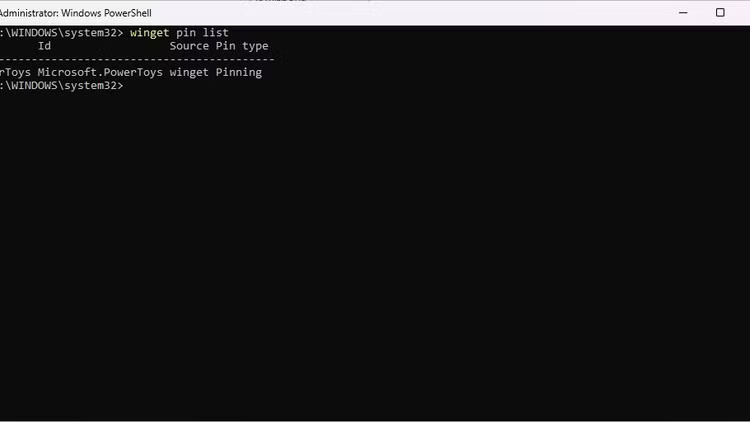
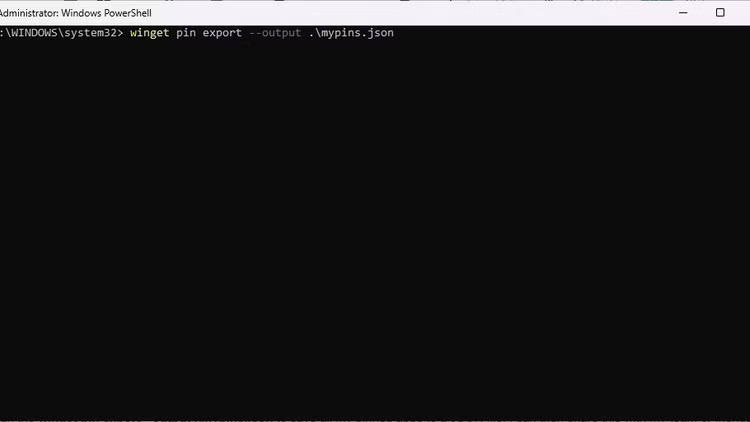
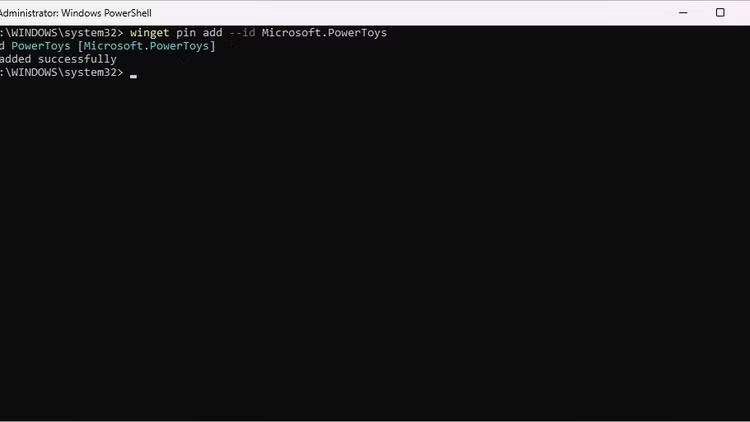
WinGet pin is a perfect match for the upgrade command above. While the guideline is to always keep your applications up to date, there are some cases where you don't need to update your applications. For example, when an update introduces user interface changes that take time to adjust to, which can impact your productivity.
Using the command winget upgrade --all will update all applications, including those you don't want to update. This is what people like best about WinGet pin. It gives you granular control over the application environment, allowing you to disable or skip updates for certain applications.
The following command instructs WinGet to ignore all updates for Microsoft PowerToys:
winget pin add --id Microsoft.PowerToys1. WinGet + Task Scheduler
Configure automatic application maintenance
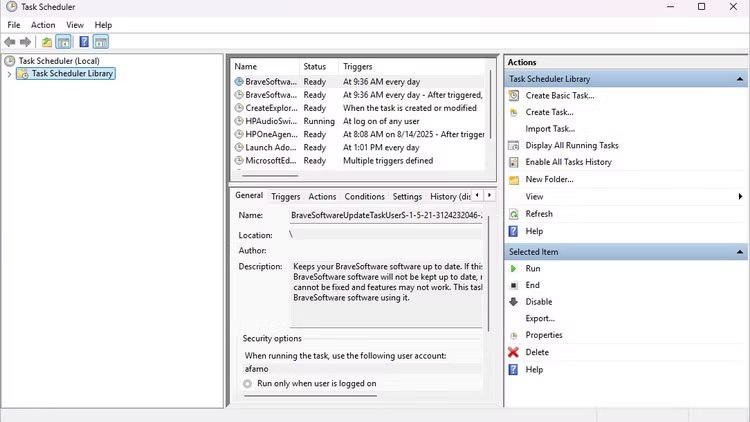
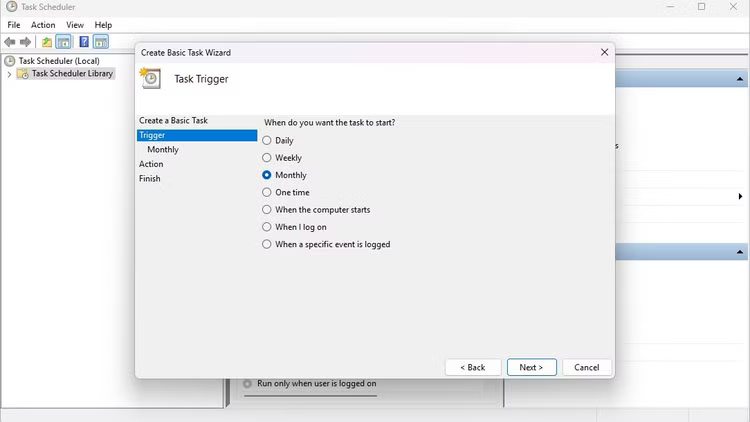
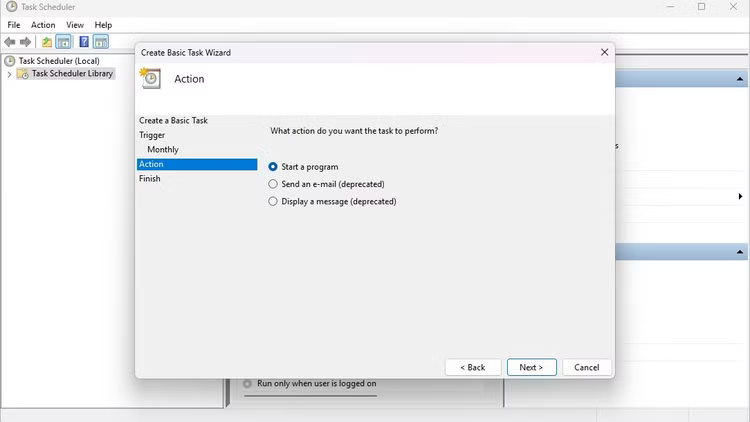
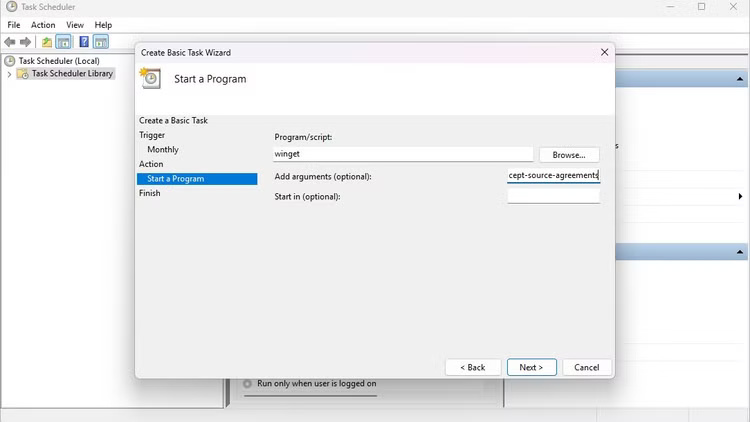
Of all the productivity tips WinGet offers, automation is at the top of the list. Windows Task Scheduler can run programs on a schedule, but you can take it to the next level and create an automated maintenance tool when combined with WinGet.
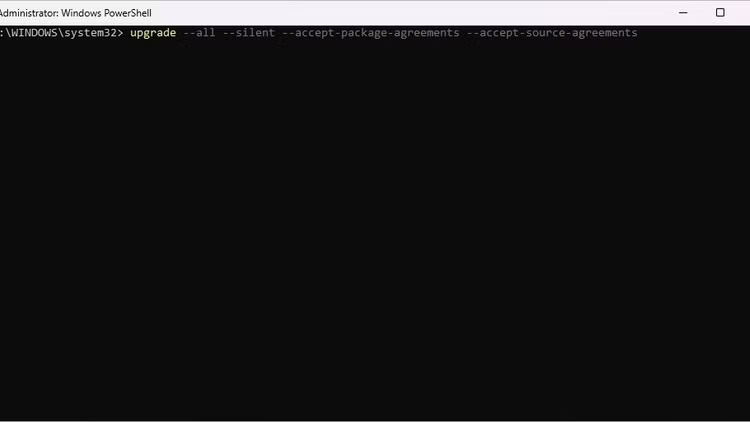
The most common use of this feature is to update all applications on a schedule. Since the scheduler works with scripts, you can create a new task, add WinGet as a program, and include this command as a script:
upgrade --all --silent --accept-package-agreements --accept-source-agreements This way, when the scheduled task runs, WinGet will automatically run the script and automatically update all applications.
Final Thoughts
Overall, 4 Winget Tips That Will Change the Way You Use Windows 11 is best understood by considering the main facts, practical context, and limitations together. Use the details above as a clear starting point and confirm time-sensitive information when necessary.
FAQ
What does this article explain about 4 Winget Tips That Will Change the Way You Use Windows 11?
Anyone who uses a computer regularly knows how quickly certain tasks can become repetitive and tedious. For someone who regularly troubleshoots or repairs their computer, having a Windows feature that makes it easy to install software is always a useful tool.
What should you know about Manage the entire system status?
With a new computer, you need to install your most used applications, but installing them one by one is often very slow. While you can speed this up with WinGet, installing them one by one doesn't demonstrate its power.
Should time-sensitive details be verified?
Yes. Software features, game codes, product specifications, prices, and research findings can change. Confirm important details with an official or primary source when accuracy affects your decision.
Related Articles
 How to Fix Winget Not Recognized Error on Windows9 minutes read
 How to Install Multiple Applications Using Winget and Winstall on Windows4 minutes read
 How to Use Winget - New Package Manager for Windows 106 minutes read
 Install 20 Windows Apps with Just One Command with Winget: How-To Guide7 minutes read
 How to Install Claude Code on Windows 116 minutes read
 Hidden Windows Features Make Software Installation Easy6 minutes read
Reader Comments 0
Sign in with email or Google to join the discussion.