Table of Contents
Setting up a new Windows computer can be a nightmare. You have to spend hours downloading and running the installer in addition to setting up Windows properly.
Setting up a new Windows computer can be a nightmare. You have to spend hours downloading and running installers in addition to setting up Windows properly. While there are ways to quickly remove junk software from Windows, installing new programs can be a real time-suck.
Fortunately, Windows Package Manager or Winget has condensed this process into a single command. No more searching for official download links and no more risk of accidentally downloading unknown software.
Install multiple applications with Winget
Save time by downloading dozens of apps at once
If you're setting up a new Windows computer, installing 20 apps that you use every day will require opening a browser and searching for a downloader or going to the official website. Once there, you'll have to download each installer individually and go through the download process 20 times before you get all the apps you need.
This process is time-consuming and can also be unsafe. If you accidentally land on a phishing or fake website that impersonates the real program you want to download, you may end up downloading fake installers that often contain malware or viruses.
With Winget, however, all You should do is run the Winget install command followed by the application name. For example, it is possible to install 20 of the most used Windows applications with just one Winget command like this:
Winget install MarkText.MarkText AIMP.AIMP Microsoft.VisualStudioCode Notepad++.Notepad++ VideoLAN.VLC 7zip.7zip Audacity.Audacity Discord.Discord Spotify.Spotify REALiX.HWiNFO Microsoft.PowerToys BlastApps.FluentSearch Git.Git Python.Python.3 Zen-Team.Zen-Browser OBSProject.OBSStudio Notion.Notion SlackTechnologies.Slack Zoom.Zoom Valve.Steam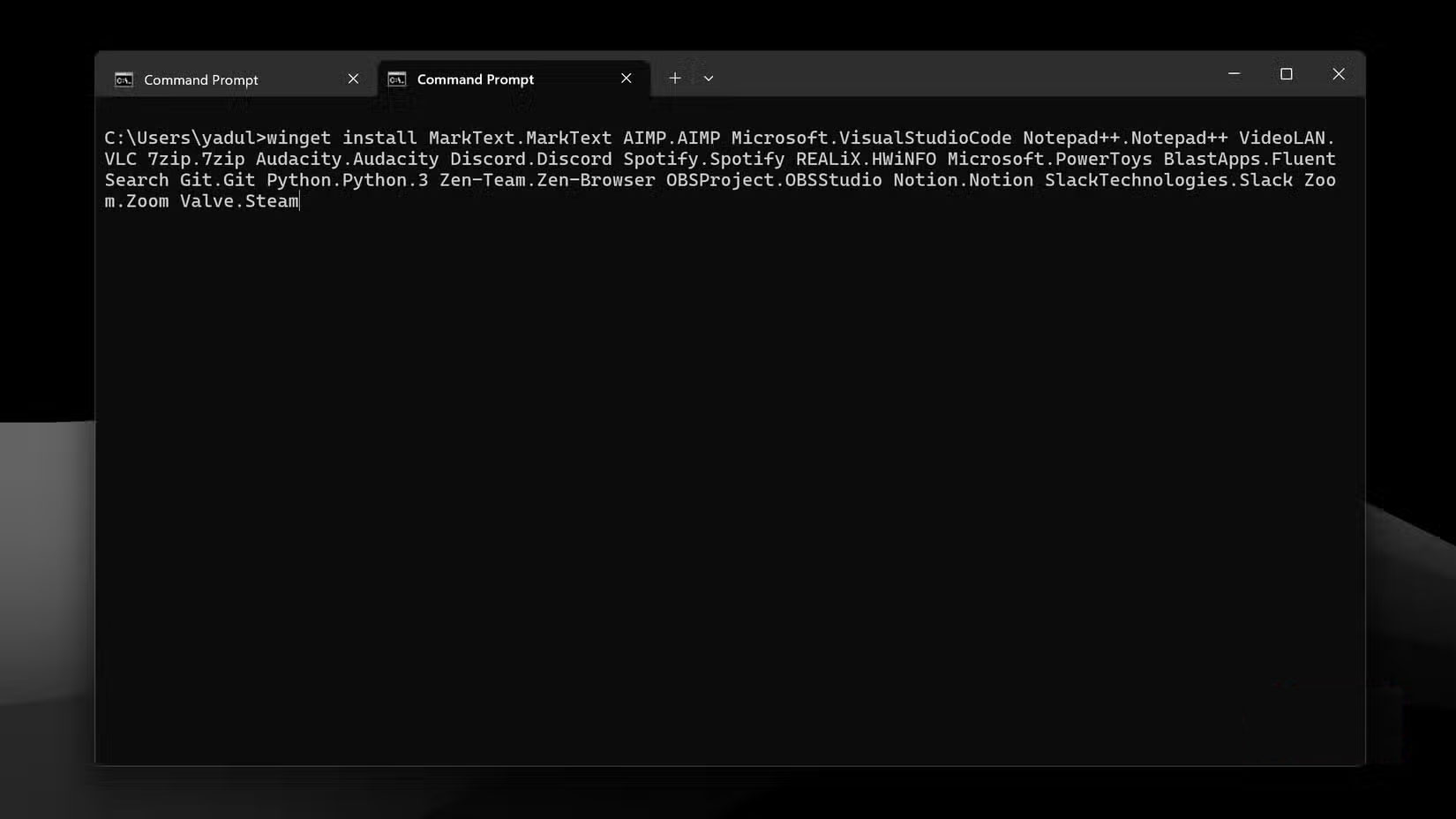
That's right! With just one command, you can walk around while Windows installs everything automatically. No installers, no clicking, and no fear of downloading fake installers.
If you have trouble installing or finding a specific package, make sure you type the package name correctly. Winget package names are in the format publisher.program. For example, Slack should be referred to as SlackTechnologies.Slack or Steam should be referred to as Valve.Steam.
A good way to make sure you get the package name right is to use the winget search command. This will search the Winget repository for any program you want and return a list of matching packages along with their IDs, versions, and source codes.
Winget search [application name]And if searching for the package name is too much of a hassle, there are GUI and web options that can make using Winget easier. You can use winstall.app, a website that lets you search for an application and then create a Winget command to run. There's also WingetUI, a third-party UI wrapper for Winget that eliminates the command line interface entirely.
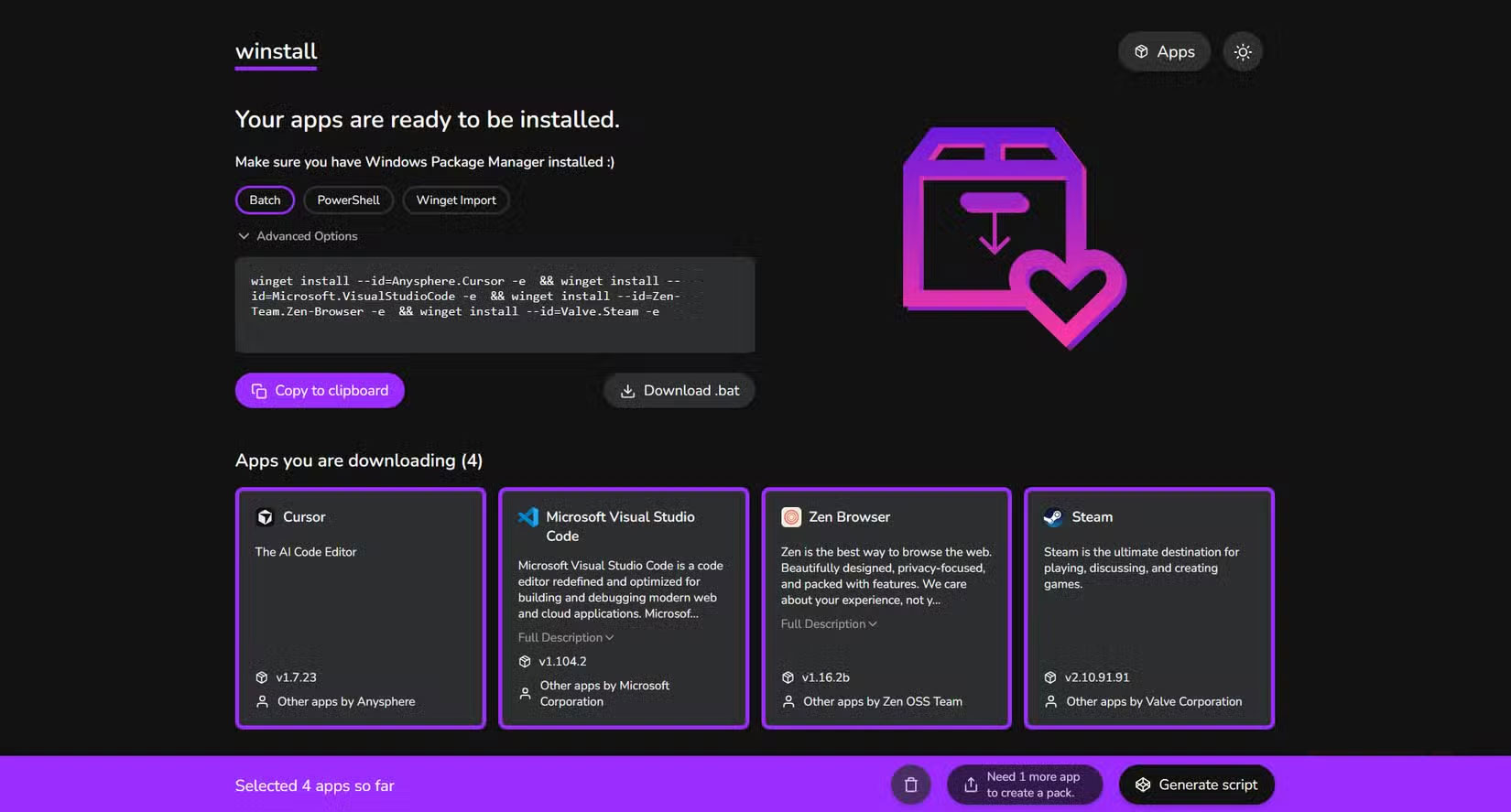
For those switching between machines, Winget is still useful. You can use the Winget export Command to export a list of installed files as JSON from your current machine. Move the JSON file to the new machine and run the Winget import Command to install all your old applications on the new machine. You can rebuild your Windows setup in just a few minutes using Winget's export and import commands.
Last but not least, Winget also supports YAML configuration files through the DSC (Desired State Configuration) feature. You can create a single YAML file that not only installs applications but also configures Windows settings as per your requirements. Many such Winget tips can change the way you use Windows 11.
Easier mass installation
Export, import, and script to automate everything
Installing apps the traditional way—search, download, install—takes about 5 to 10 minutes per app. With 20 apps, that can take 2 to 3 hours of repetitive clicking. With Winget, finding and installing those 20 apps takes 15 minutes at most—less if you know what you're installing or have a JSON import file ready.
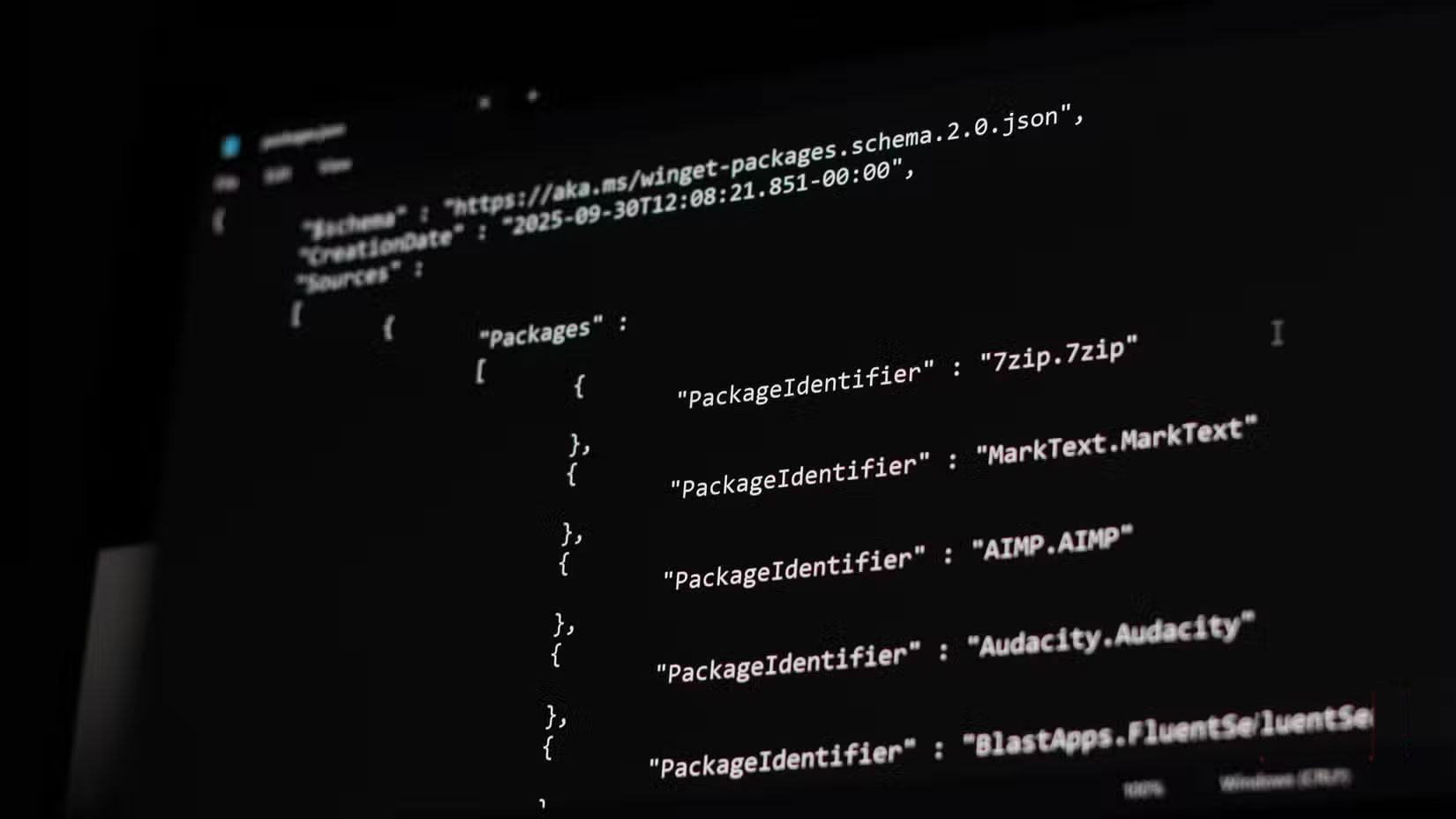
Once you start using WInget, going back to manual setup is silly and a waste of time. You can easily create a custom setup script with essential apps, save it as a batch file or PowerShell script, and you'll never have to spend hours setting up a new computer again.
The command line interface can be a bit confusing at first, but Winget's syntax is quite simple. There are also GUI tools like winstall.app and WingetUI that let you create commands or even skip the command line altogether.
This is how many people have long wished Windows package management worked. Your time is valuable, so let Winget do the heavy lifting while you focus on using your computer instead of configuring it.
FAQ
How do you install 20 Windows apps with just one command with winget: how-to guide?
In practical terms, setting up a new Windows computer can be a nightmare. You have to spend hours downloading and running the installer in addition to setting up Windows properly.
What should you check before getting started?
Review the requirements, compatible device or software version, and any warnings described in the guide before making changes.
What should you do if the steps do not work?
Repeat the steps in order, confirm that your app or system is up to date, and review the troubleshooting details provided above.
Related Articles
 How to Use Winget - New Package Manager for Windows 106 minutes read
 How to Install Claude Code on Windows 116 minutes read
 How to Fix Winget Not Recognized Error on Windows9 minutes read
 4 Winget Tips That Will Change the Way You Use Windows 116 minutes read
 How to Install Multiple Applications Using Winget and Winstall on Windows4 minutes read
 Hidden Windows Features Make Software Installation Easy6 minutes read
Reader Comments 0
Sign in with email or Google to join the discussion.