Table of Contents
Using one large SSD for your entire computer may sound convenient, but it's not the best option. Learn how to partition drives, add HDDs, or NAS to boost performance and save money.
It's true that if you need many storage, the easiest way is to buy a big SSD to hold everything. But that's not the best option—both in terms of cost and performance. If you want to get the most out of your computer, there are a few smarter ways to go.
Add a separate SSD for gaming or heavy tasks
This tip is especially useful for gamers, but it can be applied to anyone. Games can still run fine on the main SSD, but adding a separate SSD for gaming has significant benefits.
First, by dividing the load between two drives (one for the OS, one for games), you extend the life of both drives. While most of the wear and tear occurs during data writes, separating the tasks of each drive makes the system more stable and durable.
Second, the more full an SSD is, the more its read/write speeds decrease, so having each drive running independently with more free space will give better performance than having all the data on a single drive.
Additionally, data separation also provides additional security. SSDs can still fail or fail, so if one fails, you still have your data on the other. While regular backups are always recommended, it never hurts to have an extra layer of protection.
Use HDD for data that does not require high speed
HDDs are obviously not as fast as SSDs, but that doesn't mean they're useless. In fact, not every file on your computer needs extremely high read and write speeds.
The operating system and games should definitely be on the SSD, but other files like music, movies, old photos, backups, ISO files. can absolutely be saved on the HDD without affecting the experience.
A 4TB HDD currently costs only about 1.7-2.2 million VND, while an SSD with the same capacity can cost 4-5 times more. With this storage configuration, you can both save money and keep your SSD clean and running more smoothly.
Even if you remove unnecessary data, you can just buy a smaller capacity SSD and still get enough — saving a fair amount of money.
Move user folder to another drive
'Documents', 'Downloads', 'Pictures', 'Videos'. often contain gigabytes of extra data, taking up many space on your main drive. If you don't want to delete them, move them to another drive.
Making:
- Right click on the folder you want to move → select Properties.
- Go to Location tab → select Move → specify a new location on another drive.
This method does not affect the system (except for some special software that requires a fixed path, but can be completely restored).
You can also take the opportunity to purge old data — it could potentially free up a few dozen GBs of space.
Use NAS for long-term storage of backup data, movies or documents
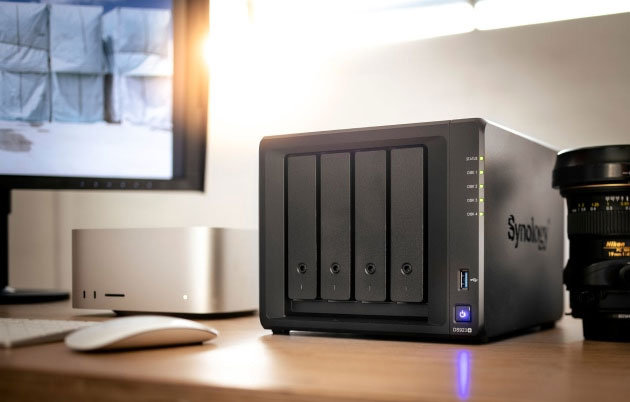
If you have many photos, videos, or data to backup, consider investing in a NAS (Network Attached Storage) — a dedicated network storage system.
NAS is extremely useful for storing large data that is rarely used, or streaming media over a home network. This reduces the load on the SSD, while also increasing data security.
If you don't want to buy a NAS, you can build your own using an old computer. Add a few hard drives and set it up properly, and you have a reliable and efficient storage system. It's more complicated than buying a large SSD, but the long-term results are better.
Conclusion
You can find more efficient ways to arrange your storage than just using one 'super-sized' SSD. Depending on your needs, you can choose between simple and low-cost or more complex but more economical and durable.
Of course, if you have plenty of space, there's no need to make the switch just yet. But if you're looking to optimize your system, now's the time to take a look at how you're using your SSD—because sometimes, 'less is more.'
FAQ
What should you know about don't just use one large SSD for your entire computer, here's why!?
In practical terms, using one large SSD for your entire computer may sound convenient, but it's not the best option. Learn how to partition drives, add HDDs, or NAS to boost performance and save money.
Why does don't just use one large SSD for your entire computer, here's why! matter?
The article highlights that it's more complicated than buying a large SSD, but the long-term results are better.
What is the main takeaway?
The main takeaway is that conclusion There are more efficient ways to arrange your storage than just using one 'super-sized' SSD.
Related Articles
 How to Hide the Entire File System1 minutes read
 Download / Download the Entire Facebook Photo Album to Your4 minutes read
 The Easiest Ways to Find Large Files on Windows8 minutes read
 How to Download the Entire Contents of a Web Page to Your4 minutes read
 The Whole City Had to Return to the 'Stone' Era Using Typewriters Because the3 minutes read
 History of Computer Development7 minutes read
Reader Comments 0
Sign in with email or Google to join the discussion.