Table of Contents
This updated guide answers the question 'Do You Know How Productive You Can Be with Windows 11' with clear explanations and practical context. The biggest killer of productive work sessions is distractions. But not the kind that get lost when someone walks into your room. Instead, it is the constant notifications from apps, emails, and messages that take your focus away from your work.
3. Focus Sessions Help You Stay Focused on the Task at Hand
Focus Sessions is a widget in the Windows Clock app that uses the Pomodoro technique to break down your work into focused intervals with short breaks in between. it is a simple way to give your brain a finish line and train yourself to stay focused on a task.
To get started, choose the Start button, type Clock , and open the app from the search results. open the Focus Sessions tab, where you can set how long you want each session to last. The default is 30 minutes, but you can set it to 60 minutes for deeper work. You can go up to 240 minutes, with up to 8 breaks along the way.
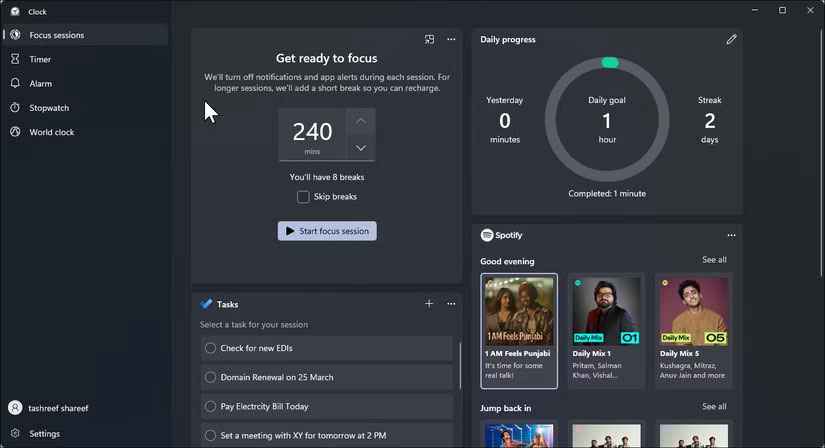
When you're ready, choose Start focus session . This will launch a screen timer that tracks your remaining work time and automatically turn on Do Not Disturb, blocking unnecessary notifications so you can focus until your next break.
You do not always have to open the Clock app to run Focus Sessions. Just press Win + N to open the notification panel, then tap Focus at the bottom to start the session immediately. By default, this will launch a 30-minute focus block with a 5-minute break.
2. Mute Notifications with Do Not Disturb
One of the most useful but underused productivity tools in Windows 11 is the Do Not Disturb feature. While you may have used it on your phone during meetings or at night, it is equally effective at silencing notifications on your computer and staying focused during work sessions.
Windows 11 includes a dedicated Do Not Disturb toggle for quick access. To enable Do Not Disturb on Windows 11, choose the clock on the taskbar or press Win + N to open the notification panel, then choose the bell icon in the upper-right corner to enable Do Not Disturb. A small notification will confirm when Do Not Disturb is active.
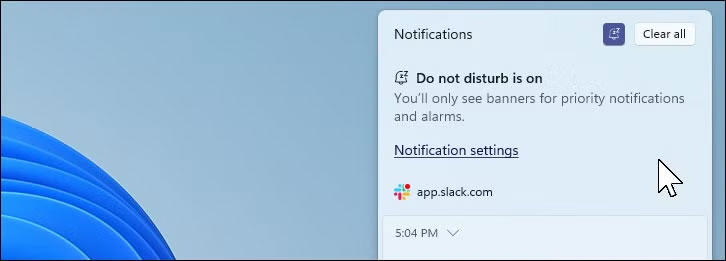
Once enabled, Windows will stop showing pop-up notifications to help you stay focused. Still, you will not miss anything important - all notifications are still stored in the notification panel so you can check them whenever you want.
You can customize priority notifications to allow alerts from specific apps, calls, or reminders even when DND is on. To set it up, open Start > Settings > System > Notifications and choose Set priority notifications . From there, select Add apps to choose which apps can break the silence, including calls and reminders from communication apps you trust.
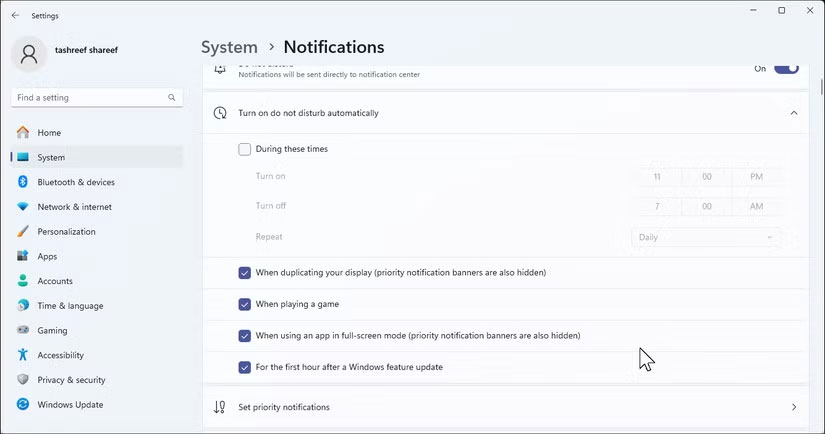
There is one limitation: Windows does not let you set an automatic end time for DND, requiring you to turn it off manually. Still, you can schedule DND to automatically activate at specific times, such as work hours, so you do not have to manually turn it on and off every day.
1. Optimize Power Settings for Performance or Battery Life
Productivity suffers when your laptop slows down or runs out of battery in the middle of a task. This is an area that many people do not often think about, which is why it is important to choose the right power mode based on where and how you work.
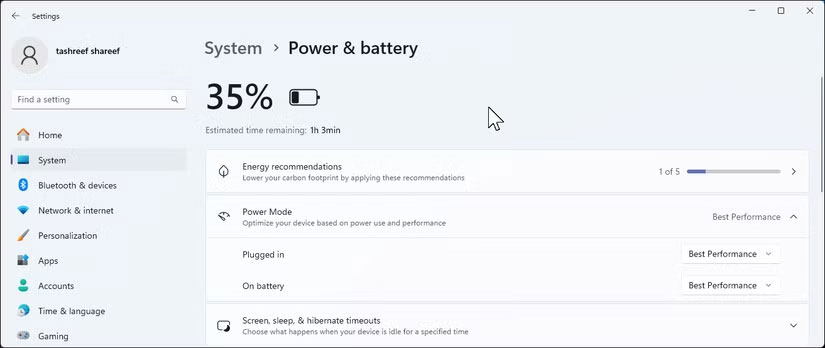
Windows 11 offers three built-in power modes: Best Performance, Balanced, and Best Power Efficiency. By default, Balanced mode is used to provide adequate power while keeping power consumption low. Contrary to popular belief, Balanced mode is actually quite dynamic. It automatically adjusts your computer's performance based on what you're doing. It can speed up your CPU when you're running heavy tasks and save power when you're doing lighter tasks.
Still, if you plan on working away from a charger, switch to Best Power Efficiency to maximize battery life. To change the power mode, open Settings > System > Power & battery , then use the Power mode drop-down menu under On battery to select Best Power Efficiency .
Also, do not forget about Energy Saver for those low battery moments. To enable it, choose the network, volume, and battery icons on the taskbar, then toggle Energy Saver on or off in the Quick Settings panel (scroll as needed).
These simple Windows 11 tools will make a real difference in the way you work. When you can focus during work hours, you'll get things done faster and have more time for what really matters: Spending time with family, taking care of your health, or simply relaxing without feeling guilty about unfinished tasks.
FAQ
What is the main takeaway about Do You Know How Productive You Can Be with Windows 11?
The key is to understand the core idea, compare the available options, and apply the practical guidance that matches your situation.
What should beginners know about Do You Know How Productive You Can Be with Windows 11?
Start with the essential steps and terminology. Avoid changing advanced settings until you understand how they affect performance, privacy, cost, or compatibility.
How can I use this information in practice?
Follow the relevant section in order, test one change at a time, and confirm the result before moving to the next step or recommendation.
Related Articles
 Essential Features to Help You Stay Focused and Productive on Windows9 minutes read
 8 Built-in Android Features to Help You Stay Productive7 minutes read
 What Is Dry Cough? Causes and Symptoms of the Disease5 minutes read
 How to Have a Productive Morning: Work Effectively6 minutes read
 9 Great ChatGPT Prompts for a Productive Workday: Explained7 minutes read
 These Windows 10 Tips Will Help You Be More Productive3 minutes read
Reader Comments 0
Sign in with email or Google to join the discussion.