Table of Contents
You can go your entire life without ever using Command Prompt. However, that's no reason to ignore one of the most powerful tools available on the operating system. Among other things, it's an incredibly powerful download manager that renders third-party GUI download managers useless.
Why CLI download manager is superior to GUI download manager?
If you're wondering why you'd want to leave your familiar GUI-based download manager behind to learn terminal commands, there are a few good reasons.
Reliability
One of the biggest differences between using a CLI download manager from Command Prompt or PowerShell is reliability. Browser or external download managers often stop downloading at the first sign of a connection problem. You could be downloading hundreds of gigabytes of data, and the moment your internet connection goes down, the files will be useless.
On the other hand, Curl and Wget are built for the real world, where connections are imperfect. If you experience connection issues while downloading, these tools will automatically retry, resume interrupted downloads, and handle redirects without any issues.
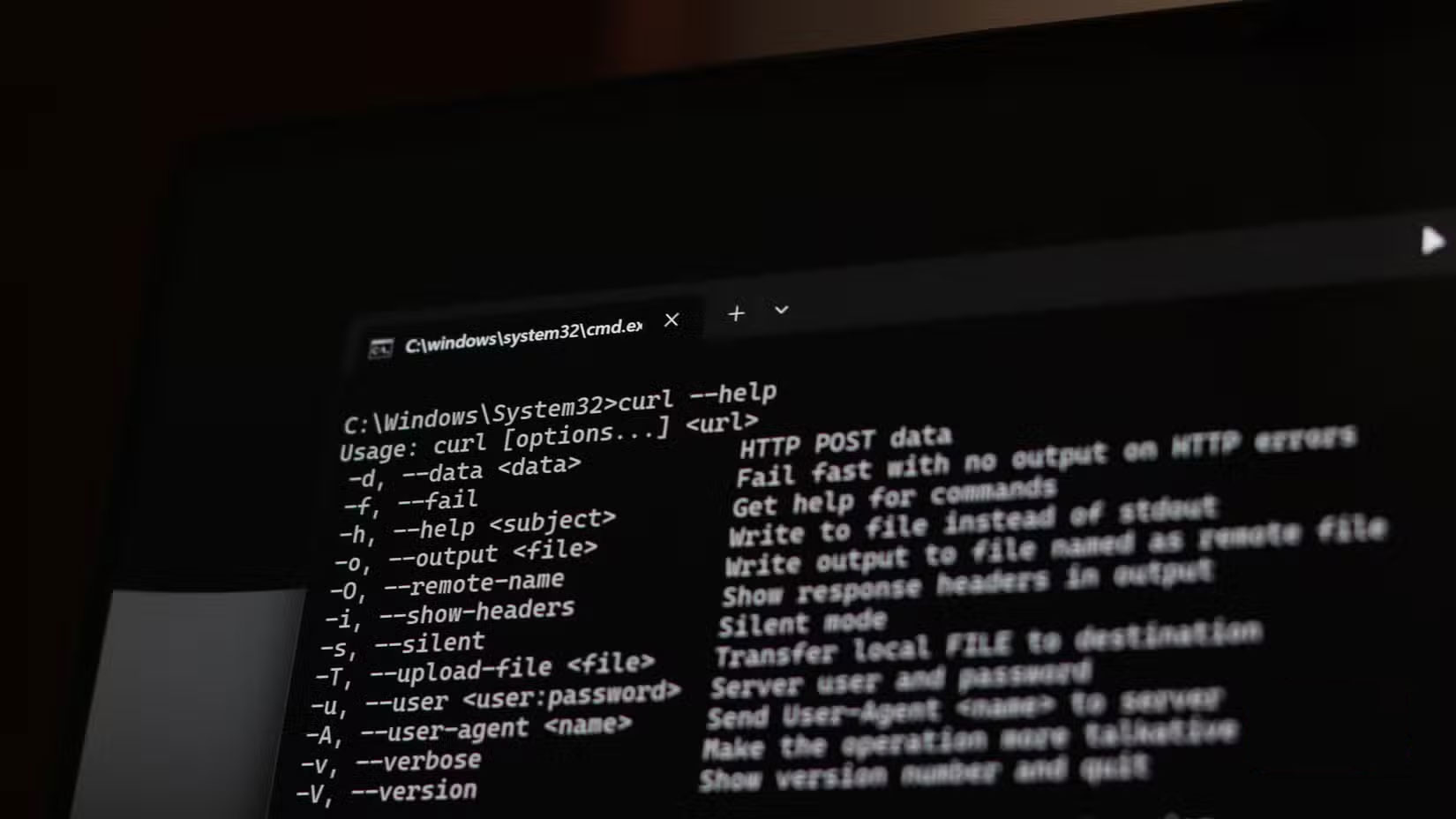
They also help keep your files organized. Sure, you can change the default download location in Windows 11, but it's helpful to know where your files are saved before you even start downloading. If you're having trouble finding and managing your downloads in Chrome, a CLI tool might be the perfect solution.
Speed
CLI download managers are also typically faster than GUI-based download managers. They don't waste CPU or RAM loading cumbersome interfaces and progress bars. CLI tools focus solely on getting the desired file from point A to point B, while providing you with the reliability and information needed to track the download.
As for the difference in download speeds, you will find that CLI tools are almost always faster. GUI-based download managers split the file into smaller chunks or download it in parallel with multiple connections. The problem with this approach is that the available bandwidth remains the same. So all you get is the illusion of faster download speeds. There is also the issue of download managers improperly reassembling files after downloading - this is rare, but it can happen.
Automation capabilities
This is one area where GUI-based download managers can't even match the flexibility of CLI-based download managers. Let's say you're following a tutorial that requires downloading multiple files from different links. Typically, you'd select each link one by one, wait for the download manager to load, and then start the download.
With a tool like Wget, you just dump all the links into a text file, named download-links.txt, and run the following command:
wget -i download_list.txtThat's it! All files will be downloaded exactly to the location you want without having to navigate from page to page and wait for each download to complete. More advanced scripts can even check if a downloaded file is safe before you use it.
Another example is downloading the latest versions of software. You could write a simple script that checks a list of URLs for new downloads, compares them to the ones you already have, and automatically downloads them if there are any updates.
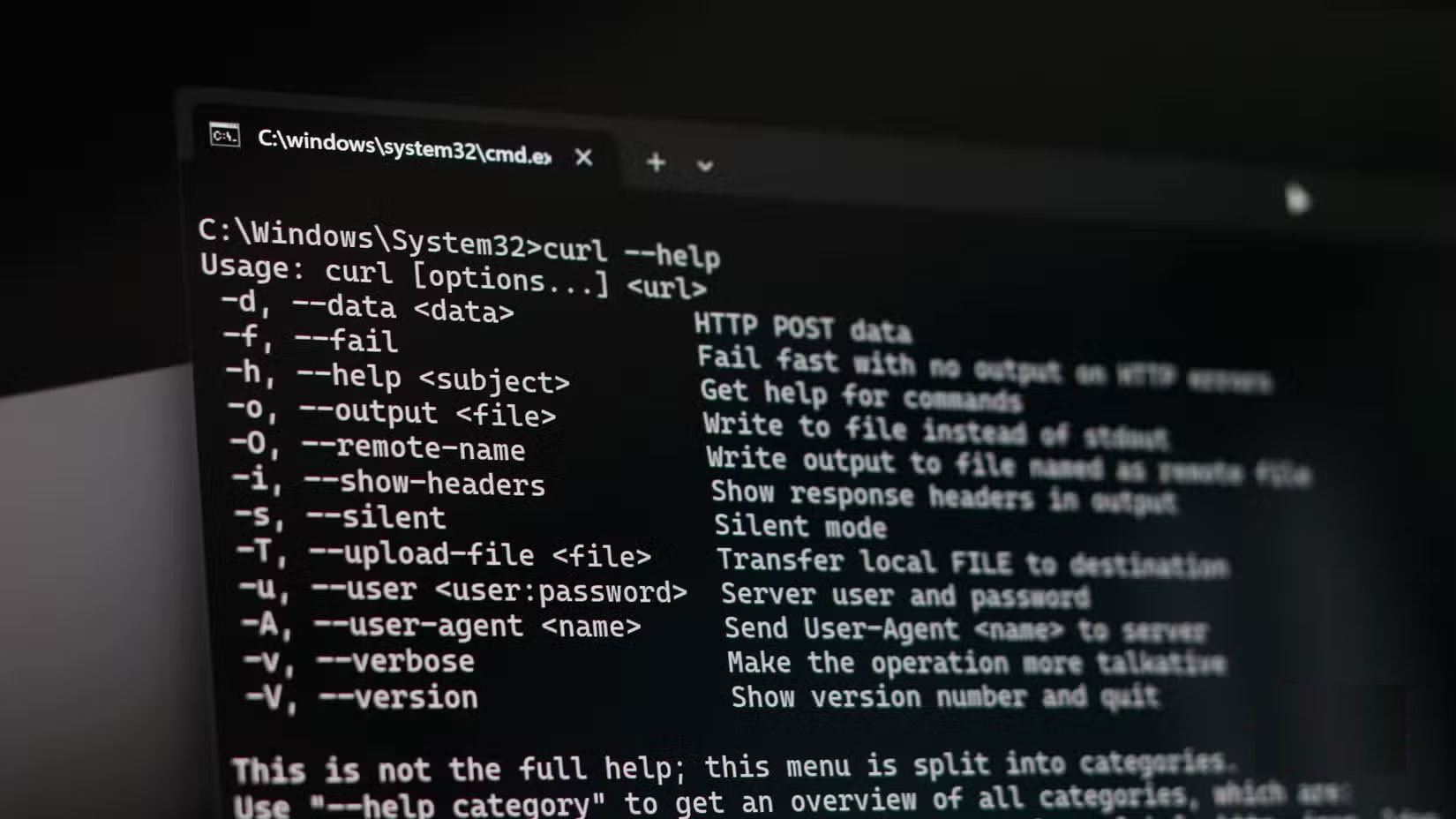
Then use the Windows Task Scheduler utility to set the script to automatically execute at a time of your choosing. Try using a software like IDM to do the same thing and you will be annoyed.
Expense
Last but not least, GUI-based download managers are expensive. Take Internet Download Manager (IDM) for example. Buying a lifetime license for IDM for just one computer costs $24.95. This isn't a high price, but when you consider that Curl is built into Windows and Wget is a free download, the license becomes less and less justified.
Time to try CLI download managers!
If you're worried that CLI tools are too complicated, don't worry. As long as you can copy and paste a URL into your browser's URL bar, you already know how to use Wget. As mentioned earlier, the basic syntax is literally:
wget [URL file]Getting started with Curl can be a bit confusing. Luckily, there is an extremely easy-to-understand official documentation that you can refer to at any time. If that's not enough, feel free to use AI tools like ChatGPT or Gemini. These tools can help you get a better understanding of command line tools, and even programming for Windows or Linux.
It can be daunting to abandon a familiar program for a CLI tool you've never used before, but once you get started, the simplicity and reliability of these tools will keep you hooked for life.
Final Thoughts
Overall, Command Prompt Is Really the Best Download Manager for Windows is best understood by considering the main facts, practical context, and limitations together. Use the details above as a clear starting point and confirm time-sensitive information when necessary.
FAQ
What does this article explain about Command Prompt Is Really the Best Download Manager for Windows?
You can go your entire life without ever using Command Prompt. However, that's no reason to ignore one of the most powerful tools available on the operating system.
What should you know about Why CLI download manager is superior to GUI download manager??
If you're wondering why you'd want to leave your familiar GUI-based download manager behind to learn terminal commands, there are a few good reasons.
Should time-sensitive details be verified?
Yes. Software features, game codes, product specifications, prices, and research findings can change. Confirm important details with an official or primary source when accuracy affects your decision.
Related Articles
 How to Use the Command History Function in Command Prompt9 minutes read
 How to Open Command Prompt on Windows 10, 8, 7, Vista and XP6 minutes read
 Add Command Prompt to Power User Menu on Windows 103 minutes read
 Use the Command in Windows: How to Using Command Prompt20 minutes read
 Open Folder in Command Prompt (CMD): What to Know5 minutes read
 6 Cool Tricks You Can Do in Windows Command Prompt6 minutes read
Reader Comments 0
Sign in with email or Google to join the discussion.