Table of Contents
This guide provides a clear, practical overview of "Why Chromebook Battery Drains So Quickly (and How to Fix It)". It organizes the most useful details, explains important considerations, and highlights the steps or choices that matter most.
However, sometimes you may find that your once-solid Chromebook is draining its battery faster than usual, you may be experiencing one of the following common problems.
1. Screen is too bright
Screen brightness is one of the biggest battery drainers on any laptop, and Chromebooks are no exception. If you run your Chromebook's screen at maximum brightness, your battery life will suffer significantly.
Most people don't need a very bright screen to work comfortably. If you set the brightness high because you're outdoors or there's a lot of ambient light, consider closing the blinds or moving to a place with less direct sunlight.
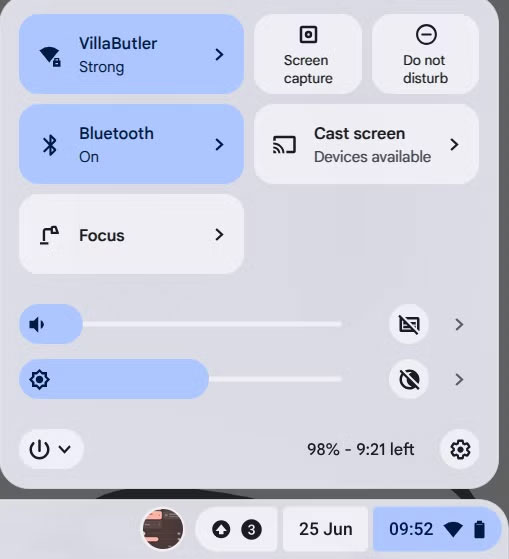
You can also adjust your Chromebook's screen brightness by clicking the system clock and adjusting the brightness slider.
2. Too many tabs or applications running
Like any computer, if you have a lot going on, your Chromebook will need more power to get it all done. For example, if you have a lot of tabs open and some of them are running background processes, this will increase CPU usage. This is less of an issue on modern Chrome browsers, which suspend inactive tabs to save battery and memory, but it can still contribute to battery drain.
Likewise, as ChromeOS has become more powerful and can run more background apps, you may forget to close some apps or apps may not close properly. You can open the ChromeOS Task Manager by pressing Search + Esc .

Of course, restarting your Chromebook will also close any apps that haven't closed properly, so if you haven't done this in a while, give it a try.
3. Heavy utilities or background processes
Chrome extensions can be powerful tools, but you should use them sparingly. Some extensions can run code in the background that can affect your battery life. Extensions can also be a privacy issue, so in general I recommend disabling or uninstalling any extensions you don't need.
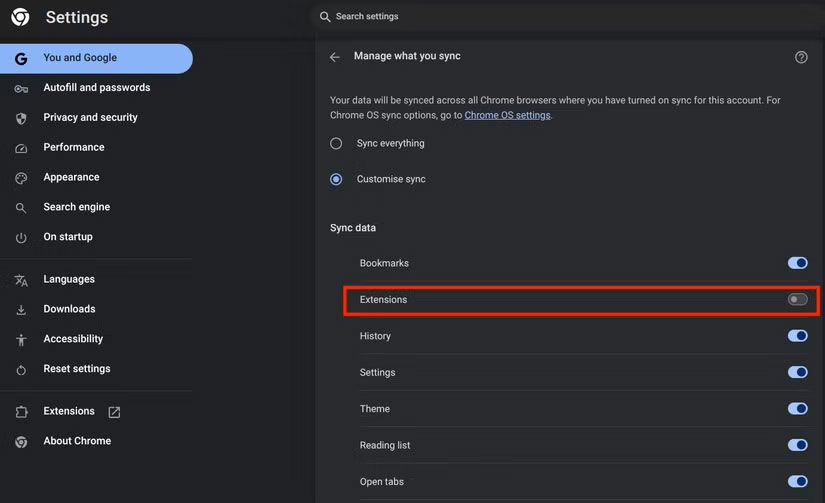
Of course, if you sync your Chrome browser across multiple devices, you may have extensions running that you need on your Windows or macOS system but don't need on your Chromebook. The good news is that you can disable extensions on your Chromebook without removing them from your other computers. Just use the Advanced Sync settings at the following path:
Chrome menu > Settings > You and Google > Sync and Google services > Manage synced content > Customize sync > Extensions . Then just enable the extension option.
4. Android or Linux apps drain battery
It's great that you can now run Android and Linux apps on your Chromebook, but that can come at a cost when it comes to battery life. Some apps, like video games, require more power to run. While your Chromebook might have no problem browsing the web and doing some light office work all day, loading up a Steam game will cut that battery life in more than half.
The only advice here is to make sure you close the above apps when you're not using them. Some apps don't play well with Chrome's power management since they're designed for smartphones, but if you go to Settings > Apps > Manage Google Play Preferences , you can uninstall Google Play and Android apps if you don't want to deal with the hassle.
5. Poor Wi-Fi or Bluetooth connection
When you have a poor wireless connection, the transceivers inside your Chromebook have to crank up their power to their highest levels to maintain the connection. So if you're using Wi-Fi or Bluetooth at the limit of signal strength, your battery will drain faster. This is actually a bigger problem with Wi-Fi, but if you're not actively using a Bluetooth device, it's better to turn Bluetooth off entirely to save some battery.
6. Chrome OS or outdated apps
If you haven't updated your Chromebook or the apps on your system in a while, you should check to see if everything is up to date. The chances are low, but sometimes a bug in your software can cause higher power consumption. Usually, your Chromebook will update automatically, but just in case it doesn't, it only takes a few seconds to go to Settings > About ChromeOS > Check for Updates .
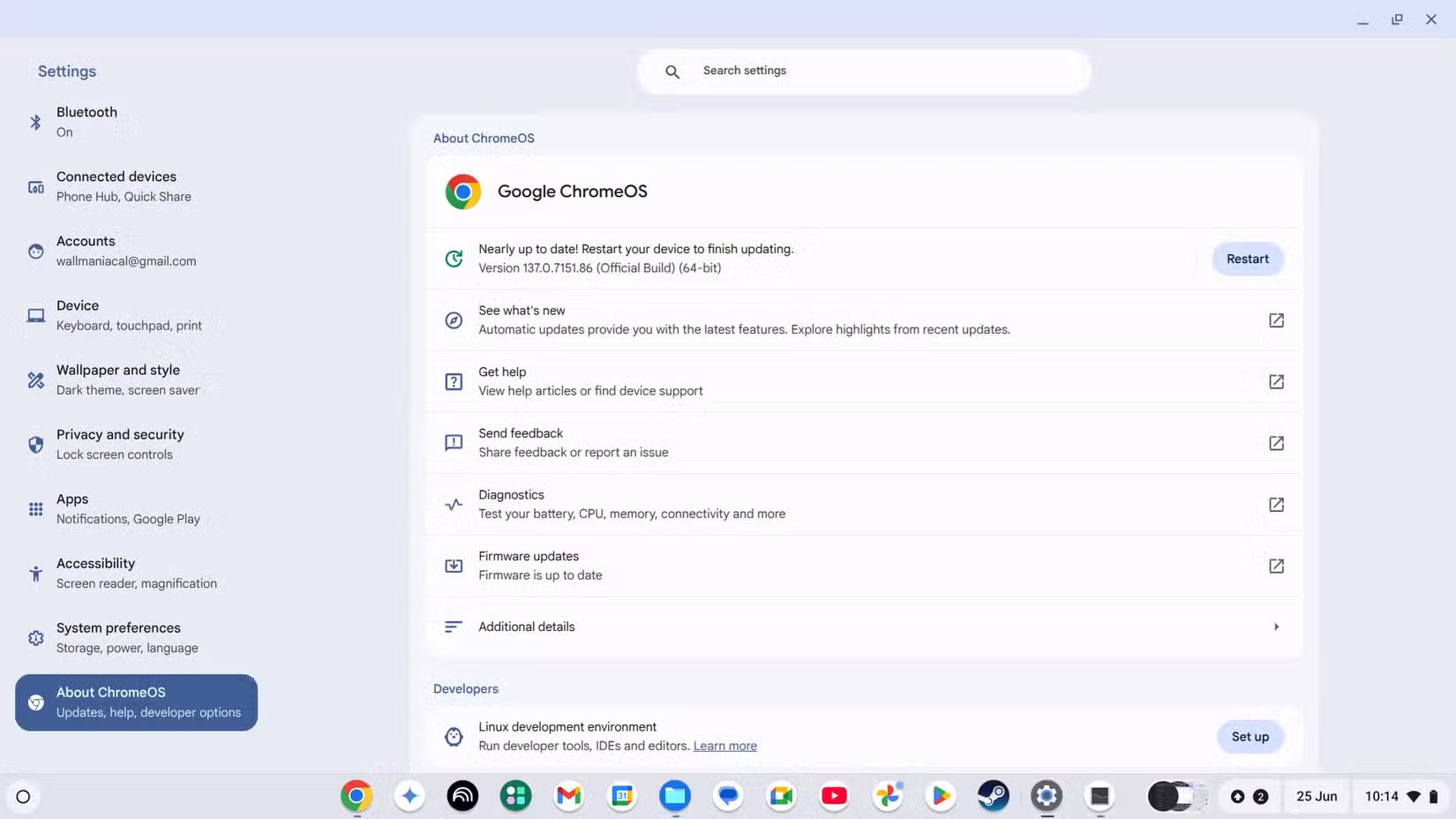
If there are any pending updates, complete them and remember to restart your Chromebook for everything to take effect properly.
7. Power settings are not optimized
ChromeOS doesn't give you as much granular control over power settings as Windows, macOS, or Linux, but you do have some control. If you go to Settings > System Preferences > Power , you can change things like when your laptop goes to sleep. The most useful feature here is " Battery Saver , " which turns on all the battery-saving tweaks you previously had to do manually.
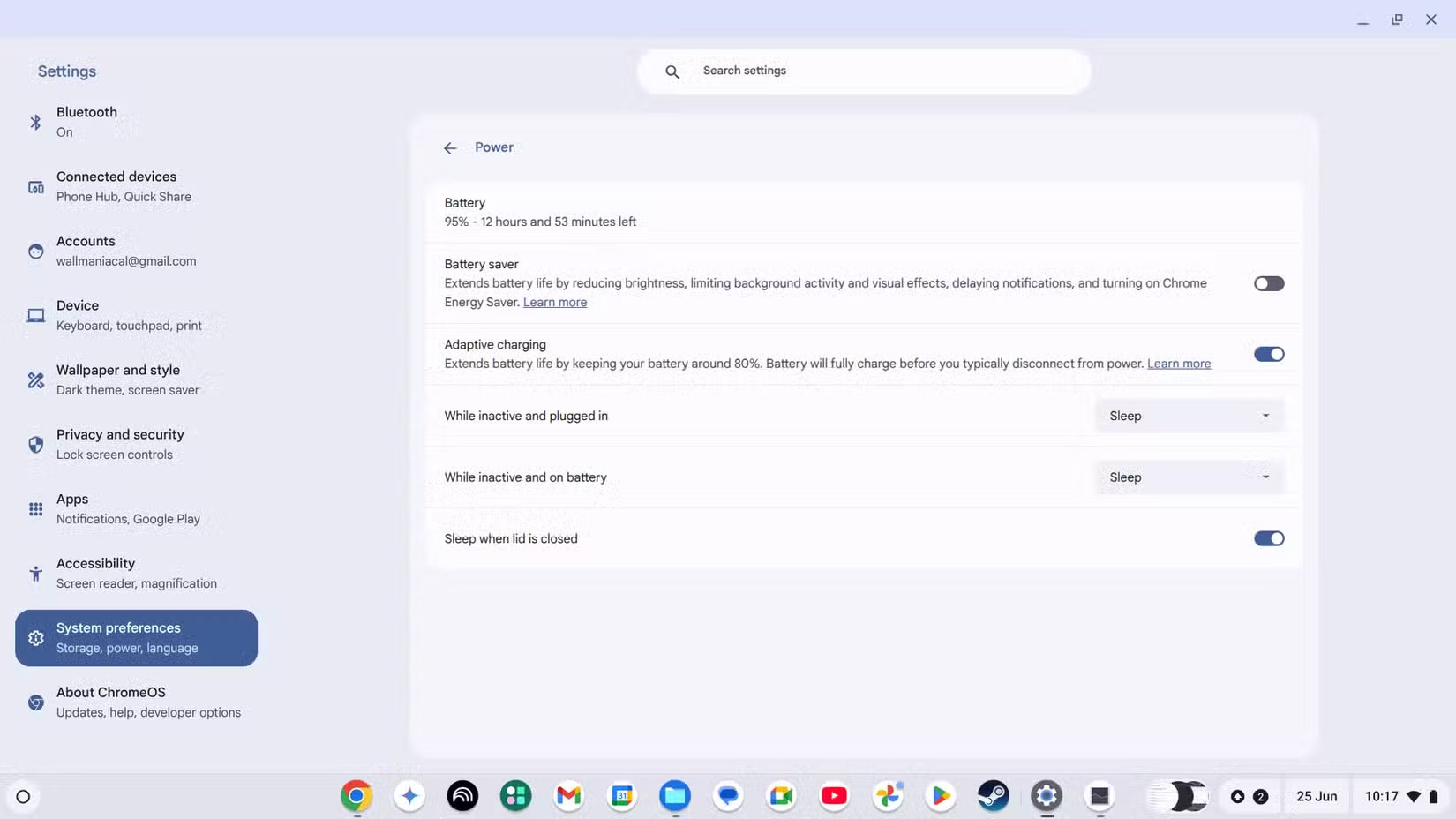
Battery Saver will reduce brightness, cut down on background activity, and make other changes to reduce your laptop's battery drain. This mode usually only activates when your battery is low, but you can manually enable it at any time.
8. You may need to do a factory reset
If none of these solutions work and your Chromebook is definitely losing battery power faster than before, the last software-based trick you can try is a factory reset. Go to Settings > System Preferences > Powerwash and enable it to wipe your Chromebook clean.
Obviously, you should complete any cloud data syncing or manually back up your local files if needed before doing this.
9. Your battery is degrading
All lithium-ion batteries degrade over time. Your Chromebook's battery will lose capacity with each charge cycle until it can no longer hold a usable charge or will simply discharge very quickly.
In some cases, you may have the option to replace the battery, but this depends on whether the Chromebook manufacturer offers this service.
You can use your Chromebook's diagnostics tool to check the health of your battery. Open the launcher and type diagnostics . Then open the tool from the search results.
Now, let's look at the battery health and cycle count. You can also run a battery discharge test here to check if the battery is discharging normally.
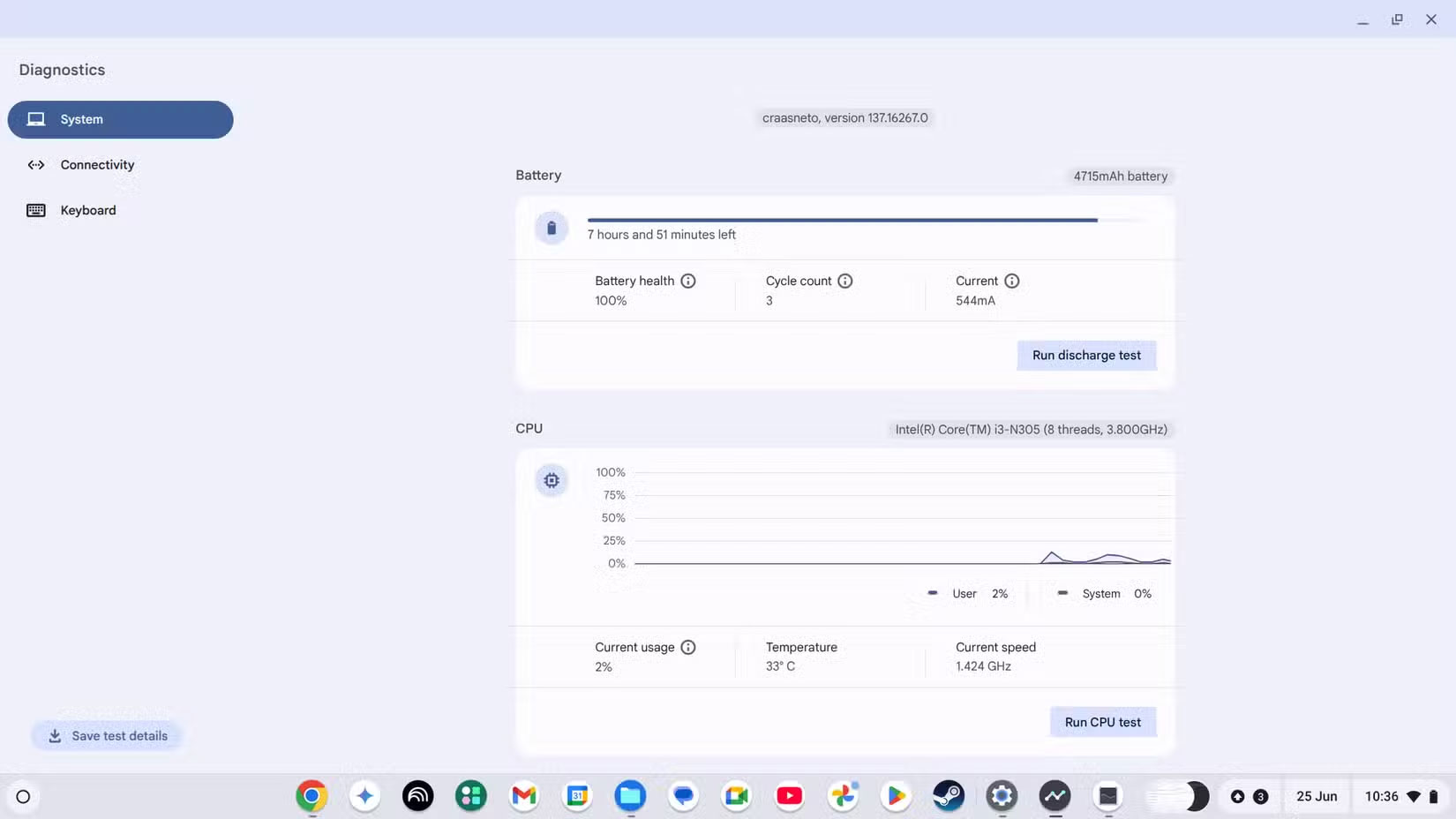
If your battery health rating is below 80%, it's time to replace the battery or buy a new Chromebook. You should consider replacing your battery if:
- Your Chromebook is still under warranty.
- Reasonable replacement cost compared to the price of a new Chromebook.
- You can confidently replace it yourself or have a professional do it for a reasonable price.
Even if you decide to buy a new Chromebook, you can reuse your old one instead of throwing it away.
FAQ
What should you know about 1. Screen is too bright?
Screen brightness is one of the biggest battery drainers on any laptop, and Chromebooks are no exception. If you run your Chromebook's screen at maximum brightness, your battery life will suffer significantly.
What should you know about 2. Too many tabs or applications running?
Like any computer, if you have a lot going on, your Chromebook will need more power to get it all done. For example, if you have a lot of tabs open and some of them are running background processes, this will increase CPU usage. This is less of an issue on modern Chrome browsers, which suspend inactive tabs to save battery and.
What should you know about 3. Heavy utilities or background processes?
Chrome extensions can be powerful tools, but you should use them sparingly. Some extensions can run code in the background that can affect your battery life. Extensions can also be a privacy issue, so in general I recommend disabling or uninstalling any extensions you don't need.
What should you know about 4. Android or Linux apps drain battery?
It's great that you can now run Android and Linux apps on your Chromebook, but that can come at a cost when it comes to battery life. Some apps, like video games, require more power to run. While your Chromebook might have no problem browsing the web and doing some light office work all day, loading up a Steam game will cut.
Related Articles
 This Application May Be the Culprit Causing the Rapid3 minutes read
 5 Reasons Why Your iPhone Battery Drains Quickly7 minutes read
 Chrome Is the Reason Why Your iPhone Battery Drains So Quickly8 minutes read
 Why Laptop Battery Drains Quickly and 8 Effective Ways to Fix It!7 minutes read
 Why Does My Phone's Battery Drain So Quickly in Standby Mode8 minutes read
 iOS 26 Tips to Solve the Problem of iPhone Battery Draining: Key Takeaways6 minutes read
Reader Comments 0
Sign in with email or Google to join the discussion.