Table of Contents
Here are 9 GNOME extensions that are woefully underrated but can change your desktop experience!
Are you tired of seeing recommended GNOME extensions everywhere? Do you want to explore powerful tools that most people don't know about? Here are 9 woefully underrated GNOME extensions that could change your desktop experience!
Note : This article will use Ubuntu 25.04 running GNOME Shell 48. These extensions will also work on other GNOME-based distributions.
Open Bar
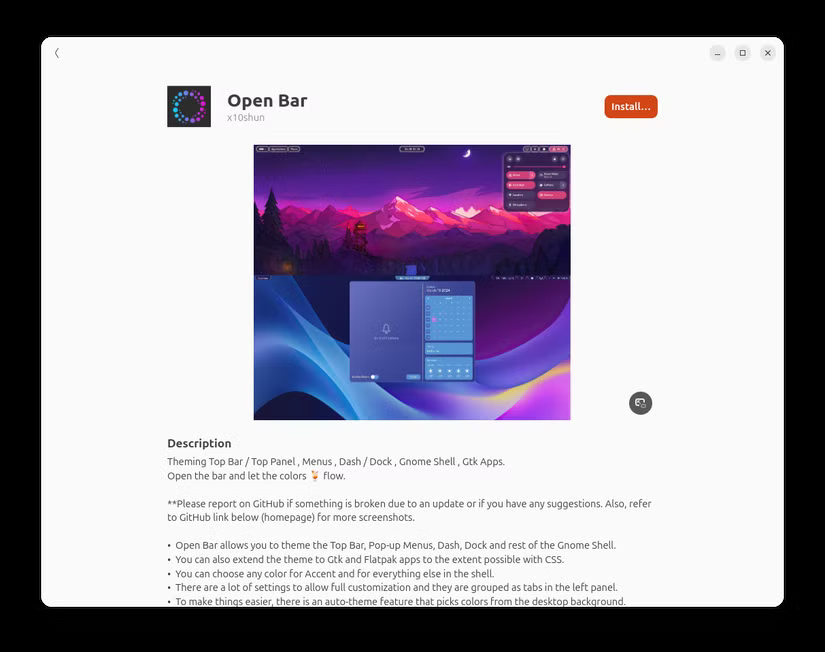
If you've been customizing Ubuntu for years, Open Bar is probably the most powerful tool you've ever encountered. There are so many customization options that covering them all would require a separate article! Luckily, the interface is pretty intuitive, and with a little bit of tinkering, you'll quickly figure out what each setting does.
This extension gives you complete control over the look and feel of your top bar. You can keep the default hard bar docked to the screen, switch it to a floating style, or split sections like the clock and quick settings area into separate zones. You also have granular control over the color scheme, with the option to automatically change colors based on the current wallpaper.
Search Light
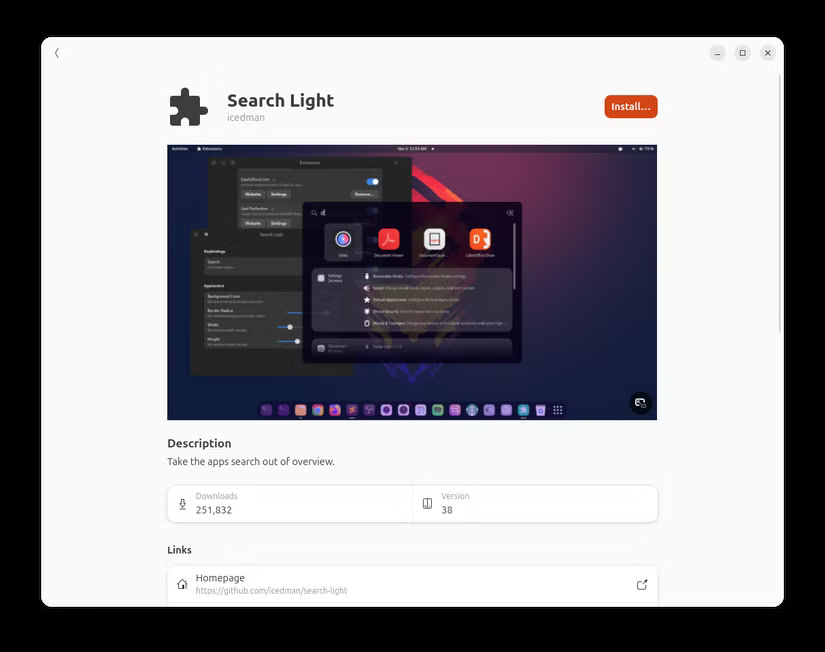
If you've ever used macOS and its Spotlight feature, Search Light is the GNOME equivalent. You press a keyboard shortcut like Alt + Space (to simulate Command + Space on macOS) to bring up a small search field where you can type the name of a file, application, or setting and quickly launch it. It can be configured with any keyboard shortcut.
In practice, when using Search Light, you can see all active windows running behind the transparent search field for more context.
GNOME Fuzzy App Search
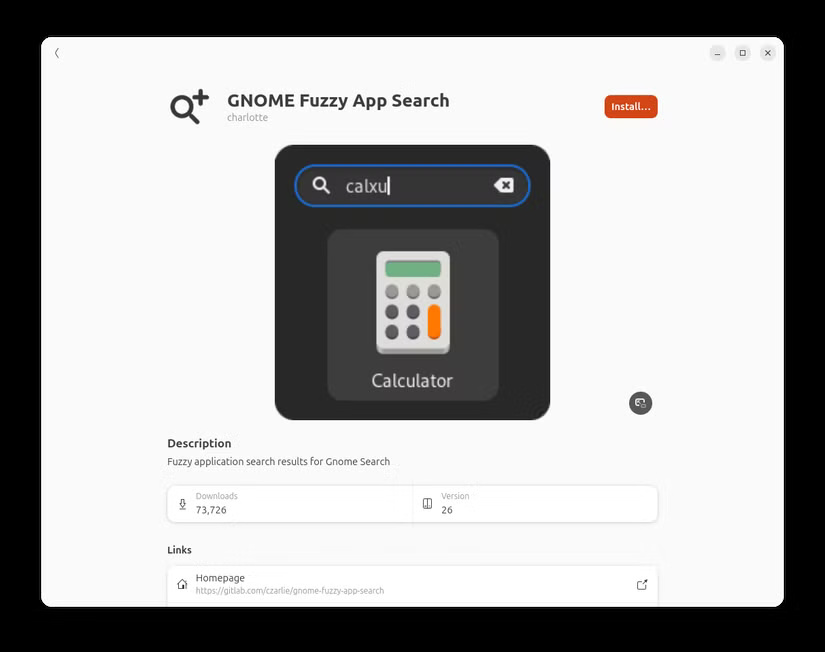
GNOME Fuzzy App Search is probably the simplest extension on this list, but it's also one of the most useful. By default, GNOME is very strict about spelling when searching for content, but this extension makes it a lot easier. You can write settings like setting and it will still understand what you're looking for and show you the apps.
Astra Monitor
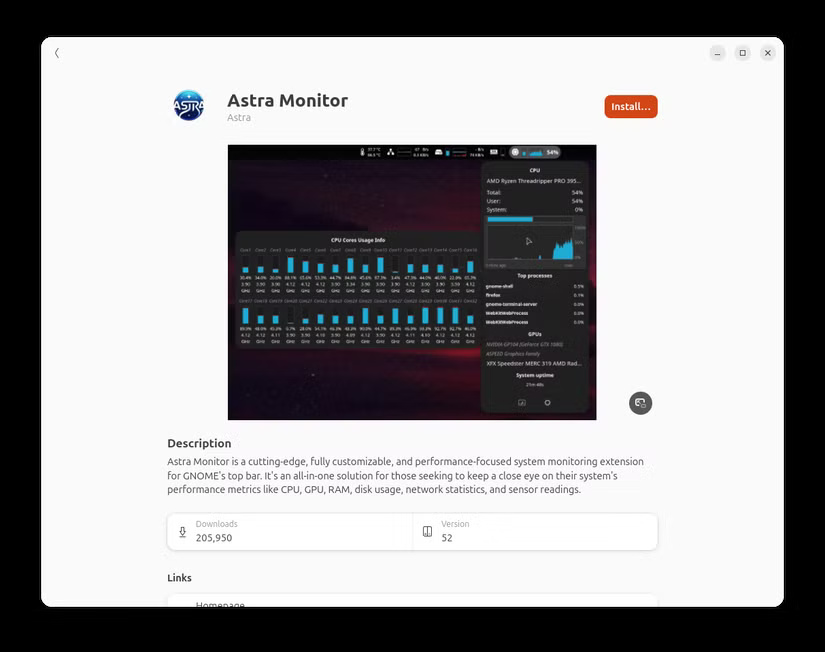
Vitals is probably the most popular GNOME extension for system monitoring, and many people used to rely on it—until they stumbled upon Astra Monitor and were overwhelmed by the difference in data presentation. While Vitals gets the job done in a simple and easy-to-understand way, Astra Monitor brings both style and substance to monitoring your system resources.
You can hover over system monitor components to display more data or click on them for a rich drop-down interface with detailed information. It's comprehensive without being too complicated, and the intuitive design makes it feel more like a beautiful dashboard for your computer than a system monitor.
Fly-Pie
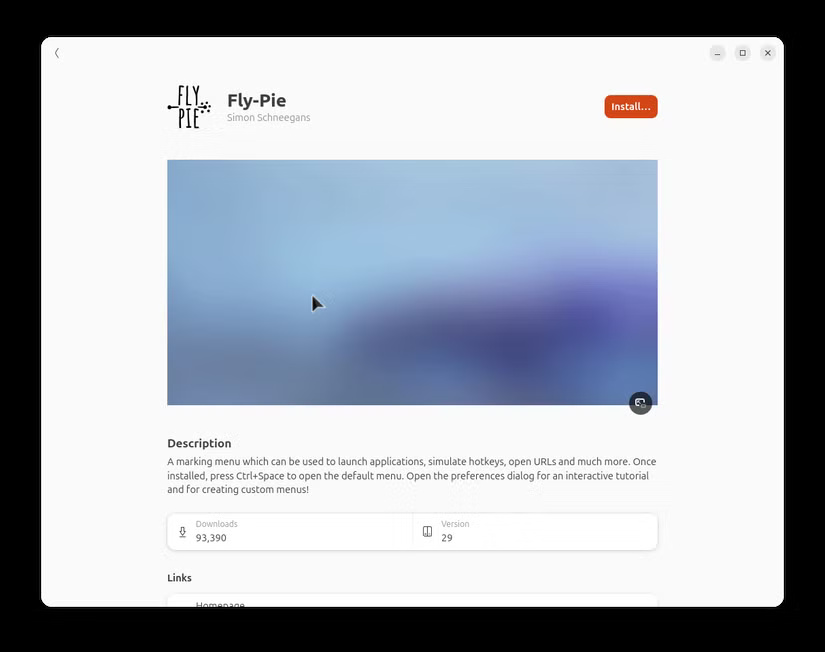
Fly-Pie is definitely one of the most unique extensions you'll ever come across. It's basically a circular menu (it looks like a pie) that you can activate with a keyboard shortcut (default is Ctrl + Space). You can use it to launch apps, emulate hotkeys, open URLs, and do a bunch of other things. It's perfect for people who enjoy the power of keyboard shortcuts but never remember them and prefer to use the mouse!
Tiling Shell
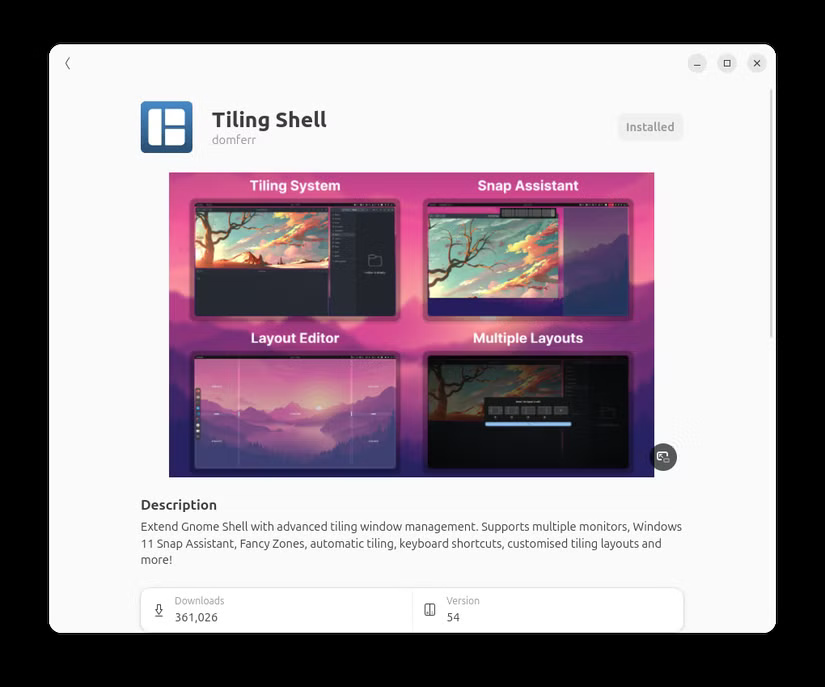
Window arrangement is a must-have feature on any desktop, and there are a bunch of extensions to enable it in GNOME. These include popular options like Forge and gTile, but Tiling Shell is the only one that makes everyone happy! It's basically a combination of Windows 11's Snap Layouts and FancyZones, all wrapped up in a single, polished, and reliable extension.
Quick Settings Tweaks
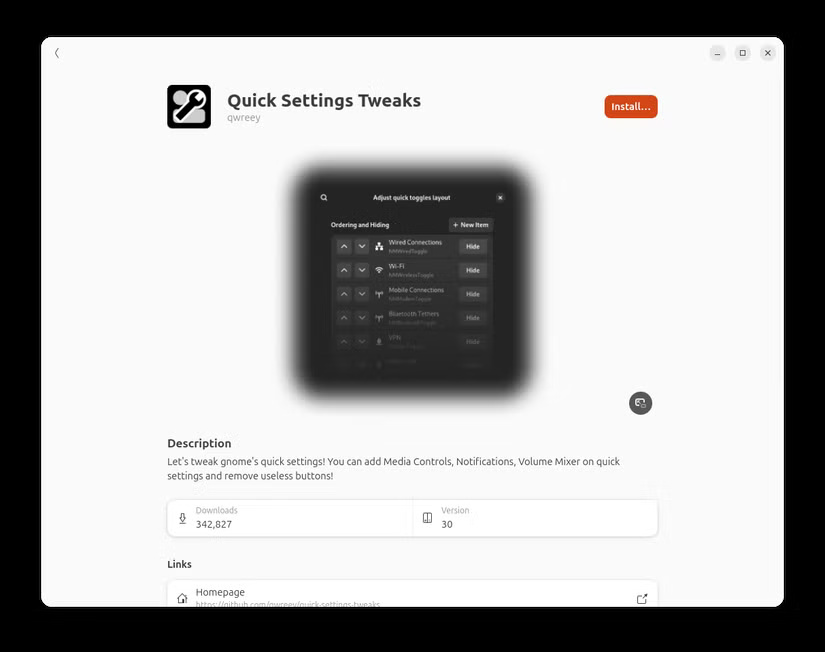
Many people have always hated the rigidity of the GNOME Quick Settings panel because it never lets you customize any of the items or settings you want to have quick access to. This is exactly the problem that the Quick Settings Tweaks extension solves. In fact, it not only lets you customize Quick Settings but also the date menu. You can now remove the calendar area or the notification column if you find any of the items redundant.
Custom Hot Corners - Extended (CHC-E)
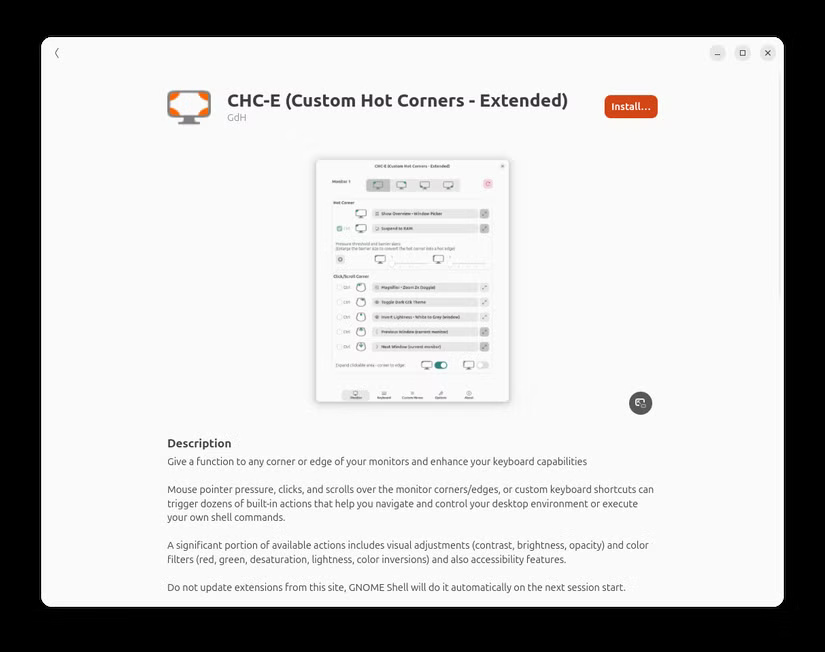
By default, GNOME has a simple Hot Corner function, which when you quickly drag the mouse to the top left corner of the screen, it will activate the Activities Overview. Now, with Custom Hot Corners - Extended, you can extend this function and turn all four corners into trigger zones for almost any action - be it launching an application, controlling brightness or volume, or even executing custom commands.
Advanced Alt-Tab Windows Switcher (AATWS)
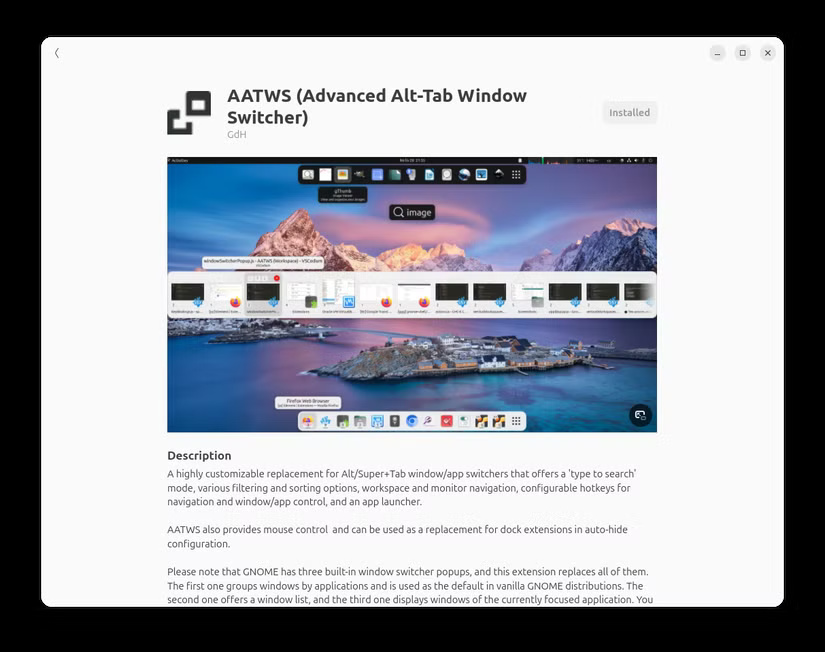
This page is for all Alt+Tab users. The default Alt+Tab behavior is fine—it lets you cycle through all the applications running in the active workspace, and that's generally enough for most workflows. However, if you want to access applications open in other workspaces, preview windows, and even type to search for open applications because sometimes there are so many open applications that you can't find them—then you should install Advanced Alt-Tab Windows Switcher.
So there you have it, 9 woefully underrated GNOME extensions that helps you improve your productivity, enhance your overall quality of life, and heavily customize your desktop to make it your own! Give these extensions a try, and hopefully they will become must-have extensions for your GNOME desktop.
FAQ
What should you know about the options in this guide?
In practical terms, here are 9 GNOME extensions that are woefully underrated but can change your desktop experience.
Which option is the best choice?
The best choice depends on your priorities, compatibility, budget, and the specific features discussed in the comparison.
What should you compare before deciding?
Compare core features, limitations, ease of use, compatibility, and long-term value before making a decision.
Related Articles
 What's Remarkable About the Newly Released GNOME 42?4 minutes read
 The Latest Features of GNOME 4010 minutes read
 How to Disable Automatic Workspace in GNOME4 minutes read
 How to Work with Workspace in GNOME5 minutes read
 The 10 Top Features in GNOME 45: Expert Selection Guide9 minutes read
 How to Change Themes on Ubuntu with Gnome Tweak Tool5 minutes read
Reader Comments 0
Sign in with email or Google to join the discussion.