Table of Contents
Keyboard shortcuts are designed to be useful. But with so many keyboard shortcuts on Windows 11, you're bound to accidentally trigger one.
Keyboard shortcuts are designed to be useful. But with so many keyboard shortcuts on Windows 11, you're bound to accidentally activate one. And many of these shortcuts cause big problems if you don't realize you've activated them or don't know how to reverse the change.
It's a good idea to familiarize yourself with potentially disruptive keyboard shortcuts so you know what they are when they appear. There are a few shortcuts that people see often, and luckily they're not difficult to reverse (or disable entirely).
Sticky keys
Multiple random shortcuts
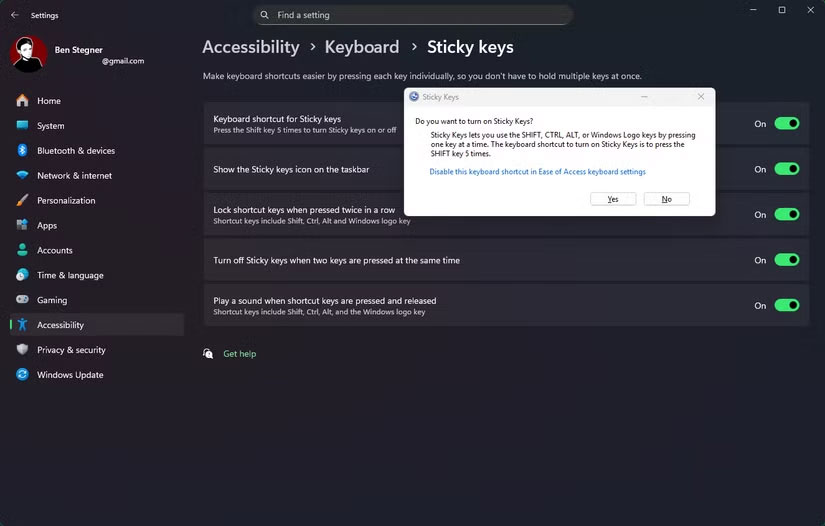
Sticky keys let you enter keystrokes one at a time, so you can press and release Ctrl , then press and release C To copy text. If you don't want it, random shortcuts will keep popping up and interrupt your work.
Pressing Shift Five times in a row will disable Sticky keys, but it's best to disable the shortcut entirely. Open Settings, then go to Accessibility > Keyboard > Sticky keys . Click it, then turn off Keyboard shortcut for Sticky keys . Now the feature won't be enabled unless you do so from this menu.
Windows Narrator
Robot voice reads out everything you do
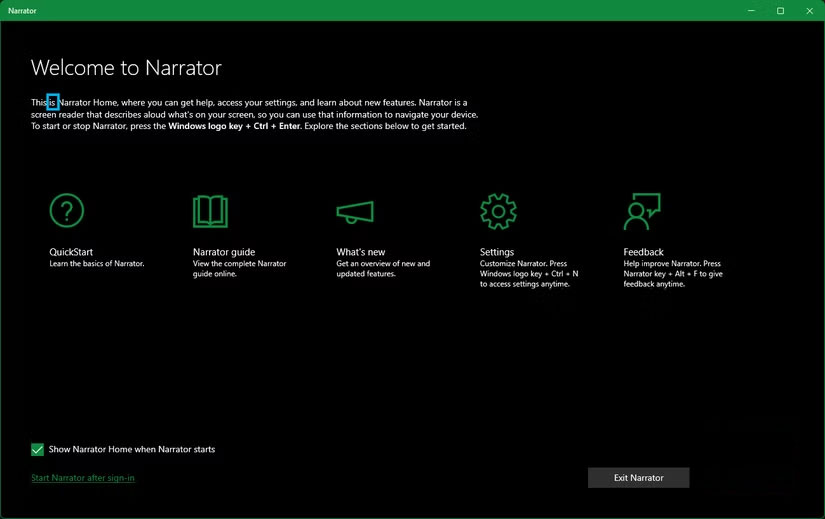
The Win + Ctrl + Enter Shortcut is easy to miss because the latter two keys are used to send messages in some apps. Like Sticky Keys, this same shortcut will also disable it, but you can turn it off to prevent this from happening again. Go to Settings > Accessibility > Narrator And disable Keyboard shortcut for Narrator .
Insert key
Text will be deleted as you type.
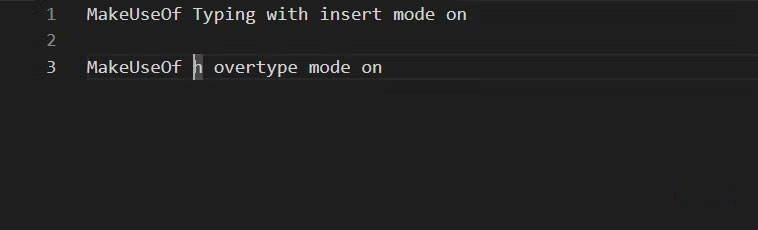
The Insert Key on your keyboard switches input between two modes: Insert and Overwrite. The first mode is the one you're probably familiar with, where new text pushes any existing text to the front. With Overwrite mode, all input erases the existing text at that position.
While both are useful, many people prefer insert mode because it doesn't destroy what's already there. It's easy to accidentally press this key, plus there's no indication that you pressed it. Plus, many programs don't support overwrite mode, so you may not realize it's on until later.
The easiest way to avoid this is to use the Keyboard Manager utility, one of the many great tools in the PowerToys suite. Its Remap a key Option lets you set Insert To Disable (or remap it to another key).
Zoom
Everything is getting bigger or smaller
Windows provides two ways to zoom, both of which are activated by holding down the Ctrl Key. You can use the plus and minus buttons or scroll the mouse wheel. This is useful when you want to do this, but it can also be activated when you're trying to scroll normally.
In my experience, the biggest reason this feature accidentally activates is because of a stuck Ctrl key. If your keyboard is dirty or old, the key may stay in the same position after you press it. Occasionally, you should firmly press the Win, Ctrl , and Alt Keys to make sure they don't get stuck. As we've seen, these modifier keys can cause all sorts of unwanted behavior during an unexpected activation.
Scroll Lock
When the arrow keys scroll the worksheet
By default, the arrow keys change the currently selected cell in Microsoft Excel. However, when Scroll Lock is turned on, the arrow keys will scroll the entire document. Which one you prefer is up to you, and you may find yourself switching between them.
But with this archaic usage, you can safely disable or change the key using the same method as mentioned in the Insert Section.
Full-Screen
You are stuck in the current application
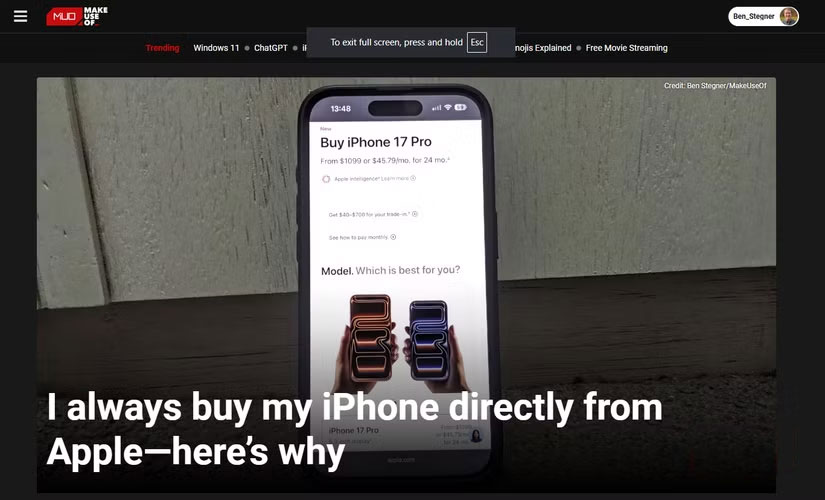
Every Windows user is familiar with the three window control buttons in the upper right corner and dragging the window bar to move it around. But what happens when these buttons disappear and you can't exit the current application?
This happens because of full-screen mode, which can be accessed with the F11 Keyboard shortcut. The title bars of full-screen apps will be hidden; you can bring them back to normal by pressing the same key. Depending on the app, hovering your mouse to the top of the screen may reveal a menu bar or an X To close it.
Developer Tools
Random code takes up space
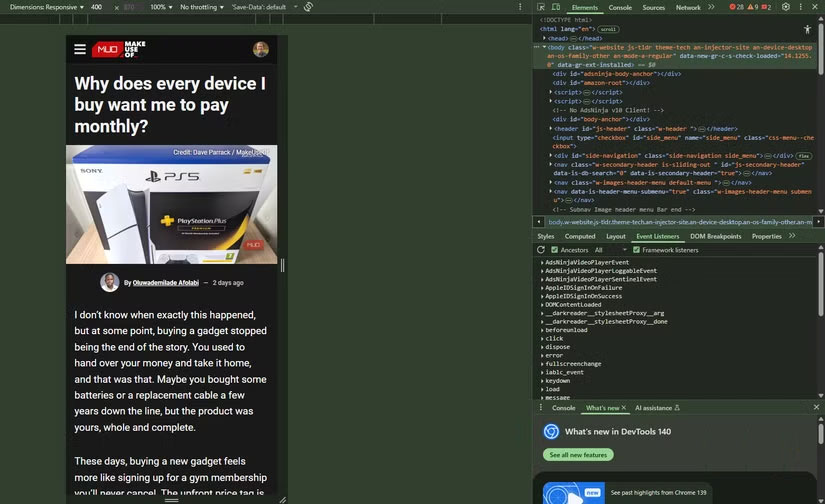
This is a confusingly two-way tool: the Developer Tools browser console. In Chrome, Firefox, and Edge, pressing Ctrl + Shift + I Or F12 Will open this console. As the name suggests, it's a collection of tools that let you inspect the code that makes up a page, monitor network activity, view console output, and more.
Another quick browser shortcut to keep in mind is Ctrl + Shift + B , which toggles the bookmarks bar below the address bar. If you use this key and it suddenly disappears, it can be a real pain.
Function keys
Be careful because they can cause a lot of problems.
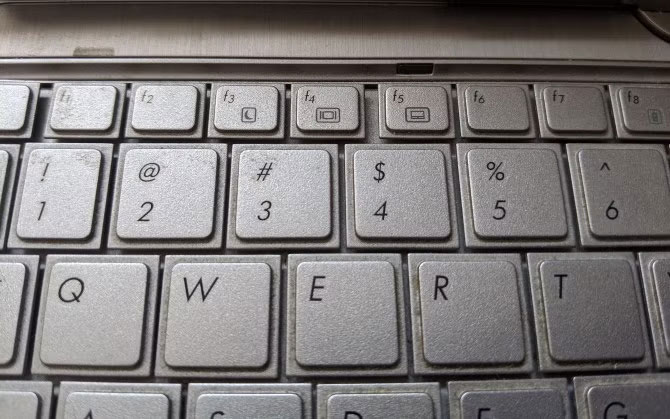
Function keys, which can be found on laptops or gaming keyboards, need special attention because of the chaos they can cause.
First, you should know if your keyboard has a function lock option—it might be a light next to the Caps Lock And other keys, or a light on the Fn key itself. Common shortcuts include Fn + Esc And Fn + F12 . With this feature enabled, pressing other keys will run their function shortcuts (like changing the volume, adjusting brightness, or the like) even if you're not holding down the Fn Key.
If not, you should know what functions this key can run.
Check your keyboard manufacturer's software to see what features are offered and what you can disable.
FAQ
What should you know about the options in this guide?
In practical terms, keyboard shortcuts are designed to be useful. But with so many keyboard shortcuts on Windows 11, you're bound to accidentally trigger one.
Which option is the best choice?
The best choice depends on your priorities, compatibility, budget, and the specific features discussed in the comparison.
What should you compare before deciding?
Compare core features, limitations, ease of use, compatibility, and long-term value before making a decision.
Related Articles
 How to Disable Keyboard Shortcuts and Hotkeys on Windows 107 minutes read
 Told You 5 Shortcuts with the Windows Button on Your4 minutes read
 8 Extremely Useful Shift Shortcuts When Using Gmail: Recommended Choices4 minutes read
 5 Shift Shortcuts Are Extremely Useful When Using Gmail2 minutes read
 12 Healthy Habits but Extremely Harmful to Health13 minutes read
 More Than 60 Computer Shortcuts You Should Memorize8 minutes read
Reader Comments 0
Sign in with email or Google to join the discussion.