Table of Contents
Of all the keys on your keyboard, the F1 to F12 keys at the top probably aren't the ones you use the most.
Of all the keys on your keyboard, the top F1 To F12 keys probably aren't the ones you use the most. While they're not as useless or annoying as keys like Scroll Lock Or Insert , their age-old presence does have a certain mystique to it at first glance.
Like many other standards in computing, there's many history involved. And while the limitations that led to the creation of the F-keys are no longer an issue today, they're still useful if you know how to use them.
Why were function keys created?
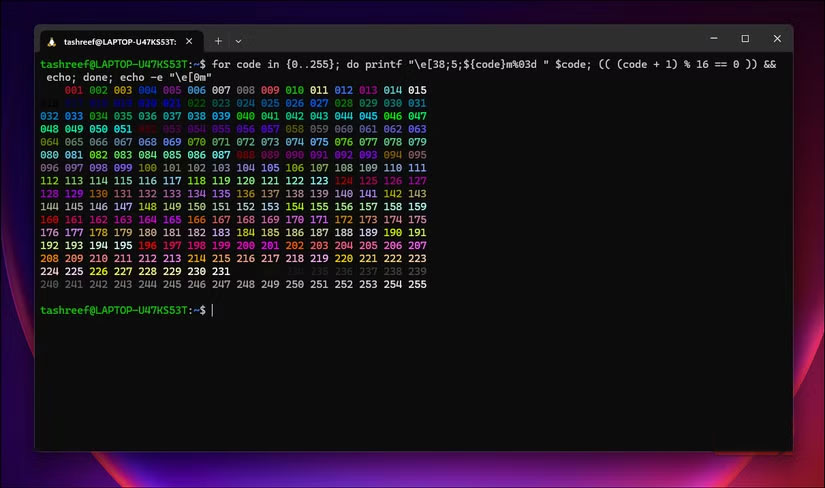
Back in the 1960s and 1970s, computers didn't have graphical user interfaces (GUIs) like we have today. Instead, people had to interact with computers through terminal interface commands, entirely with the keyboard.
Today, keyboard shortcuts make it faster to do things on a keyboard than to click a mouse. But keyboard shortcuts as we know them today (like Ctrl + C For copy) didn't exist until the guys at Xerox invented them in the 1970s.
There was no option to hide dozens of functions in clickable menus like today, the other option was to require users to memorize different commands. Since consistency between programs was so low back then, this was a difficult requirement.
So the Fn (function) keys were invented as a way for users to quickly send commands to a program. Function keys have no consistent purpose, meaning each program can use them to do whatever is useful in its context. People memorized the keys they used most, and on-screen text telling you which keys do what made command line programs much easier to use.
What do the Fn keys do today?
While function keys were once freely programmable, today's function keys have less clearly defined purposes. Like many other shortcuts, their uses vary from program to program, but you'll find a few consistent purposes across most applications.
F1
The most common use of F1 Is to open the Help Menu for your current program. If you can't find the path, this is a good starting point.
Notably, the Win + F1 Key combination opens Edge with a Bing search for 'how to get help in Windows 11,' which is a clumsy way to help. This makes it a shortcut you don't want to accidentally press.
F2
F2 has a handy function you might not know about: Renaming files. Press this key with a file selected in File Explorer and you can immediately start typing a new name. This saves you the multiple clicks it would take to do this through the menu.
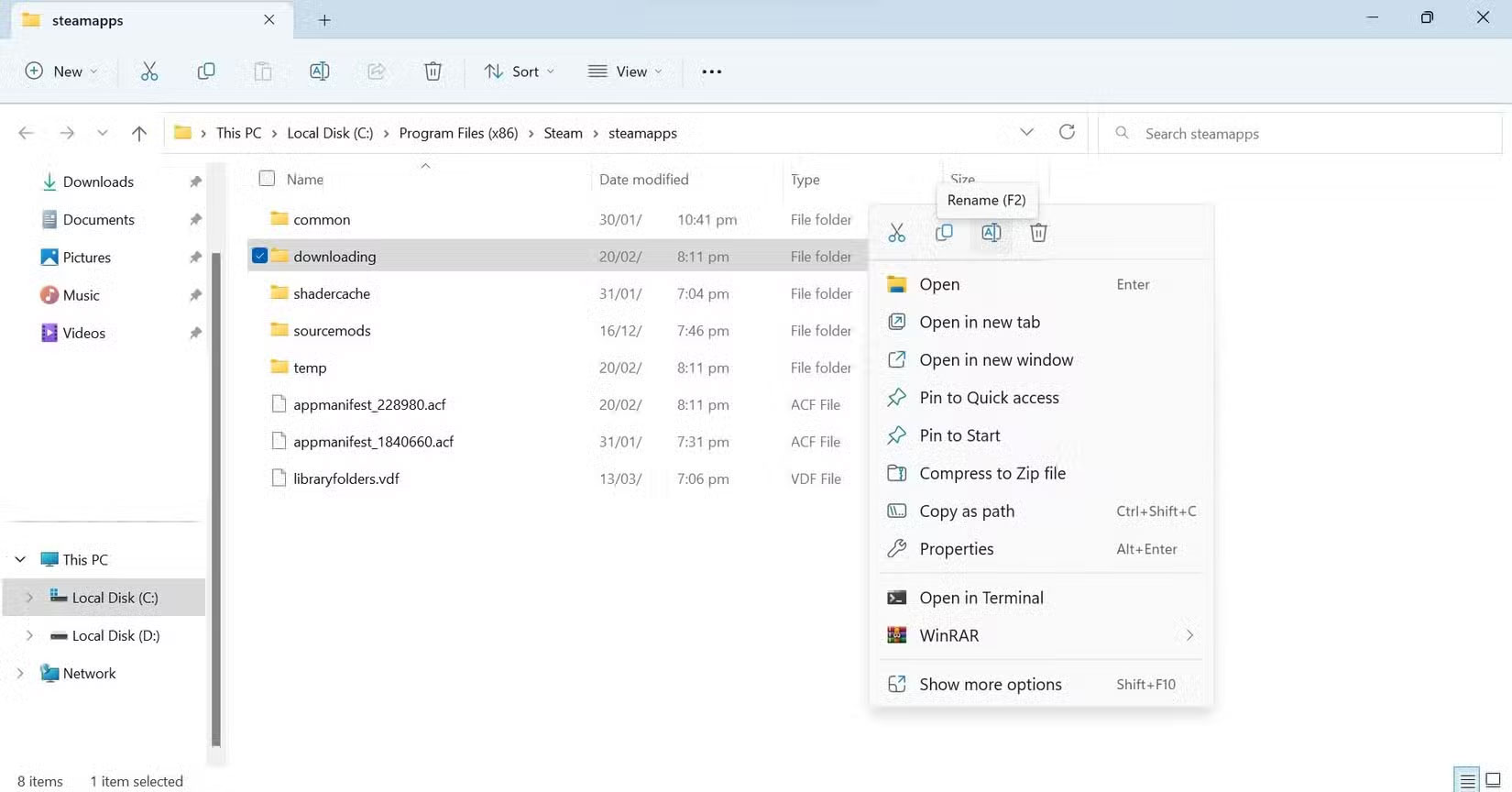
This works similarly in Excel and Google Sheets: Press F2 to edit the current cell. This key, along with F12, is also a common key you have to press at startup to enter BIOS.
F3
F3's most common purpose is to open a search for the current program. This works in File Explorer, and opens a similar Ctrl + F Panel in many other programs (including Chrome and Firefox). Once you've run a search, F3 Will jump to the next result in many applications.
In Command Prompt (but not PowerShell ), F3 repeats the last command you typed.
F4
This key is most useful when combined with modifier keys. In File Explorer, F4 will place the cursor in the address bar so you can quickly navigate to another location.
Additionally, Alt + F4 To close the current window and Ctrl + F4 To close the current tab are the main uses of this function key.
F5
This is a key you've probably used a lot before. F5 refreshes the page in your browser and File Explorer, allowing you to get the latest changes. Ctrl + F5 Does a full page refresh, bypassing your browser's cache and retrieving data from the website.
Additionally, F5 is the shortcut to start a PowerPoint slideshow from the beginning (or Shift + F5 To start from the current slide).
F6
Pressing F6 while using a browser will place the cursor in the address bar, similar to the F4 key in File Explorer. This makes it easy to perform a quick search or open a page from history.
F7
F7 provides a quick way to run the spell checker in Microsoft Office applications, while Shift + F7 Opens the thesaurus for a highlighted word in Office.
In browsers, this key activates caret browsing, an accessibility feature that lets you navigate using just the keyboard. And in Command Prompt (but again, not PowerShell), F7 shows a history of the commands you've typed during that session.
F8
This is one of the least used function keys. It has no general function; the only way you can find it is by using Alt + F8 To open the macro window in Microsoft Office applications. Excel also uses F8 to extend a selection.
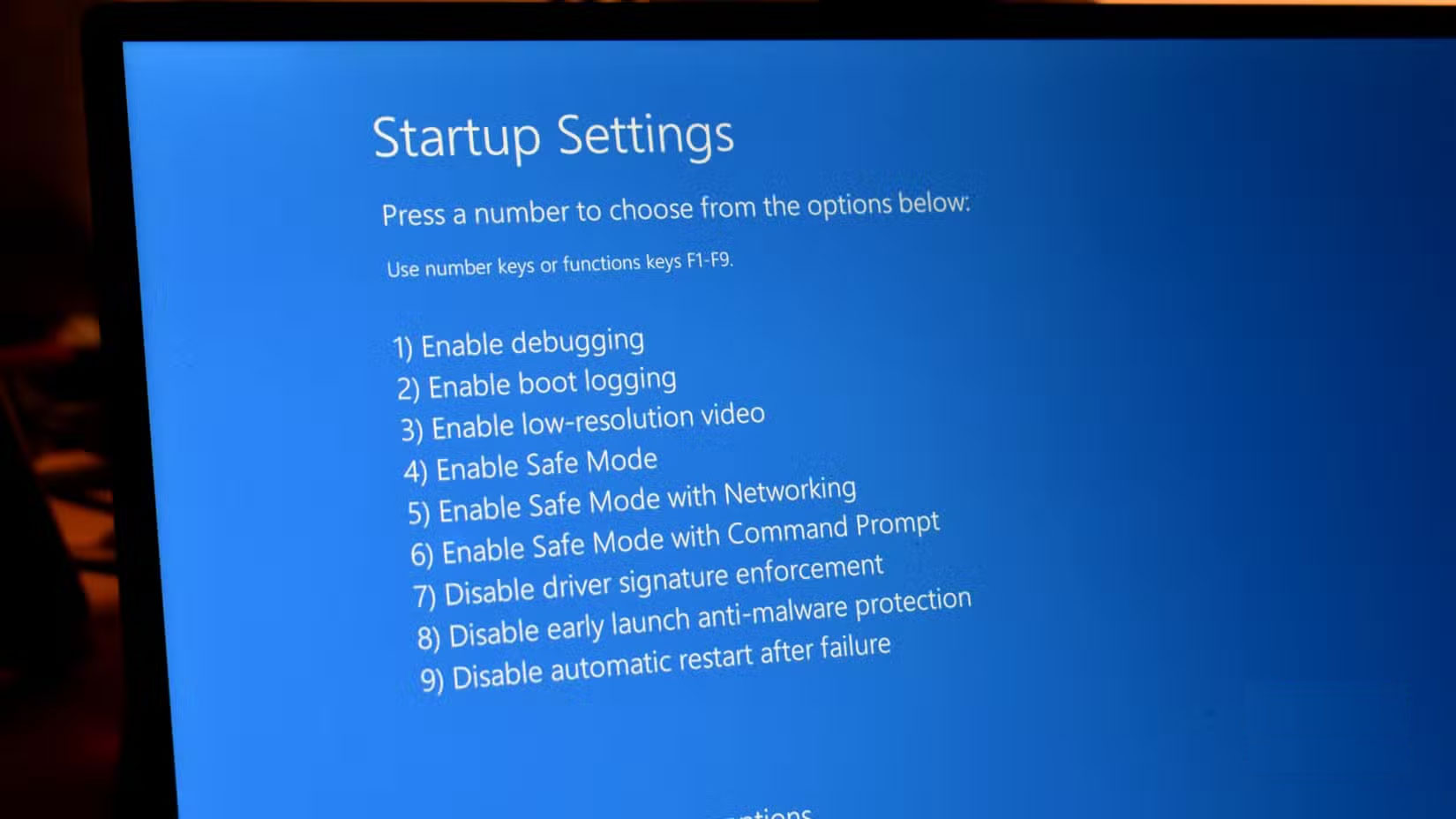
In older versions of Windows, F8 was famous as the key you pressed during startup to enter Safe Mode. However, due to faster startup times these days, this is no longer the primary method.
F9
F9 has a few odd uses across Office applications. In Word, it refreshes the document. In Outlook, it runs a manual send and receive operation that is often unnecessary because it happens automatically. And in Outlook, it recalculates all formulas.
F10
F10 is useful for activating an application's menu bar—that strip of File , Edit , And other toolbar items. In Chrome, this key puts the mouse cursor in the three-dot menu, which you can then navigate with the keyboard.
Another important use for this key is Shift + F10 , which lets you right-click. This is useful if your mouse stops working or you don't want to take your hands off the keyboard just to right-click.
F11
You may know F11 as the shortcut to full screen mode. Use it to focus on one app and avoid distractions from other apps. This is the most common use for this key, and while it can be annoying to accidentally hit it, it's still very handy.
F12
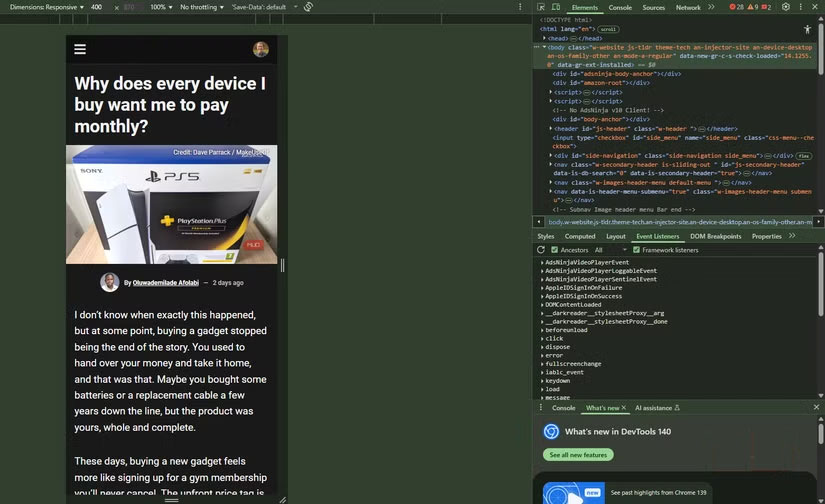
In the browser, F12 activates the Developer Tools panel, which lets you analyze what's happening on the page and on the network.
F12 will also open the Save As Dialog in many applications, saving two fingers from pressing Ctrl + Shift + S .
FAQ
What should you know about the real reason keyboards have F1 to F12 keys?
In practical terms, of all the keys on your keyboard, the F1 to F12 keys at the top probably aren't the ones you use the most.
Why does the real reason keyboards have F1 to F12 keys matter?
The article highlights that while they're not as useless or annoying as keys like Scroll Lock or Insert , their age-old presence does have a certain mystique to it at first glance.
What is the main takeaway?
The main takeaway is that so the Fn (function) keys were invented as a way for users to quickly send commands to a program.
Related Articles
 10 Incredible Keyboards: A Practical Guide4 minutes read
 Technology Jokes: Lessons from Keyboards and Viruses Come From?3 minutes read
 Compact Mechanical Keyboards With Premium Designs5 minutes read
 5 Reasons to Buy an External Keyboard for Laptops4 minutes read
 Top Best Gaming Keyboard in 201925 minutes read
 How to Clean Fake Mechanical Keyboards and Gaming Keyboards5 minutes read
Reader Comments 0
Sign in with email or Google to join the discussion.