Table of Contents
This updated guide compares secret Windows hotkeys that will help you do everything faster and highlights the details that matter most. Technically, your mouse is still there. But since you know these shortcuts, it'll mostly just sit there, waiting for you to need it again.
9. Mount the Window in the Correct Position
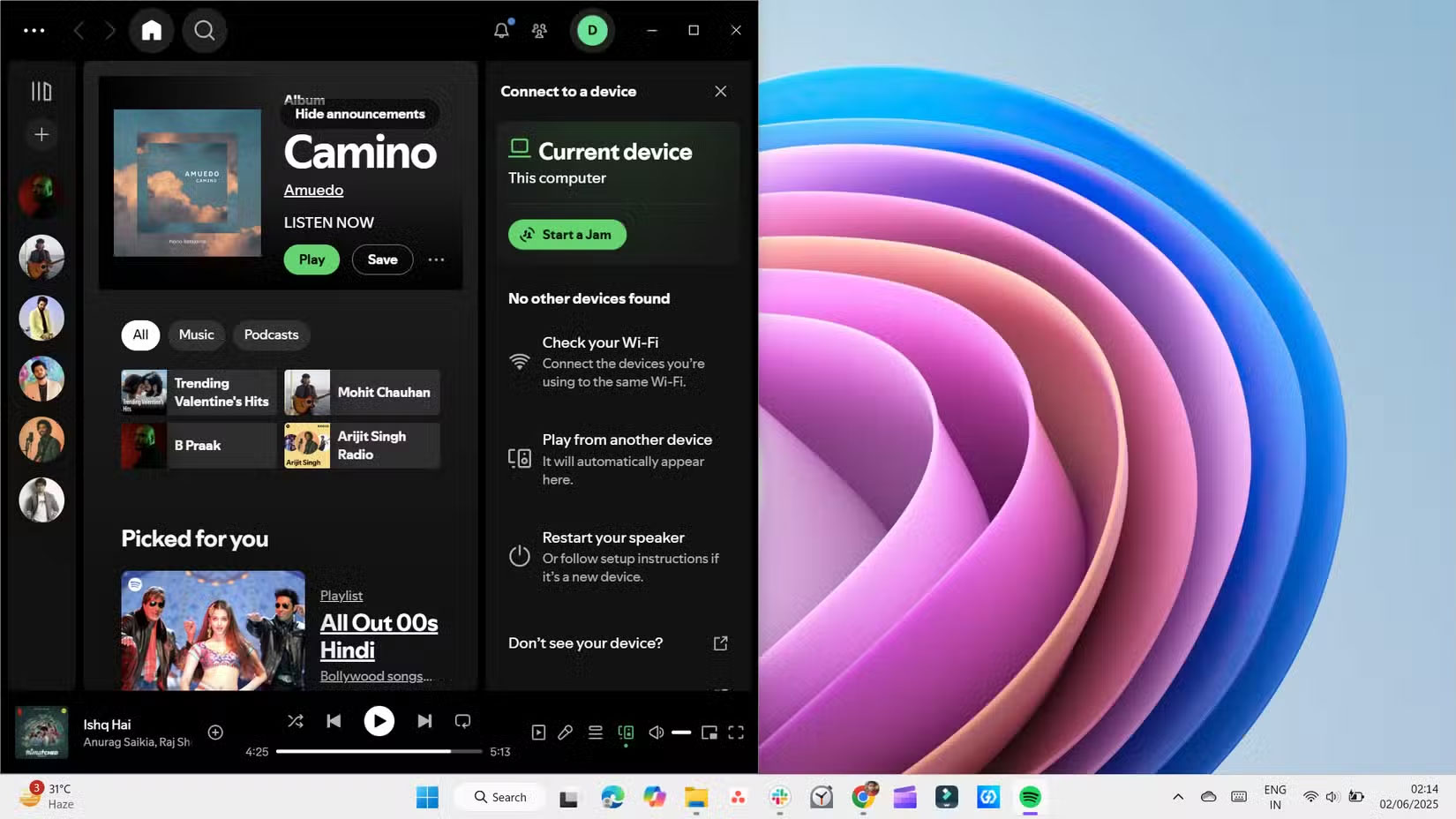
This shortcut will save you countless hours of window resizing. No more dragging your screens around or worrying about alignment. Just a few quick keystrokes and your layout will be perfect. To use this handy shortcut, simply use the Windows key plus one of the directional arrows on your keyboard. Win + Left Arrow will snap any selected window to the left half of the screen. Win + Right Arrow will snap the window to the right side of the screen. You can switch back and forth between the different halves by pressing either combination again.
Pressing Win + Up Arrow will maximize the current window. If the window was already docked to one of the edges of the screen, it will move it to the top half of the screen. You can use this combination to restore any minimized window. Also, pressing Win + Down Arrow will restore a maximized window to its previous size. A second press (or on any unmaximized window) will minimize the entire window.
Combined, these shortcuts give you precise control over your layout and make window management faster and cleaner.
8. Move Windows Between Monitors
If working across two or more monitors is part of your setup, you'll love this shortcut. With this quick shortcut, you can move a window to the next monitor without having to manually resize or reposition anything.
- Win + Shift + Left Arrow : Instantly moves the active window to the left monitor, preserving the window's size and layout.
- Win + Shift + Right Arrow : Sends the window to the right monitor, with everything intact.
Once you start using it, moving windows between monitors becomes much more natural and less cumbersome.
7. Minimize Everything Immediately
When your screen is cluttered with open windows and you just want to see the desktop, press Win + D . It will hide everything and take you straight to the desktop. Press it again and the screen will show up exactly as before.
Also, Win + M also minimizes all windows, but does not bring them back. To restore what was minimized, You need to press Win + Shift + M or restore each window individually.
Use these shortcuts to quickly hide sensitive information when someone glances at your screen. They're great for clearing your screen in a second without interrupting your workflow.
6. Quickly View Desktop Without Minimizing
But what if you just want a quick look at your desktop without minimizing everything? Try Win +, . As long as you hold this key, your windows will become transparent, giving you a temporary view of your desktop. Release it and everything will snap back into place.
This shortcut has become an integral part of my daily workflow. it is great for quick checks, like confirming a download, finding a screenshot, or glancing at a widget to see if there's anything there. Sometimes all you need is a second of long stare, and this does exactly that.
5. Create or Switch Between Virtual Desktops
Some people didn't really use virtual desktops until they started working from home and needed a way to separate work and personal tasks. Now, they rely on them constantly. One desktop for writing, another for research, and a third for email and Slack. it is like having multiple screens, even though you're really only using one. It feels more organized and you're not staring at a bunch of overlapping windows all day.
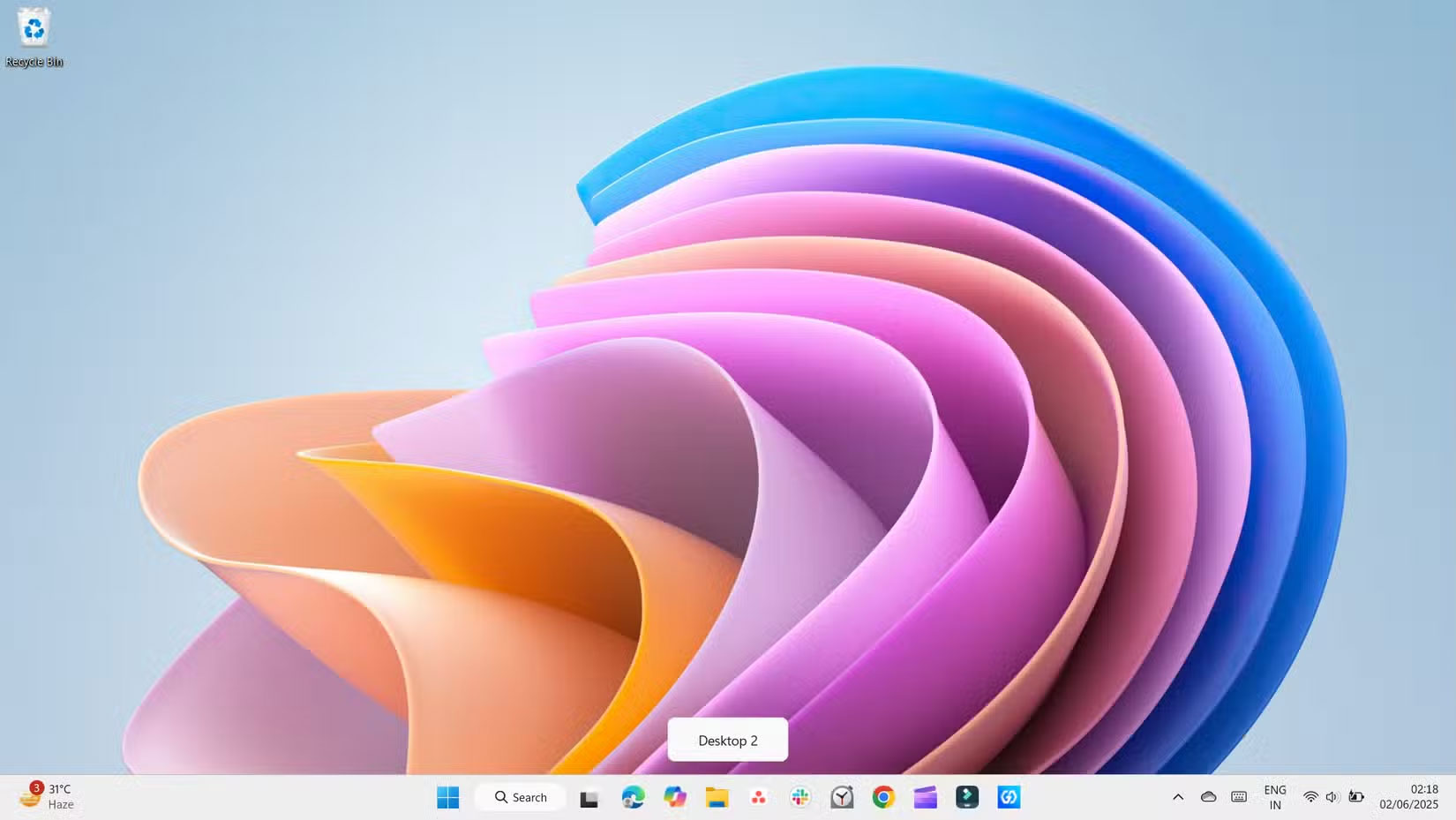
To create a new virtual desktop, press Win + Ctrl + D . You can continue adding more desktops in the same way. Once you have a few open, switching between them is just as easy. Use Ctrl + Win + Left Arrow to move to the desktop on the left, or Ctrl + Win + Right Arrow to move to the desktop on the right. It really feels like flipping through a notebook, with each page having its own space and focus.
When you're done working with a virtual desktop, press Win + Ctrl + F4 to close it. You will not lose any open apps; they'll just move to the previous desktop. You can open Task View from the taskbar to manage them, or close a desktop manually if you prefer clicking shortcuts.
4. Open Task View
If virtual desktops sound overwhelming, start with Task View. Press Win + Tab to see a live overview of all your open windows and virtual desktops. From there, you can drag windows between desktops or quickly create new ones.
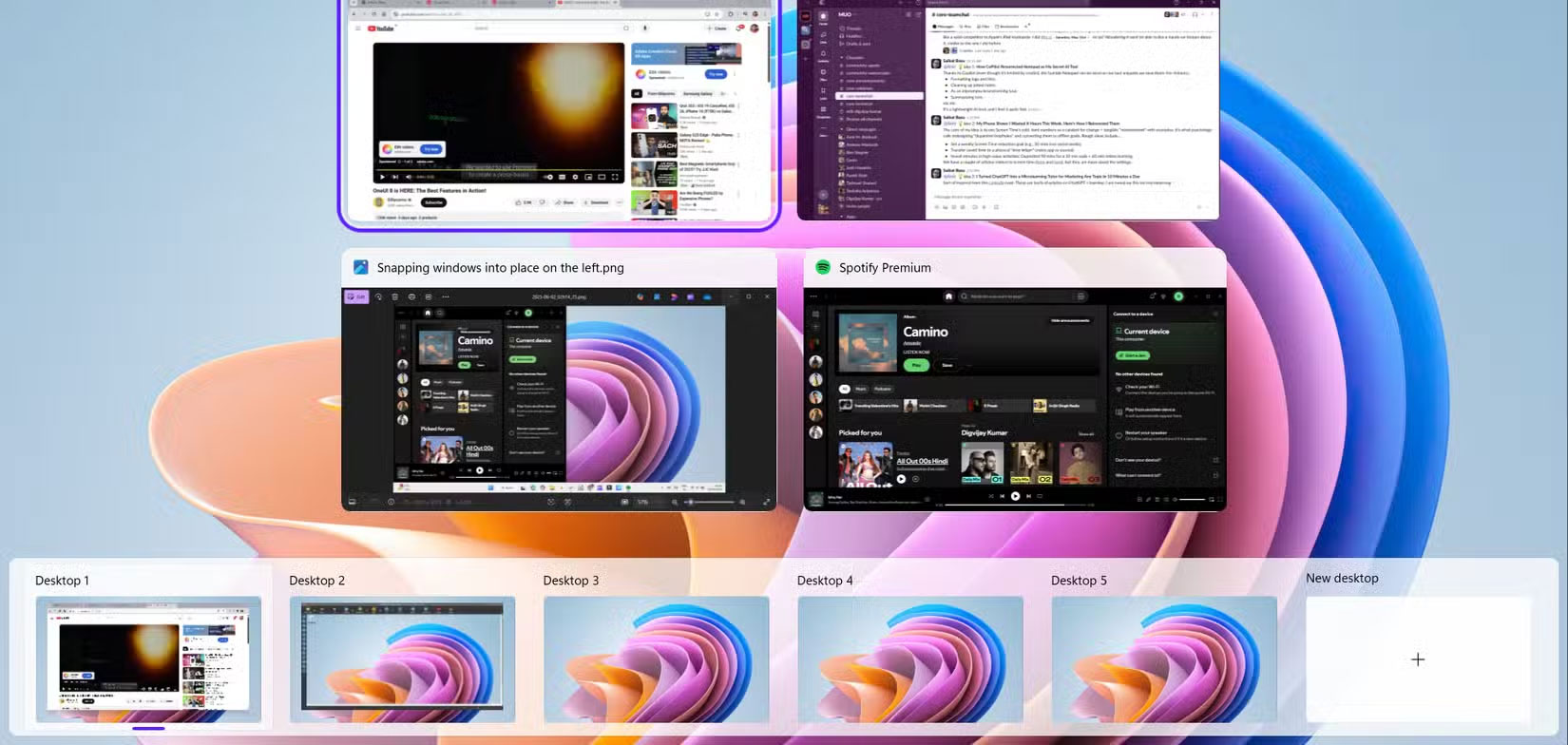
People often use this shortcut when their desktop is too cluttered and they cannot remember where anything is. And if you have a touchpad, you can swipe four fingers left or right to switch between desktops.
3. Capture Part of the Screen
Taking a screenshot of your entire screen is easy enough with the Print Screen key, but what if you just want to capture a certain portion of your screen? Windows has a built-in tool for that too. You can press Win + Shift + S to use the Snipping Tool to capture a specific portion of your screen.
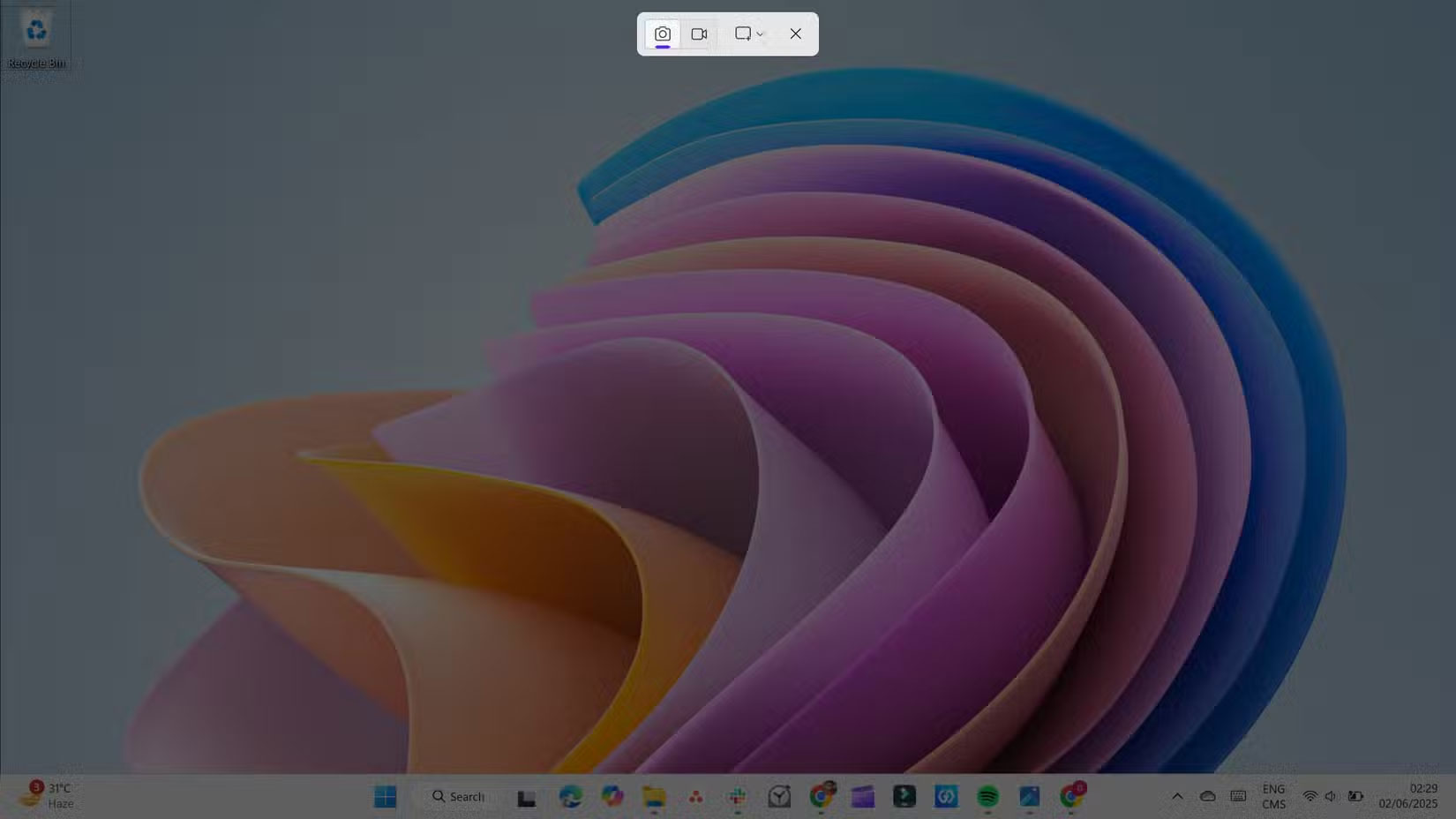
Now you can use it for everything from saving receipts to capturing website errors. And since the image goes straight to your clipboard, you can paste it into Slack, email, or even Photoshop without saving first.
2. Switch Between Apps
Alt + Tab isn't exactly a secret, but does the way you use it now feel like you're tapping its full potential? Sure, a quick tap will take you to the last app you used. But if you hold it down, you can switch between all your open windows. it is smoother than using a mouse, and much faster once your hand gets used to it.
to go even faster, try Alt + Esc . This shortcut will cycle through all your open apps in the order you last opened them, so you do not have to hold down the Alt key while pressing Tab multiple times.
1. Open Clipboard History
When you use Ctrl + C and Ctrl + V , Windows only remembers the last thing you copied. So if you copy a link and then a sentence, the link will be replaced with that sentence and the first item will be lost unless you've pasted it somewhere else. This is how copy and paste works, which can be annoying when dealing with large chunks of text.
To get around that limitation, Windows includes a built-in clipboard history feature. Press Win + V to see a list of everything you've recently copied, like text or links.
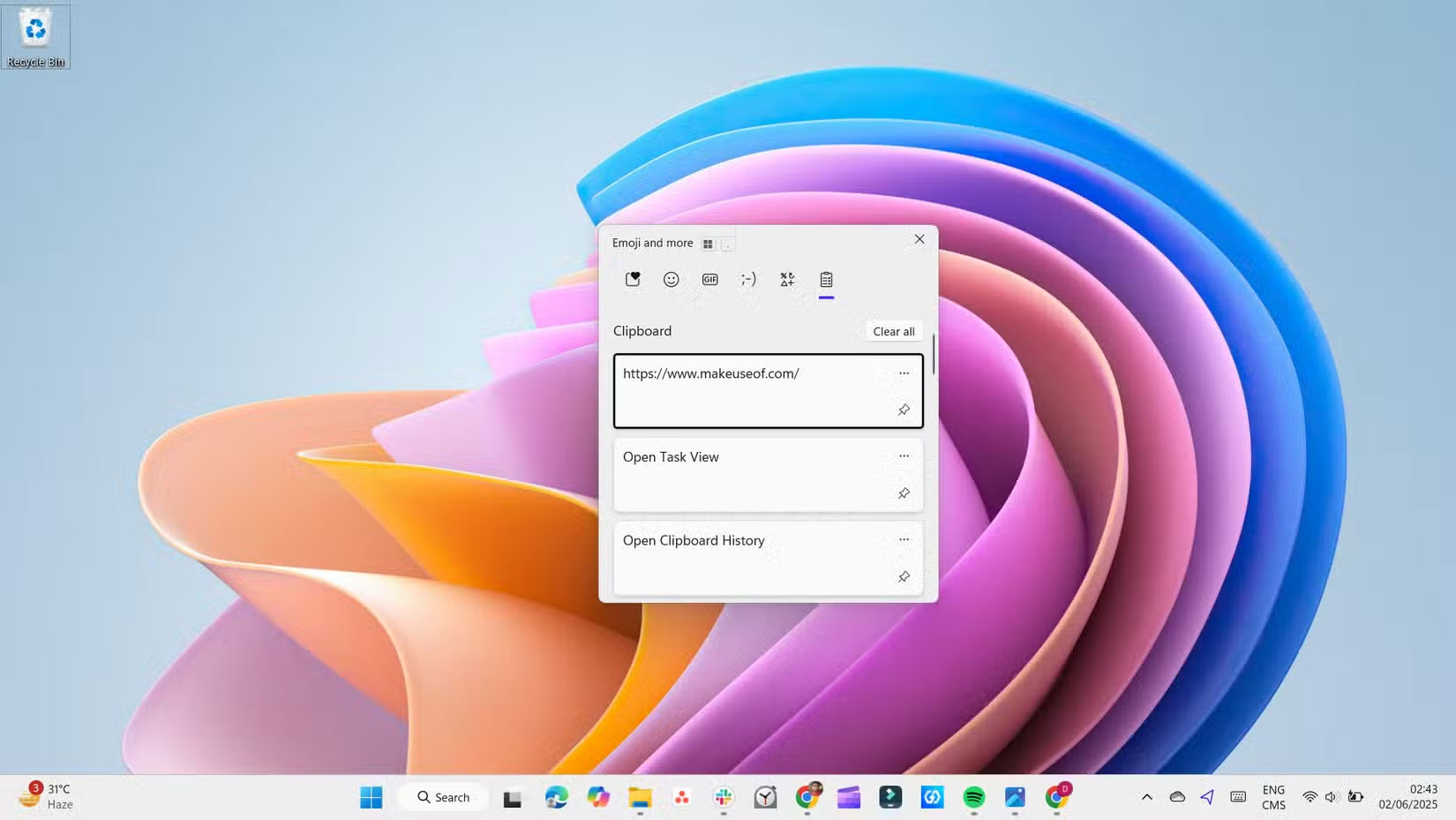
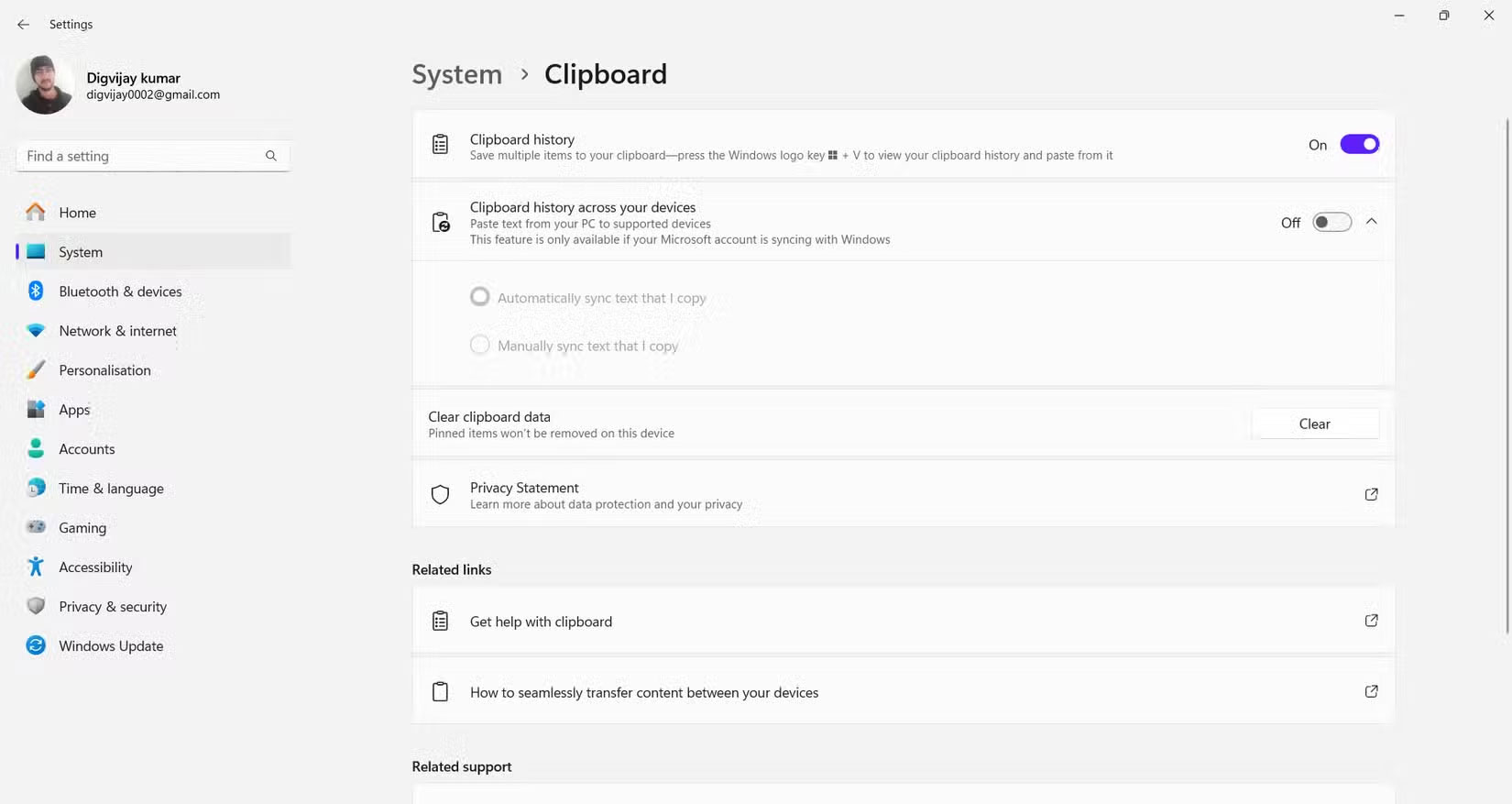
Then you can just scroll through, select what you need, and paste it anywhere. You can pin important items so they stay on top, even after you copy new ones. If Win + V does not work, this feature may be turned off. To enable it, open Settings > System > Clipboard and turn on Clipboard history . Once enabled, it will run in the background, ready when you need it.
These are just a few Windows hotkeys you can use to speed up navigation, organize your windows, and keep your desktop clean without touching your mouse. naturally, there are many more hidden shortcuts, so feel free to experiment and see what works best for you.
FAQ
How were the secret windows hotkeys that will help you do everything faster options evaluated?
The comparison focuses on practical features, ease of use, limitations, compatibility, and the type of user each option is most likely to help.
Which option is best for beginners?
Beginners should prioritize a clear interface, useful documentation, reliable support, and the core features needed for their first project.
Should I choose a free or paid option?
Start with a free option when it covers your needs. A paid plan may be worthwhile when you need advanced tools, commercial rights, collaboration, or professional support.
Related Articles
 Summary of the Latest Windows 10 Shortcuts6 minutes read
 Use Hotkeys to Open Any Program or Software2 minutes read
 How to Disable Keyboard Shortcuts and Hotkeys on Windows 107 minutes read
 How to Create a Hot Key for Windows to Sleep and Shutdown4 minutes read
 How to Adjust the Computer Volume with a Shortcut6 minutes read
 Microsoft Gives Reasons to Make Windows 11 Faster Than3 minutes read
Reader Comments 0
Sign in with email or Google to join the discussion.