Table of Contents
This guide organizes the entries in "8 Free AI Image Upscaling Tools" and explains what each option, idea, or example offers. It also highlights practical details that matter when comparing the choices.
8. Let's Enhance
Let's Enhance has the kind of slick interface that makes you think, "This is going to be good." And at first, it is. Upload your image, choose an enhancement level (or leave it on auto), and choose a preset like "Old Photos" or "Digital Art." The site takes care of the rest.
I tried it with a low-resolution portrait photo and the algorithm did a great job of sharpening edges and removing noise without going overboard. You can judge for yourself from the before and after comparisons I included.
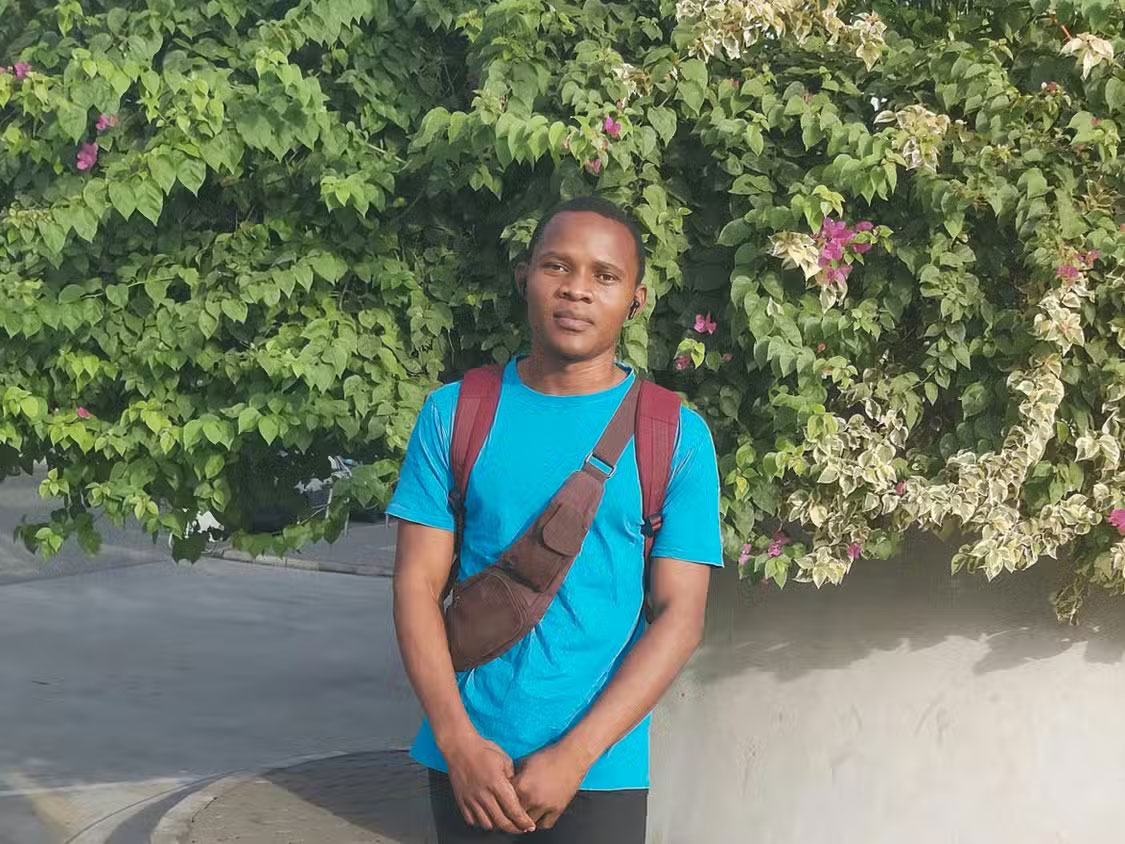
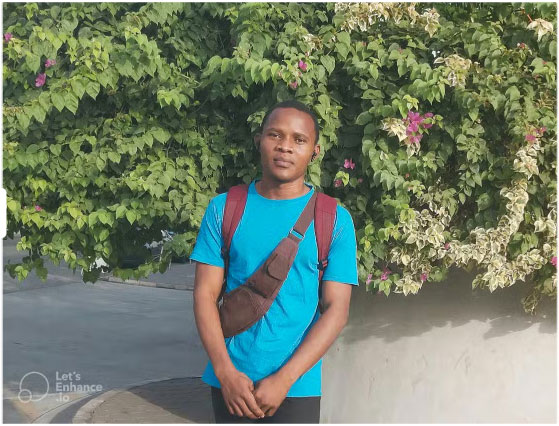
Tip : Try zooming in on the photo to see the difference clearly.
7. Upscale.media
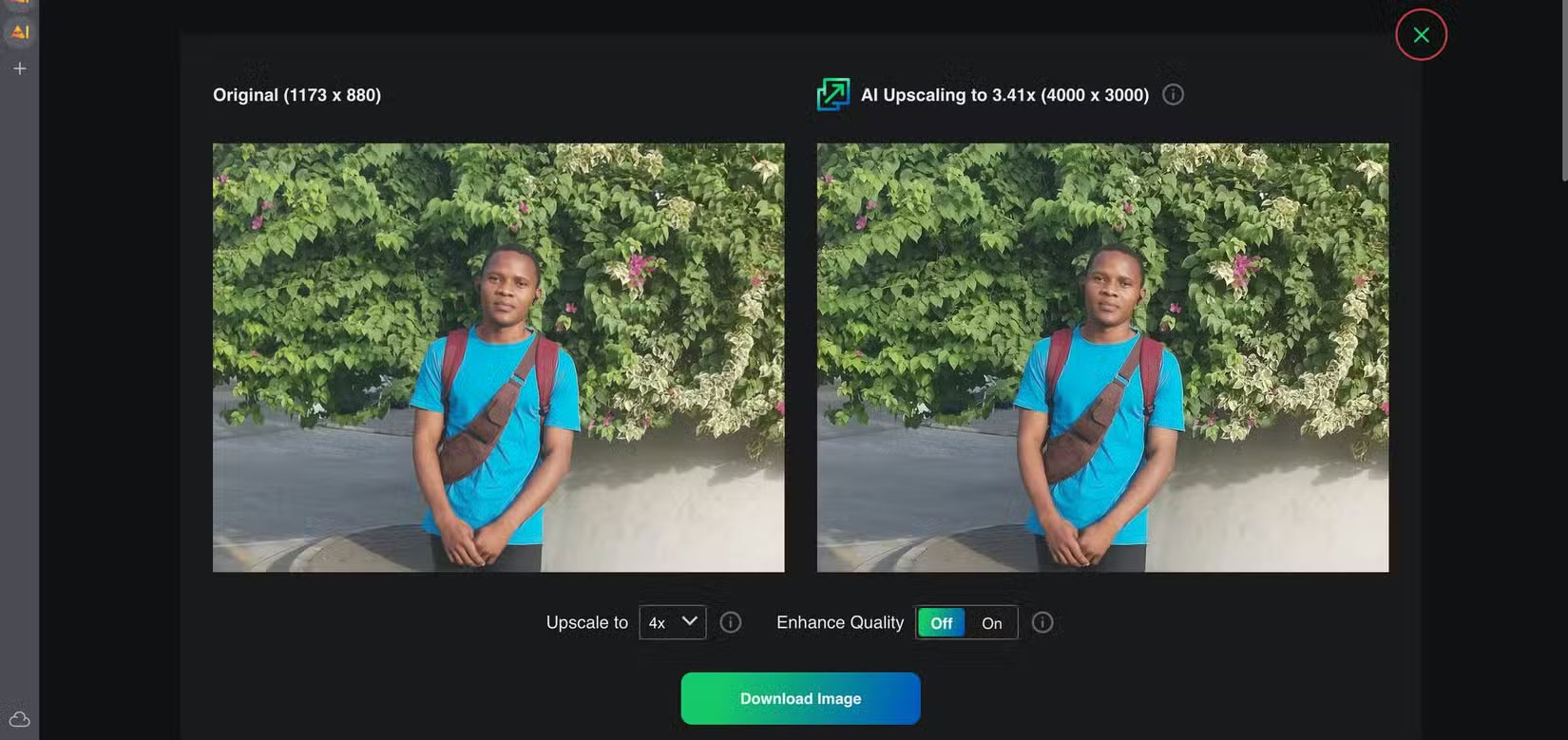
Upscale.media keeps things clean. The interface is so simplified that all you have to do is: Upload your photo, choose the upscaling level (up to 8x), and click the upscale button. It makes it easy to get quick results without having to worry about technical settings.
You get two free upgrades per day, which is handy for occasional use or quick fixes. And unlike some competitors, it doesn't add a watermark to your photos. That alone makes it a winner for anyone who just wants clean, usable results without having to jump through hoops.
6. VanceAI
VanceAI keeps its interface clean and focused. You're given three core tools (Enlarge, Sharpen, and Denoise), and each one works without much input. Upload your photo, choose a ratio (up to 8x on the free plan), and it does the rest.
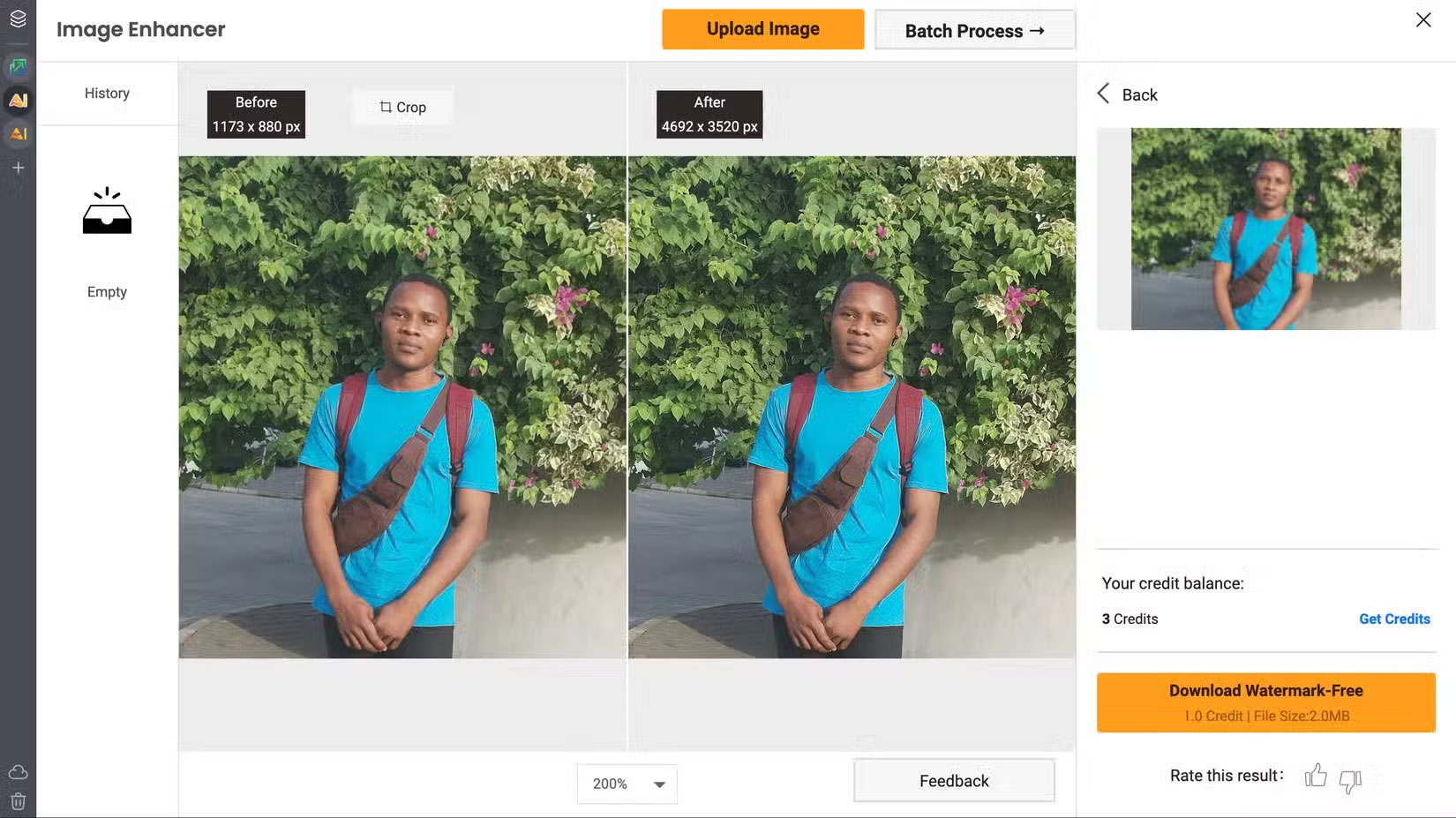
The paper ran the same portrait photo through VanceAI as it did on the previous tools, and the differences were subtle but clear. Facial features were better preserved. Skin wasn't as over-smoothed, and details like eyes and hair were more structured.
5. BigJPG
BigJPG feels a little dated compared to some of the more polished tools on this list. The interface looks like it hasn't changed in years, and the branding makes it seem more like a browser plugin than a modern AI tool. But don't let that fool you, it really works.
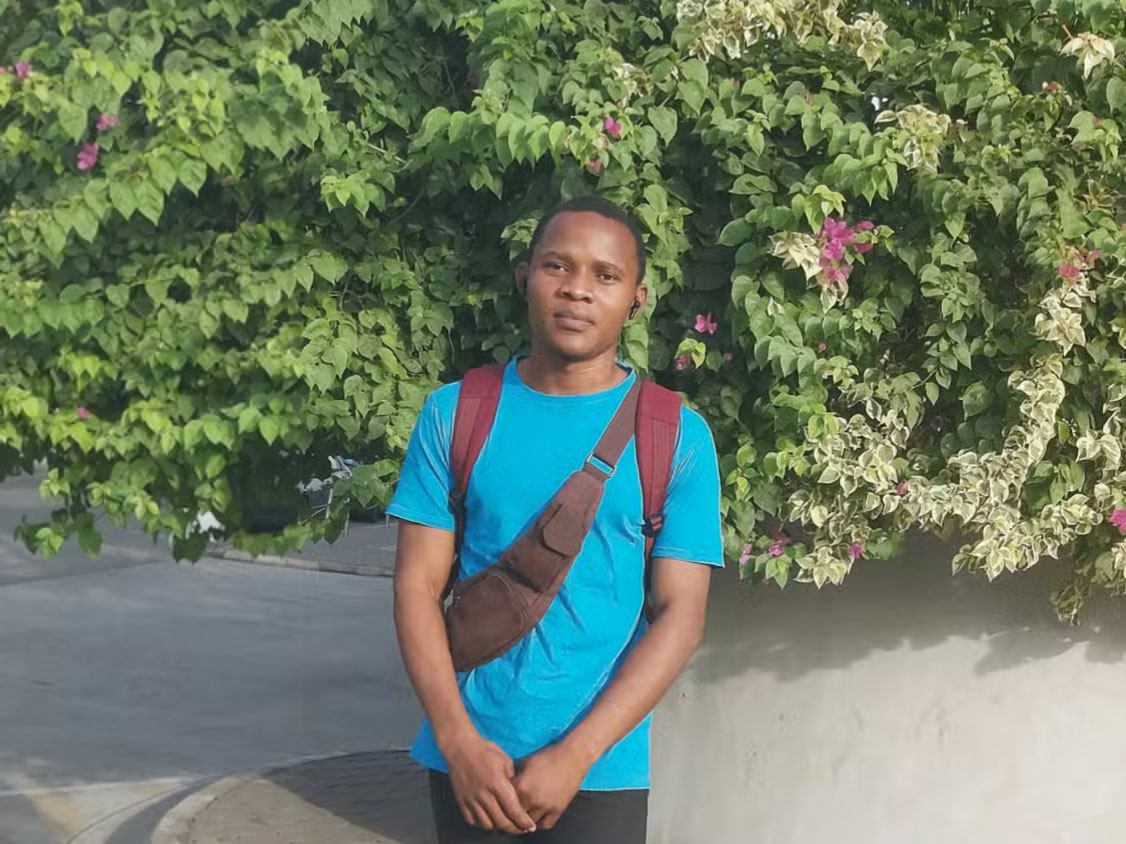

The results are pretty good. BigJPG doesn't break anything, but it doesn't blow your mind either. The before and after comparison above is an example result.
4. Icons8 Smart Upscaler
Icons8's Smart Upscaler feels like a reliable, easy-to-use option. There's no need to fiddle with sliders or options. You upload an image and it automatically doubles in resolution.
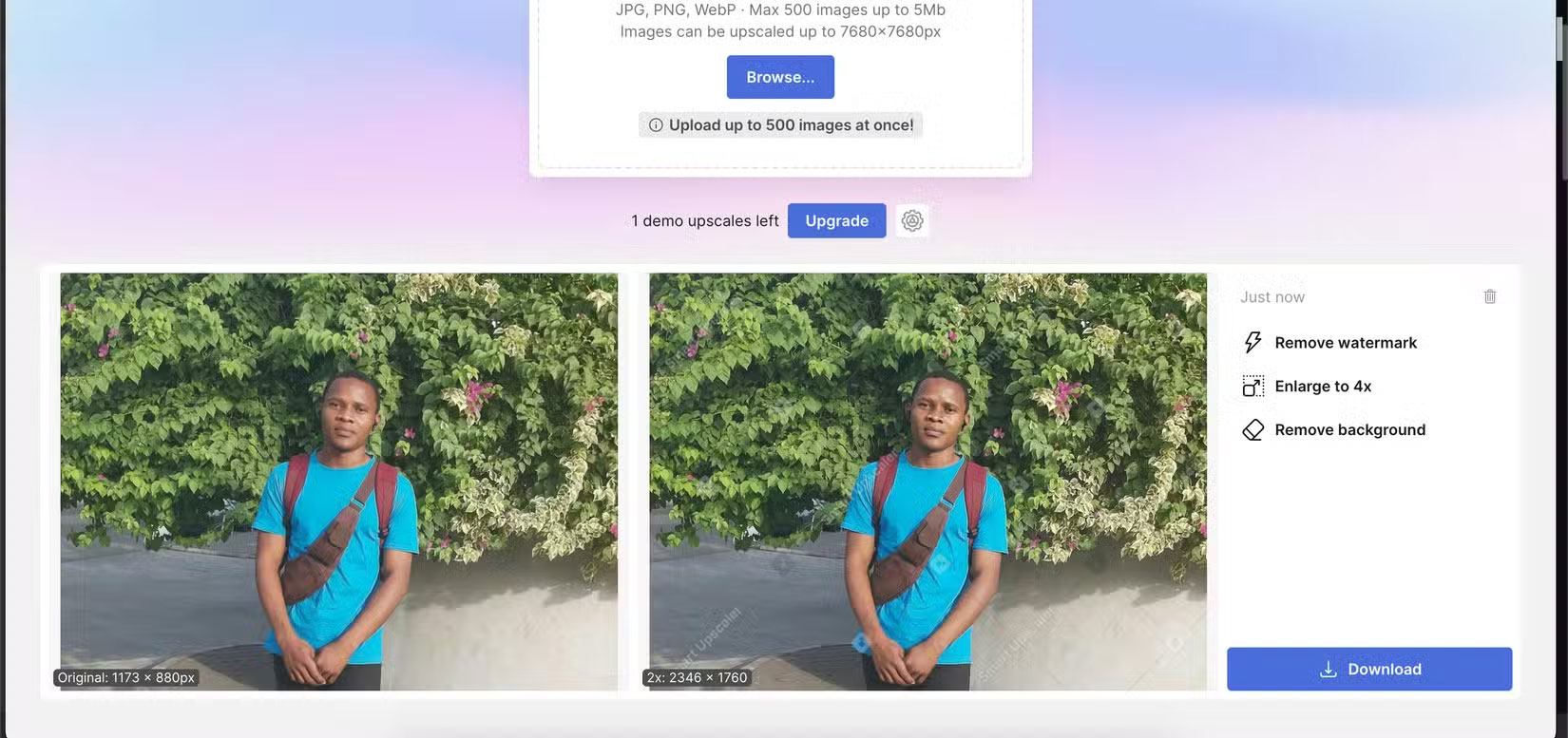
You can look at the attached before and after images and decide for yourself, but in the example case the impact is minimal. Worse still, the upscaled image is stamped with an annoying watermark running right over it. That shouldn't be happening.
3. Img. Upscaler
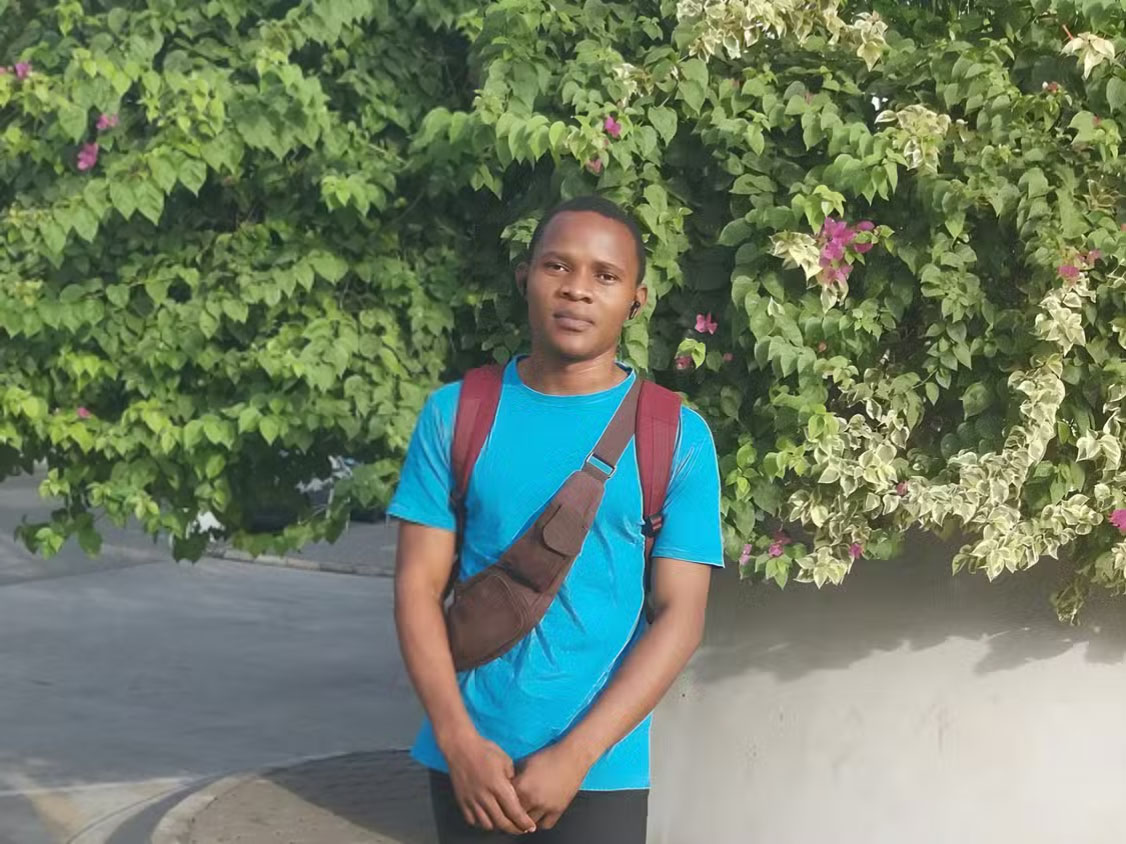
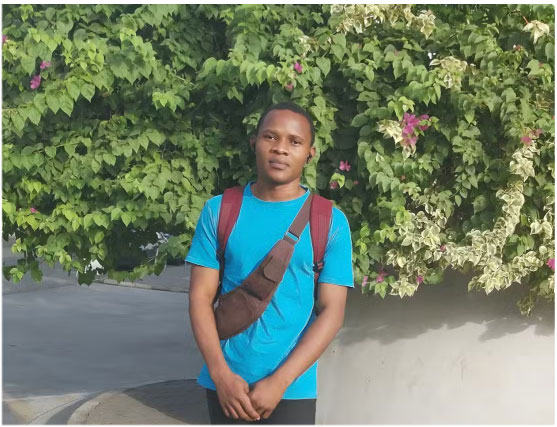
Img. Upscaler gives you more space than most tools right off the bat (20 upscales in the free plan). That alone puts it ahead of some tools that limit you to two or three times or use the free plan with confusing credit schemes. You upload an image, choose between 200% or 400% zoom, and let the AI do its thing.
2. Canva
Canva hides its AI image enhancement tool inside its broader design platform, but it's one of the most capable tools we've tested. You can upscale images up to 8× for free, there's no watermark, and the results are always sharp and detailed. Portraits are sharper and more natural than any other tool.
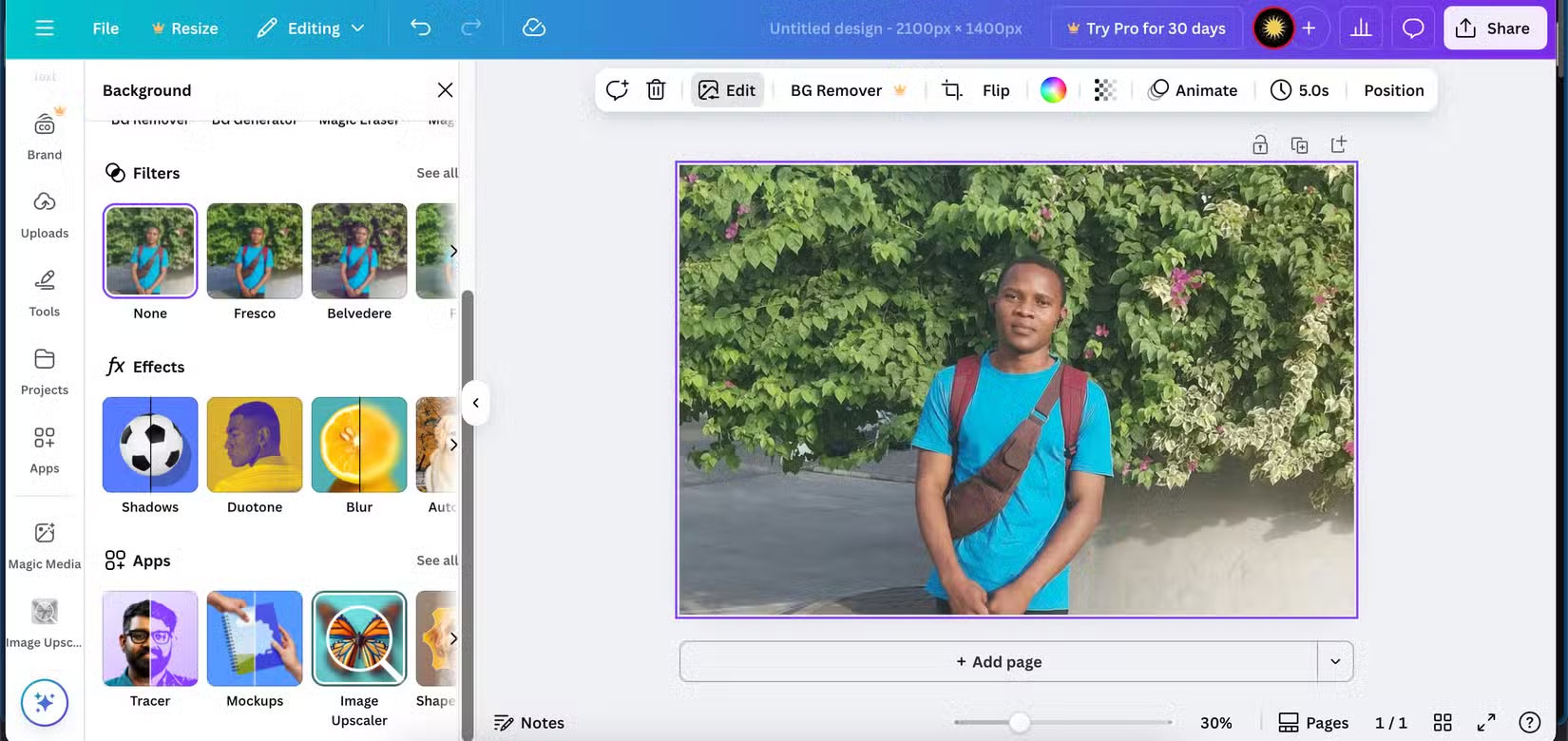
If you already use Canva, this won't be much of a hassle. But for anyone who just wants to quickly enhance an image, the extra clicks can be a hindrance. On a purely quality level, though, Canva is hands down the best.
1. ImgLarger
ImgLarger is a modest tool with a simple interface. But behind it is one of the most generous free plans you'll ever see: 100 free credits per month. That's a big step up from tools that give you two or three freebies and call it a day. If you're randomly upgrading images or dealing with a backlog of work, that monthly quota makes ImgLarger a viable option.
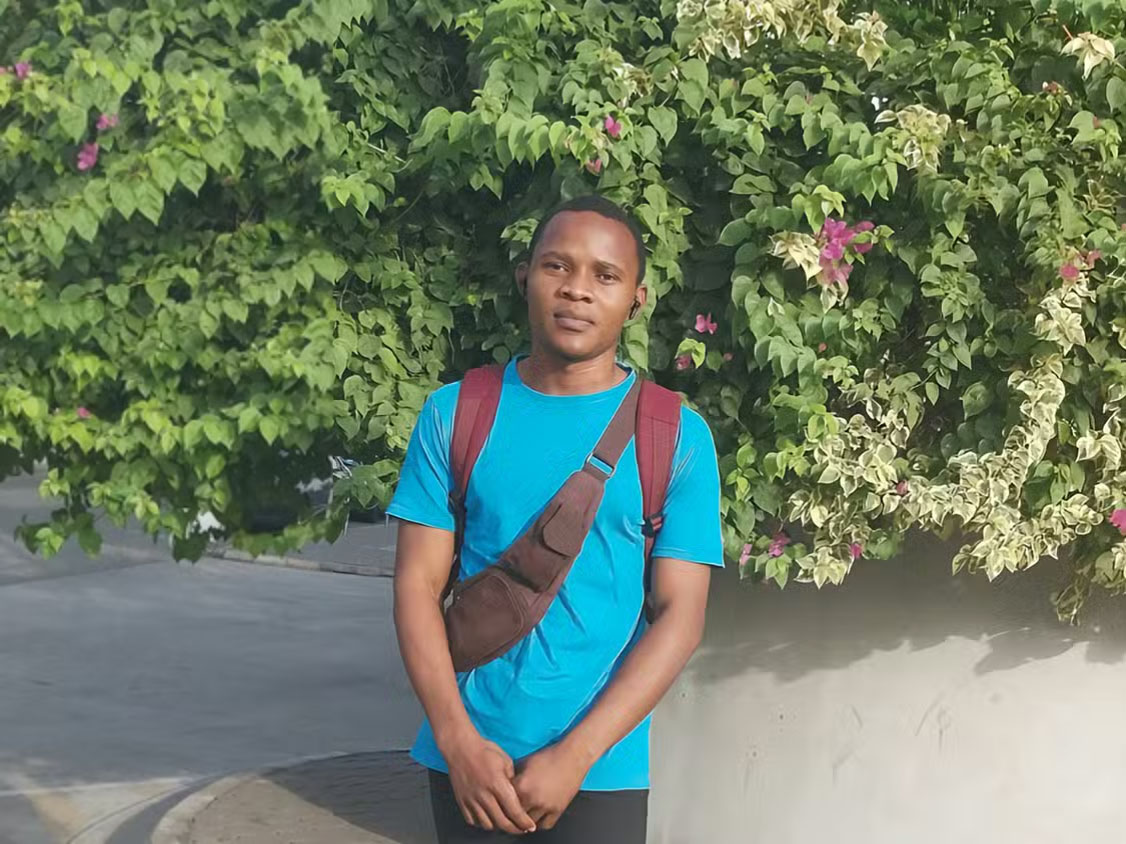
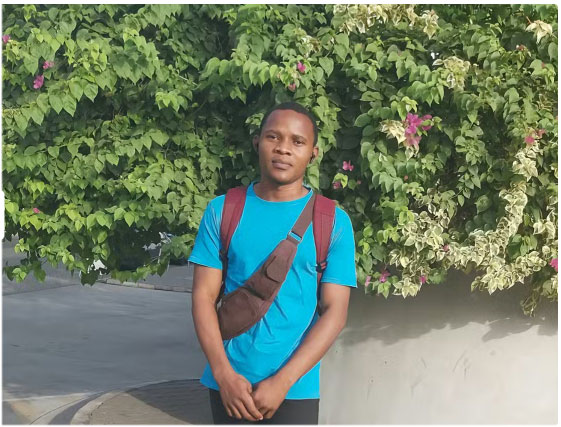
In use, it's simple. You can upscale to 200% or 400% without having to log in, and the process is pretty quick. The portrait I tested looked a little sharper after the upscaling and didn't distort the face, but like the others in this category, it's a little over-smooth. Skin looks smoother than in the original.
FAQ
What should you know about 8. Let's Enhance?
Let's Enhance has the kind of slick interface that makes you think, "This is going to be good." And at first, it is. Upload your image, choose an enhancement level (or leave it on auto), and choose a preset like "Old Photos" or "Digital Art." The site takes care of the rest.
What should you know about 7. Upscale.media?
Upscale.media keeps things clean. The interface is so simplified that all you have to do is: Upload your photo, choose the upscaling level (up to 8x), and click the upscale button. It makes it easy to get quick results without having to worry about technical settings.
What should you know about 6. VanceAI?
VanceAI keeps its interface clean and focused. You're given three core tools (Enlarge, Sharpen, and Denoise), and each one works without much input. Upload your photo, choose a ratio (up to 8x on the free plan), and it does the rest.
What should you know about 5. BigJPG?
BigJPG feels a little dated compared to some of the more polished tools on this list. The interface looks like it hasn't changed in years, and the branding makes it seem more like a browser plugin than a modern AI tool. But don't let that fool you, it really works.
Related Articles
 Top Free AI Image Creation Tools in 20268 minutes read
 Top free AI tools you should try in 202611 minutes read
 Reduce Image Size, How to Compress Images Online for Free8 minutes read
 Best AI Image Upscalers: 5 Tools Compared12 minutes read
 10 Quality Free AI Tools You Might Not Know About8 minutes read
 10 Free AI Tools to Generate Images from Text: What You Need to Know9 minutes read
Reader Comments 0
Sign in with email or Google to join the discussion.