Table of Contents
Windows 11 can compress files directly on an NTFS drive while keeping them available to apps in their normal folders. Windows decompresses the data in memory when it is opened and compresses it again when it is written. You do not need to extract an archive before using the file.
NTFS compression is useful for documents, source code, logs and other data that compresses well. It usually saves little space on JPEG photos, MP4 videos, ZIP archives and many installers because those formats are already compressed.
Before you enable NTFS compression
- Confirm the file system: in File Explorer, right-click the drive, choose Properties and check that File system is NTFS. The feature is not available on FAT32, exFAT or ReFS in the same way.
- Check what is using space: open Settings > System > Storage. Removing unneeded temporary files or uninstalling a large unused app may reclaim more space with no runtime overhead. See TipsMake's guide to freeing storage space safely.
- Keep a backup: compression is not a backup and does not protect against deletion, corruption or drive failure.
- Choose a focused target: start with an archive or document folder rather than the entire system drive. Frequently updated databases, virtual machines and performance-sensitive game folders are poor first choices.
NTFS compression and Windows' Encrypting File System cannot be applied to the same file. If the checkbox is unavailable, check the drive format, file encryption and permissions.
Compress a folder and its existing files
- Open File Explorer, right-click the folder and select Properties.
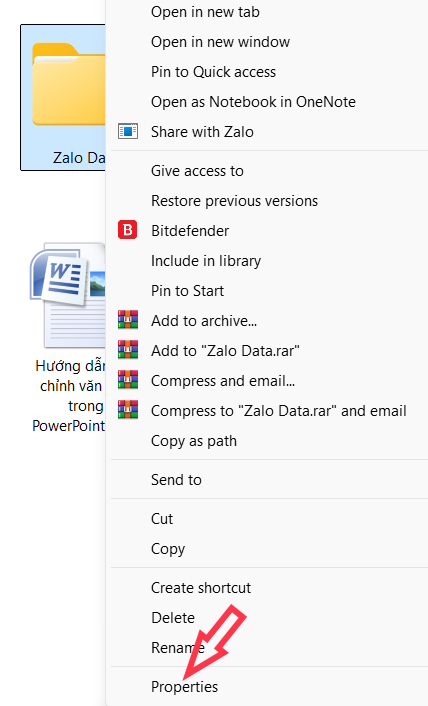
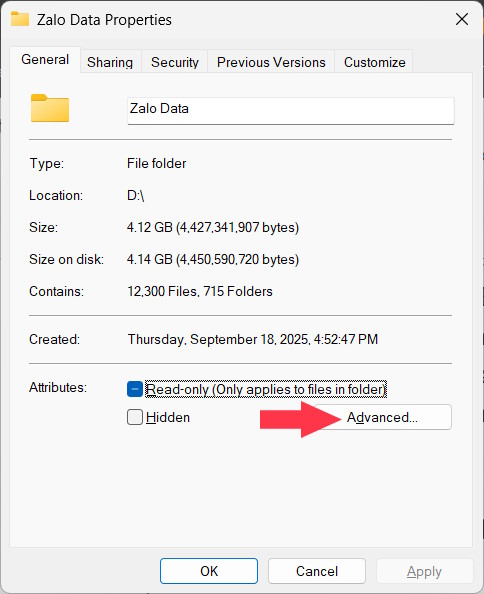
- On the General tab, select Advanced.
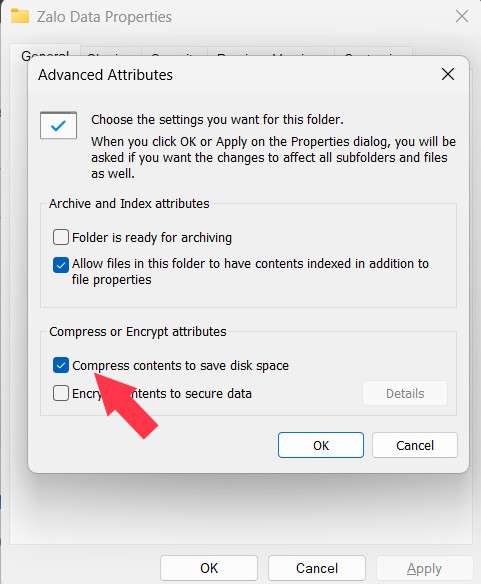
- Under Compress or Encrypt attributes, select Compress contents to save disk space, then choose OK.
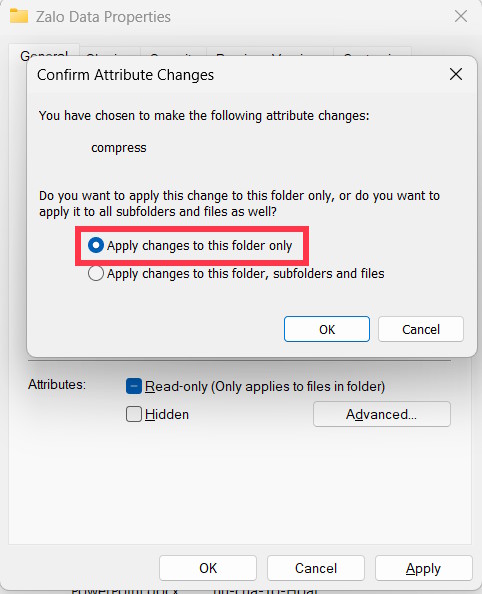
- Select Apply. To compress files already inside the folder, choose Apply changes to this folder, subfolders and files. Choosing “this folder only” mainly sets the attribute that newly created files and folders will inherit.
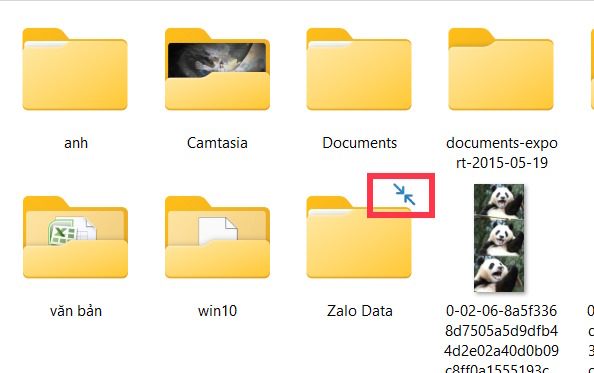
Processing can take time and may report files that Windows cannot compress because they are open or protected. Do not shut down the PC while a large batch is being processed. File Explorer may display two blue arrows on compressed items, although icon indicators can be hidden by view settings.
Check how much space you saved
Right-click the folder and open Properties. Size is the logical amount of file data; Size on disk is the storage currently allocated. The difference provides a practical estimate of the saving, although allocation size and sparse files can also affect it.
Test a representative folder before compressing a whole drive. If Size on disk barely changes, the files are not good candidates.
Compress an entire NTFS drive
- In File Explorer, open This PC, right-click the NTFS drive and select Properties.
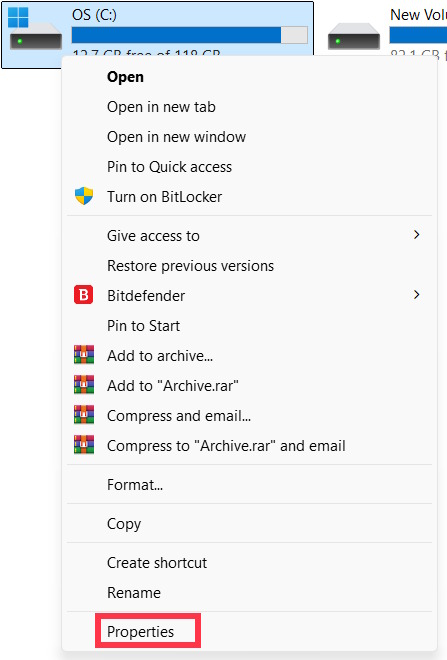
- On the General tab, select Compress this drive to save disk space, then select Apply.
- Choose the option that applies the change to the drive, subfolders and files if you want existing content compressed. Applying it only to the drive sets the default attribute without processing all current files.
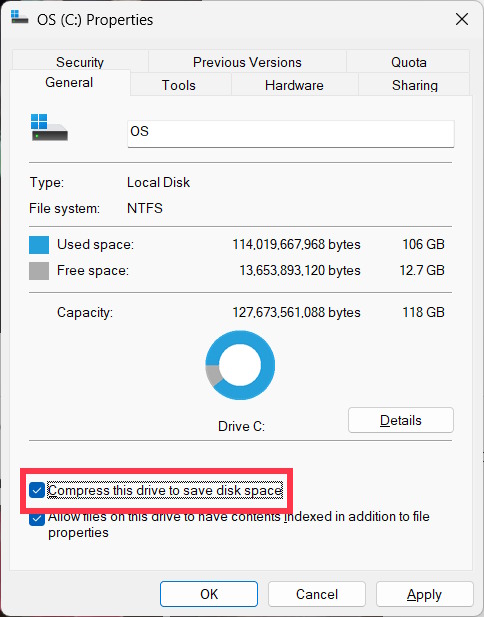
Whole-drive compression can take a long time and increases the scope of any performance or compatibility issue. Prefer targeted folders unless storage is critically limited and you have a verified backup. Windows may leave certain system files uncompressed.
Remove NTFS compression
Return to the same Advanced Attributes dialog and clear Compress contents to save disk space. Select Apply changes to this folder, subfolders and files to decompress existing contents. For a drive, clear Compress this drive to save disk space and apply the change to the drive, subfolders and files.
Make sure the drive has enough free space before decompressing a large folder. The operation can require substantially more storage than the compressed data occupies.
Use the Compact command when automation is needed
The built-in compact command is the command-line counterpart to the File Explorer control. In Command Prompt, run compact to display the compression state of files in the current folder. For recursive changes, check the supported syntax first with compact /? and verify the target path before using /C to compress or /U to uncompress.
Do not confuse this with:
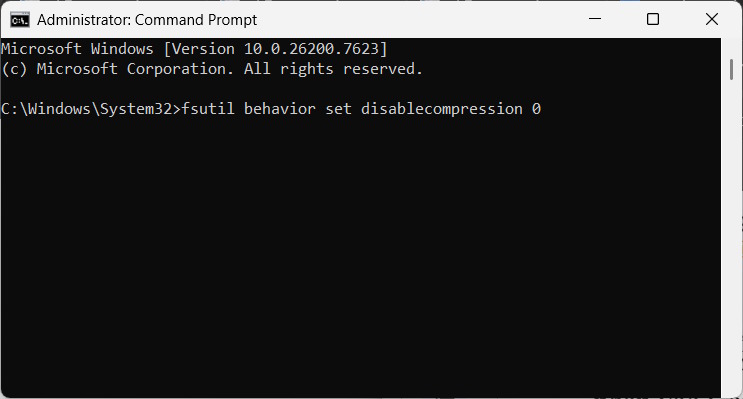
fsutil behavior set disablecompression 0
fsutil behavior set disablecompression 1
Those commands enable or disable the availability of NTFS compression at the system level after a restart. They do not compress or decompress the files you select. A value of 0 enables NTFS compression; a value of 1 disables it. Most users should leave this system-wide behavior unchanged and use File Explorer or compact for specific data.
NTFS compression versus a ZIP archive
| Use NTFS compression when… | Use a ZIP archive when… |
|---|---|
| You want files to remain in place and open normally | You want one portable file for sharing or storage |
| The data stays on an NTFS volume | The recipient may use another file system or operating system |
| You need transparent, automatic decompression | You are comfortable extracting files before normal use |
For portable archives, follow TipsMake's guide to creating and extracting ZIP files in Windows 11.
What happens when compressed files are moved?
Moving a file within the same NTFS volume normally preserves its compression state because the directory entry changes without recreating the file. Copying it, or moving it to another volume, creates a new file that generally follows the destination folder and file-system rules. A non-NTFS destination cannot retain NTFS compression.
After a large move or copy, check the destination's Properties instead of assuming the blue-arrow icon tells the full story.
Related Articles
 Should I Use Full-Drive Compression to Free up Space on Windows?5 minutes read
 How to Enable Hard Drive Compression on Windows Operating7 minutes read
 Top 5 Best Free PDF Compression Software8 minutes read
 Top Software to Extract Files and Compress Files Today12 minutes read
 Operation Mechanism of File Compression Tool8 minutes read
 Top 10 Best File Compression and Decompression Software18 minutes read
Reader Comments 0
Sign in with email or Google to join the discussion.