Table of Contents
Swipewipe turns photo cleanup into a simple review: swipe right to keep an item and left to mark it for deletion. It is useful when a camera roll has become too large to sort in one session, but it still requires careful confirmation. The app does not decide which personal photos are disposable for you.
Use the official Swipewipe website to reach its Apple App Store or Google Play listing. Several similarly named apps exist, so check the developer and store page before installing.
Check access and subscription terms first
Swipewipe needs access to the photos you want it to review and delete. On iPhone, limited photo access may prevent the app from seeing the whole library; on Android, the available permission choices depend on the OS version. Grant only the scope required for the cleanup you intend to perform.
The free experience, trials, advertising, and paid plans can vary by platform, country, and app version. Read the purchase screen for the current price, billing period, renewal date, and cancellation terms before accepting an offer. Deleting the app does not by itself cancel an App Store or Google Play subscription.
Review photos by month or category
The home screen organizes the library into review groups. The official app emphasizes month-by-month cleanup and may also show sections such as recent items, screenshots, duplicates, videos, or an “On This Day” group. The exact categories can change as the app is updated.
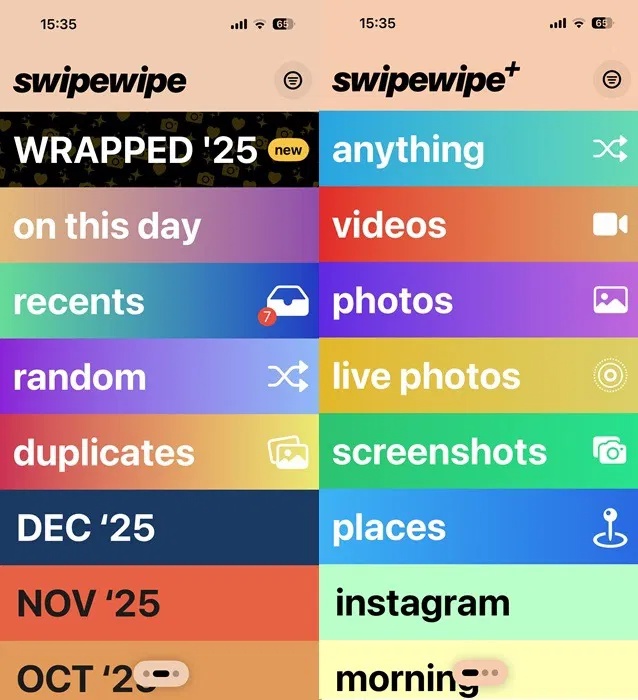
Open a group, then review each item at full size:
- Swipe right to keep it.
- Swipe left to mark it for deletion.
- Use the on-screen buttons if gestures feel too easy to confuse.
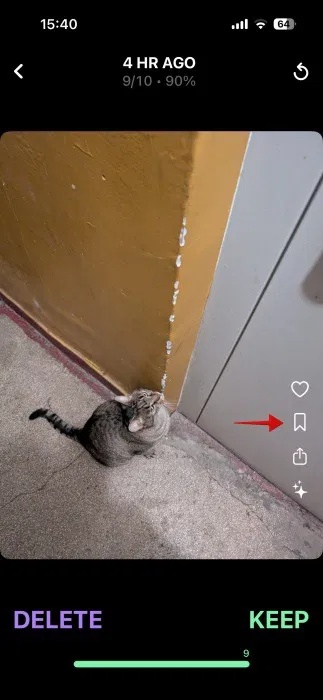
Do not rush through receipts, identity documents, family photos, or anything that exists only on the phone. When two photos look alike, zoom in and compare focus, expressions, and any text before deciding. You can set aside an item with the app’s bookmark control and return to it later.
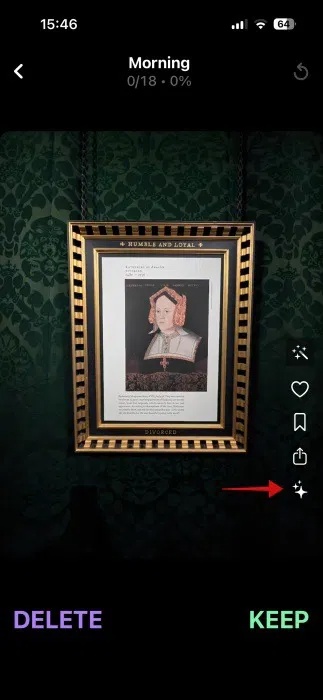
Some versions offer extra tools such as photo enhancement. Treat an enhanced result as a new edit and inspect it before keeping or sharing it; automatic processing cannot restore detail that the original never captured.
Review the deletion list before confirming
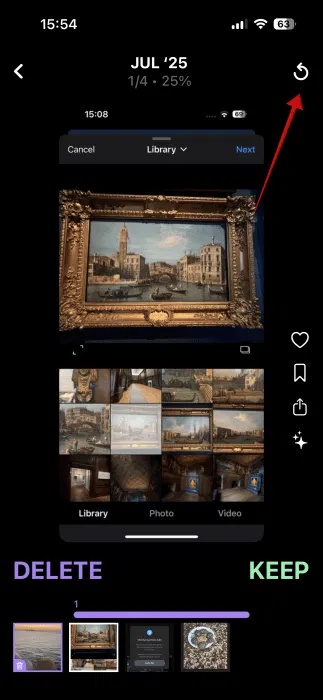
Swipewipe lets you correct the most recent choice while a review is in progress. Use the back or undo control as soon as you notice a mistaken swipe.
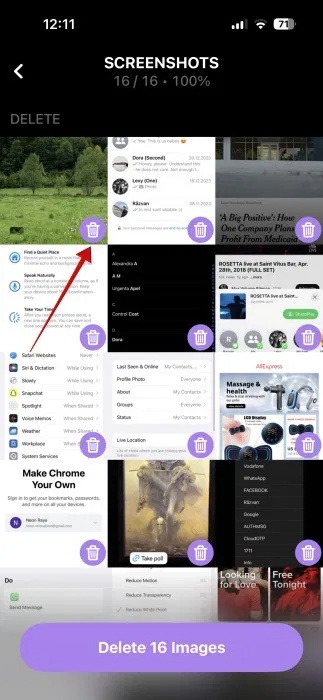
At the end of a group, inspect the keep and delete selections in the summary. Move any mistaken item out of the deletion group before confirming. This final check matters more than the speed of the swipe workflow.
Understand when storage is actually released
After you approve deletion, the operating system may place the files in Recently Deleted, Trash, or the equivalent album. They can continue using local storage until that folder is emptied automatically or manually.
Check Apple Photos, Google Photos, or the phone maker’s Gallery app to verify where deleted items went. Emptying that folder makes the deletion much harder or impossible to reverse, so inspect it first. If you need broader storage options, use the built-in tools covered in our guides to freeing space on Android and freeing storage on Android and iPhone.
Use the saved-space statistics as an estimate
The app displays cleanup statistics after a session, including the number of reviewed items and an estimate of space selected for deletion.
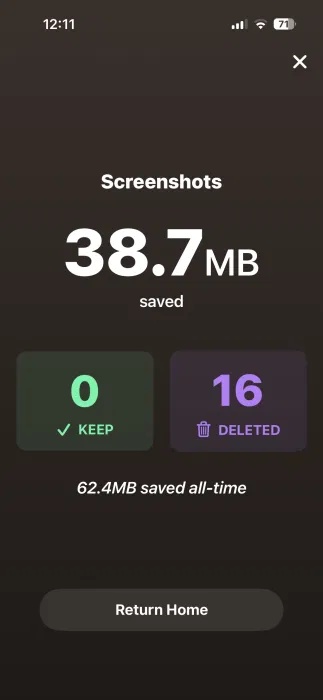
Open My Stats if it is available in your version to see cumulative activity.
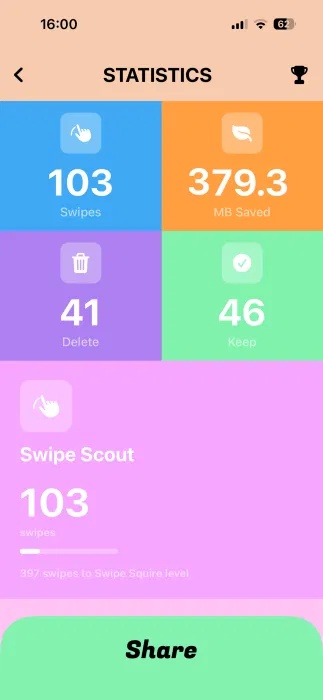
The number shown inside the app may not immediately match the phone’s free-storage reading. Recently Deleted files, cloud optimization, cached thumbnails, and delayed storage recalculation can all affect what the system reports.
A safer cleanup routine
- Confirm backup status. If the photos matter, make sure the originals are backed up and can be opened from the backup before deleting local copies.
- Start with low-risk clutter. Review screenshots, duplicate downloads, and obvious failed shots before personal albums.
- Work in short sessions. Decision fatigue makes accidental deletion more likely.
- Review the deletion summary. Never treat the left swipe as the final quality check.
- Inspect Recently Deleted. Restore mistakes before emptying it.
- Reduce new clutter. Turn off automatic media saving in chat apps when you do not need every received image stored in the gallery. Our WhatsApp settings guide includes that option.
Swipewipe is best viewed as a faster review interface, not an automatic storage repair tool. It can make a large library manageable, while the responsibility for backups, purchase terms, and final deletion remains with the user.
Related Articles
 6 Tips to Free up Storage Space on Google Photos7 minutes read
 7 Tips to Free Up Storage Space on Google Photos: Recommended Choices10 minutes read
 Clean up to Regain Storage Space for Icloud16 minutes read
 6 Simple Tips to Help You Free up Google Drive Space: Practical Guide6 minutes read
 How to Free up Space in Google Drive6 minutes read
 7 Tips to Free Up Space in Google Drive: Complete Guide9 minutes read
Reader Comments 0
Sign in with email or Google to join the discussion.