Table of Contents
Discover 7 smart iPhone gestures that help you work faster that Apple rarely reveals.
With the modern iPhone no longer having a Home button, the experience is now more touch-based than ever. Everyone knows to swipe up to return to the home screen or pull down from the top right corner to open Control Center, but there are still many other gestures that Apple doesn't explain clearly.
These gestures can help you get things done faster or unlock hidden shortcuts you never knew existed. While the iPhone doesn't have as many gestures as the iPad due to its smaller screen, they're still powerful enough to take advantage of.
Drag and drop between apps
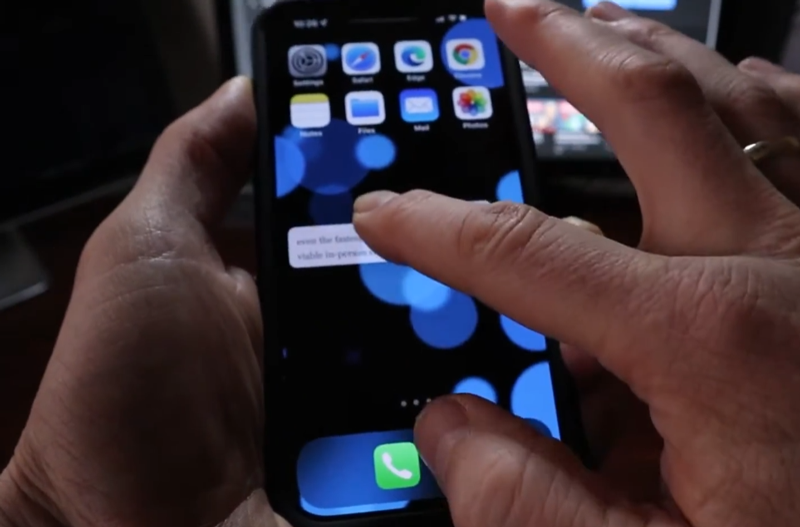
Dragging files, images, and data between apps is familiar on your computer, but you can do it right on your iPhone. Just tap and hold an image, text, link, or other content. Hold it with one finger, then use another finger to go back to the home screen and open another app. In that app, navigate as usual and drop the content to where you want it.
You can use this to quickly move text between conversations, share links, or send images from the web without downloading them.
Hold Space to turn the keyboard into a trackpad
The iPhone has a hidden trackpad right on the keyboard. This feature lets you move the cursor more precisely instead of having to touch the text location.

To activate it, hold down the Space key while the keyboard is open. When the keys turn blank, you can slide your finger across the keyboard area to freely control the cursor. This is handy when editing text or navigating through long paragraphs.
Three-finger swipe to undo and redo
By default, the iPhone supports shaking the device to undo the previous action. However, this action is unreliable and difficult to use. A better way is to use a swipe gesture.
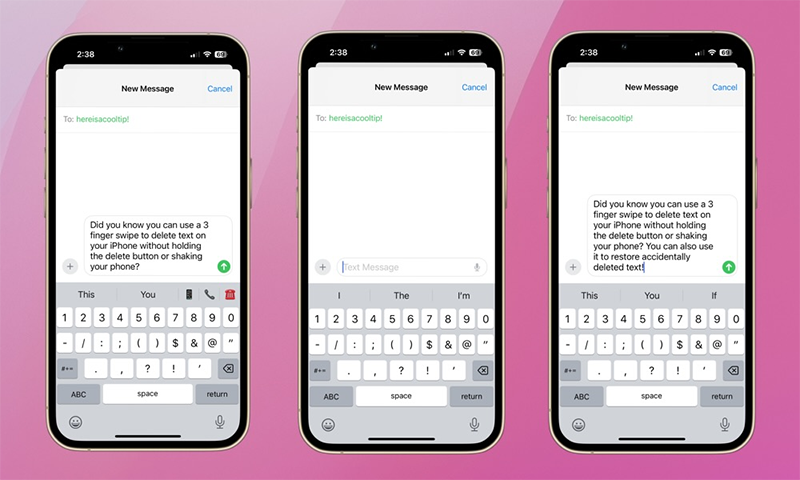
To undo, place three fingers on the screen and swipe left. To redo the action you just undone, swipe three fingers to the right. The screen will display an Undo or Redo message to confirm.
For example, if you accidentally delete a piece of text in Notes or Messages, just perform this gesture to restore it.
Pinch with three fingers to copy, cut, and paste
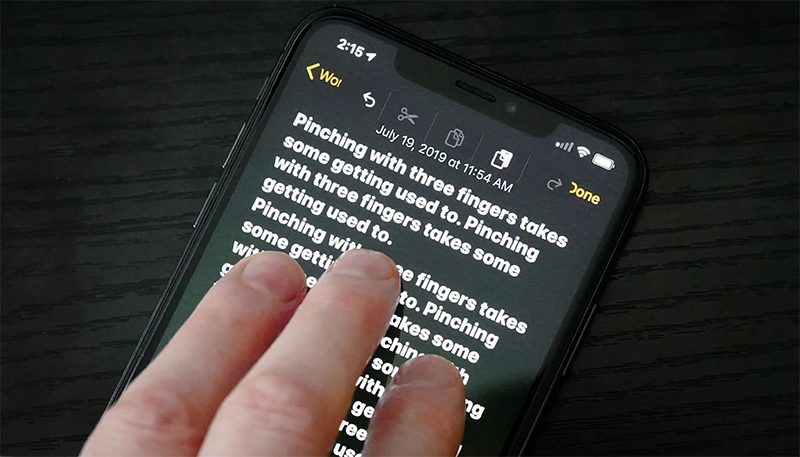
Using three fingers also gives you quick access to basic actions. Instead of selecting text and tapping the menu, you can:
- Pinch with three fingers to copy.
- Pinch twice in succession to cut.
- Spread three fingers out to paste in desired location.
If it's difficult to select the right text or place the cursor precisely, you can combine it with the trackpad feature from the Space key for smoother operation.
Two fingers to select multiple items
When You should select multiple emails, messages, or files, you don't need to tap them one by one. Use two fingers to tap the first item and then swipe down to select multiple items.
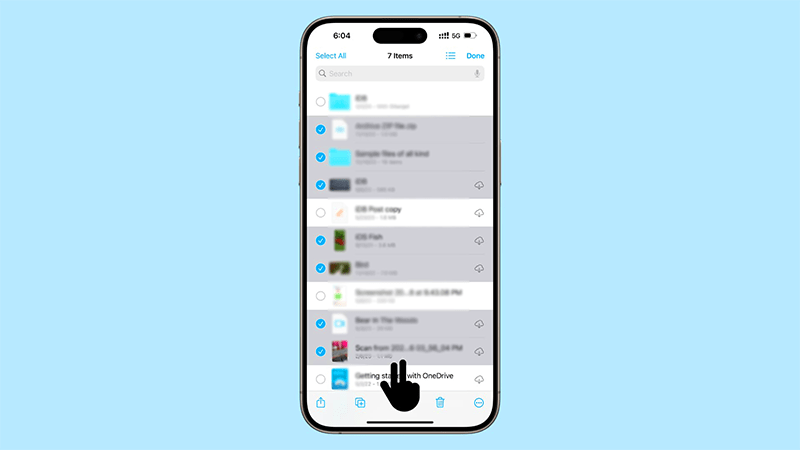
In the Mail app, this will bring up selection rings on the left edge, making it easier to swipe through multiple items at once. Holding two fingers at the bottom of the screen will automatically scroll the list. You can also make non-consecutive selections by lifting your finger, scrolling to a new area, and repeating the gesture.
Hidden shortcuts on the lock screen
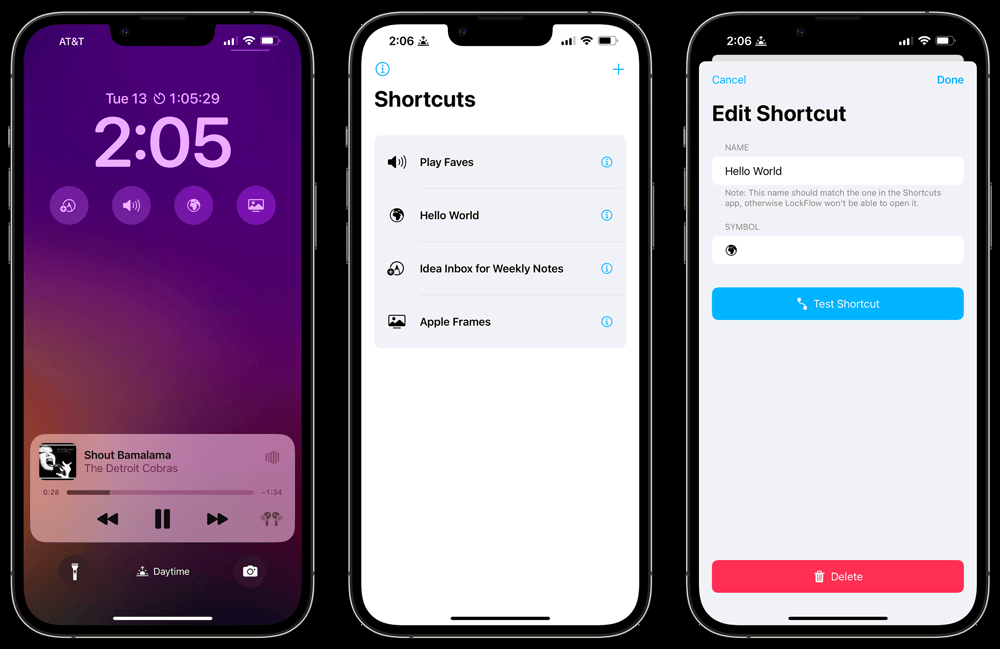
The iPhone lock screen also has gestures that you might have overlooked.
- Swipe from the right to quickly open Camera, allowing you to replace the default Camera widget with another app like Calculator or Shortcuts.
- Swipe from the left to open Today View, which houses iOS widgets. If you haven't already, you should set it up so you can quickly access information without unlocking.
Other small gestures in iOS
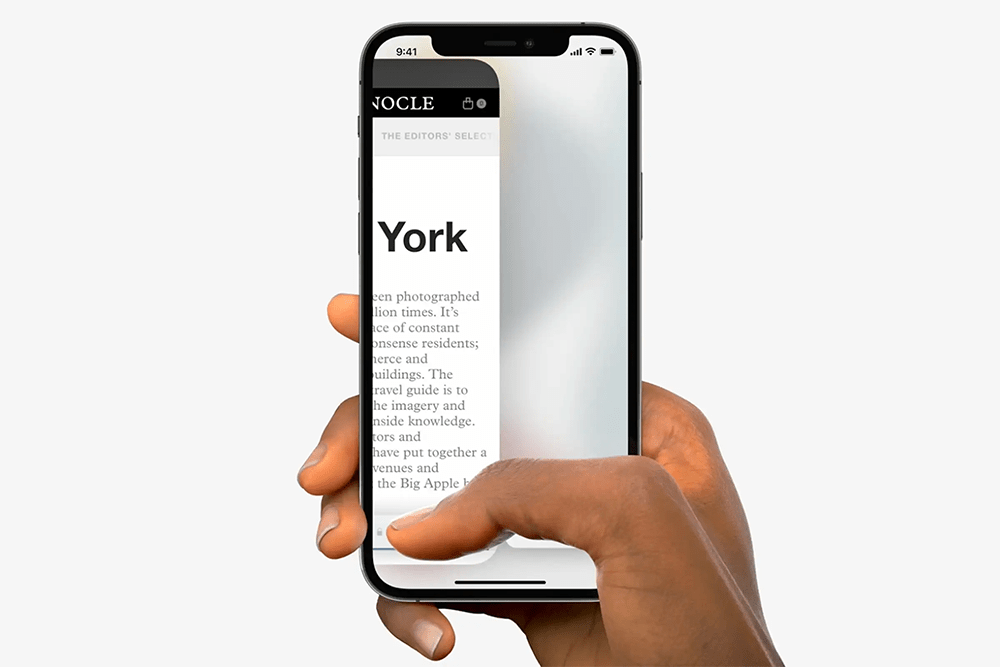
In addition to the main gestures, iOS has many hidden operations that save time:
- When scrolling a long page, tap and hold the right scroll bar to move quickly instead of swiping repeatedly.
- In Safari, when you're all the way zoomed in, you can use a two-finger-wide gesture to jump right to the Tab Overview interface.
- In many apps, long-press a link to see a preview without opening a new tab.
- With the back button in the upper left corner, you can long press to bring up the breadcrumb menu and quickly select the previous page.
- Tap the top of the screen, right at the Dynamic Island area on new iPhones, to instantly scroll to the top of the page.
- Additionally, the Back Tap feature lets you tap the back of your iPhone two or three times to quickly perform an assigned action like taking a screenshot, opening an app, or invoking Siri.
FAQ
What should you know about the options in this guide?
In practical terms, discover 7 smart iPhone gestures that help you work faster that Apple rarely reveals.
Which option is the best choice?
The best choice depends on your priorities, compatibility, budget, and the specific features discussed in the comparison.
What should you compare before deciding?
Compare core features, limitations, ease of use, compatibility, and long-term value before making a decision.
Related Articles
 Revealing the 'Super Strange' Hidden Feature of the Apple Smart Ring Explained4 minutes read
 Control iPhone with Head Gestures: Smile, Stick Out Tongue: How-To Guide3 minutes read
 5 Best Tips Guide to Using Apple Watch6 minutes read
 How to Use iPhone X with Screen Swipe Operations7 minutes read
 Apple Released Smart Cases for Iphone 11, Iphone 11 Pro and3 minutes read
 Basic Guide to Touchpad Gestures on Windows 115 minutes read
Reader Comments 0
Sign in with email or Google to join the discussion.