Table of Contents
This updated guide explores swipe tips to quickly delete emails in Gmail iPhone with practical details, clear explanations, and useful takeaways. The Gmail app on iPhone does not have a swipe to delete option, you need to hold down and select delete to do it. If you find this operation too annoying and want to shorten it, it is very simple. We just need to set up the swipe mode to delete Gmail emails.
How to Swipe to Delete Emails in Gmail iPhone
Step 1:
At the interface on the Gmail iPhone application, users select the 3-dash icon , then select Settings in the displayed menu.


Step 2:
open the Gmail settings interface, select Customize inbox. Now you will see the Swipe on mail settings to adjust as you like.


Step 3:
There are 2 operations here: swipe right and swipe left, you press Swipe left to adjust. Here displays the content of the swipe operation, you press Trash to perform.


Finally choose Done to save this newly set up operation.

Step 4:
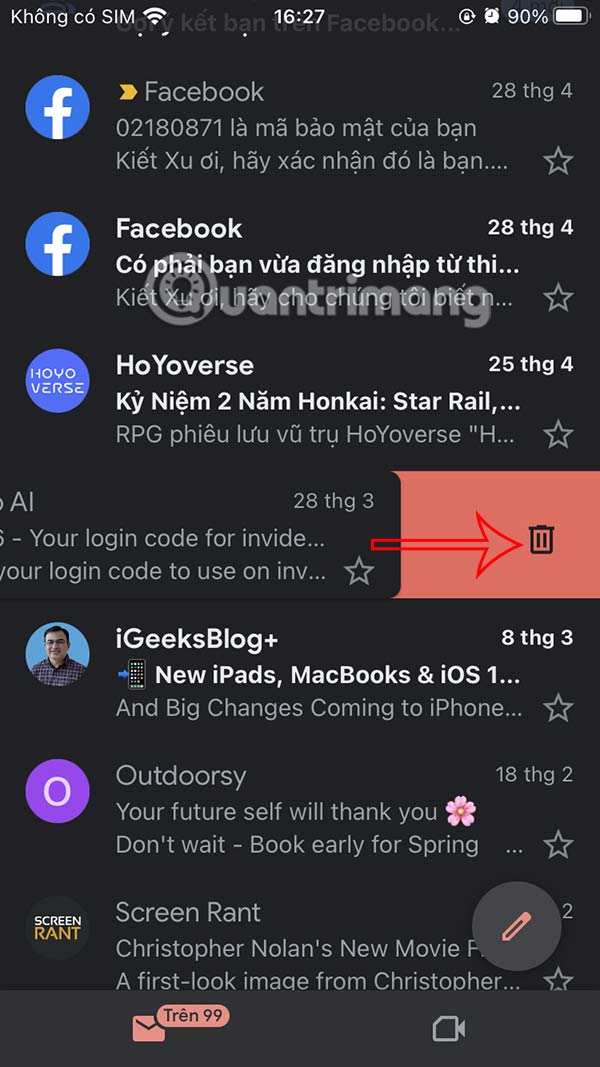
Return to the Gmail app interface, swipe left and tap the trash icon to delete Gmail emails.
FAQ
What is the main takeaway about Swipe Tips to Quickly Delete Emails in Gmail iPhone?
The key is to understand the core idea, compare the available options, and apply the practical guidance that matches your situation.
What should beginners know about Swipe Tips to Quickly Delete Emails in Gmail iPhone?
Start with the essential steps and terminology. Avoid changing advanced settings until you understand how they affect performance, privacy, cost, or compatibility.
How can I use this information in practice?
Follow the relevant section in order, test one change at a time, and confirm the result before moving to the next step or recommendation.
Related Articles
 How to Set Up Swipe to Delete Mail on iPhone3 minutes read
 How to Adjust Gmail Android Swipe Gestures3 minutes read
 How to Delete All Emails of a Specific Sender on Gmail?4 minutes read
 Customize the Swipe to Manage Gmail on Android Easier3 minutes read
 How to Delete All Emails at Once in Gmail4 minutes read
 Gmail on iOS Has Supported Swipe, Invite Experience2 minutes read
Reader Comments 0
Sign in with email or Google to join the discussion.