Table of Contents
Explore 6 useful Android accessibility tools for everyone, including the key concepts, practical examples, important considerations, and useful guidance.
You can explore this menu to add live captions, dim the screen to maximum brightness, or make your old phone feel smoother. There are even shortcuts to simplify navigation and features that turn your phone into an extra pair of headphones. Spend just a few minutes and you might discover upgrades you didn't even know you wanted.
Live Caption
Real-time subtitles for everything on screen
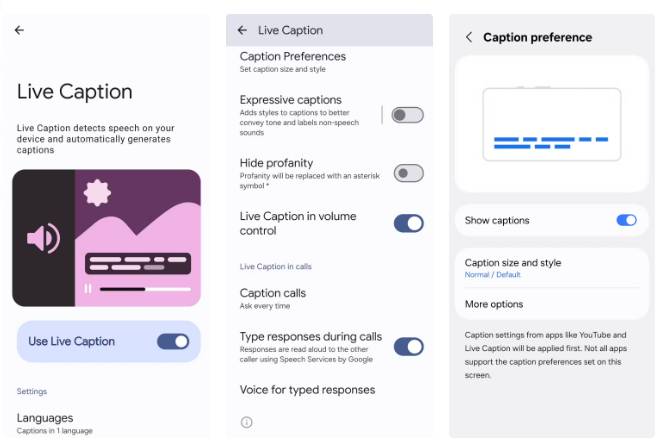
Live Caption can listen to any audio on your phone and instantly convert it into text on the screen. It sounds simple, but what makes Live Caption useful is that it solves a lot of everyday annoyances.
For example, if you're trying to watch a video in a noisy coffee shop without headphones, Live Caption can help you follow along without missing anything. It's also useful if you get a voice message and want to check it without having to listen out loud.
Since it works on any screen, you can even use it during phone calls. You'll see what the other person is saying with clear, real-time captions. You also have the option to type a response and your phone will read it aloud to the caller. To enable Live Caption, go to Settings > Accessibility > Hearing enhancements > Live Caption and turn it on.
Extra dim
Surf the web late at night without glare
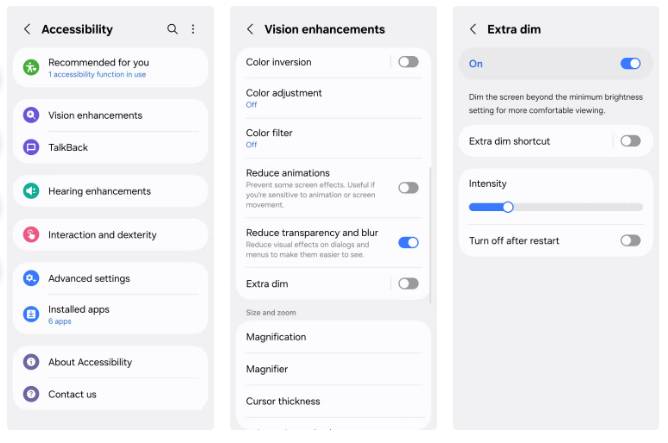
If you've ever tried to use your phone to browse the web late at night, you know how difficult it can be. Even at its lowest brightness, the screen can be as bright as a flashlight shining directly in your face. Extra Dim mode lets you reduce the screen brightness to much lower than the normal minimum.
You'll find the Extra Dim toggle under Settings > Accessibility > Vision enhancements . Once enabled, use the slider to adjust the intensity to your liking. You can even add a shortcut to the feature to your Quick Settings panel for easy access.
Assistant menu
Get iPhone-like floating button
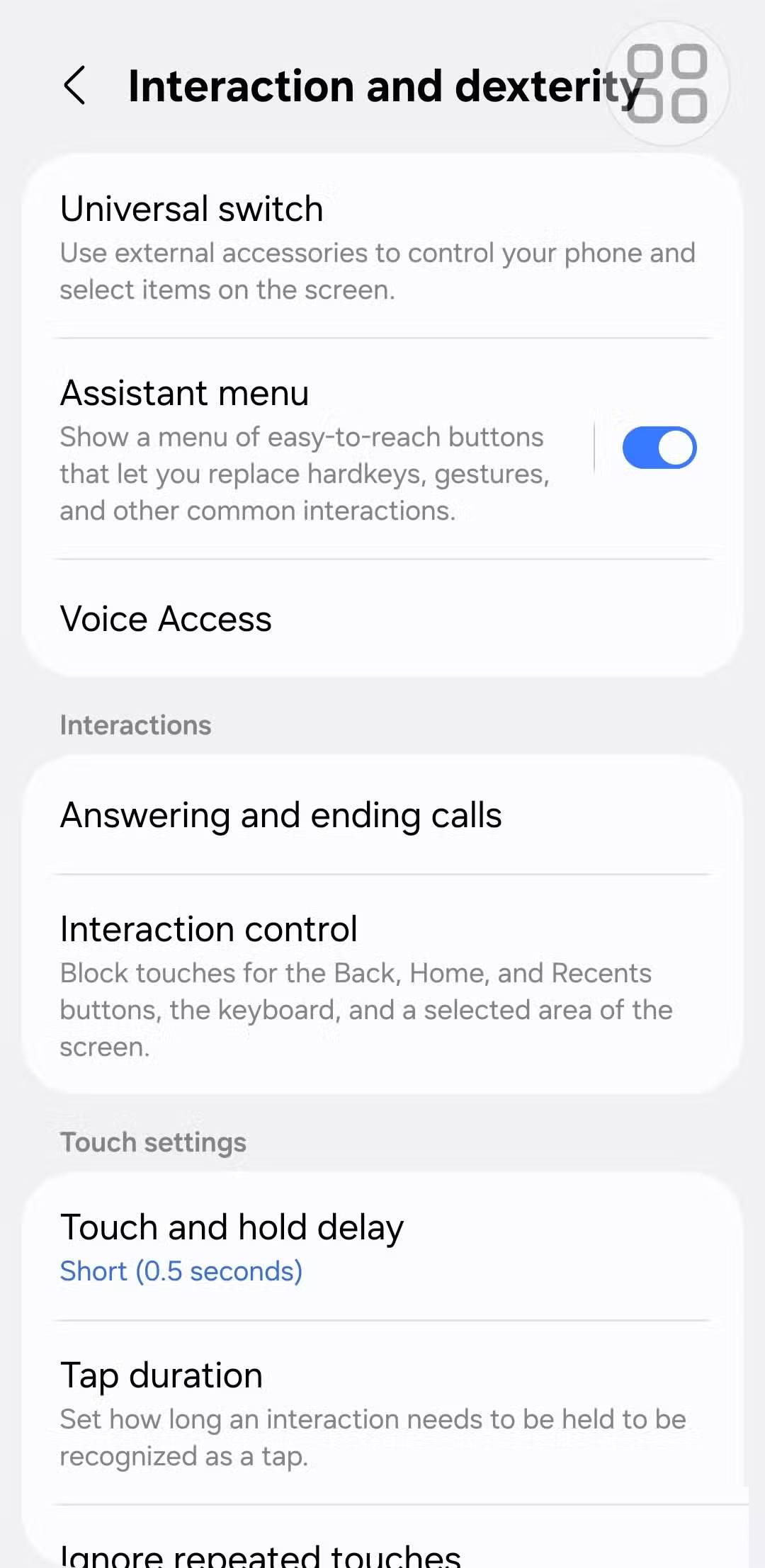
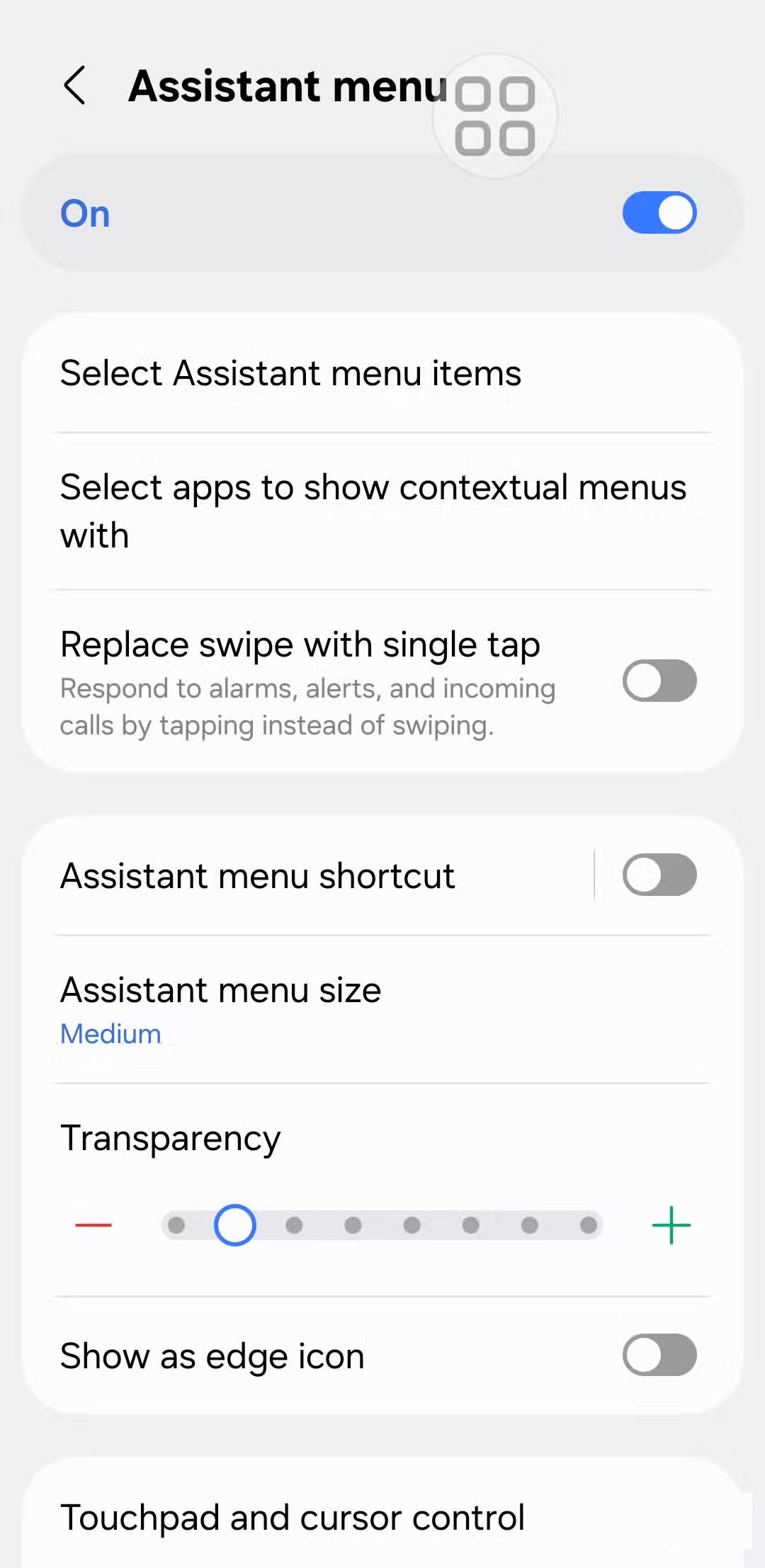
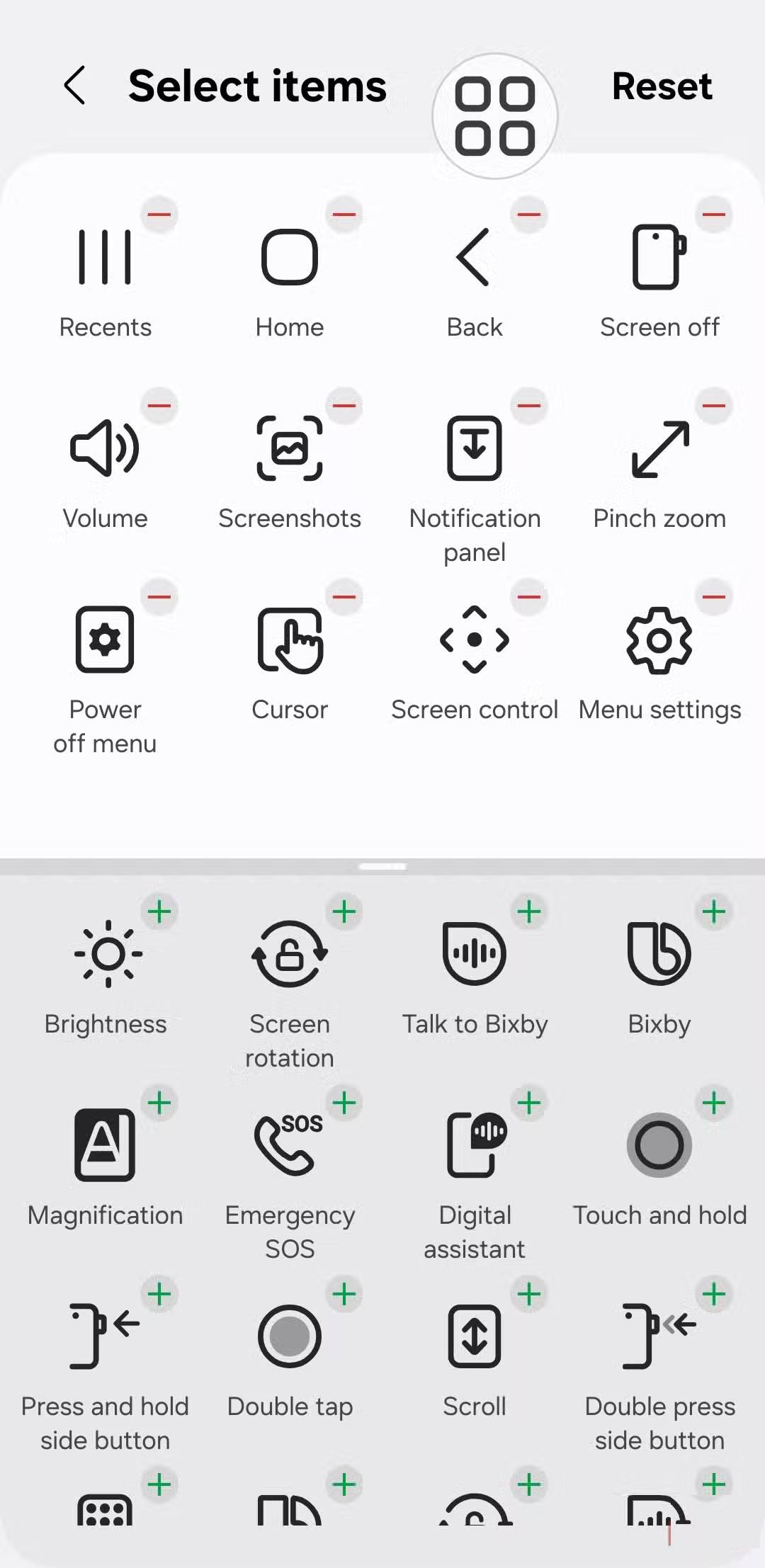
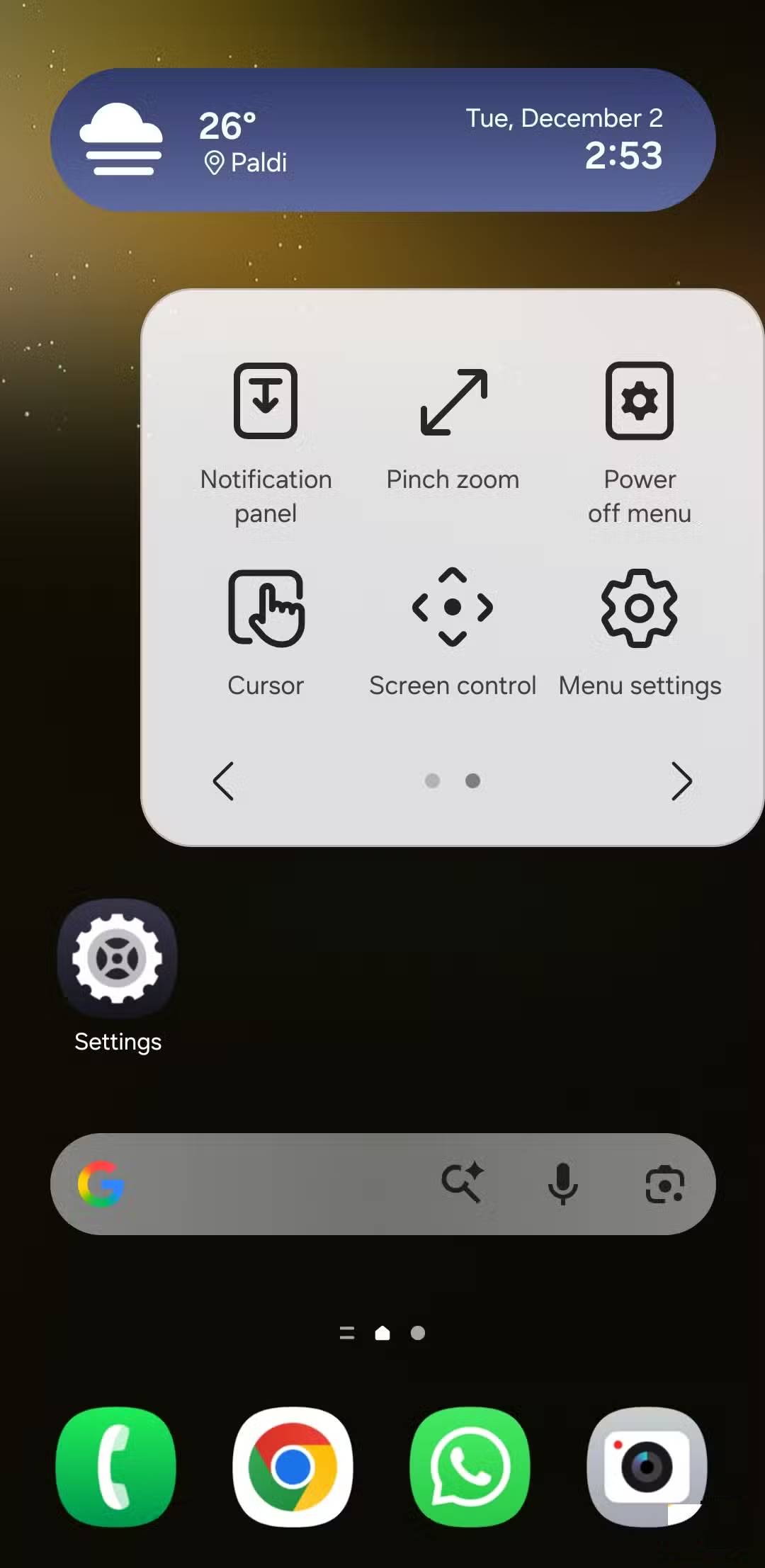
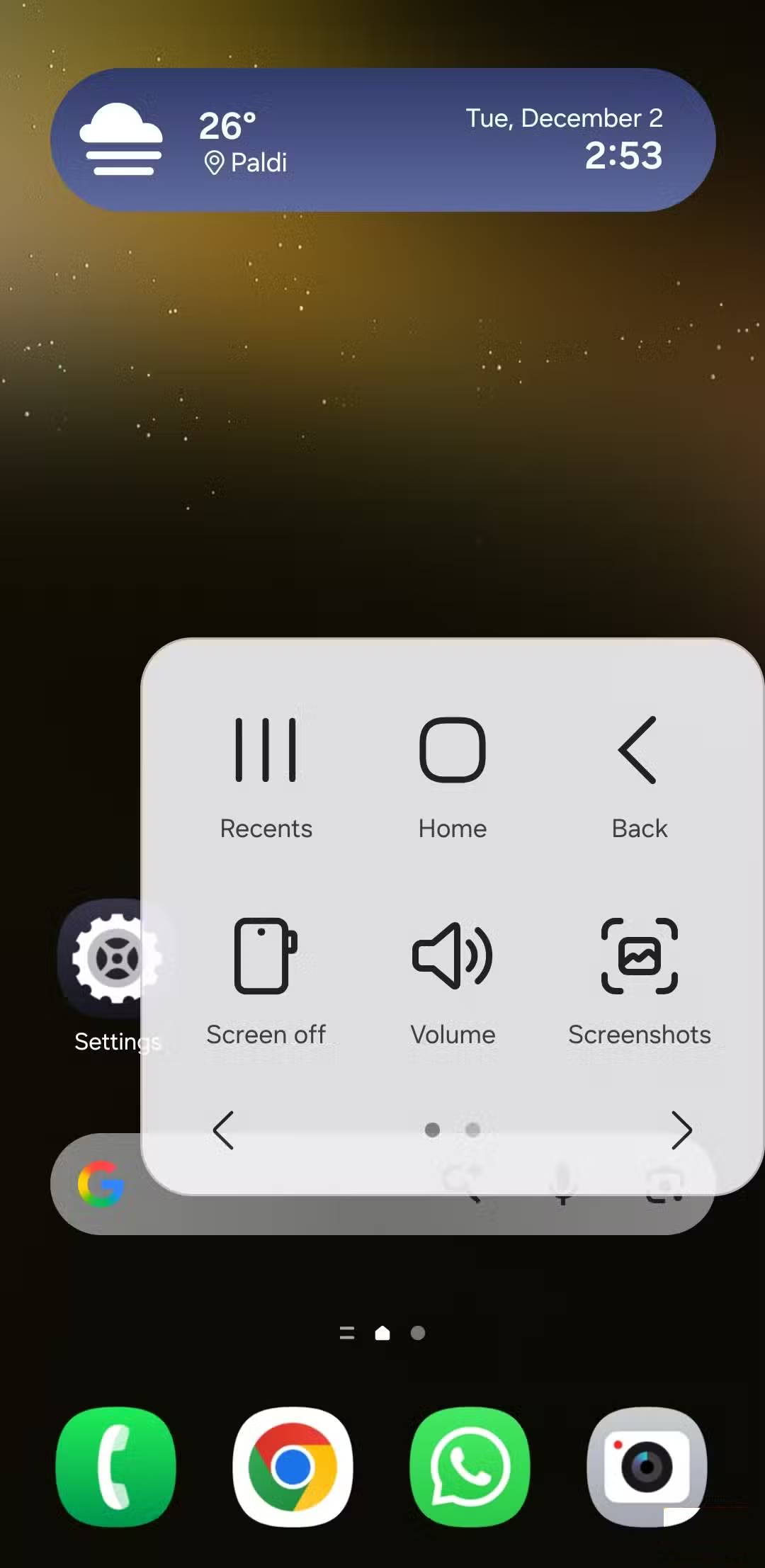
The Assistant menu gives your phone a floating set of tools that are always at your fingertips. Once enabled, you'll see a small button that can be moved anywhere. Tapping it will open a compact menu of shortcuts like screenshot, brightness, volume control, magnifier, power menu, and more. These shortcuts can be useful if you're trying to use your phone with one hand or if one of the physical buttons is broken.
You can choose which shortcuts appear and arrange them in a way that fits how you actually use your phone. It works a lot like the AssistiveTouch button on the iPhone. To enable and customize, go to Settings > Accessibility > Interaction and Dexterity > Assistant menu .
Sound Notifications
The phone will listen, you don't have to
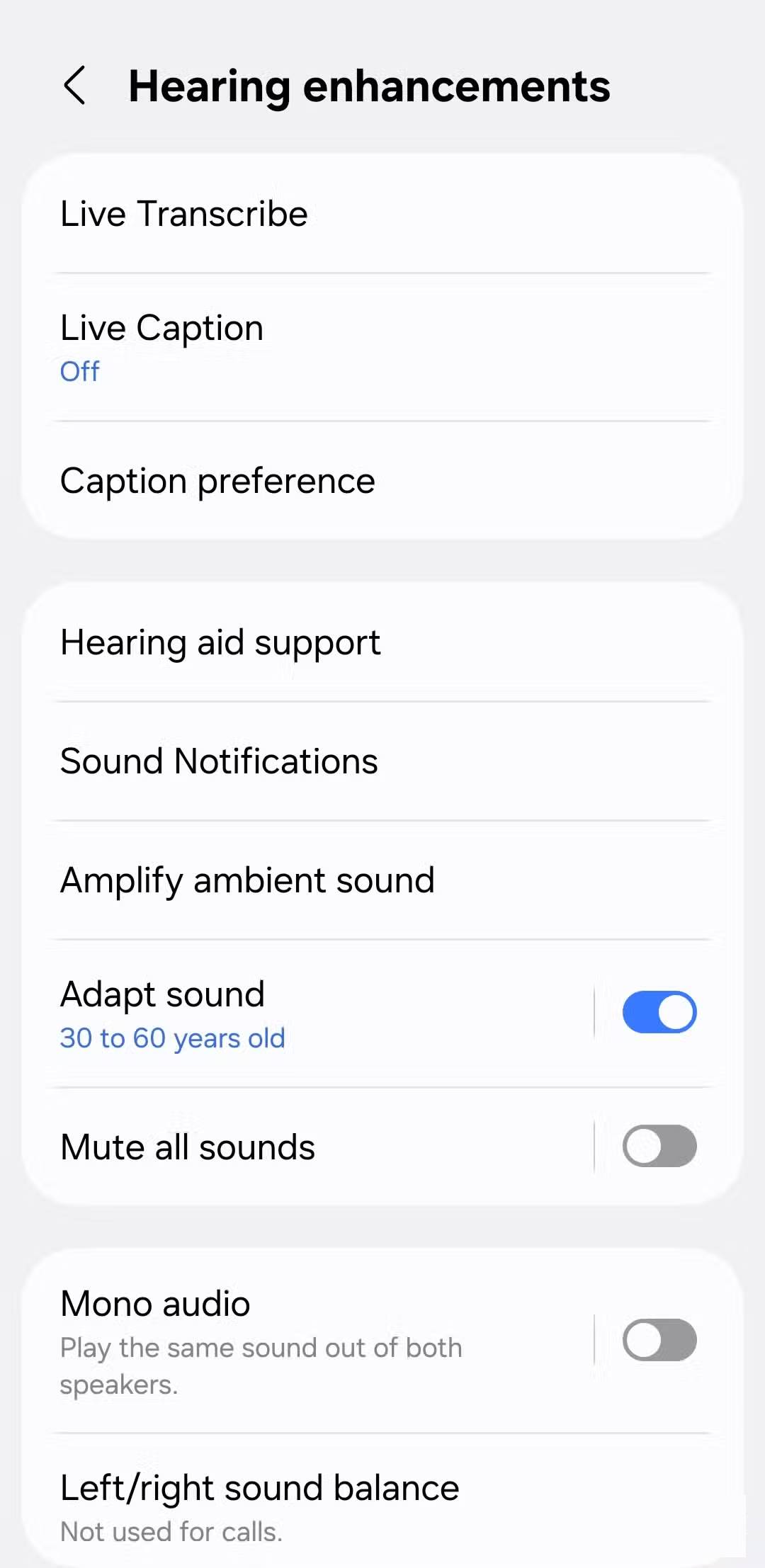
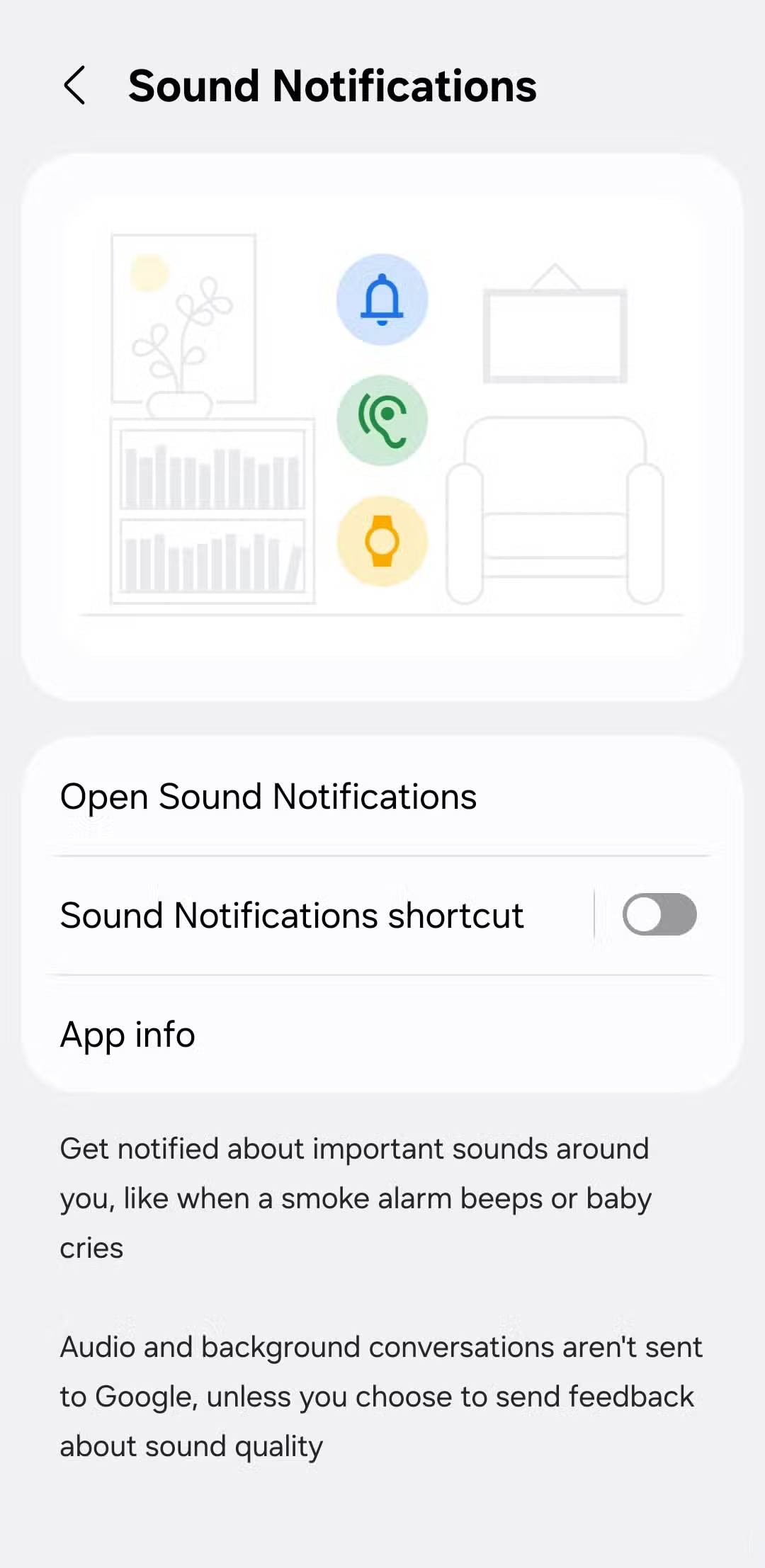
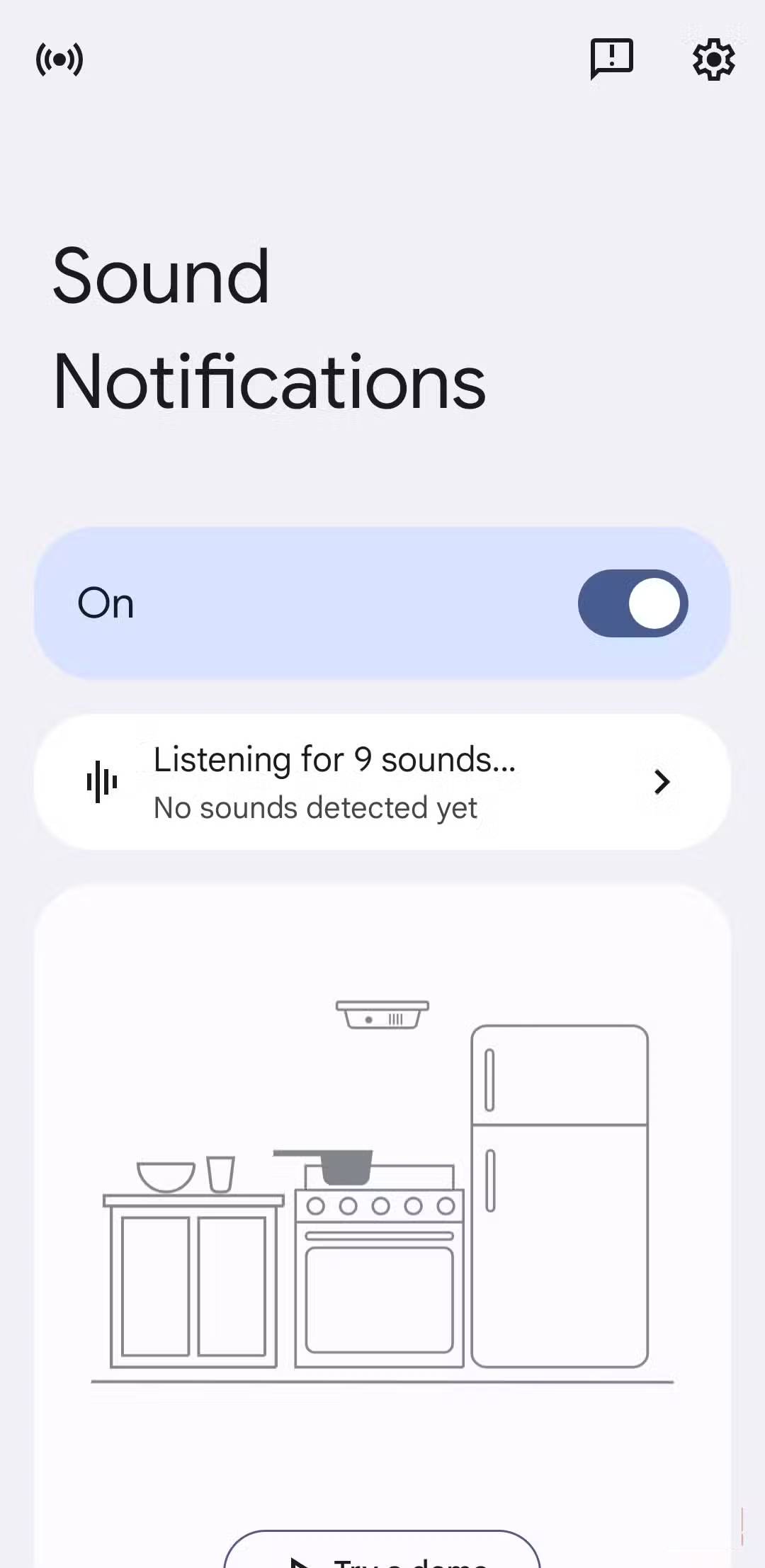
If you're worried about missing an important sound like a doorbell, running water, smoke alarm, or even a baby crying, just because you're too focused on work or listening to your favorite tunes, Sound Notifications can turn your phone into a second pair of ears.
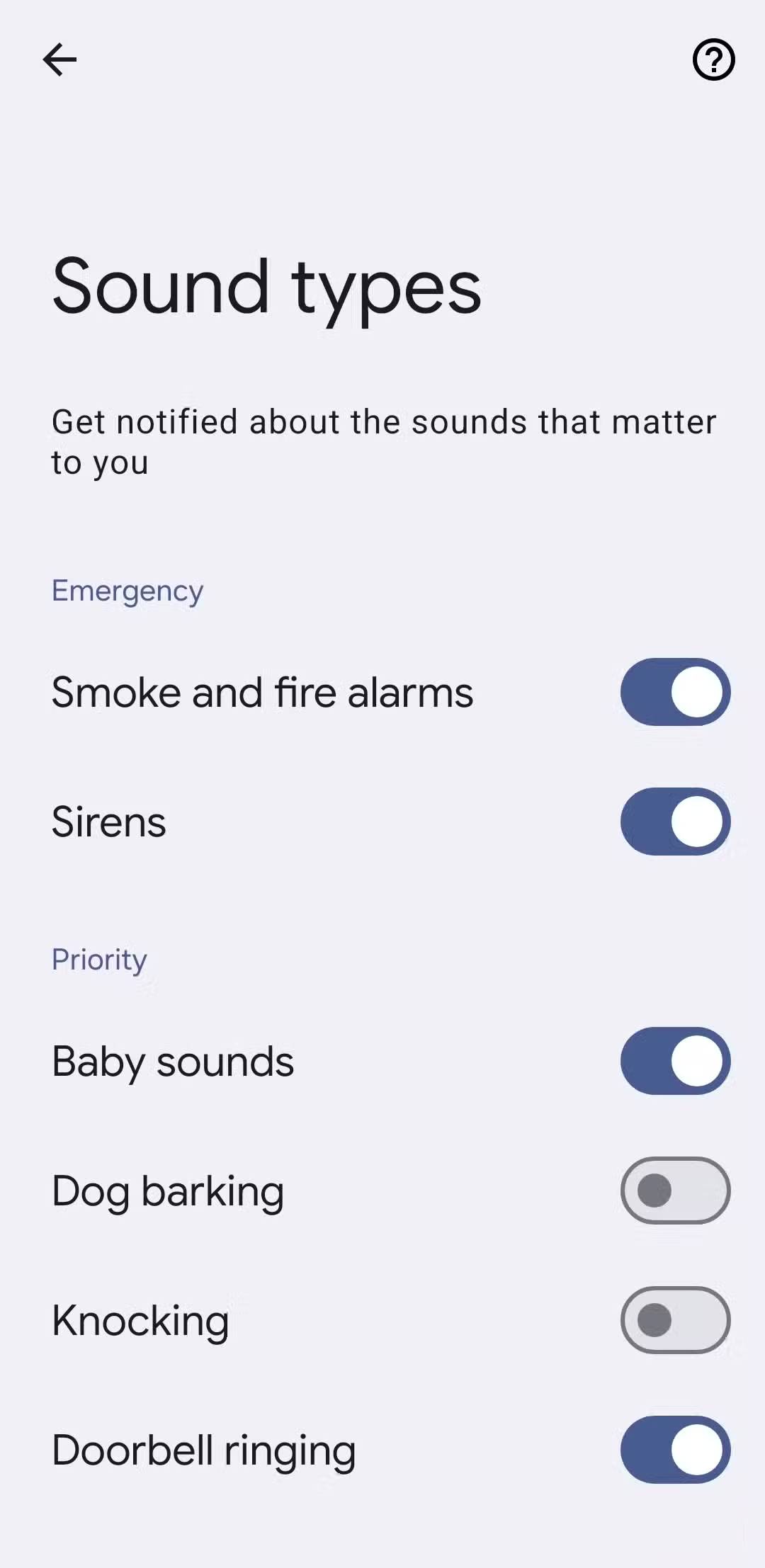
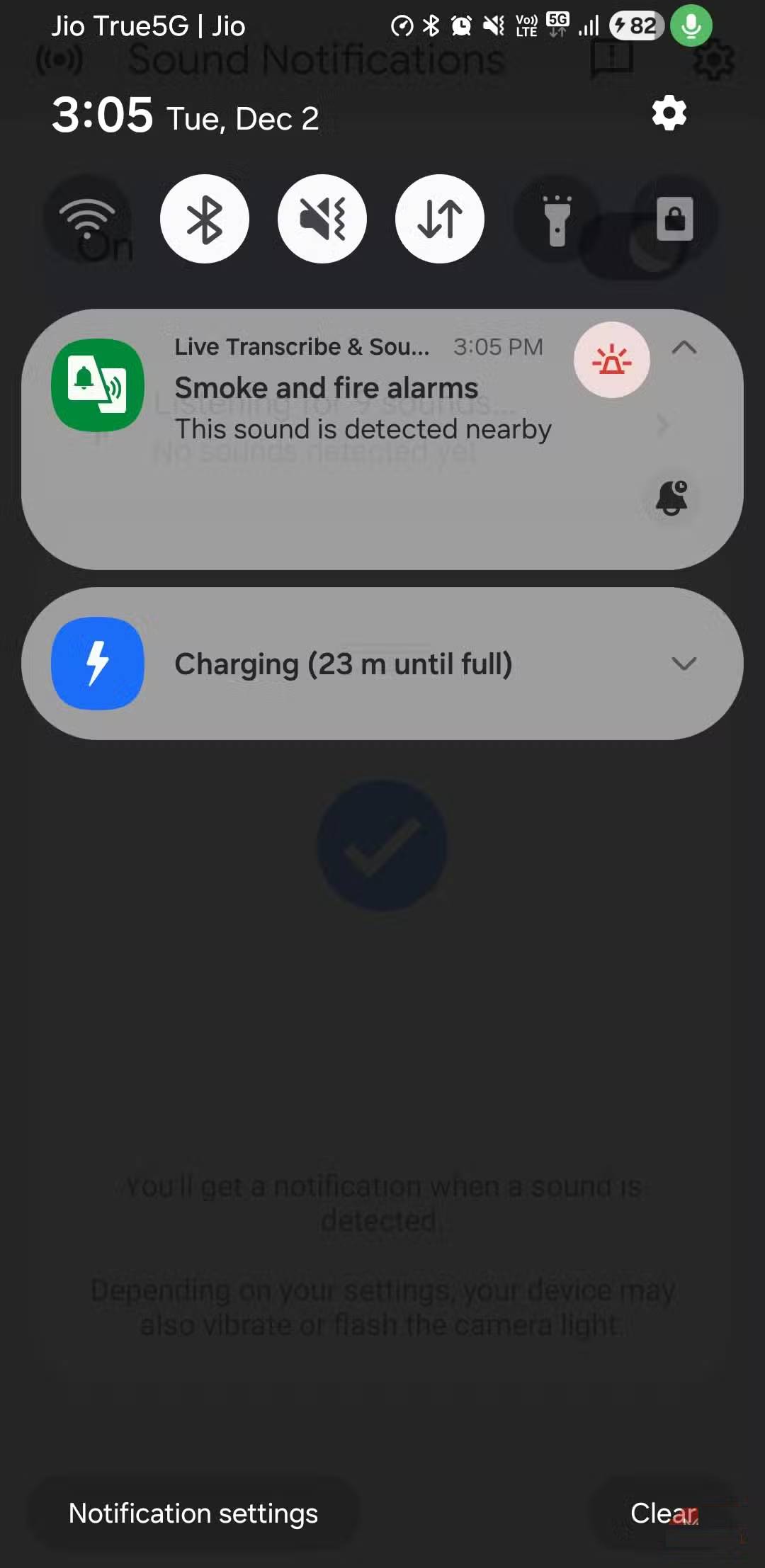
This feature can help your phone recognize all kinds of important sounds like a dog barking, a baby crying, an electronic device beeping, etc. When it receives a sound, your phone will display a clear alert with a description of the sound so you know what's going on, even if you don't hear it yourself.
In the Accessibility menu, go to Hearing enhancements > Open Sound Notifications to turn this feature on. From there, you can choose which sounds you want your phone to detect and which you want to ignore.
Answer and end calls easily
How to manage smartphone calls
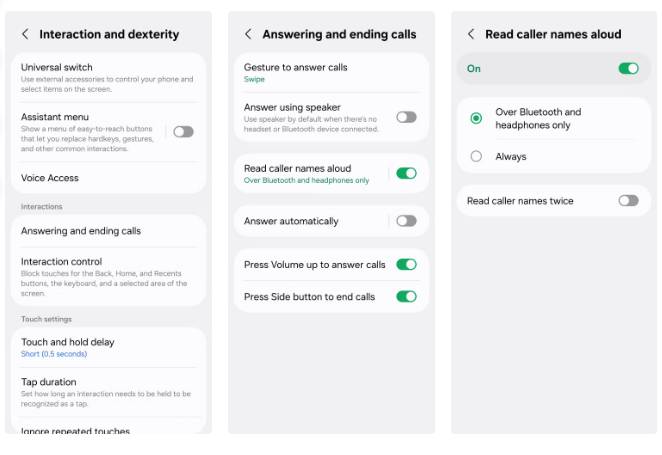
Answering and ending calls on Android is already pretty easy, but the accessibility menu gives you a few extra options to make the process even more convenient. For example, you can set your phone to always put calls on speakerphone when no Bluetooth device is connected.
You also have the option to have the caller ID read out loud while wearing the headset, so you can see who's calling without having to pull your phone out of your pocket. There's also the option to answer calls with the volume up button and end them with the side button, which is handy when you're wearing gloves.
To turn on these features, go to Settings > Accessibility > Interaction and dexterity > Answering and ending calls .
Reduce animations and transparency
Make your phone run faster
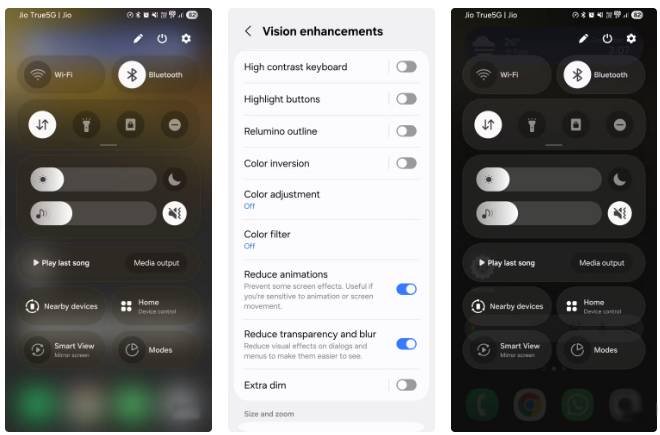
If your Android phone is getting a little old and isn't as responsive as it used to be, there are a few accessibility toggles that can help. The first is Reduce animations , which reduces the flashy transitions that play when you open apps or scroll through menus. This can make an older Android phone feel a little more responsive.
Another toggle is Reduce transparency and blur , which turns off unnecessary visual effects on dialog boxes and menus. This not only saves a bit of performance, but also makes text easier to read. To try it out, go to Visibility enhancements in the accessibility menu.
The Accessibility Menu isn't just a tool for people with specific needs. It's full of smart features that make your phone easier to use. If you haven't explored it yet, now's the perfect time to start.
Final Thoughts
Understanding 6 useful android accessibility tools for everyone makes it easier to evaluate the information and apply the most relevant recommendations. Focus on the key points above and verify details that may change over time.
FAQ
What is 6 useful android accessibility tools for everyone?
Explore 6 useful Android accessibility tools for everyone, including the key concepts, practical examples, important considerations, and useful guidance.
What key points does this article cover?
The article focuses on Live Caption, Real-time subtitles for everything on screen, Extra dim, with practical explanations and examples.
How can you use this information in practice?
Use the explanations to compare options, verify important details, and make a more informed decision. Apply the recommendations that best match your goals and situation.
Related Articles
 Google Releases Open Source Tools, Making iOS Easier to Access6 minutes read
 9 Android Accessibility Features Every User Should Try7 minutes read
 New Accessibility Features on iPhone5 minutes read
 13 Useful iPhone Accessibility Features People Often Overlook7 minutes read
 Google Adds Accessibility Apps for People with Disabilities3 minutes read
 Accessibility Check Prompt for Code4 minutes read
Reader Comments 0
Sign in with email or Google to join the discussion.