Table of Contents
This guide organizes the entries in "6 Habits That Destroy HDD Hard Drives" and explains what each option, idea, or example offers. It also highlights practical details that matter when comparing the choices.
6. Improper shutdown of the computer
It's creepy to see someone yank the power cord to shut down a computer. It may seem quick and harmless, but the HDD is trying to finish writing when you cut the power.
During these moments, the drive's read/write heads are resting on the spinning platters. A sudden shutdown would force them to an emergency stop, potentially corrupting data sectors or damaging internal mechanical components.
5. Push the hard drive to maximum capacity
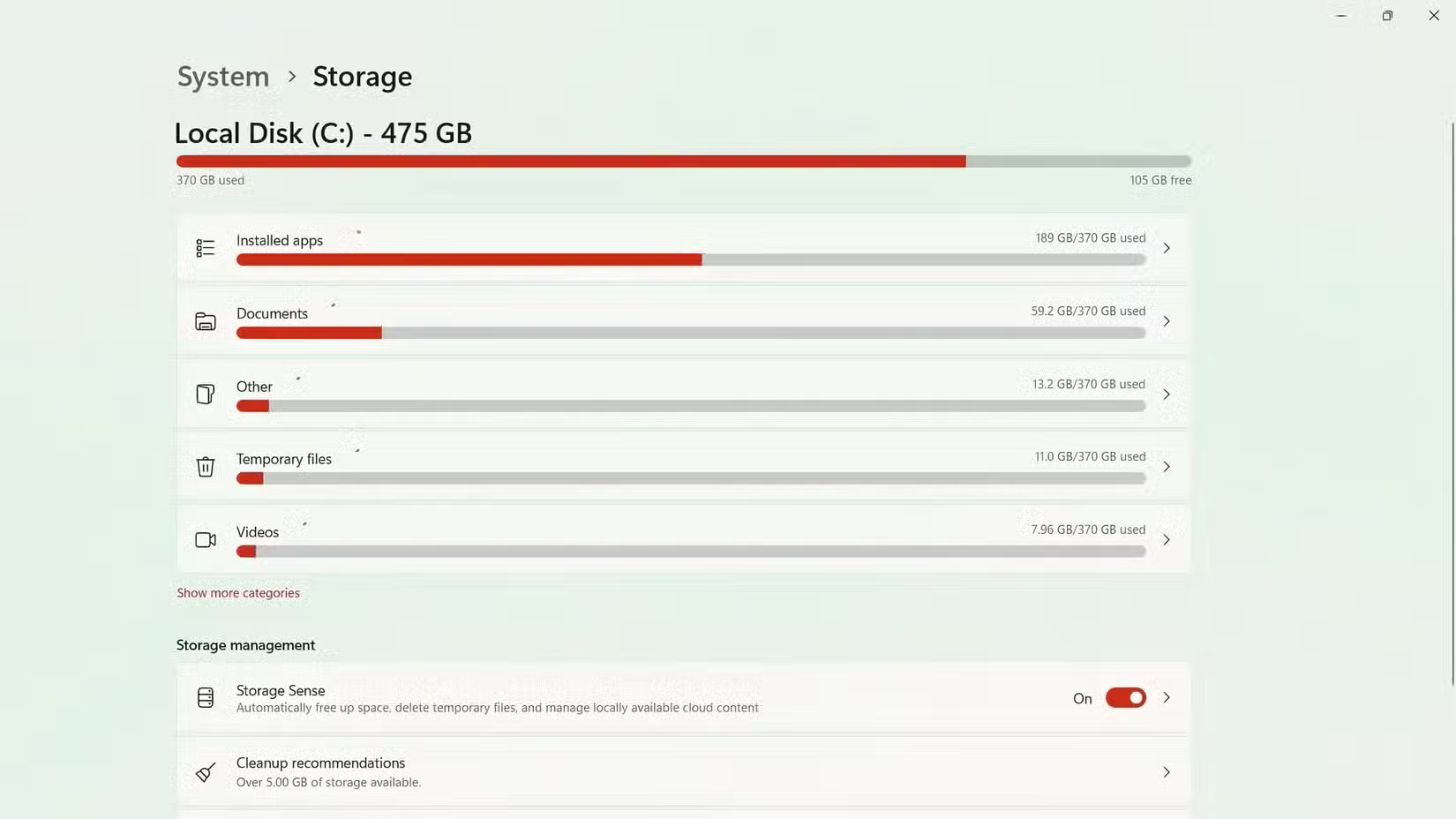
Don't cram files onto your hard drive until it runs out of space. This habit is slowly killing your hard drive and here's why it's important.
When your drive reaches its maximum capacity, Windows can no longer create temporary files or perform necessary maintenance. The system starts constantly searching for small pieces of free space to complete basic tasks. This forces your drive to work exponentially harder, creating high heat and excessive wear.
HDDs need breathing space; typically 10 - 15% of the total capacity should be left free for optimal performance.
4. Heat is the silent hard drive killer
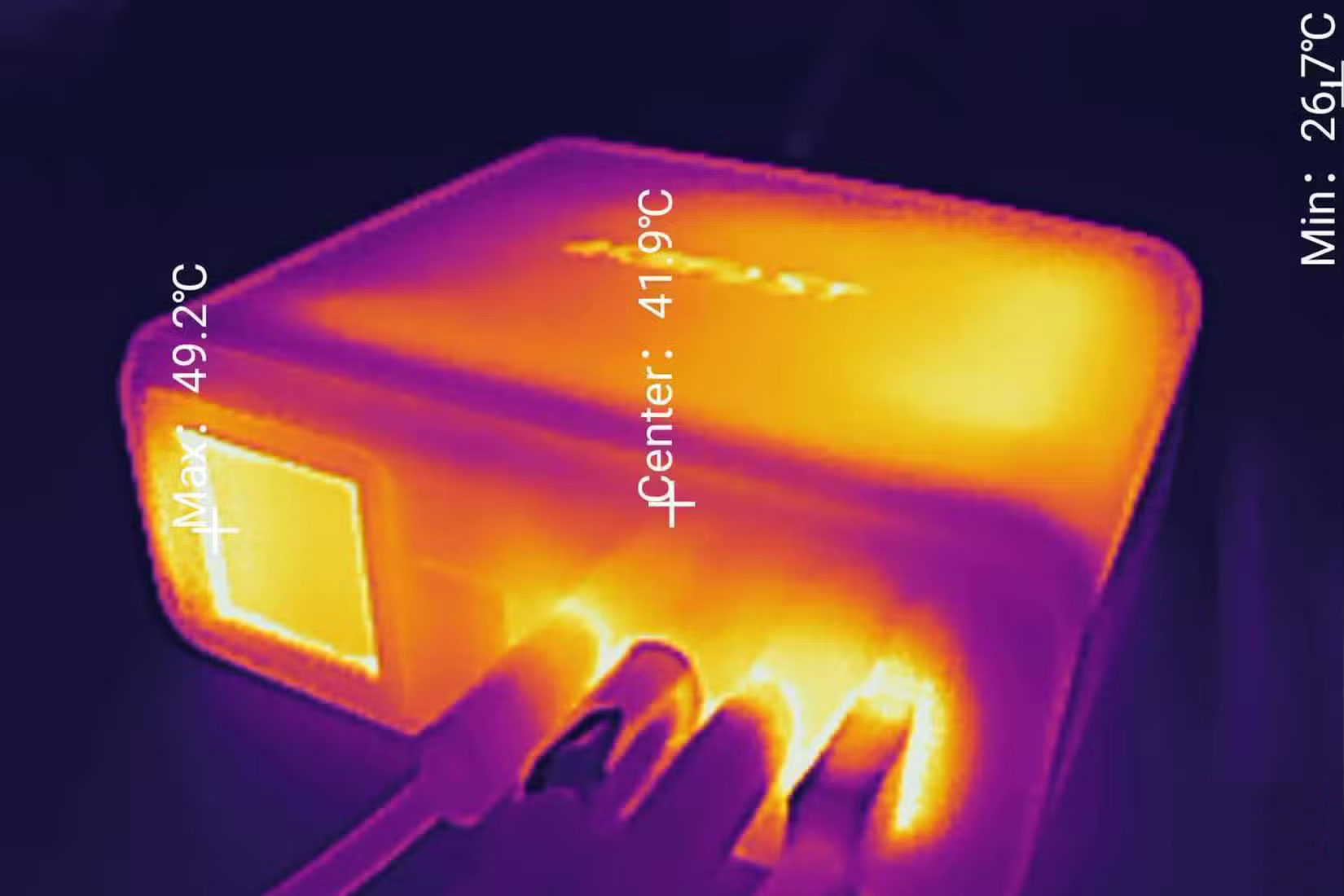
Heat destroys hard drives in ways most people never realize. Overheated hard drives may look fine on the outside, but they often fail within a few months due to heat damage.
Hard drives contain precision mechanical components that expand and contract in response to changes in temperature. When these components overheat, the tolerances between the read/write heads and the platters change, causing data errors and permanent damage.
3. Moving while the machine is running is a bad idea
The tiny read/write heads hover just a few nanometers away from the 7,200-rpm spinning platters inside a hard drive. Any sudden movement or vibration can cause these heads to hit the platter surface—a serious problem known as head collision.
Even slight movements can cause problems. If you move your computer while it's running, it can create vibrations that force the internal mechanisms of the drive to work harder to maintain proper alignment.
This constant compensation accelerates wear and tear on components. On the other hand, laptops handle movement better due to their shock-absorbing design, but desktop drives require stability.
2. Not defragmenting your hard drive regularly
When Windows saves files, it doesn't always find contiguous space and often breaks the data into multiple locations on the drive. The hard drive's read/write head must constantly jump around the platter to reassemble these fragmented files. This excessive seeking motion creates unnecessary wear on the mechanical components while slowing down all file operations and putting more strain on the drive.
Fortunately, Windows includes built-in defragmentation tools that can rearrange scattered data into contiguous blocks. Learning how to defragment your hard drive in Windows can improve both the performance and longevity of your drive.
1. Not monitoring drive health
You can't wait until your hard drive starts making clicking noises to check its health - by then it's too late.
HDDs include Self-Monitoring, Analysis, and Reporting Technology (SMART), which tracks important statistics like temperature, error rate, and pending sector count. These metrics will detect problems before catastrophic failure occurs, as long as you monitor them.
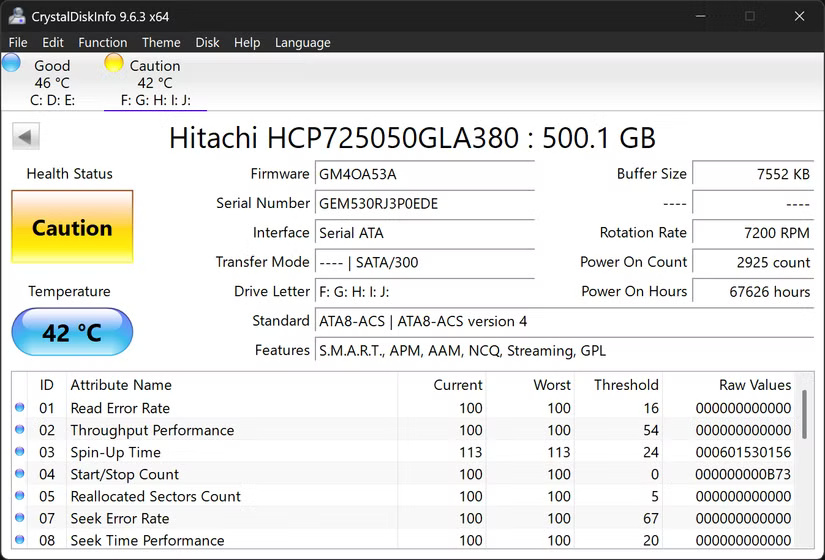
You can check the health of your drive with CrystalDiskInfo, a free utility that displays SMART data in an easy-to-understand format. When you see warning signs, such as an increase in reallocated sectors or rising temperatures, it's time to back up your data and consider a replacement.
FAQ
What should you know about 6. Improper shutdown of the computer?
It's creepy to see someone yank the power cord to shut down a computer. It may seem quick and harmless, but the HDD is trying to finish writing when you cut the power.
What should you know about 5. Push the hard drive to maximum capacity?
Don't cram files onto your hard drive until it runs out of space. This habit is slowly killing your hard drive and here's why it's important.
What should you know about 4. Heat is the silent hard drive killer?
Heat destroys hard drives in ways most people never realize. Overheated hard drives may look fine on the outside, but they often fail within a few months due to heat damage.
What should you know about 3. Moving while the machine is running is a bad idea?
The tiny read/write heads hover just a few nanometers away from the 7,200-rpm spinning platters inside a hard drive. Any sudden movement or vibration can cause these heads to hit the platter surface—a serious problem known as head collision.
Related Articles
 Looking Back on 60 Years of Miraculous Development of Hard Drives6 minutes read
 Multi-level SSD: Slc, Mlc, Tlc, Qlc and Plc?9 minutes read
 4 Ways to Reuse Hard Drives7 minutes read
 The Best External Hard Drives for 20205 minutes read
 8 Other Uses of External Hard Drives/NAS Besides File Storage7 minutes read
 7 Mistakes Easily 'Kill' SSDs9 minutes read
Reader Comments 0
Sign in with email or Google to join the discussion.