Table of Contents
This updated guide compares ways to reuse hard drives and highlights the details that matter most. Do you have an old hard drive sitting in a drawer collecting dust? It does not have to be that way. There are some creative and fun ways to reuse old hard drives and ensure they do not end up in the trash.
4. Turn Them into External Hard Drives/backup Storage
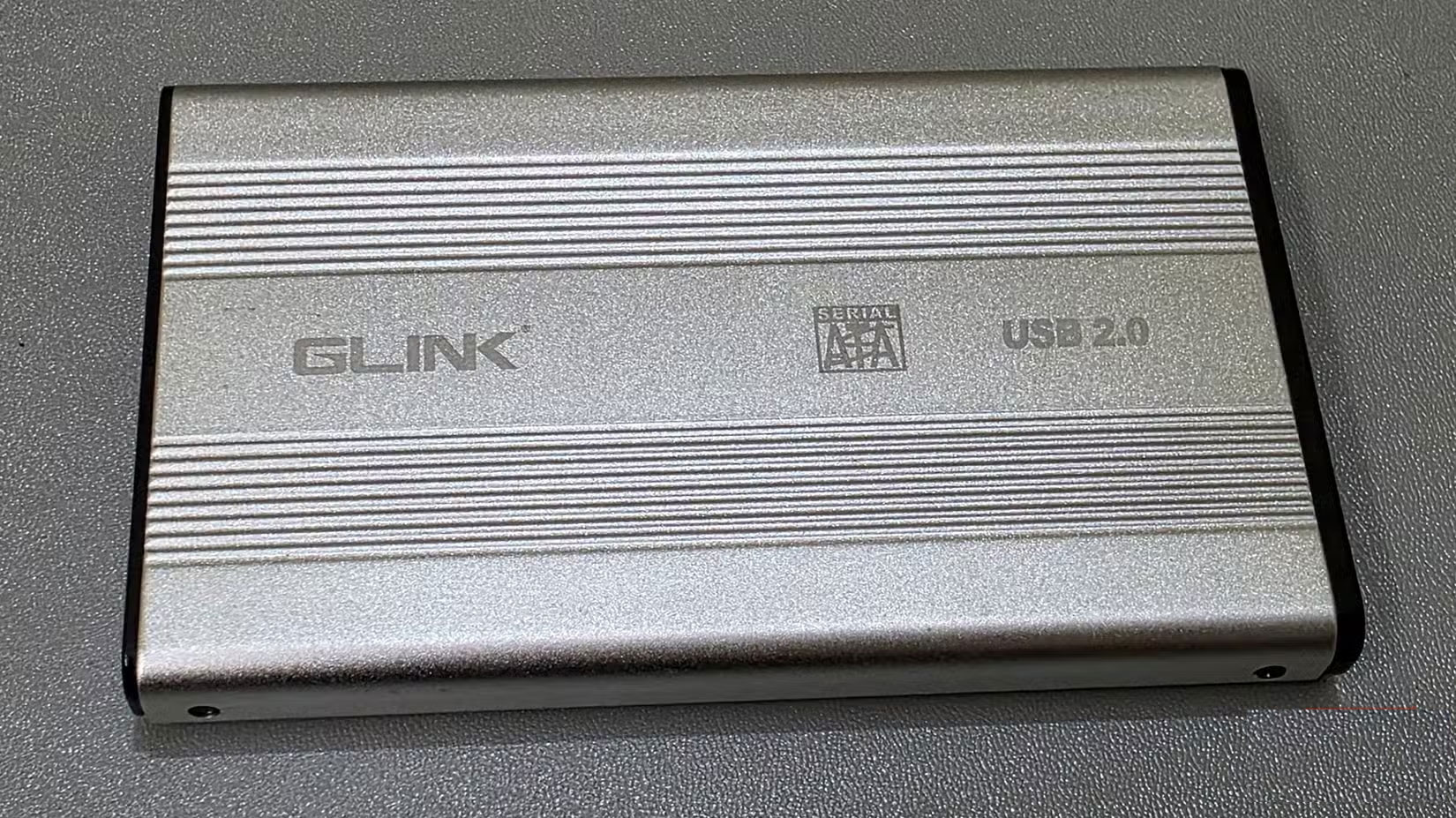
The first thing you need to do with your old hard drive is check to see if it still works. If it passes the basic tests, you can turn it into an external storage device. This is a simple and cheap way to restore a hard drive. All you need is a good enclosure or a SATA-to-USB adapter to connect it to your Windows PC. Once connected, format it with NTFS and it is ready to start storing data again.
You can use these drives to store large video files, ISO images, or full system backups. Windows Backup or third-party apps like Macrium Reflect make it easy to handle bulky data, leaving your main SSD free for everyday tasks. for instance, use an old 1TB drive to store project folders, while another holds system images from different machines. it is a practical way to reuse hardware that would otherwise go unused.
Also, be sure to check compatibility. Most drives from the last 10 to 15 years use SATA, which is compatible with most modern hard drive enclosures. 3.5-inch hard drives typically require an enclosure with a built-in power supply, while 2.5-inch laptop drives can run on USB power alone. Using a USB 3.0 or newer port will also improve transfer speeds, which is especially helpful when moving large files.
3. Create a Secure Repository for Sensitive Files
Another smart way to reuse old hard drives is to turn them into secure storage for sensitive data. If you do not want your documents, financial records, or personal archives on your system every day, store them on an external hard drive that you can disconnect and keep offline.
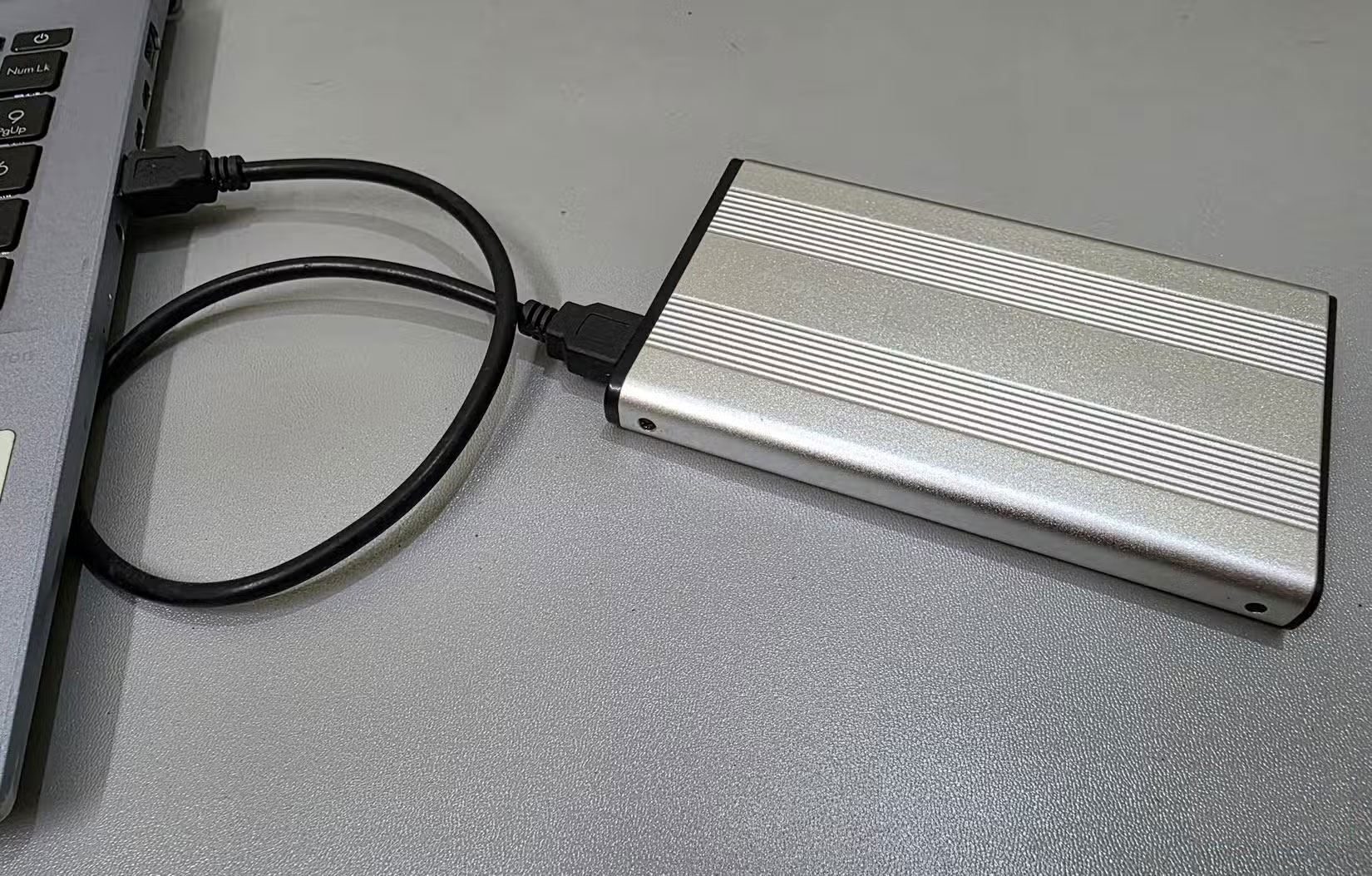
Windows makes this process easy. If you're using Windows Pro, Enterprise, or Education, you can encrypt your entire drive with BitLocker. That way, even if someone gets their hands on your drive, they will not be able to access its contents without the correct password. If you're using Windows Home, you can use a third-party tool like VeraCrypt to encrypt your entire drive or select specific folders.
2. Store CCTV Footage Using DVR/NVR System
If you have a security camera system installed in your home or office, it will most likely come with a digital video recorder (DVR) or network video recorder (NVR) to store the footage. Most of these systems have a dedicated slot for a 3.5-inch SATA hard drive, the same type used in desktops. So, if the drive is in good condition, you can plug it directly into the recorder to record and store video data.
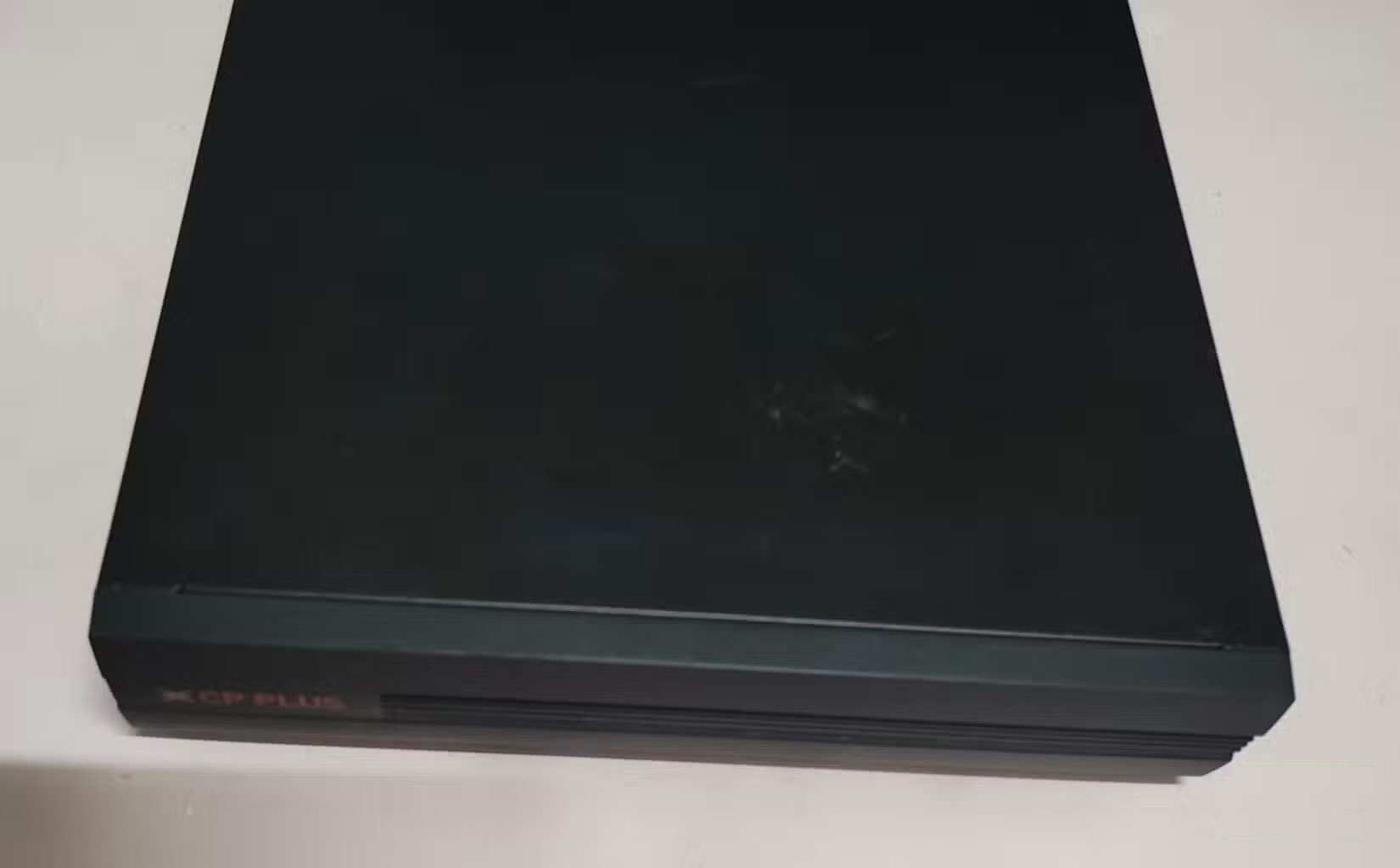
The setup process is simple. Open the DVR or NVR, connect the hard drive using the internal SATA power and data cables, and then plug it in. When you turn on the system, it will usually prompt you to format the drive before it starts recording. Once setup is complete, the device will automatically save footage directly to the hard drive.
The size of your hard drive directly affects how much footage you can store. A 500GB drive will only hold a few days of footage, especially if you use multiple cameras or high resolution. Still, a larger drive, like a 1TB or 2TB model, will let you store more footage before the system overwrites the old data.
1. Reuse Old Hard Drive to Store Virtual Machine
If you like to experiment with operating systems, run emulators, or experiment with different software environments, you can repurpose an old hard drive as a dedicated storage device for a virtual machine. Instead of filling up your main system drive, you can install VM software like Hyper-V, Virtualbox, or VMware Workstation and configure it to store virtual hard drive files (in VHD, VHDX, or VDI format) on the old HDD. This approach keeps your main SSD free of large virtual machine (VM) files and reduces the load on your system during intensive tasks.
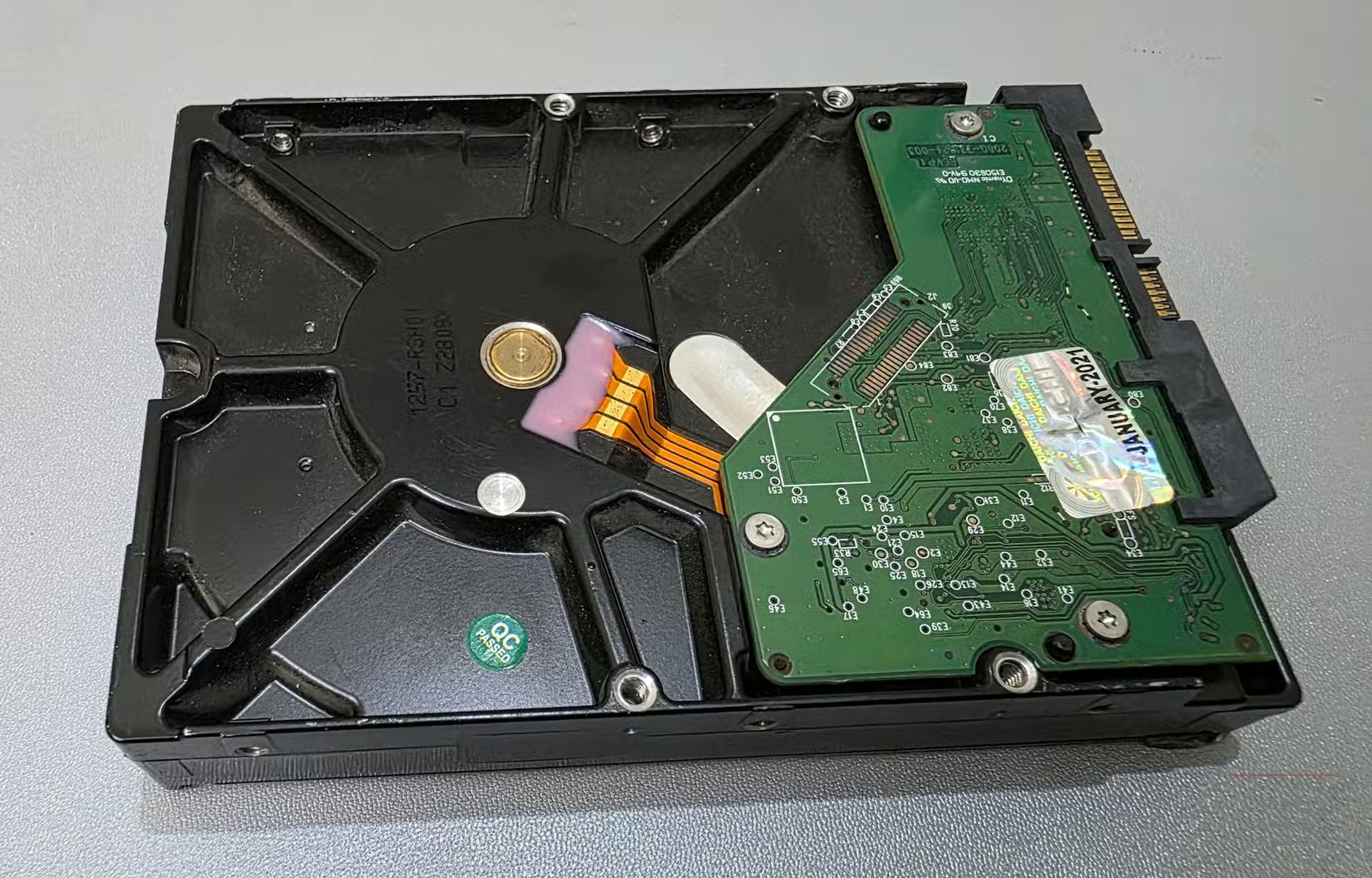
If you no longer need your hard drive, do not throw it away. Instead, pass it on to someone who needs more storage space. Before you do, ensure to properly erase the drive. DiskPart, a built-in Windows tool, is a reliable option for securely erasing everything. Just be sure to back up your important system data, as the process is irreversible. After erasing, check to ensure the drive is still stable and not close to failure.
FAQ
How were the ways to reuse hard drives options evaluated?
The comparison focuses on practical features, ease of use, limitations, compatibility, and the type of user each option is most likely to help.
Which option is best for beginners?
Beginners should prioritize a clear interface, useful documentation, reliable support, and the core features needed for their first project.
Should I choose a free or paid option?
Start with a free option when it covers your needs. A paid plan may be worthwhile when you need advanced tools, commercial rights, collaboration, or professional support.
Related Articles
 6 Clever and Unique Ways to Reuse Old USB Drives: Explained7 minutes read
 Looking Back on 60 Years of Miraculous Development of Hard Drives6 minutes read
 Multi-level SSD: Slc, Mlc, Tlc, Qlc and Plc?9 minutes read
 The Best External Hard Drives for 20205 minutes read
 8 Other Uses of External Hard Drives/NAS Besides File Storage7 minutes read
 7 Mistakes Easily 'Kill' SSDs9 minutes read
Reader Comments 0
Sign in with email or Google to join the discussion.