Table of Contents
Use these features on every trip as they help eliminate extra touches and keep your vision clear when needed.
Google Maps is the best navigation app, and its gestures make driving easier. You can zoom in to find an exit, tilt to preview an overpass, and rotate the map to match the road ahead. Use these features on every trip, as they eliminate unnecessary taps and keep your vision clear when needed. Once you try them, the usual button tapping becomes slow and unnecessary.
Zoom in and out faster
A clearer view ahead
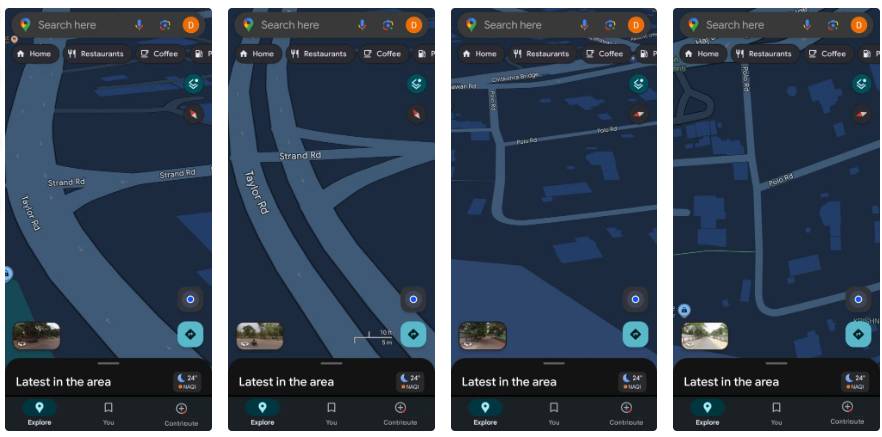
The most used gestures are zooming in and out. When you're driving, you often need to quickly see the next turn or get a better look at a busy intersection. Sometimes you zoom out to check the distance to the next gas station or traffic jam before deciding whether to take a detour. A quick double-tap on the map will zoom in, while a two-finger tap will zoom out. You can also pinch to zoom out or pinch to zoom in, just like when viewing a photo.
It's best to make these adjustments while your car is parked and use voice guidance for directions while driving. If voice guidance stops mid-way through, double-check your Maps voice settings to make sure it's still active throughout your trip. When you drag the map to explore ahead, it may stop tracking your route. Press the location button again to return the map to its original position.
Tilt the map for a better view
See ramps and curves clearly
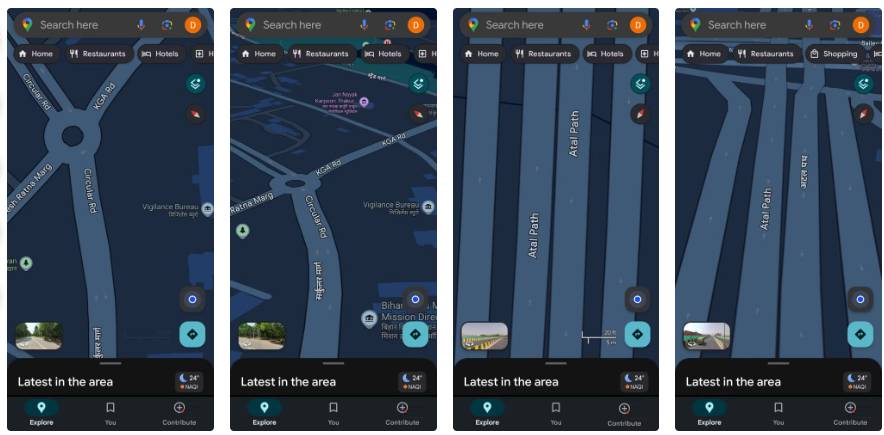
Tilting the map gives you a better perspective, and use it whenever you want a better look at the road ahead. Place two fingers on the screen and slide up at the same time to increase the perspective, which switches the flat map to a forward-facing view that mirrors what you see through your windshield. If you need a top-down view again, slide those two fingers down to decrease the perspective and return to a top-down map.
This gesture is most useful on highways and overpasses. The slight tilt makes it easier to read ramps, merges, and splits, so you can see where your exit will begin or how two roads will intersect before you get there. This reduces hesitation at busy intersections and gives you more confidence in heavy traffic.
On familiar roads, keep the map tilted slightly to look ahead, but for new routes or crowded areas, switch back to flat view to simplify follow directions.
Rotate the map to match your orientation
Align the screen with your route
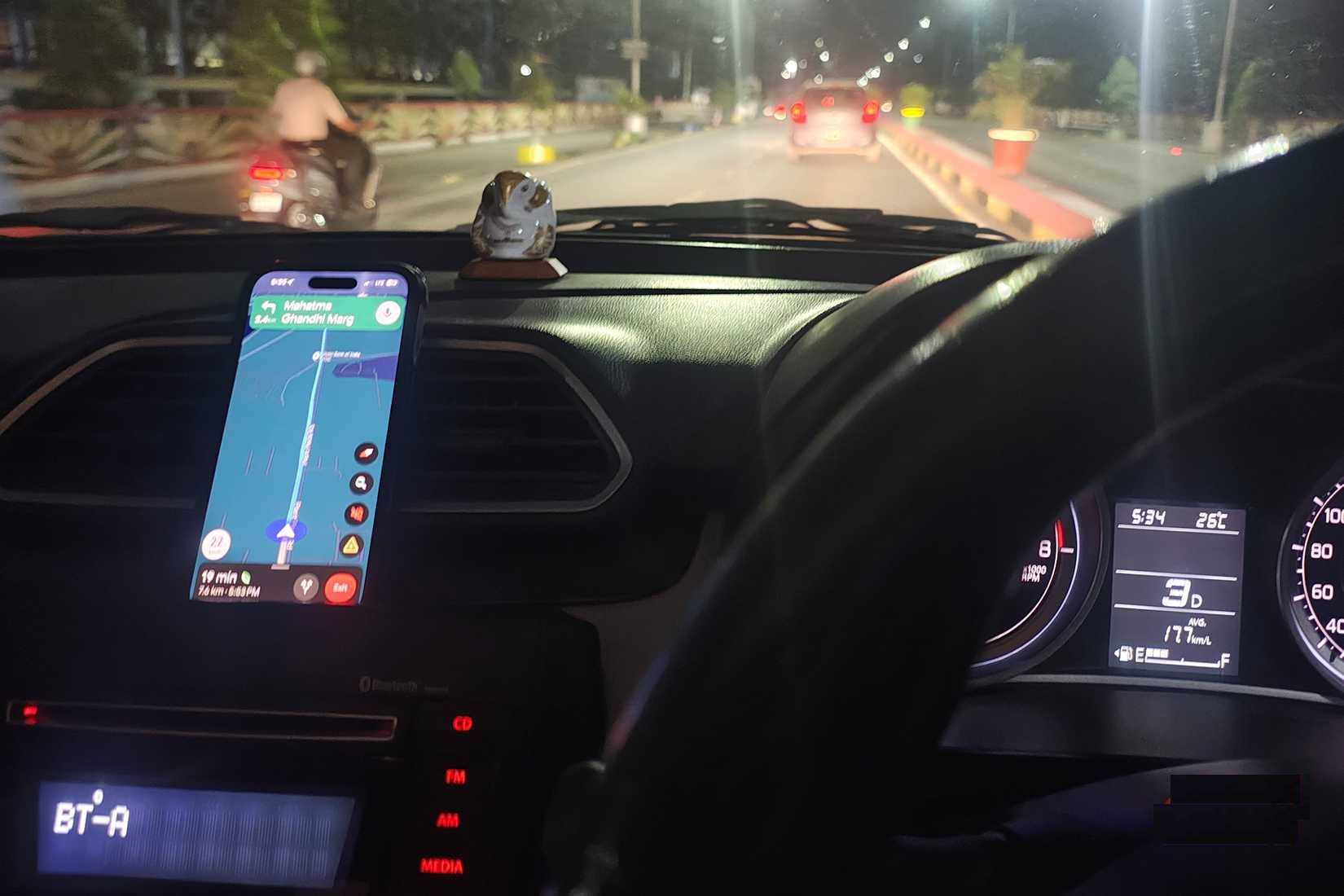
Sometimes the top of the screen stays fixed on north, even when moving in a different direction. This can cause your route to be skewed to one side or down. Rotate the map so that your direction is up and the view matches the road ahead. To use this feature, tap the screen with two fingers and gently rotate it, as if you were turning a watch. The map will rotate in the direction you are moving. To return to the original layout, tap the compass icon.
This gesture is most useful when you're on a curve or turning, or when You should take a closer look at a fork or branch. Some navigation modes automatically rotate, but if yours doesn't, you can control it manually. Avoid rotating too often, as it can get confusing when the screen is no longer aligned with the road.
Double-click and drag
Precise zoom, no pinching required
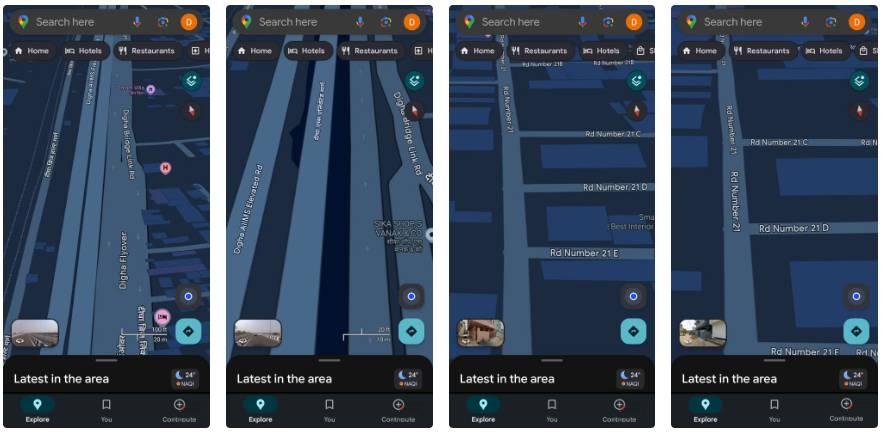
Once you've aligned the map with the road, the last thing you should do is double-tap and drag. This feature lets you zoom in with one finger while keeping your other hand on the wheel. Double-tap the map and hold your finger on the second tap, then drag up to zoom out or down to zoom in. The zoom will adjust smoothly as you move your finger, and lifting your finger will lock the view in place.
This is especially useful at intersections where multiple lanes or exits intersect. Swipe down a little to read the exit number or lane markings, then swipe up to pull back and see how the ramps connect. If your phone is mounted a little further away, pinching with one finger is easier than pinching with two fingers. This lets you focus on the road instead of the screen.
FAQ
What should you know about the options in this guide?
In practical terms, use these features on every trip as they help eliminate extra touches and keep your vision clear when needed.
Which option is the best choice?
The best choice depends on your priorities, compatibility, budget, and the specific features discussed in the comparison.
What should you compare before deciding?
Compare core features, limitations, ease of use, compatibility, and long-term value before making a decision.
Related Articles
 Google Maps Tests Ads That Automatically Pop Up When Users Are3 minutes read
 How to Get Google Maps Alerts When Driving in the Wrong Direction4 minutes read
 7 Android Gestures You May Not Know Yet7 minutes read
 Google Maps Provides a Parking Search Feature4 minutes read
 Instructions for Mario to Be a Guide on Google Maps5 minutes read
 How to Enable Speed Warnings on Google Maps3 minutes read
Reader Comments 0
Sign in with email or Google to join the discussion.