Table of Contents
You can often improve a weak Wi-Fi area by moving the router, choosing a better band or reducing interference. First map where the connection fails so you can test changes against the same locations. These steps may avoid a new router purchase, but thick walls, distance or a large home can still require another access point.
1. Map the problem using one device
- Sketch the rooms you use and mark the router’s position.
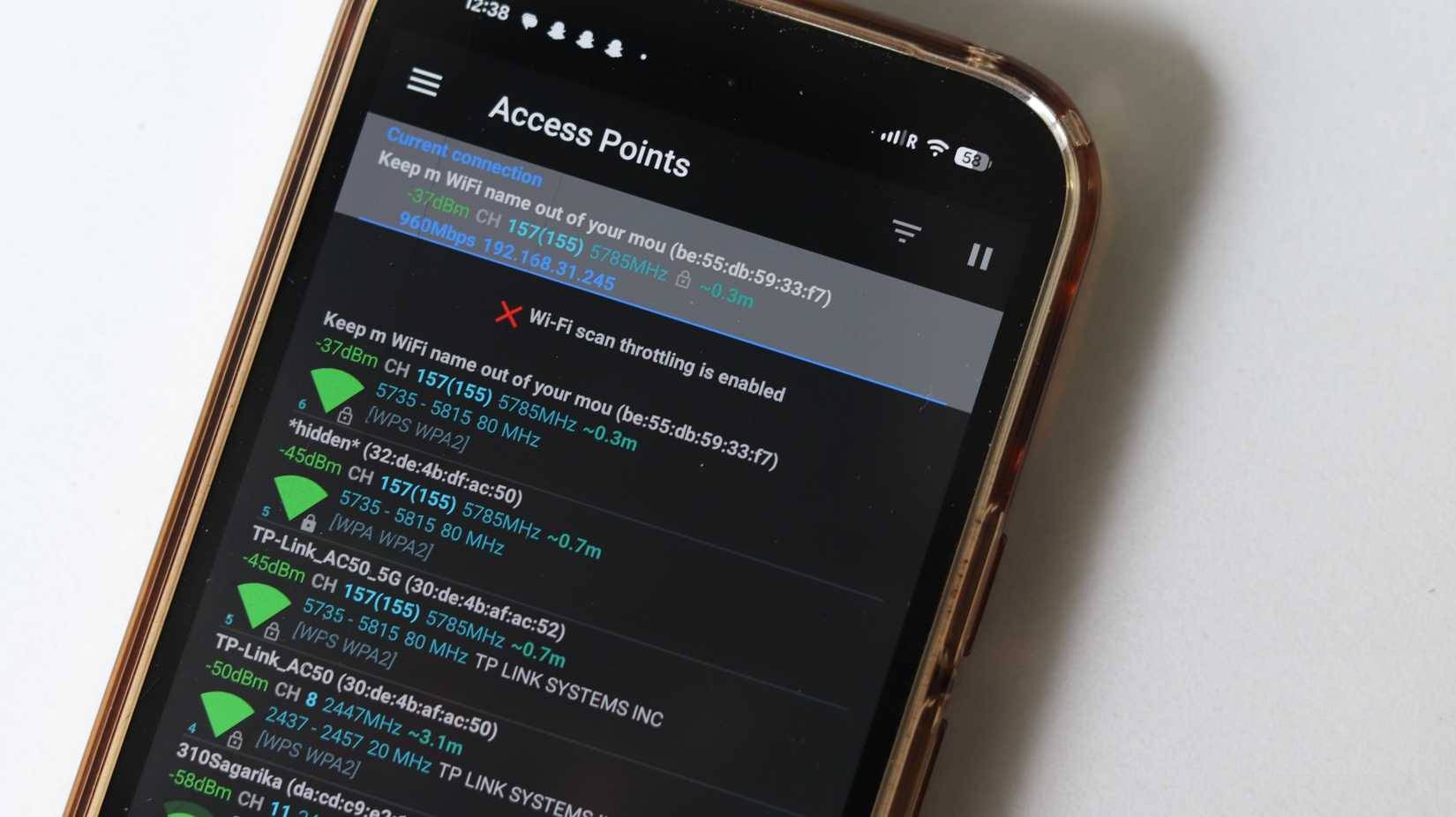
- Connect one phone or laptop to your network. Use a Wi-Fi analyzer that shows signal strength, if your device supports it.
- Visit the same marked spots at normal working height. Record the network, band, signal reading and whether a call or other real task works reliably.
- Repeat the measurements after each change, using the same device and location.
Some apps can build a heat map; others only display live readings, so you must record the results yourself. In dBm readings, a less negative number indicates a stronger received signal. Do not confuse that reading with internet speed.
Test near the router too. If performance is poor everywhere, investigate the internet connection, router load or client device before treating the issue as a coverage problem. If only distant rooms are affected, distance and obstructions are more likely factors.
2. Test router placement
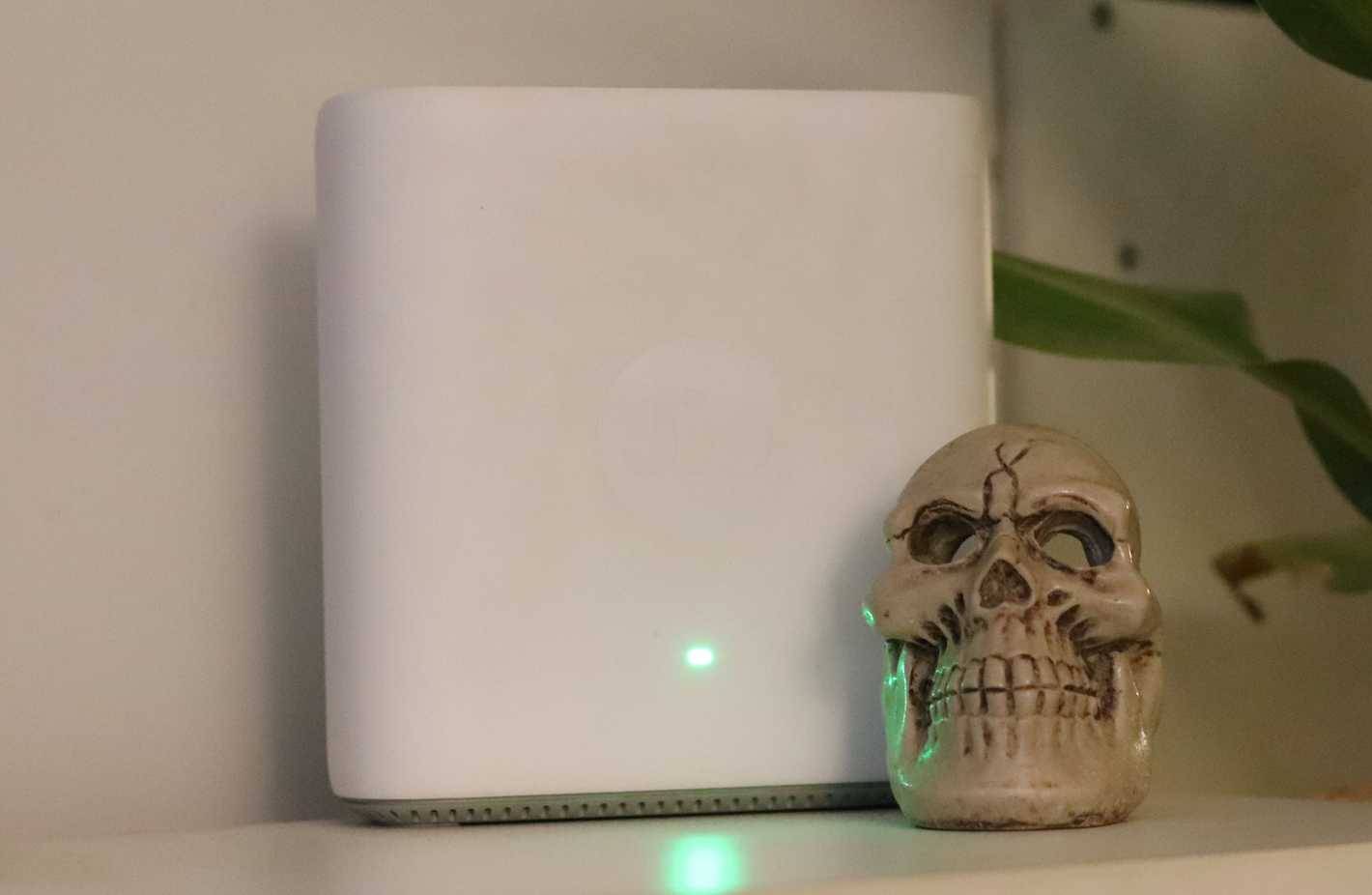
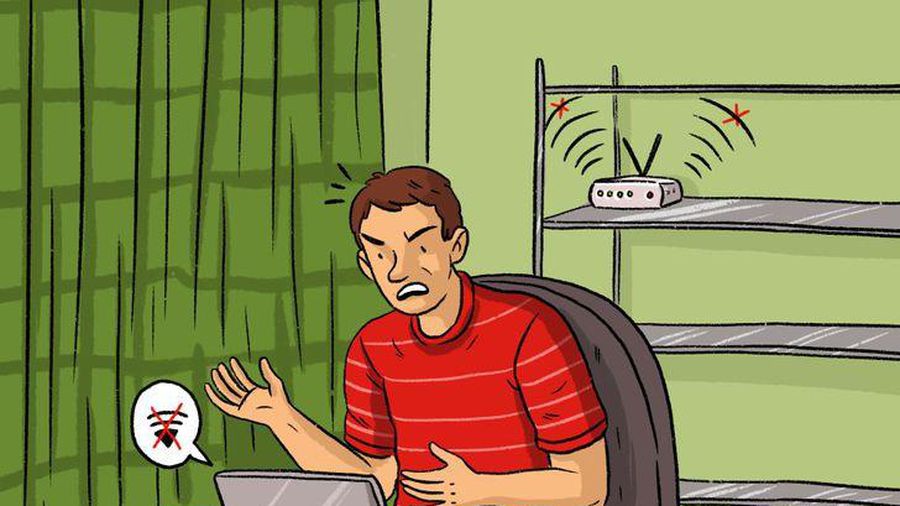
Start with an elevated, open position near the area you need to cover. Avoid hiding the router behind a television, in a metal cabinet or close to large appliances. A central position can help, but antenna patterns and walls mean coverage is not uniform in every direction.
Move the router in small steps and repeat the map. Follow the manufacturer’s antenna guidance rather than assuming that one vertical and one horizontal antenna is always best. The router placement guide explains how to compare positions.
3. Check bands and channel congestion
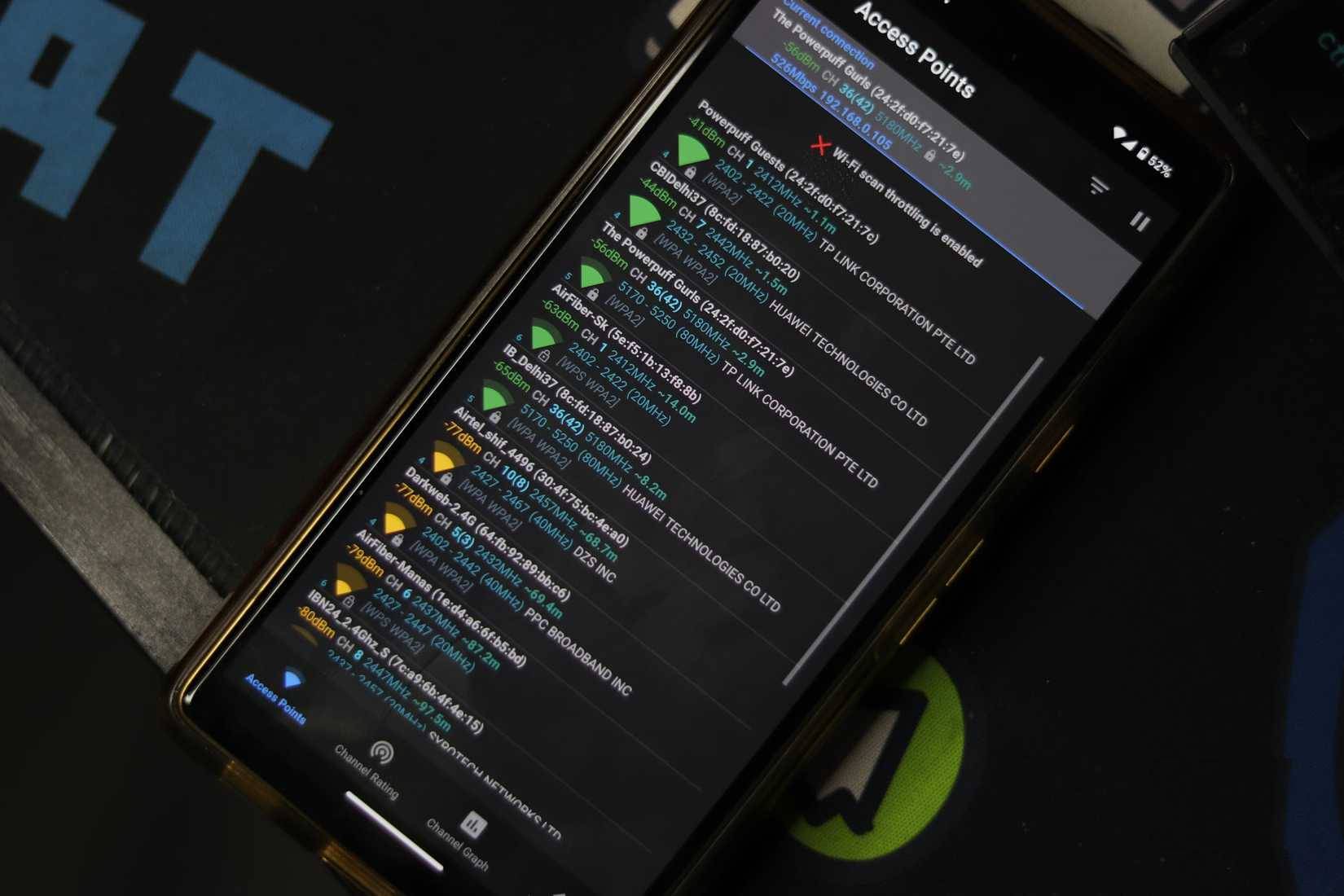
Try 2.4 GHz in a difficult distant room and 5 GHz closer to the router, if your device supports both. The better choice depends on obstructions, nearby traffic and the workload; a faster band is not automatically the most reliable at every location. See the Wi-Fi band comparison.
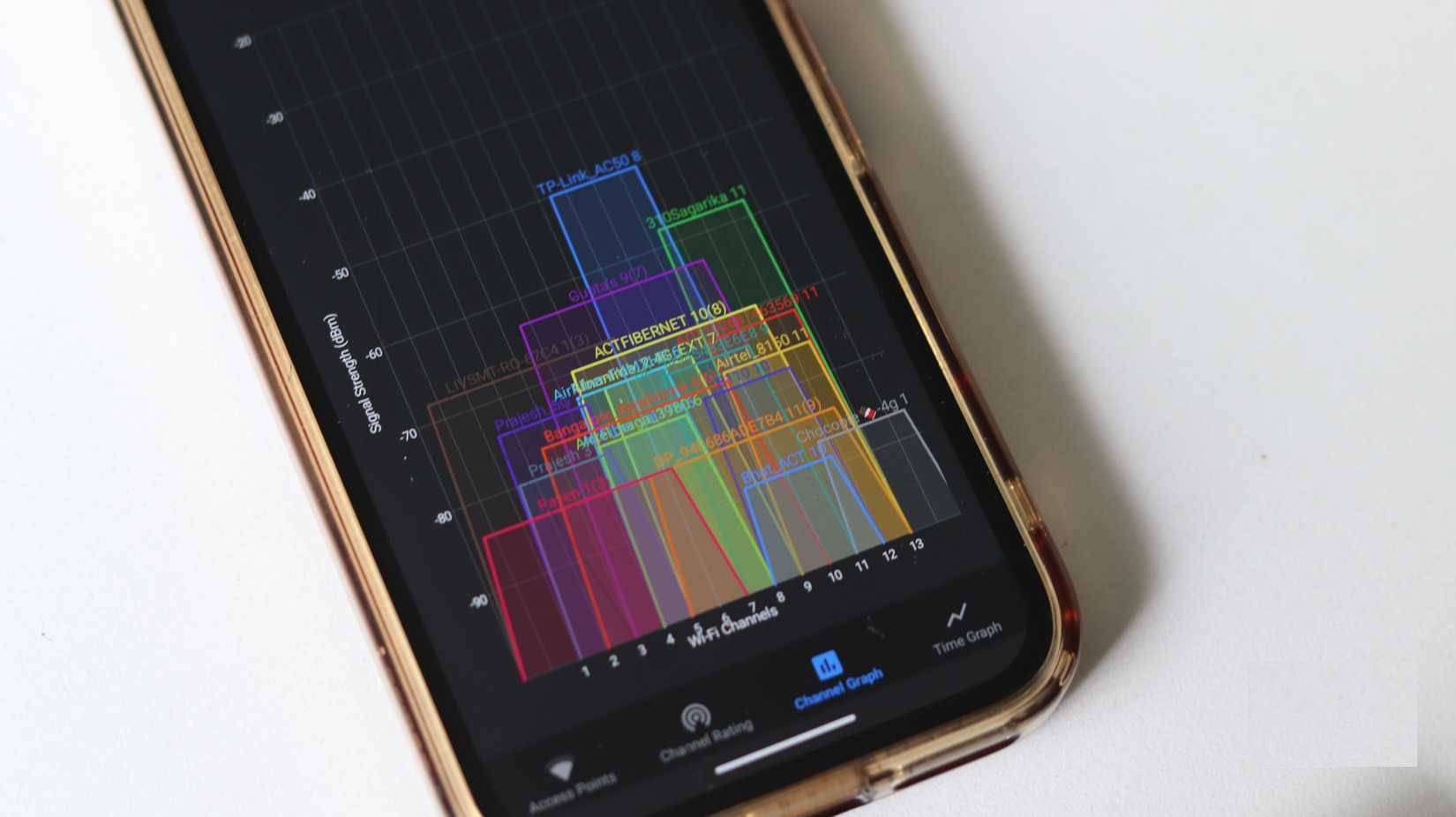
Keep automatic channel selection as a reasonable starting point. If repeated tests show congestion, compare a legal alternative in the router settings. With 20 MHz channels in the usual 2.4 GHz plan, 1, 6 and 11 are common non-overlapping choices; permitted channels depend on your region. Channel crowding can reduce available airtime without making the signal-strength reading weaker.
A 20 MHz width is generally a useful starting point for crowded 2.4 GHz networks. On 5 GHz, wider channels can increase throughput but use more spectrum, so compare reliability rather than applying one width to every network.
4. Use additional coverage only where needed
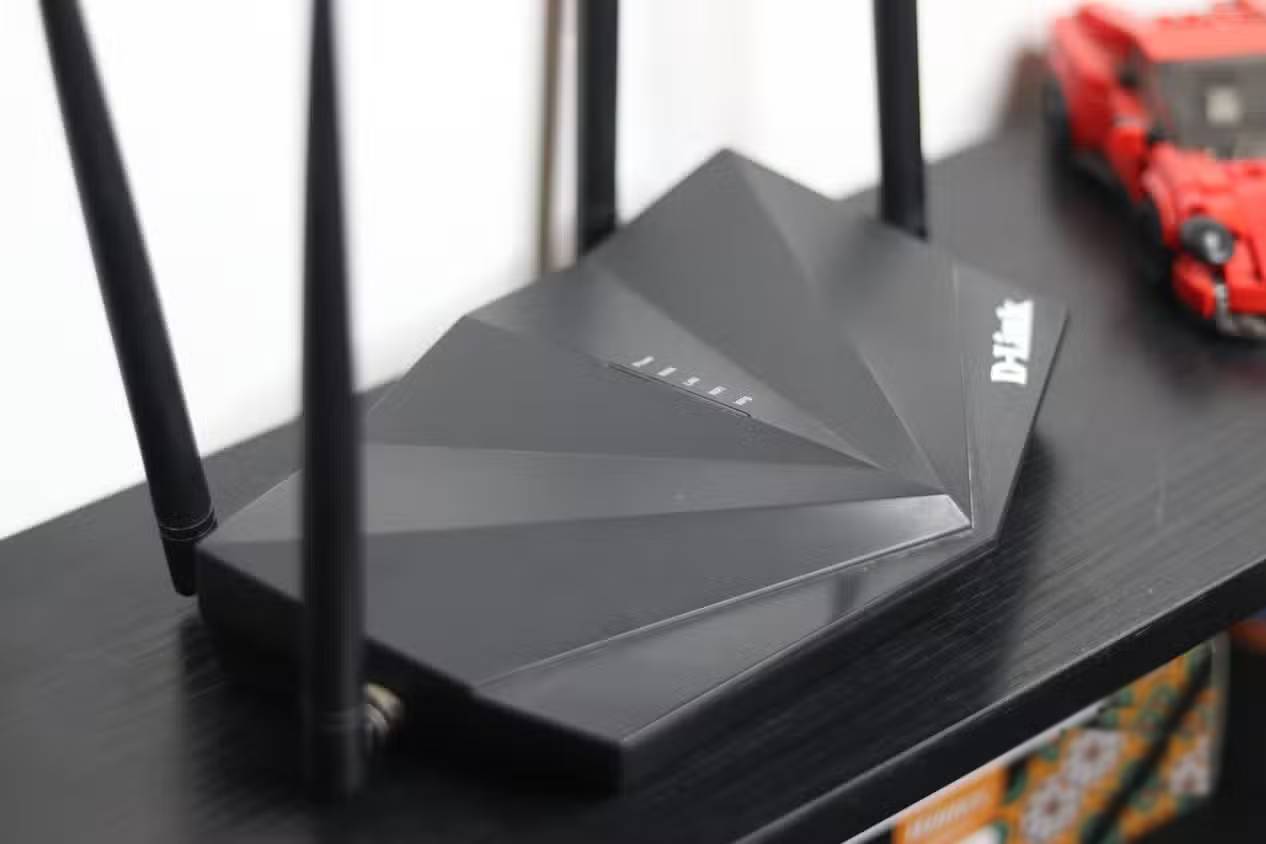
If placement and settings do not cover the room, an Ethernet-connected access point offers a direct path back to the main router. You may be able to reuse a router as an access point, provided it supports the required mode and still receives security updates. Not every router supports wireless repeater mode.
A wireless extender needs a good connection to the router; placing it inside the dead zone will not fix its own weak link. Powerline adapters are another option, but their results depend on the wiring and electrical conditions. Test a returnable pair before relying on them for a critical connection.
Related Articles
 Weak Wi-Fi Waves, Try Doing This Before You Intend to Replace the7 minutes read
 How to Use the Old Router to Increase the Coverage for Wi-Fi9 minutes read
 Wrong Router Placement Makes Wi-Fi Weak4 minutes read
 5 Things to Know Before Buying a Tested 11ax Router10 minutes read
 Instructions to Buy a Wi-Fi Router10 minutes read
 How to Configure Xiaomi 3C Wi-Fi Router to Be Repeater7 minutes read
Reader Comments 0
Sign in with email or Google to join the discussion.