Table of Contents
Learn how to disable shake-to-respond in Google maps with clear steps, practical tips, and troubleshooting guidance for a reliable result.
How to turn off shake-to-respond in Google Maps
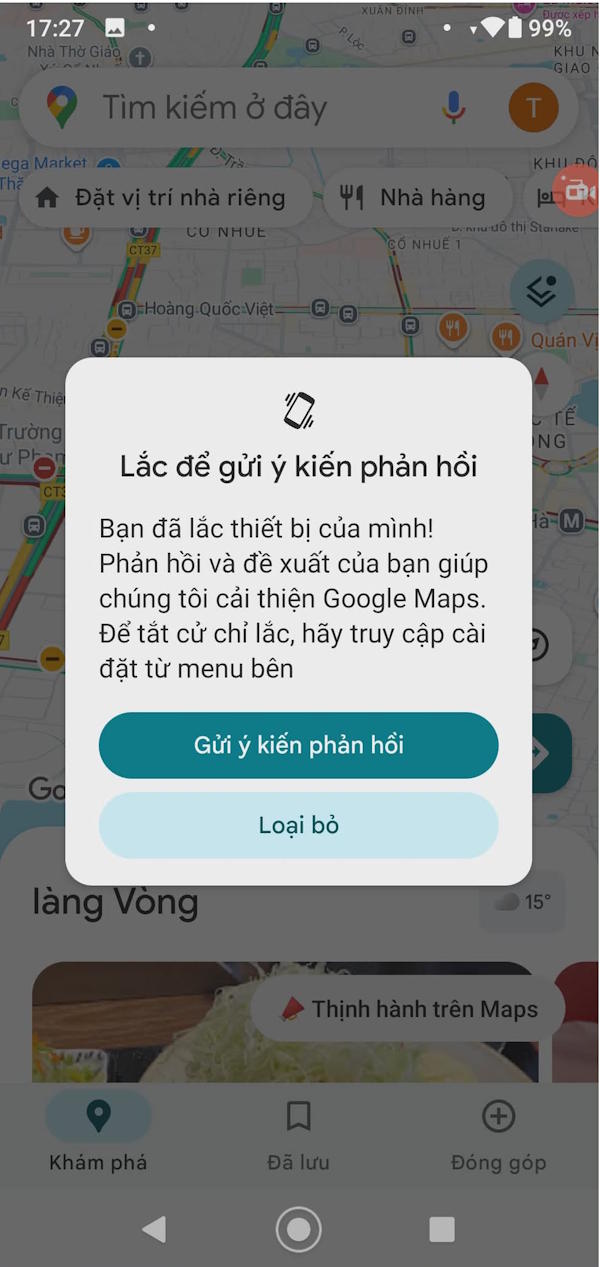
When you shake your phone, the Google Maps app will display a suggestion interface for you to respond if you want, but sometimes you might accidentally do the wrong thing.

Step 1
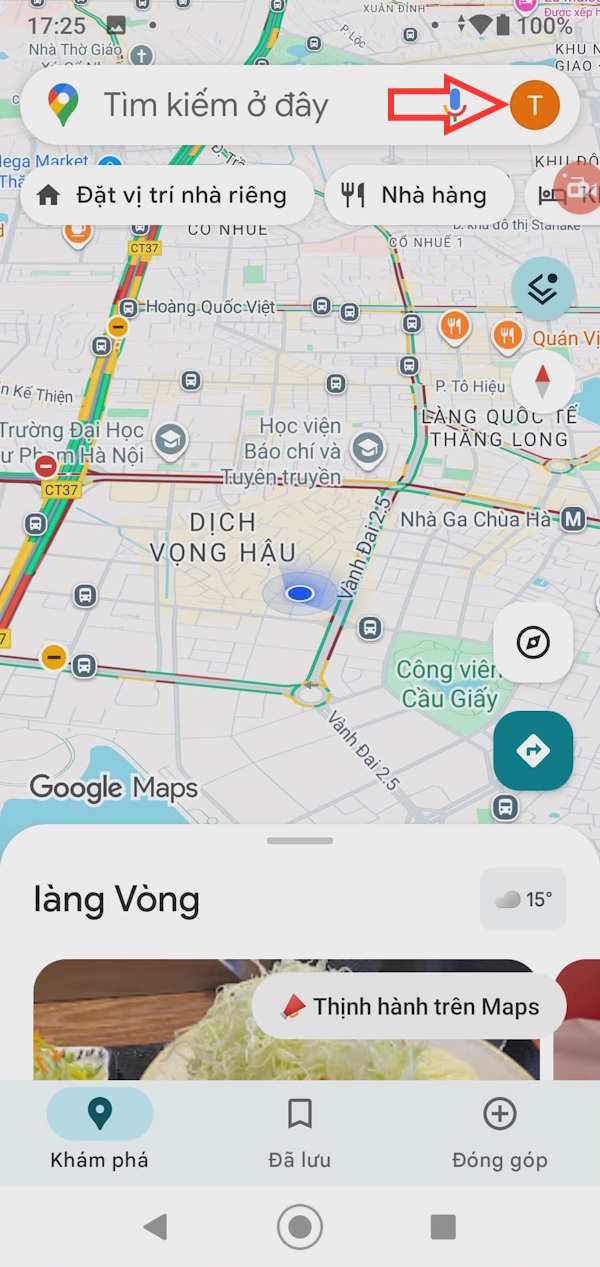
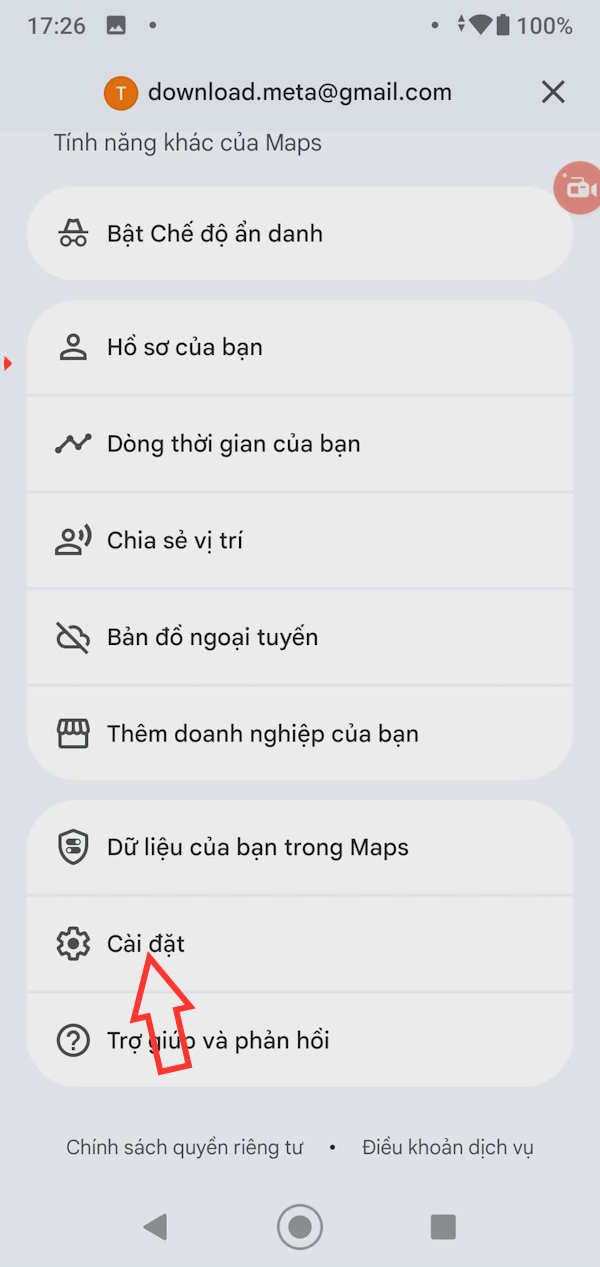
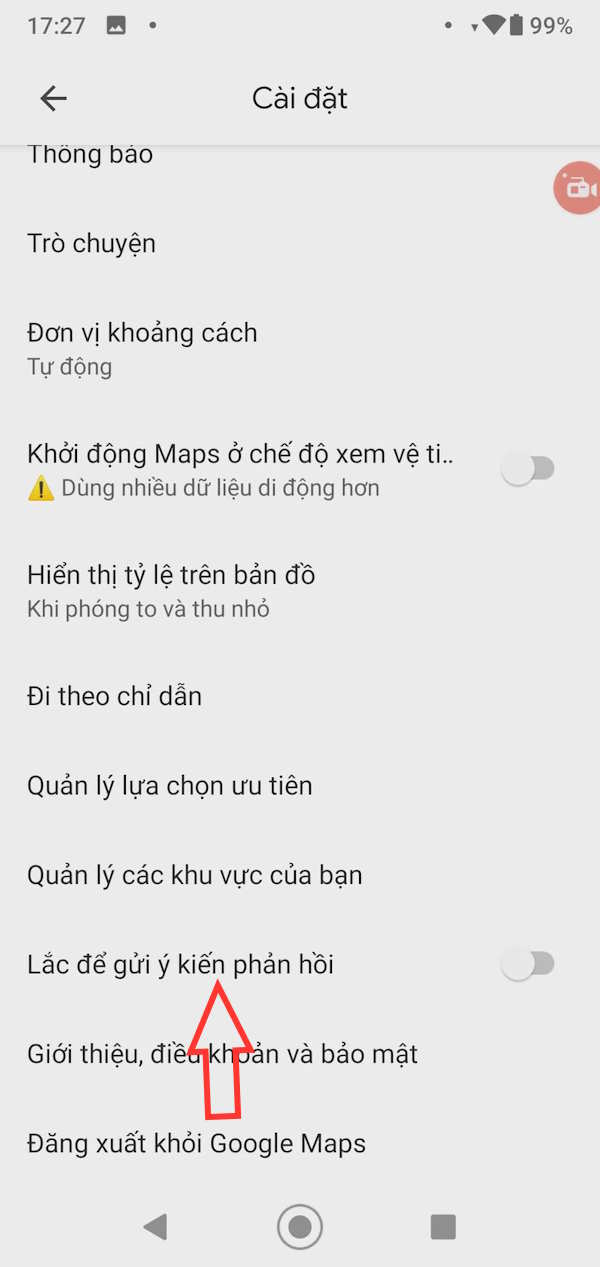
On the Google Maps interface, tap your profile picture , then select Settings from the menu that appears.
Step 2
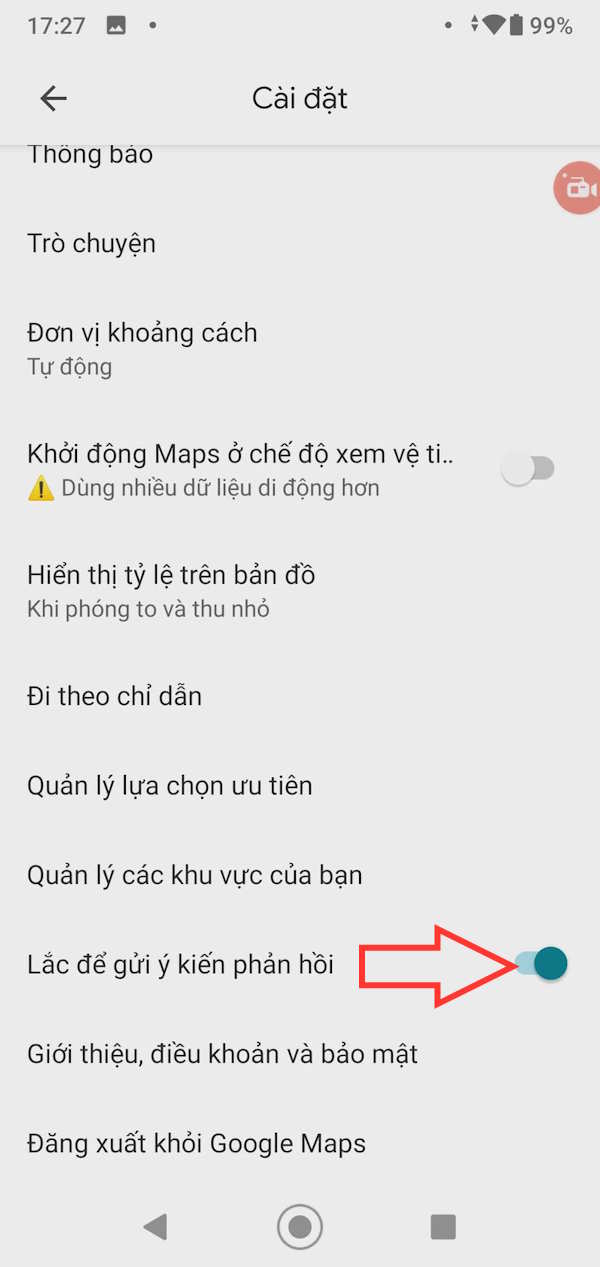
Go to the settings interface for the Google Maps app. You will see that the "Shake to leave feedback" feature is enabled. Simply turn off the "Shake to leave feedback" feature on Google Maps.
Therefore, if we accidentally shake the phone, the feedback notification interface on the Google Maps app will no longer appear.
Final Thoughts
Use this guide as a practical checklist for how to disable shake-to-respond in google maps. Work through the steps in order, verify each result, and adjust the options to match your needs.
FAQ
What do you need before following this How to Disable Shake-to-respond in Google Maps guide?
Review the required tools, accounts, settings, or materials mentioned in the article. Learn how to disable shake-to-respond in Google maps with clear steps, practical tips, and troubleshooting guidance for a reliable result.
What are the main steps for how to disable shake-to-respond in google maps?
Follow the sections in order, especially How to turn off shake-to-respond in Google Maps, Step 1, Step 2. Complete each step before continuing and verify the result as you go.
What should you do if the process does not work as expected?
Recheck the prerequisites, update the relevant app or service, review the settings, and repeat the step that caused the issue. Use any troubleshooting notes included in the guide.
Related Articles
 How to Disable the Shake to Minimize Feature in Windows 103 minutes read
 How to Find the Way to Google Maps for Motorcycles5 minutes read
 How Does Google Maps Work?: Why Google Created Google Maps12 minutes read
 How to Using Ar Road Features on Google Maps3 minutes read
 How to Use Google Maps to Find Your Way: Step-by-Step Guide5 minutes read
 How to Add Places to Google Maps3 minutes read
Reader Comments 0
Sign in with email or Google to join the discussion.