Table of Contents
Explore you're unknowingly 'killing' your ssd, including the key concepts, practical examples, important considerations, and useful guidance.
Here's an important reminder: stop mistreating your SSD. 'Abusing' your SSD is easier than you think, and almost everyone does it to some degree. But if you overdo it, the consequences will come sooner than you expect.
If your SSD malfunctions, it might not cause major problems, but it can also make your PC so slow that it becomes unusable. Here are some common ways users accidentally damage their SSDs – and how to fix them.
1. SSDs are durable but not immortal
NAND flash – the storage component of SSDs – has a limited number of write/erase cycles (P/E cycles). Each data write operation causes the SSD to wear down slightly. Most users will replace their drives before they reach the end of their lifespan, but improper use can significantly reduce their lifespan.
Like any other PC component, SSDs can fail at any time, not necessarily due to user error. However, avoiding the following mistakes will help your drive last for many years.
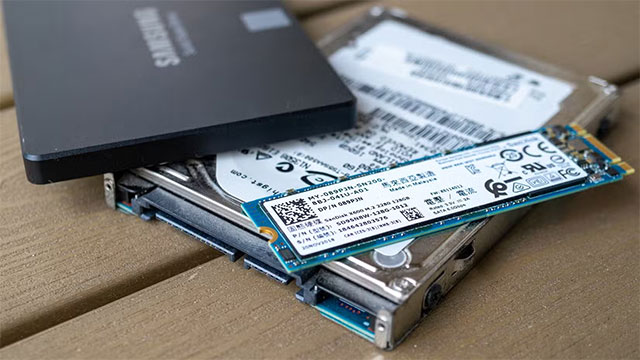
2. Don't let your SSD fill up completely
SSDs perform best when they have enough free space. The closer they are to full, the lower their performance becomes – especially when gaming or loading heavy data.
Some signs that your SSD is "overheating" include:
- Texture pops in (sometimes due to insufficient RAM).
- The screen is loading slower than usual.
- The game loads slowly, and details on the background or map are choppy or incomplete.
Many people consider this to be just an 'SSD myth,' but major brands confirm this. The common recommendation: only use a maximum of about 80% of your SSD's capacity .
The solution is simple: buy more storage or uninstall games you rarely play. Even a light cleanup can free up several hundred GB immediately.
3. Keep your PC's temperature at a safe level
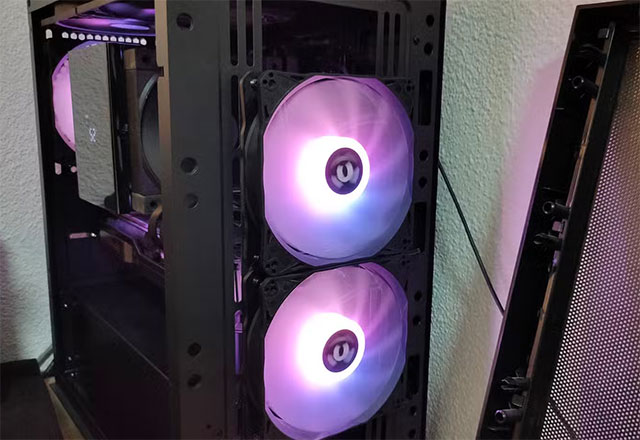
High temperatures are the enemy of all components – including SSDs. NVMe drives, especially PCIe Gen 4/5 drives, tend to get very hot under heavy load.
When overheating occurs, the SSD's controller will automatically slow down to protect itself, causing a significant drop in read/write speeds. Even exceeding the maximum temperature limit isn't necessary – simply running at high temperatures continuously is enough to cause faster SSD wear.
To mitigate this issue, you need to optimize airflow in the case (appropriate intake and exhaust fans) and install a heatsink for the SSD (many newer drives have one available). If the SSD doesn't have a heatsink, it's best to install it in an M.2 slot with a heatsink on the motherboard. Alternatively, you can buy a separate SSD heatsink, but you need to check the size and compatibility.
4. Don't expect your SSD to handle everything when gaming
If you use the same SSD for games, the operating system, and all other applications, you're overloading it.
The problem isn't just about running out of space – it's about access conflicts. When a game needs to read textures, Windows is logging, Discord is caching, the browser is loading tabs… everything is jostling for space on the same drive.
SSDs don't differentiate which tasks are 'more important' – they just see a lot of I/O requests at the same time, and that's bound to slow them down.
Faster SSDs (Gen 4/5) handle multitasking better, but splitting the workload across two drives is always the optimal choice – it's smoother and reduces the risk of data loss if one drive fails.
5. Make sure you have enough RAM
RAM is extremely fast, so PCs always prioritize using RAM first. But when RAM is insufficient, the system is forced to use the pagefile – that is, use the SSD as 'temporary' storage.
Pagefiles are much slower than RAM, and continuous use will cause SSDs to wear out faster.
Situations where RAM is easily exhausted include:
- The game is resource-intensive.
- Many games are modded (Minecraft, The Sims).
- Running multiple browser tabs + games + background applications.
The best solution is still to upgrade your RAM. But in this era of 'RAM-apocalypse' – soaring RAM prices – you can get into the habit of limiting multitasking, as well as closing background applications before playing games.
6. The SSD problem is easily overlooked – but not forever
SSD errors can be obvious or very subtle. If your computer takes an extremely long time to boot up or crashes unexpectedly – that's usually a drive failure. But minor issues like texture pop-ins or slow game loading times are harder to diagnose, and sometimes it's just a game bug.
If you take proper care of your SSD from the start, you'll eliminate many causes of system malfunctions. Avoiding the bad habits mentioned above will help your SSD last longer and your PC remain stable for many years to come.
Final Thoughts
Understanding you're unknowingly 'killing' your ssd makes it easier to evaluate the information and apply the most relevant recommendations. Focus on the key points above and verify details that may change over time.
FAQ
What is you're unknowingly 'killing' your ssd?
Explore you're unknowingly 'killing' your ssd, including the key concepts, practical examples, important considerations, and useful guidance.
What key points does this article cover?
The article focuses on 1. SSDs are durable but not immortal, 2. Don't let your SSD fill up completely, 3. Keep your PC's temperature at a safe level, with practical explanations and examples.
How can you use this information in practice?
Use the explanations to compare options, verify important details, and make a more informed decision. Apply the recommendations that best match your goals and situation.
Related Articles
![Download Killing Floor 2 Full [38.4 GB - Tested 100%]](/data/thumbs_200x120/download-killing-floor-2-full-[384-gb-tested-100]_thumbs_200x120_ErvRDe6z4.jpg) Download Killing Floor 2 Full [38.4 GB - Tested 100%]7 minutes read
Download Killing Floor 2 Full [38.4 GB - Tested 100%]7 minutes read Getting Naked When You Sleep Is Comfortable but You Are Killing4 minutes read
 Download the Escapists 2, Killing Floor 2, Lifeless Planet for Free4 minutes read
 How to Check a Download for Viruses3 minutes read
 This Is the Most Deadly Disease in Human History3 minutes read
 Shadow IoT and the Dangers Come from This Problem8 minutes read
Reader Comments 0
Sign in with email or Google to join the discussion.