Table of Contents
Your screen may be bigger than ever, but if windows are cluttered and cluttered, you're wasting precious screen space.
Your monitor may be bigger than ever, but if windows are cluttered and cluttered, you're wasting precious screen space. Even on a large screen, it's easy to lose track of what's open. Without a system, you'll have to drag, resize, and stack windows just to keep everything visible.
That's why many people turn to tile managers on Windows. These tools automatically arrange your apps into neat, non-overlapping tiles so you can see everything at a glance. They're popular with Linux users, and using one on your Windows PC will completely change the way you work.
Arrange apps horizontally, vertically, or in stacked view
Find the layout that fits your workflow
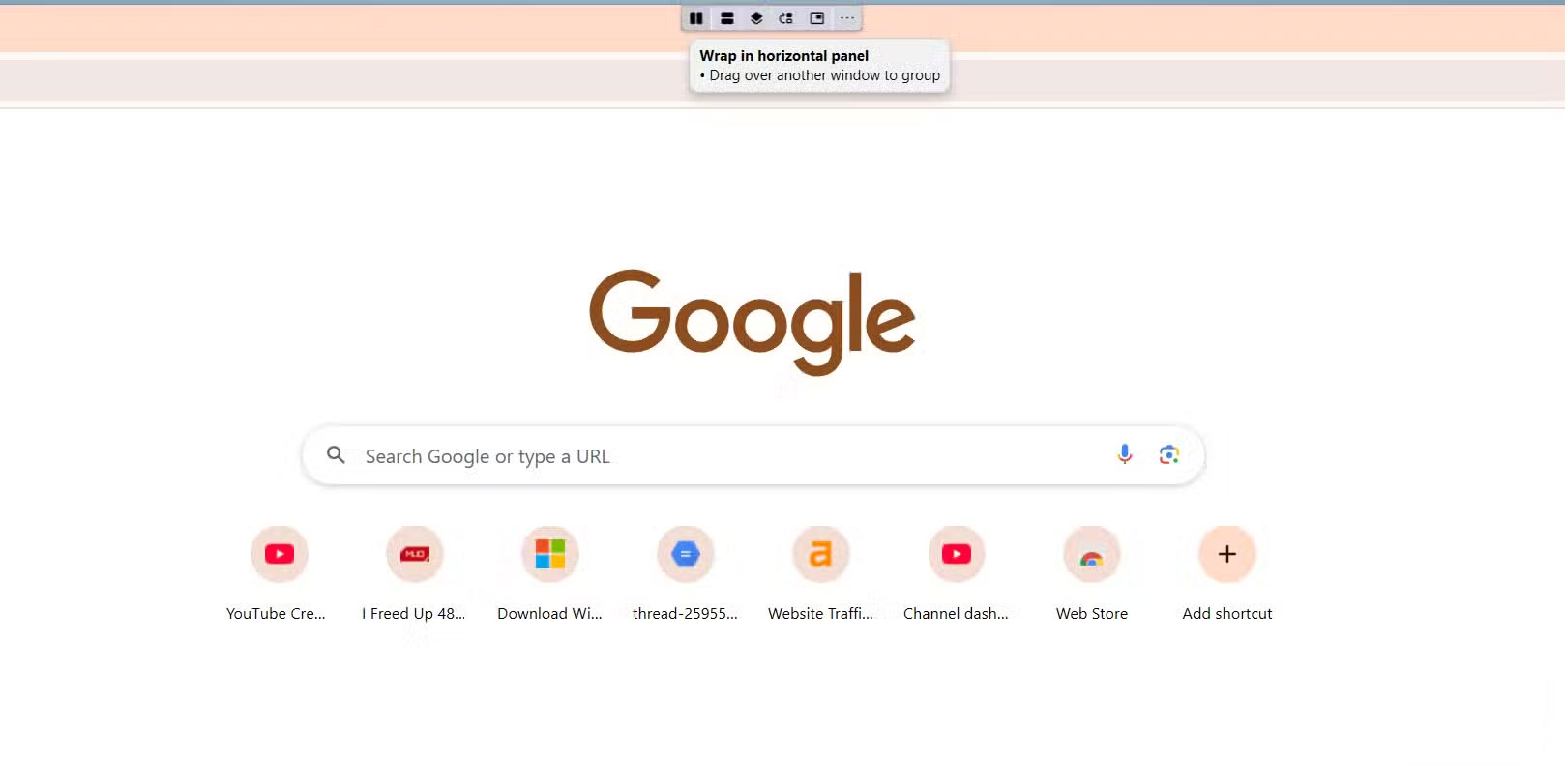
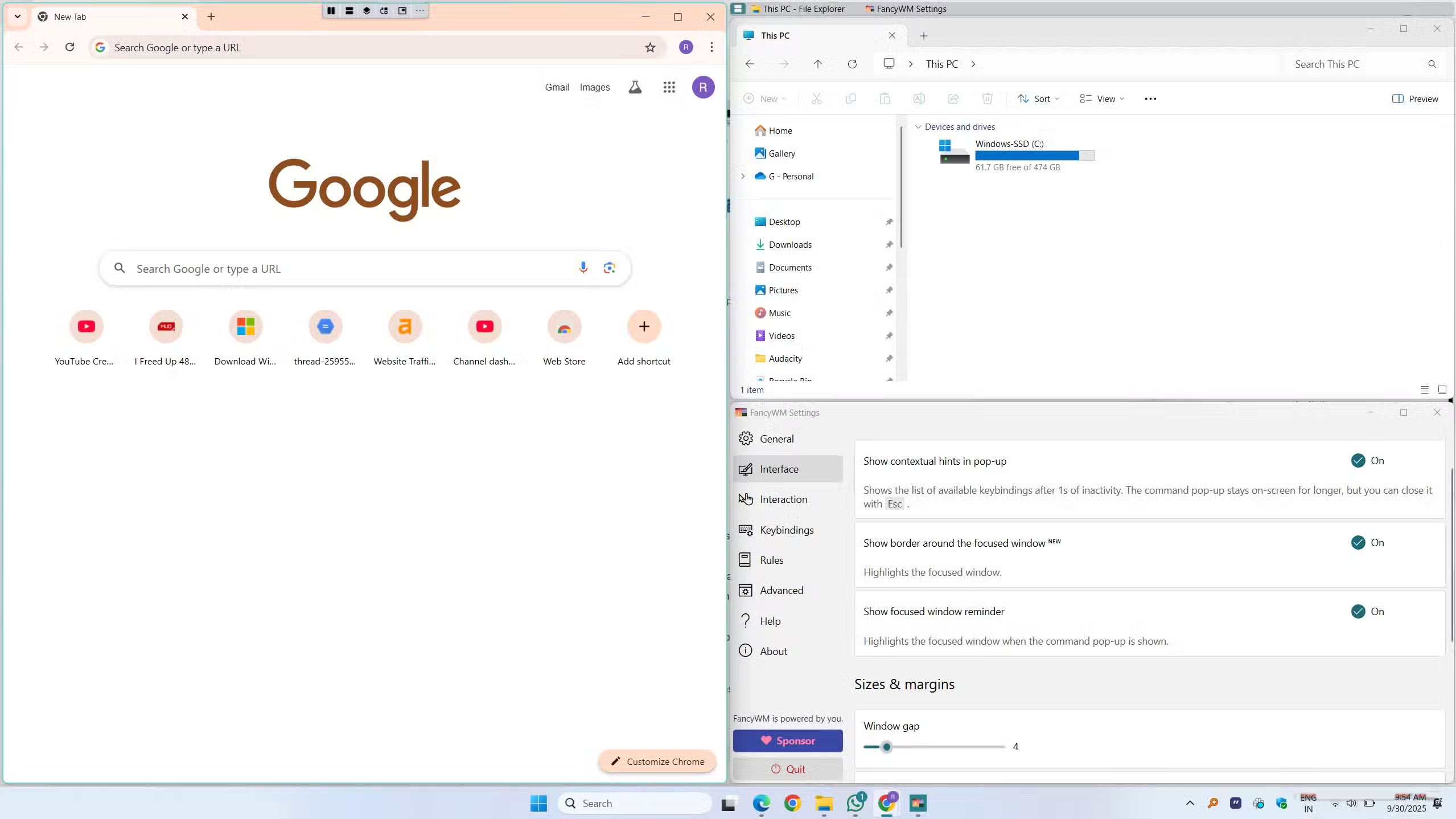
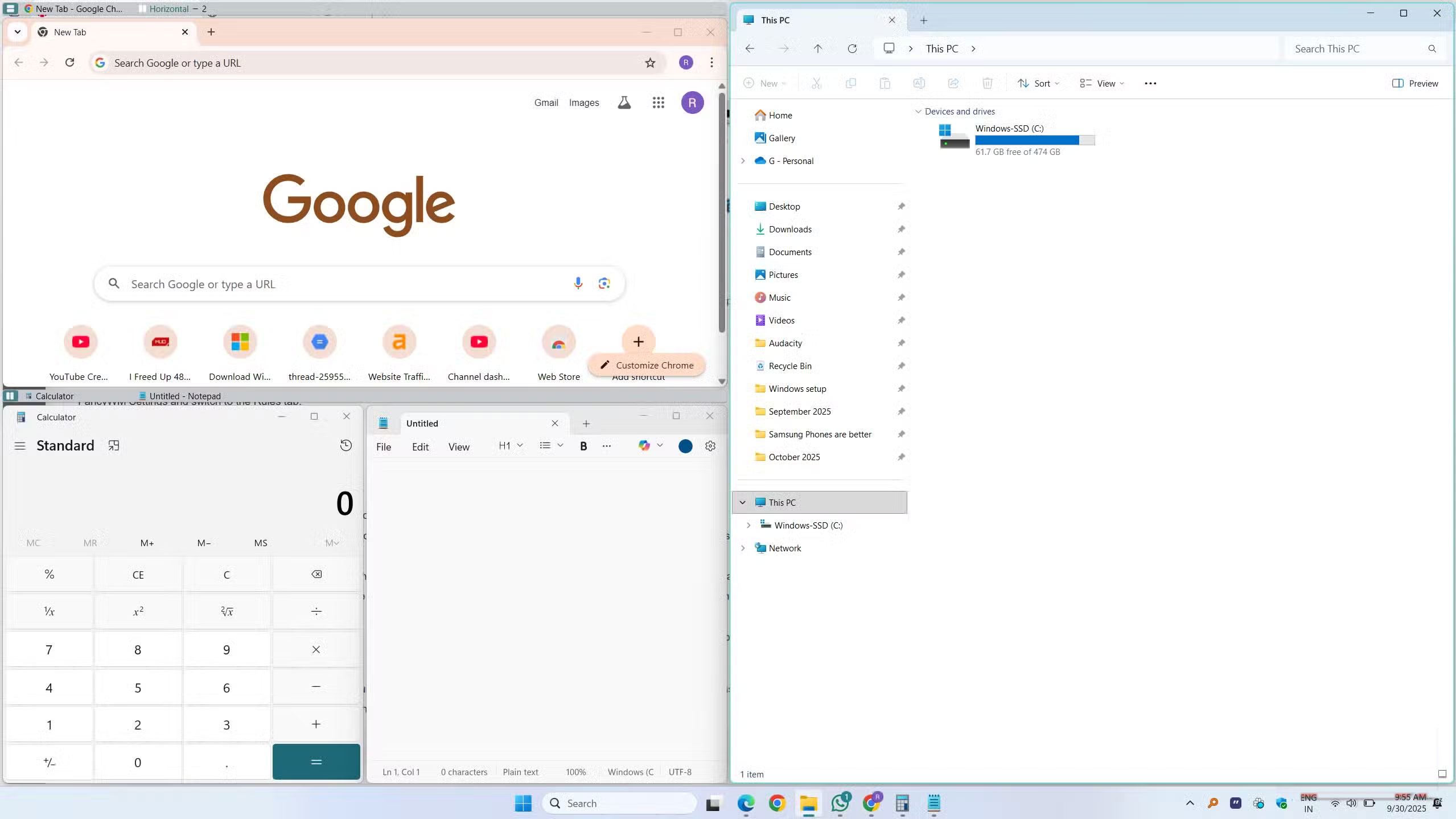
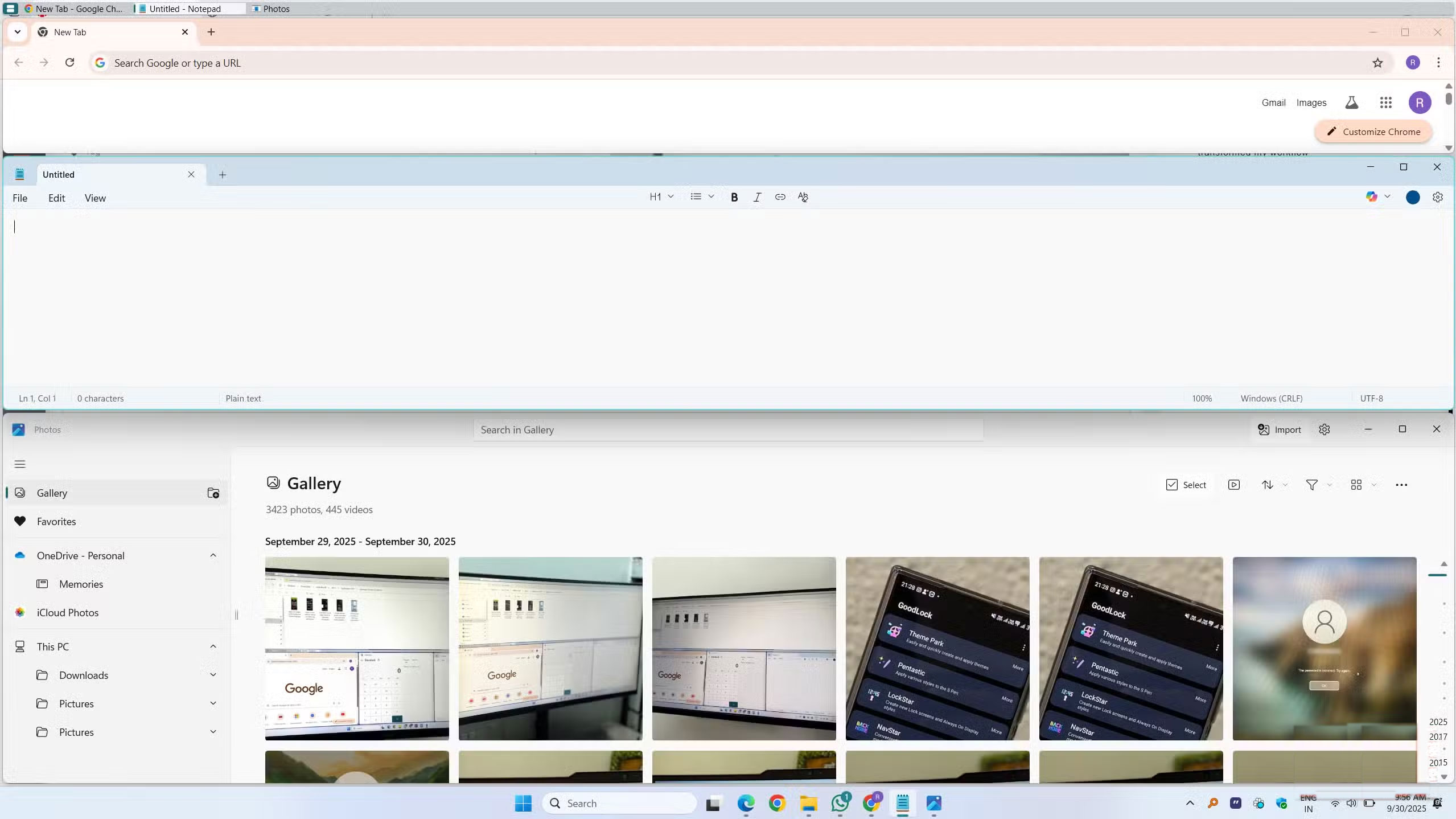
One of the things people love about FancyWM is its flexibility in arranging applications. You are not limited to a single layout. Whether you prefer side-by-side windows, top-to-bottom arrangement, or a stacked layout, FancyWM lets you choose exactly how your workspace looks.
To switch layouts, press Shift + Windows , followed by H For horizontal line breaks, V For vertical line breaks, or S For stacked line breaks. You can also hover over any application's title bar and select a layout from the drop-down menu. The first three buttons let you choose vertical, horizontal, or stacked grouping. The fourth button moves the window up one level, while the fifth button pulls the window out of the layout so it can move freely.
When apps are open, you can resize one of them, and the others will automatically adjust accordingly, so nothing overlaps or disappears from the screen. FancyWM also lets you mix and match layouts. For example, you can keep your chat apps in stacked view while arranging your browser and work apps side by side. As you move items around, an indicator at the top of the screen shows which app occupies each area.
If you prefer keyboard shortcuts, pressing Windows + Shift Will let you move windows left or right, adjust their width, or switch focus between apps. For example, you can press F11 Along with the FancyWM hotkey to temporarily disable automatic tiling, then press the same key combination again to turn it back on. Similarly, to pull a window out of the tiling layout and let it move freely, use the hotkey followed by F .
Set rules to automatically control window behavior
Let FancyWM know your preferences
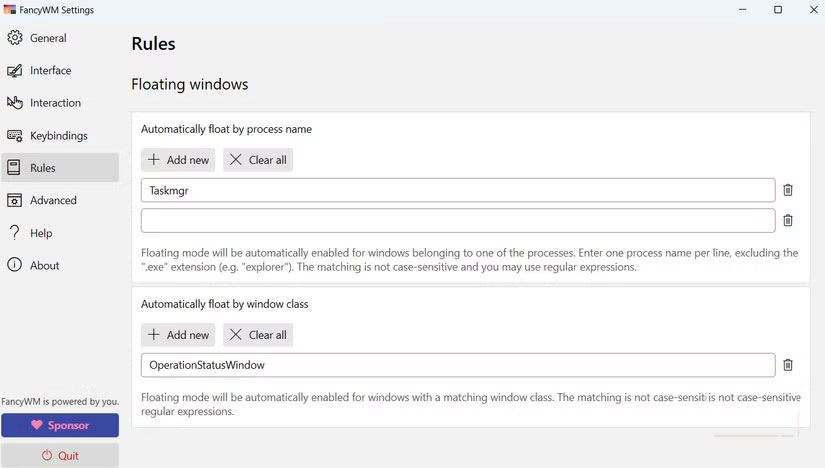
Perhaps the most useful feature in FancyWM is the ability to set rules for specific apps and control exactly how they behave. You can choose which apps always open in a certain layout, which apps stay on the move, and even assign apps to specific monitors if you're using multiple monitors.
For example, you can set your chat app to always appear in a small stack on the secondary display while keeping your browser and code editor maximized on the main display. To set these rules, You should open FancyWM Settings And switch to the Rules Tab.
Customize FancyWM to your liking
Make it your own
In addition to simple window arrangements, FancyWM gives you more control over how your applications behave. You can lock windows to prevent accidental moves, assign keyboard shortcuts to switch focus between desktops, or create exceptions for applications that don't split well. On multi-monitor setups, FancyWM even keeps separate split layouts for each monitor, so each monitor maintains its own structure.
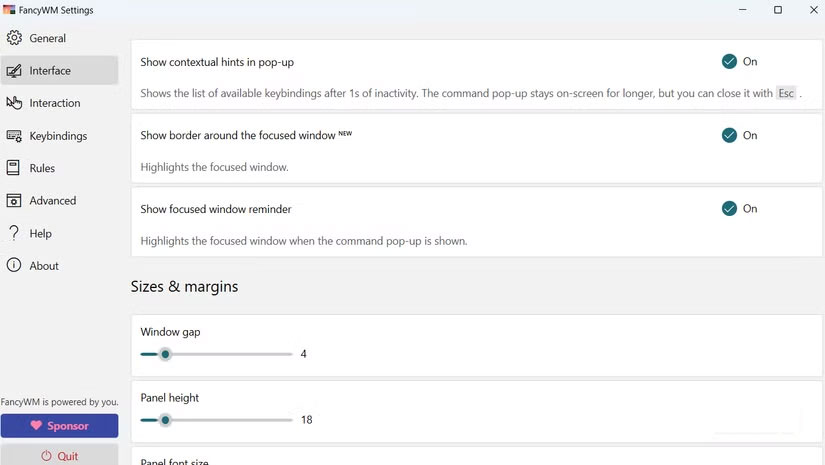
Digging deeper into FancyWM's settings, you'll discover a wealth of customization options. You can adjust the spacing between windows for a clean, uncluttered feel, or shrink them down to maximize your desktop space. If you want a clear visual cue for the application you're working on, FancyWM lets you add a border or highlight around your active window so you always know which window is selected at a glance.
Keyboard shortcuts are also fully customizable. If the default key combinations don't fit your workflow, you can easily remap them to something more natural.
FancyWM takes the simple idea of arranging windows and turns it into a powerful system for reclaiming screen space. Instead of constantly dragging, resizing, and shuffling apps, your workspace automatically adjusts to your liking. After a few days of using it, you might wonder why Windows didn't offer this feature out of the box.
FAQ
What should you know about Windows mod helps make the most of every inch of screen?
In practical terms, your screen may be bigger than ever, but if windows are cluttered and cluttered, you're wasting precious screen space.
Why does Windows mod helps make the most of every inch of screen matter?
The article highlights that even on a large screen, it's easy to lose track of what's open.
What is the main takeaway?
The main takeaway is that fancyWM takes the simple idea of arranging windows and turns it into a powerful system for reclaiming screen space.
Related Articles
 Learn About 100 Inch, 120 Inch, 150 Inch Projection Screens10 minutes read
 The 12-inch Screen Can Stretch Like a Piece of LG Rubber: Complete Overview4 minutes read
 Fujitsu's Ultra-sharp Touch Screen Laptop Support3 minutes read
 16-inch Macbook Pro Launched, Replacing the 15-inch Version5 minutes read
 Galaxy S20 Ultra 6.9 Inch Screen, Nexus 7 7 Inch Screen, 23 minutes read
 The 12-inch MacBook Air Will Have 3 Colors Like the iPhone 5S3 minutes read
Reader Comments 0
Sign in with email or Google to join the discussion.