Table of Contents
This practical guide explains how to customize iPhone lock screen. Follow the steps in order, review the requirements first, and use the troubleshooting notes when a setting or option does not work as expected.
How to customize iPhone lock screen
Step 1:
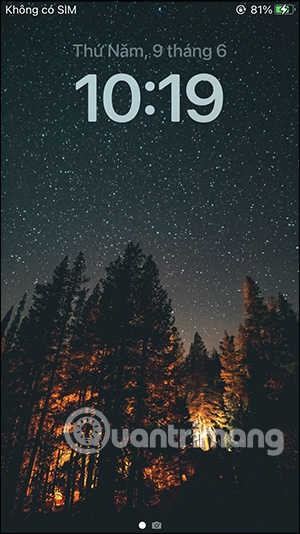
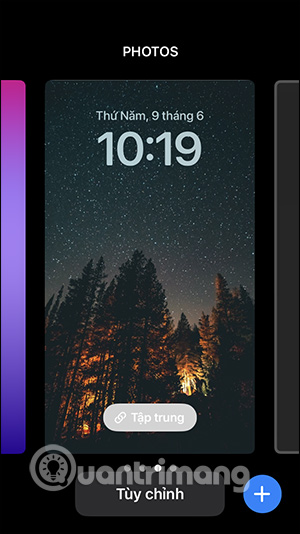
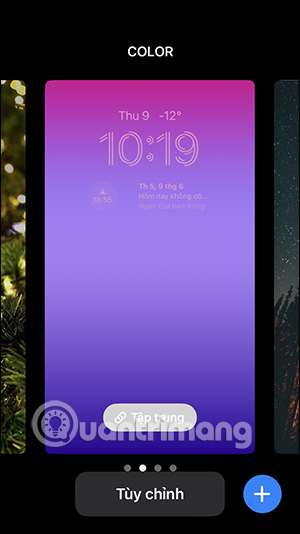
After upgrading to iOS 16, we log in to the device. Next, press and hold on the iPhone lock screen . This will display wallpaper options for the iPhone lock screen. Swipe to both sides to choose the iPhone lock wallpaper you want.
Step 2:
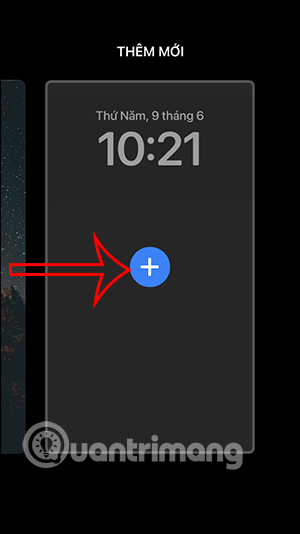
To add a new iPhone lock screen , swipe down to the bottom at Add New and tap the blue plus icon .
Step 3:
Now you will see many options for iPhone lock screen styles , such as weather, emoji, colors. You see all the suggestions in this interface and then select the new screen style you want to use.
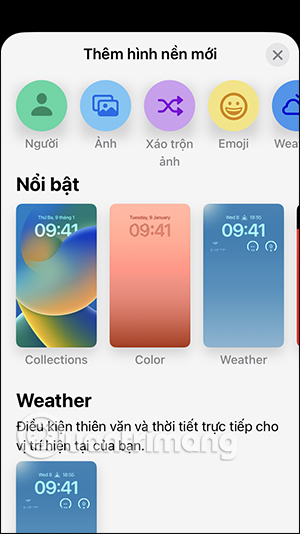
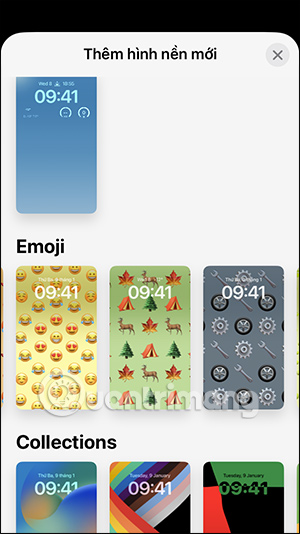
Step 4:
For example, with the emoji lock screen , you can change the emoji you want by clicking on the icon . Here you will select other emojis. The result will be a new lock screen as below.
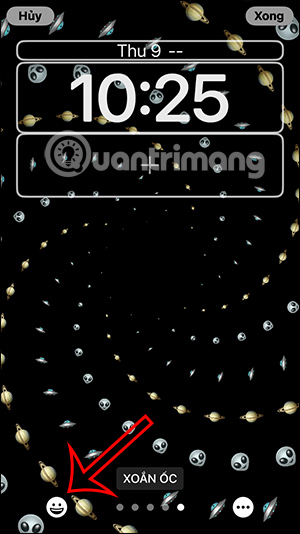
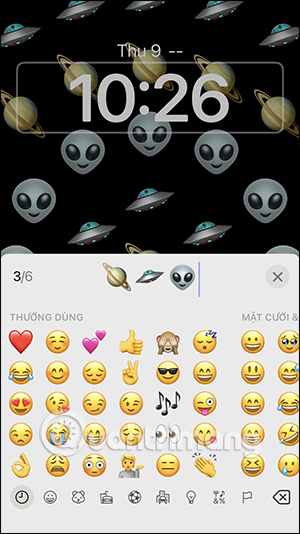
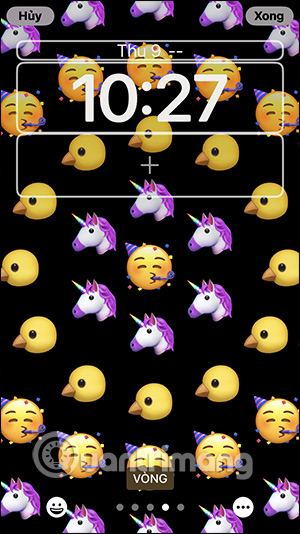
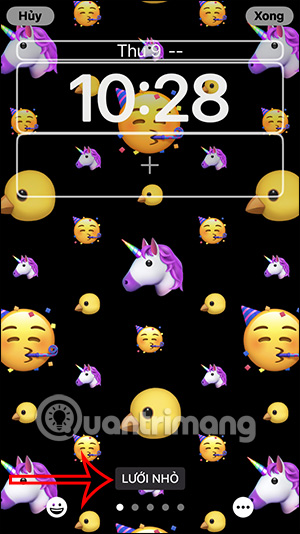
In addition, you also have the option to display emoji icons on the lock screen such as spiral style, circle style, large grid, small grid.
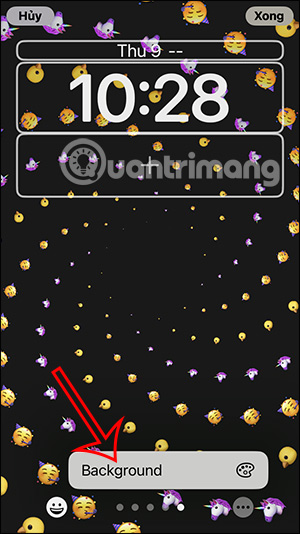
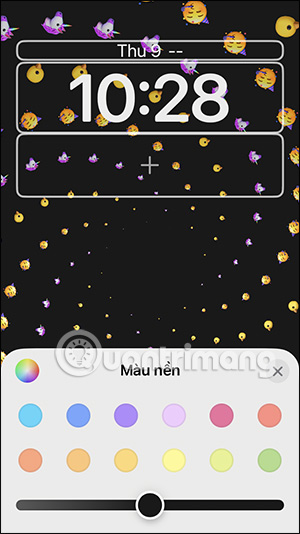
Next we have the option to change the background by choosing the background color. After finishing the design, click Done to save the newly created screen.
Note, depending on the type of wallpaper you choose, there will be different customizations.
Step 5:
In addition, when you select the plus icon , you can add widgets to access right on the lock screen . You find the widget you want to add on the iOS 16 lock screen.
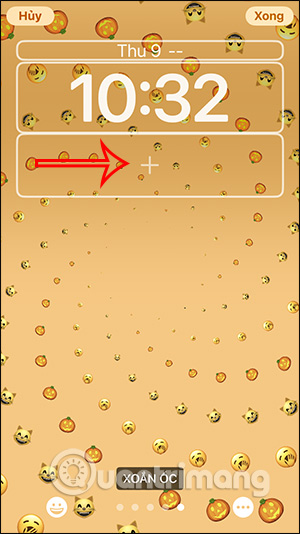
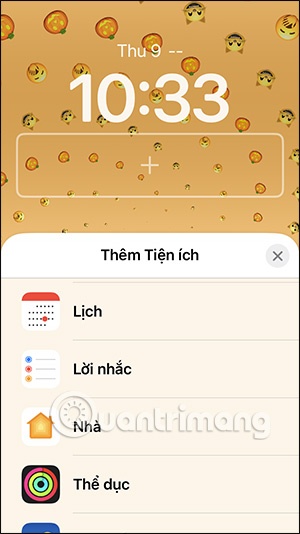
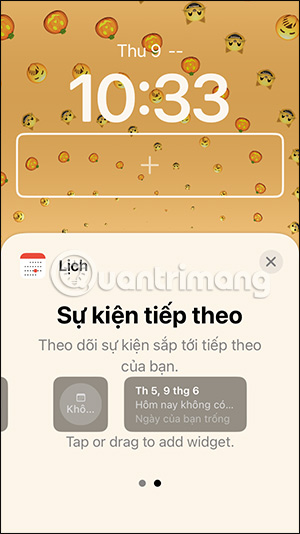
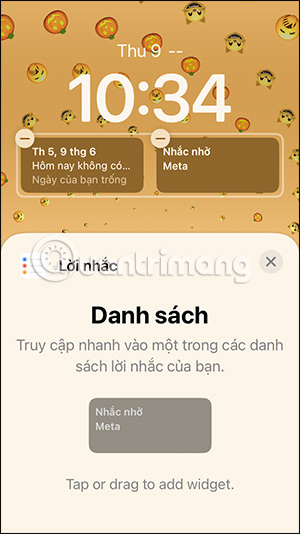
Each widget will have different sizes and display content. We just need to hold down and move the widget into the plus box . You can use 2 widgets at the same time.
Step 6:
The result is a changed iPhone lock screen as shown below. Tap on the widget to access the content instantly.
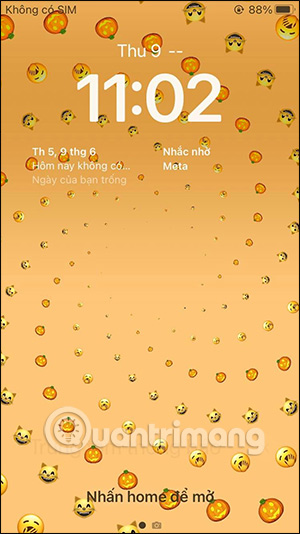
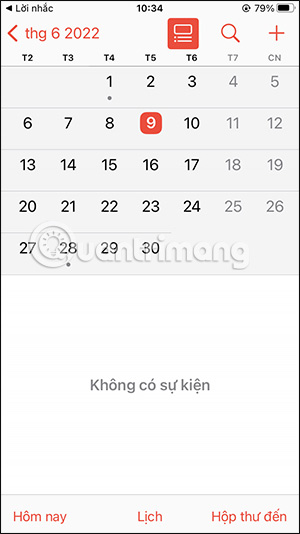
You can change it back if you are not satisfied by clicking Customize on the existing lock screen, or create a completely new iPhone lock screen as instructed above.
Video tutorial to create iOS 16 lock screen
FAQ
How to customize iPhone lock screen?
After upgrading to iOS 16, we log in to the device. Next, press and hold on the iPhone lock screen. This will display wallpaper options for the iPhone lock screen. Swipe to both sides to choose the iPhone lock wallpaper you want.
What does this guide cover?
This guide explains customize iPhone lock screen, including the main steps, important details, and practical considerations.
Who is this guide for?
It is designed for readers who want a clear, practical overview and a reliable process they can follow without unnecessary complexity.
Related Articles
 Is It Possible to Move the Clock Position on the iPhone Lock Screen? Options to8 minutes read
 How to Customize iPhone Screen Lock6 minutes read
 Some Applications Help Customize the Windows Phone 8 Lock Screen10 minutes read
 Customize and Add Apps to the Lock Screen of Windows 104 minutes read
 How to Customize the Liquid Glass Lock Screen Clock on iPhone4 minutes read
 Custom Android Lock Screen Tips You Shouldn't Overlook7 minutes read
Reader Comments 0
Sign in with email or Google to join the discussion.