Table of Contents
This guide organizes the entries in "8 PowerToys Features Microsoft Should Include by Default in Windows 11" and explains what each option, idea, or example offers. It also highlights practical details that matter when comparing the choices.
8. PowerToys Run
Windows Search is annoying. It's slow, misses obvious results, and prioritizes searching the web over your actual files. PowerToys Run ( Alt + Space ) is a quick launcher that can find apps, files, folders, and system settings instantly.
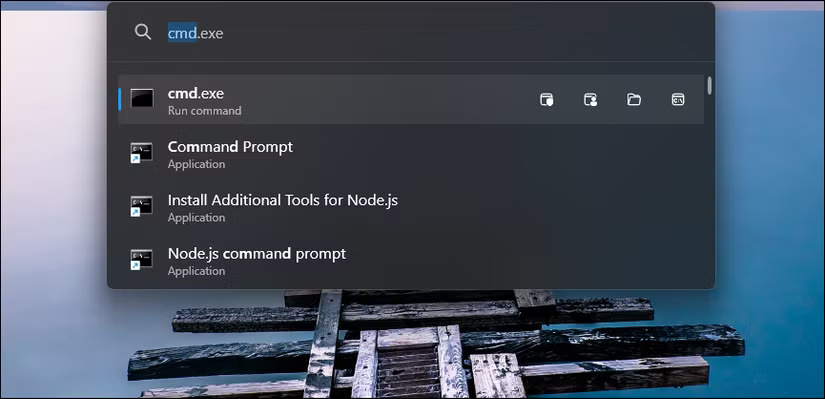
Type exc and Excel will come up first; type reg to open the Registry Editor. PowerToys Run also learns your habits. If you always select Excel when you type "ex", it will bring Excel to the top after a few uses.
7. FancyZones
Windows Snap lets you quickly arrange open application windows into different layouts. You can use the Win key + Right/Left arrows or simply drag application windows to snap them into different layouts.
But what if you need a custom layout?
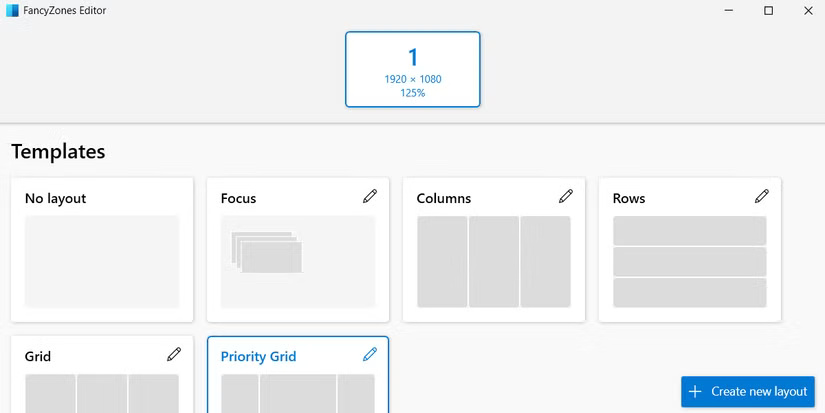
FancyZones is a window management utility that allows you to create custom window layouts to improve your workflow. Hold down the Shift key while dragging any window, it will snap into predefined zones.
6. File Locksmith
Normally, when you try to delete a file, Windows will warn you that it can't because the file is being used by another application - but won't tell you which program. File Locksmith can help you identify which application or process is using a file and even close it with a single click.
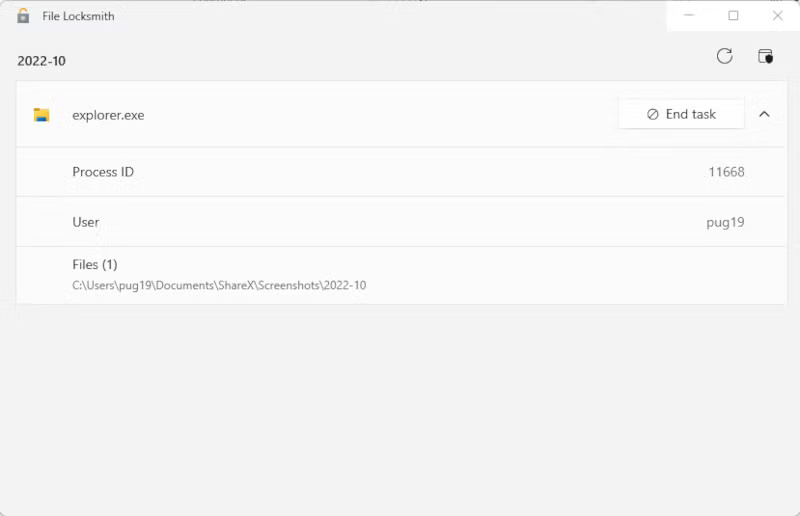
With File Locksmith enabled in PowerToys, right-click any locked file, select Unlock with File Locksmith , and see what processes have that file open. Click End task to kill the process and you can proceed with deleting the file.
5. Text Extractor
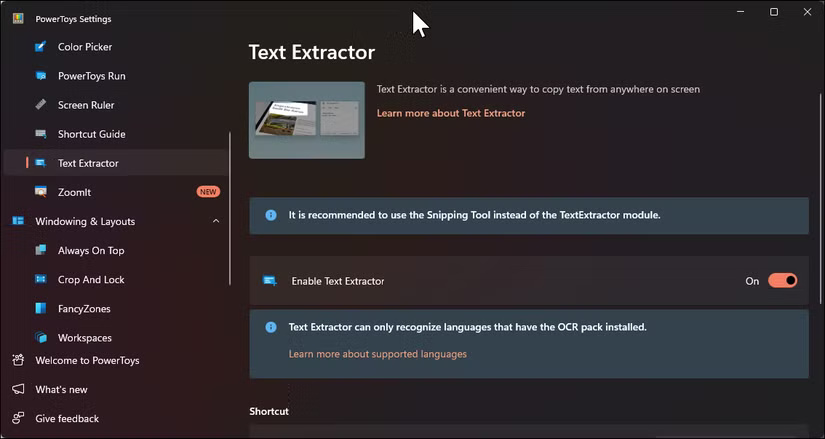
Windows 11 's built-in Snipping Tool cannot only take screenshots — it can also extract text from images. However, the process is multi-step and not always accurate, especially with small text or odd fonts. Instead, PowerToys Text Extractor (formerly PowerOCR) offers a faster, more reliable alternative.
To extract text, press Win + Shift + T , then click and drag to select an area of the screen containing text. Whether it's an image, video, or a program that doesn't support text selection, the tool will scan the selected area and instantly copy the recognized text to your clipboard.
4. Always on Top
When working with multiple applications, you often need to pin a particular window so that it stays on top, no matter what else you are doing. Since Windows doesn't provide a quick way to pin any application like that, the Always on Top feature helps you do this.
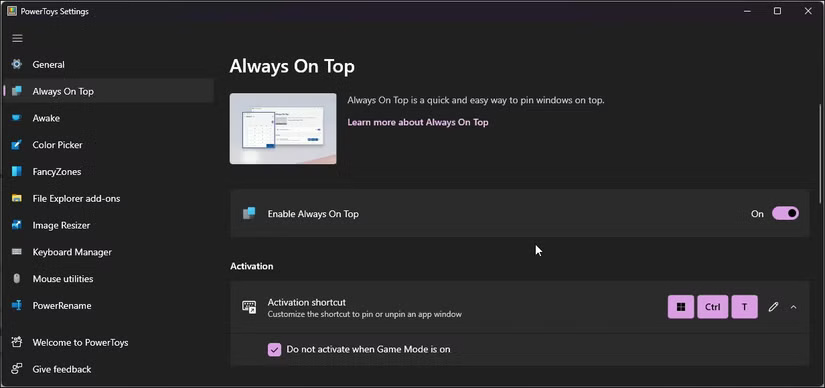
Select the app you want to pin, then press Win + Ctrl + T . A thin colored border will show which window is pinned.
3. Color Picker
Color Picker helps you grab an exact color from anywhere on your screen — whether it's in an app, image, icon, or web page. Turn it on by pressing Win + Shift + C , then click any pixel to copy its color. It works with different formats like HEX, RGB, HSL, and CMYK.
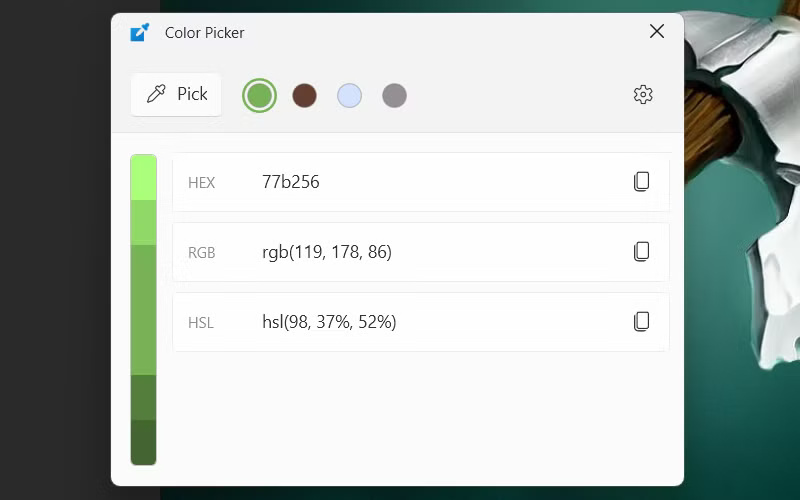
The tool has a magnifying glass so you can select the exact pixel you want and automatically copies the color code to your clipboard. It also saves the last 20 colors so you can reuse them later. You can also tweak any selected color to get the perfect shade.
2. Quick Accent
Typing loanwords like café, résumé, or piñata on an English keyboard means having to memorize Alt codes or switch keyboard layouts. Quick Accent solves this problem brilliantly – hold down any letter and press the spacebar to see all its accented versions. Then use the arrow keys to select the letter you need.
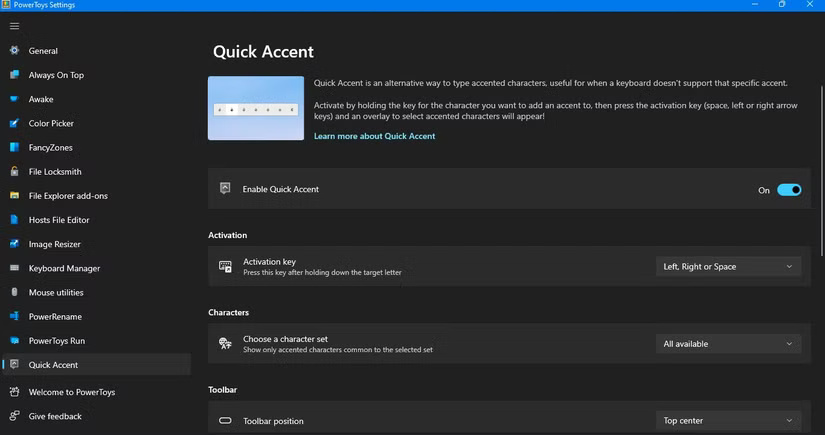
You can configure it for just the languages you use, for quick selection. The overlay will appear at the cursor, so you never lose your place.
1. Awake
Awake temporarily or indefinitely suspends your computer's Sleep mode without affecting your power plan. You can toggle it on/off from the system tray when you start a long download or run an overnight backup. Use it, for example, because Sleep mode disables Wi-Fi and Bluetooth until you reboot - a bug that Awake helps fix.
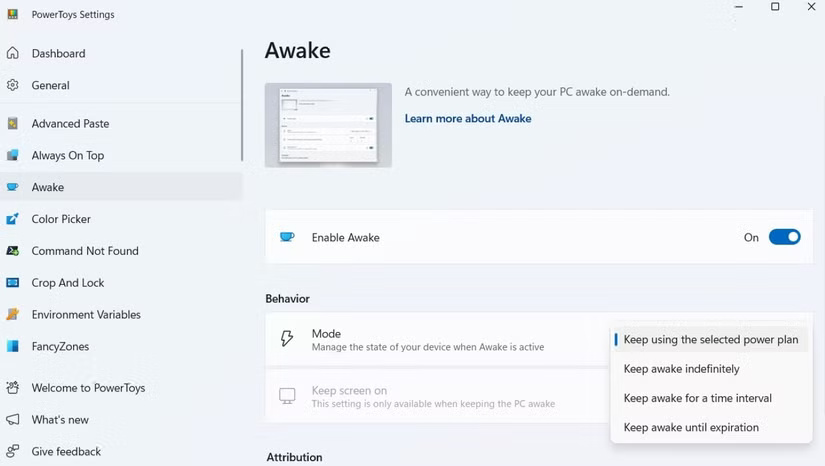
Awake supports three modes: Indefinitely, for a certain number of minutes/hours, or until a certain time. This makes it useful for two hours as well as keeping your computer awake until 6am for overnight tasks. You can also choose to keep your screen on or just prevent your system from sleeping. When the timer expires, standard power settings will automatically resume.
FAQ
What should you know about 8. PowerToys Run?
Windows Search is annoying. It's slow, misses obvious results, and prioritizes searching the web over your actual files. PowerToys Run (Alt + Space) is a quick launcher that can find apps, files, folders, and system settings instantly.
What should you know about 7. FancyZones?
Windows Snap lets you quickly arrange open application windows into different layouts. You can use the Win key + Right/Left arrows or simply drag application windows to snap them into different layouts.
What should you know about 6. File Locksmith?
Normally, when you try to delete a file, Windows will warn you that it can't because the file is being used by another application - but won't tell you which program. File Locksmith can help you identify which application or process is using a file and even close it with a single click.
What should you know about 5. Text Extractor?
Windows 11 's built-in Snipping Tool cannot only take screenshots — it can also extract text from images. However, the process is multi-step and not always accurate, especially with small text or odd fonts. Instead, PowerToys Text Extractor (formerly PowerOCR) offers a faster, more reliable alternative.
Related Articles
 Microsoft Revived Powertoys, a Popular Customization Tool on3 minutes read
 Powertoys Is Now Available in Windows 11 Microsoft Store3 minutes read
 Powertoys Toolkit Will Have a New Look and Feel Suitable for3 minutes read
 Why Workspaces Is the Best Powertoys Feature You Haven't Used on Your Windows?6 minutes read
 Powetoys: How to Use Powertoys on Windows 105 minutes read
 How to Increase Typing Speed with Powertoys on Windows8 minutes read
Reader Comments 0
Sign in with email or Google to join the discussion.