Table of Contents
Explore this open-source application makes running Windows apps on Linux extremely.
How do I run Windows applications on Linux?
Most Windows programs don't run directly on Linux, and if they do, they're usually custom versions compiled for Linux. Proton – Steam's very strong compatibility layer – isn't a panacea either. Except for games, you're usually. out of luck.
This is where WinApps comes into play. WinApps combines three things: an optimized Windows virtual machine, the Remote Desktop (RDP) protocol, and an integrated UI layer for Linux. As a result, the application essentially runs within the virtual Windows environment, but displays and functions like a 'native' app on Linux.
How does the performance of Windows applications compare when run through WinApps?
In real-world testing, latency was almost negligible, and the performance of most applications was comparable to running them directly.
Of course, resource-intensive apps like Photoshop can still slow down the system if you create extremely large canvases and work in real time. But that also happens on my laptop (which isn't exactly new anymore). In normal use, the experience is very good.
Because the virtual machine is always running in the background, applications start up almost instantly, indistinguishable from native Linux apps.
Setting up WinApps on Linux
Running Photoshop or other Windows apps on Linux essentially relies on a virtual machine in the background. WinApps supports three different virtual machine platforms, but for simplicity, Docker or Podman are recommended. I chose Podman because it was already installed. The test system was Kubuntu (based on Debian).
To install Podman and Podman Compose, open Terminal and run:
sudo apt -y install podman sudo apt -y install podman-compose sudo apt install -y curl dialog freerdp3-x11 git iproute2 libnotify-bin netcat-openbsdIf you are using a distro that is not based on Debian, you need to follow the Podman instructions corresponding to that distro.
Next, create the two necessary folders:
mkdir ~/winapps mkdir ~/.config/winappsNow we need to create two configuration files so that WinApps and the virtual machine know what to do.
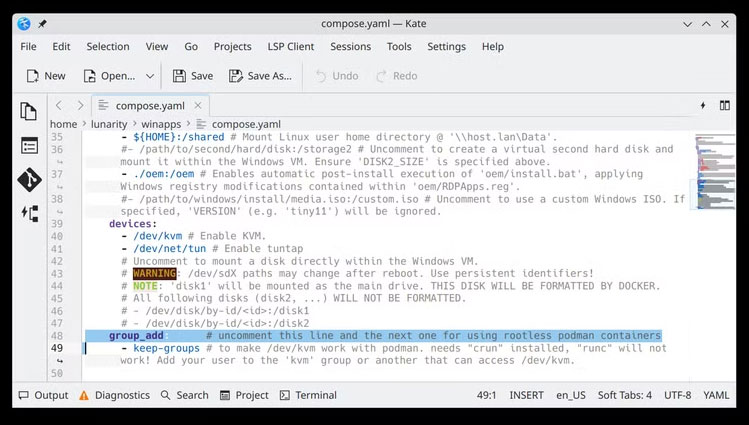
First is the compose.yaml file, used to configure the virtual machine. WinApps provides a sample file. Since I'm using Podman instead of Docker, I had to uncomment lines 48 and 49. You can also adjust the RAM and CPU cores for the virtual machine here, but I kept the default settings because my machine doesn't have excess resources.
I edited the file using Kate and then saved it to the ~/winapps folder.
Next is the WinApps configuration file itself. WinApps also has a sample file on GitHub. Most of it remains the same, only the following changes are made:
WAFLAVOR="docker"
wall:
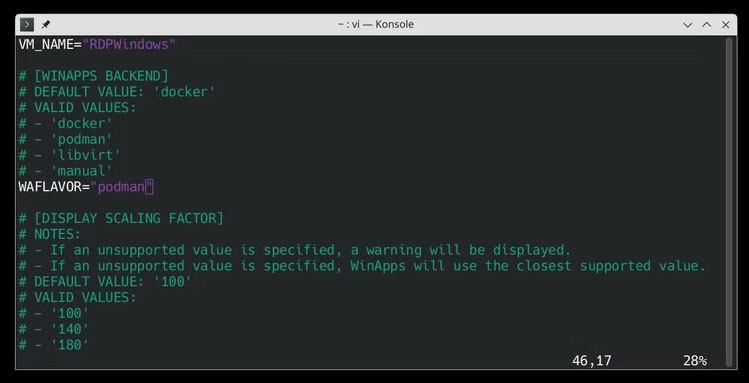
WAFLAVOR="podman"
I used the following command to make the adjustments:
sudo vi ~/.config/winapps/winapps.conf
Then paste the contents of the configuration file.
Once done, start the virtual machine using the command:
podman-compose --file ~/winapps/compose.yaml up
Open your browser and access 127.0.0.1:8006 to complete the remaining installation steps, then close the terminal and the browser.
The next step is to check the RDP connection. With Podman, I use the command:
podman unshare --rootless-netns xfreerdp3 /u:"MyWindowsUser" /p:"MyWindowsPassword" /v:127.0.0.1 /cert: tofu
Enter the correct username and password that you configured in compose.yaml .
A Windows window will appear, allowing you to operate it like a normal Windows operating system. I took the opportunity to install the necessary applications at this step.
Finally, install WinApps using the command:
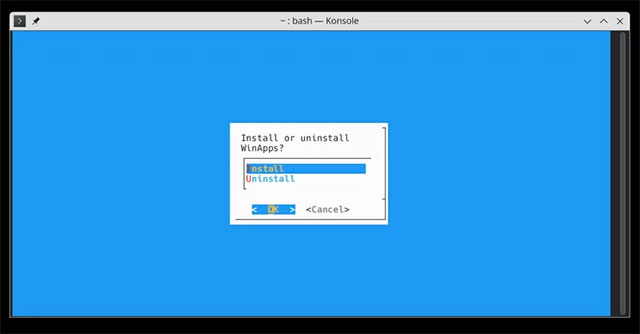
bash <(curl https://raw.githubusercontent.com/winapps-org/winapps/main/setup.sh)
The installer will let you select the applications already in the virtual Windows, then allow you to pin them to the taskbar, desktop, or Start Menu. If you want to install more apps later, just run this script again.
Nowadays, most games on Steam are playable on Linux thanks to Proton (except for a few games with anti-cheat issues). With WinApps, I have even more motivation to… say goodbye to Windows completely.
Final Thoughts
Understanding this open-source application makes running windows apps on linux extremely easy makes it easier to evaluate the information and apply the most relevant recommendations. Focus on the key points above and verify details that may change over time.
FAQ
What is this open-source application makes running windows apps on linux extremely easy?
Explore this open-source application makes running Windows apps on Linux extremely.
What key points does this article cover?
The article focuses on How do I run Windows applications on Linux?, How does the performance of Windows applications compare when run through WinApps?, Setting up WinApps on Linux, with practical explanations and examples.
How can you use this information in practice?
Use the explanations to compare options, verify important details, and make a more informed decision. Apply the recommendations that best match your goals and situation.
Related Articles
 6 Open Source Apps for Gamers on Linux6 minutes read
 6 Reasons Linux Makes 'Give Up' Windows2 minutes read
 10 Open Source Android Apps You Can't Live Without8 minutes read
 4 Secret Open Source Projects That Help You Get More Out of Your Favorite Apps6 minutes read
 5 Ways to Open Applications in Windows 105 minutes read
 4 Open Source AI Apps You Can Use Every Day6 minutes read
Reader Comments 0
Sign in with email or Google to join the discussion.