Table of Contents
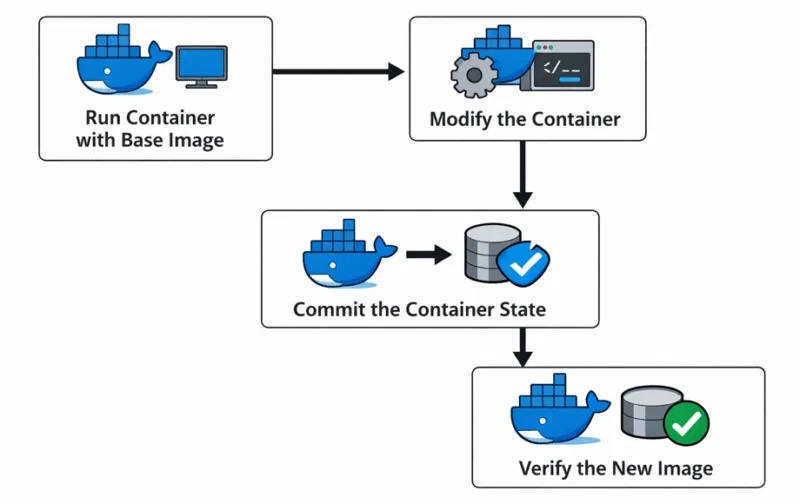
docker commit creates a new image from changes in a container's writable layer. It is useful for preserving a debugging session, capturing a quick experiment, or examining a system after a failure. For application builds that must be repeatable and reviewable, record the same change in a Dockerfile and rebuild the image.
How container changes relate to an image
A Docker image is a set of read-only layers plus configuration metadata. When Docker creates a container, it adds a writable container layer. Installing a package, editing a configuration file, or deleting a file changes that writable layer; the original image remains unchanged.
Removing the container also removes its writable layer. A commit turns the layer's current filesystem changes and supported configuration into a new image layer.
docker commit syntax and limits
docker container commit [OPTIONS] CONTAINER [REPOSITORY[:TAG]]docker commit is an alias for docker container commit. The container name or ID comes before the new repository and tag. Docker's command reference documents four important behaviors:
- Mounted volume data is excluded. A commit does not turn database files or other volume contents into image data.
- The container is paused by default. This reduces the risk of capturing inconsistent files. Use
--no-pauseonly when you understand that tradeoff. - Runtime memory is not saved. The resulting image contains filesystem and supported image-configuration changes, not a suspended process.
- Secrets can be captured. Remove credentials, tokens, temporary files, and shell history before committing, and inspect the image before sharing it.
| Option | Purpose | Example |
|---|---|---|
-a, --author | Add author metadata | -a "Team Name <team@example.com>" |
-m, --message | Describe why the snapshot was created | -m "Install curl for debugging" |
-c, --change | Apply a supported Dockerfile configuration instruction such as ENV, CMD, USER, or WORKDIR | -c "ENV APP_ENV=demo" |
--no-pause | Do not pause the container during capture | --no-pause |
Example: add curl to an Alpine container
1. Start a named container
docker run --name alpine-curl -it alpine:latest /bin/shA name makes the later commit command unambiguous. For a real build, use a tested version tag or image digest instead of relying on latest.
2. Make the test change
apk add --no-cache curl
curl --version
exit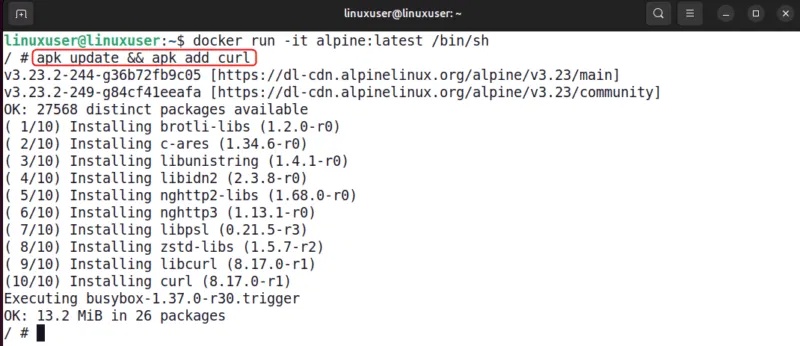
The container is now stopped, but its writable layer still exists. Confirm the container name and status:
docker container ls -a --filter name=alpine-curl
docker container diff alpine-curl
3. Commit the container to a new image
docker commit --message "Install curl for diagnostic snapshot" alpine-curl local/alpine-curl:demo
The original article's command omitted the required container argument. The corrected order is CONTAINER followed by REPOSITORY:TAG.
4. Inspect and test the image
docker image ls local/alpine-curl
docker image inspect local/alpine-curl:demo
docker run --rm local/alpine-curl:demo curl --version
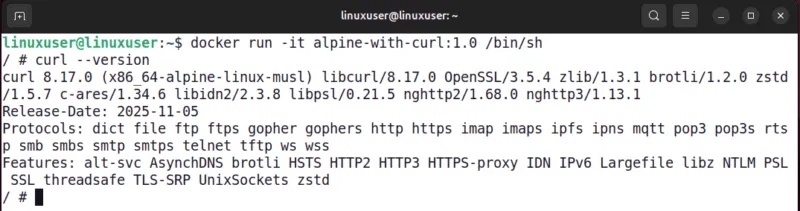
If the last command prints the curl version, the package is present in a fresh container created from the committed image.
Prefer a Dockerfile for repeatable changes
A commit records the result, but not a clear, editable recipe for producing it. The equivalent Dockerfile is easier to review, rebuild, scan, and update:
FROM alpine:latest
RUN apk add --no-cache curl
docker build -t local/alpine-curl:demo .
docker run --rm local/alpine-curl:demo curl --versionPin the base image to a tested version or digest in a maintained project. Docker's Dockerfile guide explains how build instructions form a reproducible image. TipsMake's Docker and Containers course includes guided work on images, Dockerfiles, volumes, and runtime checks.
When docker commit is appropriate
- Preserving a one-off debugging environment before removing the container
- Creating a temporary snapshot to compare filesystem changes
- Capturing a prototype before translating the steps into a Dockerfile
Avoid treating a committed container as the long-term production build, and never use it as a backup for mounted volumes. Put persistent application data in a managed volume and back it up separately. TipsMake's Docker learning roadmap explains why container layers and persistent storage serve different purposes.
Cleanup after the test
docker container rm alpine-curl
# Remove the demo image only when it is no longer needed:
docker image rm local/alpine-curl:demoRelated Articles
 Memorize These 7 Commands to Stop Messing Around with Docker Containers8 minutes read
 How to Use Docker Container7 minutes read
 Docker Best Practices You Need to Know6 minutes read
 Docker Hub Is Used by Hackers to Spread Cryptojacking Malware4 minutes read
 10 Best Docker Alternatives 20229 minutes read
 Docker: Complete Guide9 minutes read
Reader Comments 0
Sign in with email or Google to join the discussion.