Table of Contents
This practical guide explains how to fix 'docker: invalid reference format' error. Follow the steps in order, review the requirements first, and use the troubleshooting notes when a setting or option does not work as expected.
Fix "Invalid Reference Format" error
Take a closer look the most common causes of the "Invalid Reference Format" error and how to fix it:
Capital letters in image names
Docker requires image names to be lowercase. Even a single uppercase letter can cause formatting errors. For example, running the following command will result in an error:
docker pull NGINX
To avoid this error, always double check that your image name is in lowercase before running the command.
docker pull nginx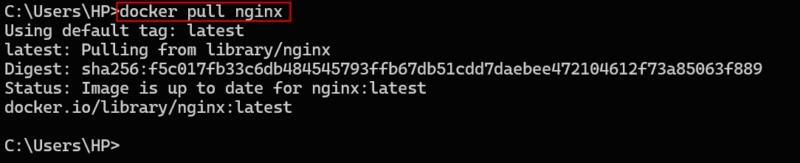
Special or invalid character
Sometimes users accidentally add characters that Docker doesn't allow. These include @ signs, spaces, or characters copied from a website or document that look normal but aren't.
For example, the following command contains the special character @, which will cause the following error:
docker run ubuntu@:latest
To fix this error, make sure there are no extra characters or formatting issues in the command. You can use a plain text editor to check and clean up the command (if necessary):
docker run ubuntu:latest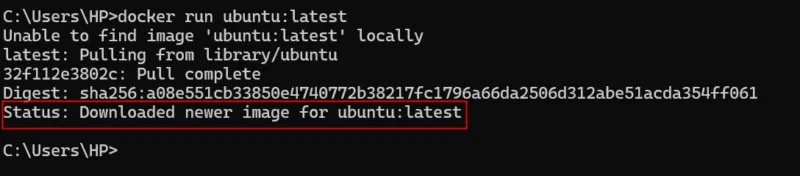
Colon without tag
One of the most common mistakes is to put a colon at the end of the image name but not include the tag. For example, let's try the following command to pull Node:
docker pull node:Docker expects a value after the colon, such as latest, 18-alpine, or any other valid tag. If no value is provided, the image name is considered incomplete and will cause an "Invalid Reference Format" error:

To fix this error, add an appropriate tag after the colon to make the image name full and valid:
docker pull node:latest
File path or volume mount contains spaces
When you include a file path that contains spaces, especially with options like -v (volume mount), Docker may misinterpret parts of the path as separate arguments or even as part of the image name. As a result, you may encounter unexpected results like the one shown below:
docker run -v /home/user/My Folder:/app ubuntu
To avoid this, always enclose the file path with spaces in double quotes, as shown below:
docker run -v "/home/user/My Folder:/app" ubuntuReplace '/home/user/My Folder' with the actual path to the directory you want to mount into the container.
Inappropriate use of variables
When working with Docker, it is common to use variables in commands, especially when specifying image versions. However, if a variable like $VERSION is not set correctly, Docker can encounter issues like the "Invalid Reference Format" error.
For example, run the following command to pull Ubuntu from Docker Hub:
docker pull ubuntu:$VERSIONHere, $VERSION is supposed to represent the version of the Ubuntu image you want to pull. But if you don't assign a value to it, Docker will interpret the command as "docker pull ubuntu:". This results in an invalid image name because it ends with a colon and lacks the required version tag.

To avoid this, make sure all variables used in the command are properly defined. In Linux, you can set a variable using the following syntax.
$VERSION=latestThen pull the specified version by executing the following command.
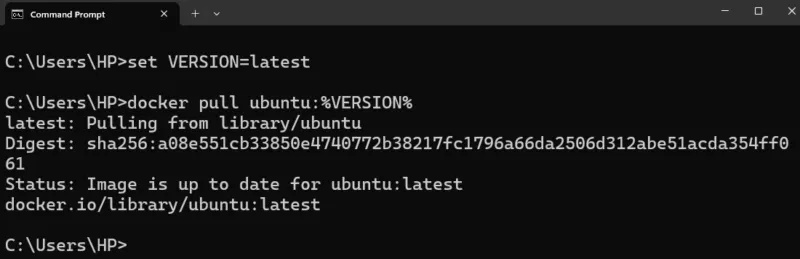
docker pull ubuntu:$VERSIONIn Windows CMD, you need to use the set keyword to define a variable (like version), then use the %VARIABLE% syntax to refer to it in commands like docker pull.
set VERSION=latest docker pull ubuntu:%VERSION%Here, $VERSION holds the most recent value, so Docker pulls the ubuntu:latest image without any problems. You can also assign a specific version, such as 18.04, if needed.
Copy and paste problem
Sometimes users copy commands from online tutorials or documentation. These copied commands may contain hidden characters such as invisible spaces, non-English punctuation, or special quotation marks. These characters can silently corrupt your Docker commands.
To avoid this, it's better to type the command yourself when possible, or paste the command into a plain text editor first to remove unwanted formatting.
Now that you know the common causes of the "Invalid Reference Format" error in Docker and how to fix it, you'll be well on your way to avoiding this problem in the future. From checking for capitalization to making sure your variables are set correctly, these simple tips can save you a lot of time and frustration. If you're ready to explore further, you might also want to learn how to tag and push your custom Docker images to the registry, or how to clean up unused images to keep your system clean.
FAQ
What should you know about fix "Invalid Reference Format" error?
Take a closer look the most common causes of the "Invalid Reference Format" error and how to fix it:
What should you know about capital letters in image names?
Docker requires image names to be lowercase. Even a single uppercase letter can cause formatting errors. For example, running the following command will result in an error:
What should you know about special or invalid character?
Sometimes users accidentally add characters that Docker doesn't allow. These include @ signs, spaces, or characters copied from a website or document that look normal but aren't.
What should you know about colon without tag?
One of the most common mistakes is to put a colon at the end of the image name but not include the tag. For example, let's try the following command to pull Node:
Related Articles
 How to Fix ''pc Name Is Invalid'' Error on Windows 118 minutes read
 Memorize These 7 Commands to Stop Messing Around with Docker Containers8 minutes read
 How to Fix 'Invalid Partition Table' Error on Windows2 minutes read
 How to Use Docker Container7 minutes read
 Docker Best Practices You Need to Know6 minutes read
 Fix Windows Error: Complete Guide: 7 Ways to Fix ''compressed (Zipped)7 minutes read
Reader Comments 0
Sign in with email or Google to join the discussion.