Table of Contents
This updated guide examines Manage Windows Networks Using Scripts -- Part 4: Use and organizes the essential facts, background, and practical takeaways in clear American English.
Mitch Tulloch
Use the WMI Win32_NetworkAdapterConfiguration class to manage TCP / IP settings on Windows networks via VBScript.
In the first two parts of this series we looked at some of the basic concepts of Windows scripting technology in managing TCP / IP network settings. To illustrate and practice, we have developed a simple script with the function of changing the address of a network adapter:
Option Explicit On Error Resume Next
Dim objWMIService Dim objNetAdapter Dim strComputer 'Can specify IP address or hostname or FQDN Dim strAddress' Contains the new IP address Dim arrIPAddress Dim arrSubnetMask Dim colNetAdapters Dim errEnableStatic
'Lưu cho thiếu đối số
If WScript. Arguments. Count = 0 Then Wscript. Echo "Usage: ChangeIPAddress.vbs new_IP_address" WScript. Quit End If
strComputer = "." strAddress = Wscript. Arguments. Item (0) arrIPAddress = Array (strAddress) arrSubnetMask = Array ("255.255.255.0") Set objWMIService = GetObject ("winmgmts:" & strComputer & "rootcimv2") Set colNetAdapters = objWMIService. ExecQuery ("Select * from Win32_NetworkAdapterConfiguration where IPEnabled = TRUE") For Each objNetAdapter in colNetAdapters errEnableStatic = objNetAdapter. EnableStatic (arrIPAddress, arrSubnetMask) next
'Display kết quả hoặc mã lỗi
If errEnableStatic = 0 Then Wscript. Echo "Adapter's IP address has been successfully changed to" & strAddress Else Wscript. Echo "Changing the adapter's address was not successful. Error code" & errEnableStatic End If
The script changes the IP address of a network adapter, using Win32_NetworkAdapterConfiguration, one of the most useful WMI classes for managing TCP / IP networking for Windows-based machines. In part three, we went through a preliminary round through WMI with namespaces, provider and its class. Thus, we can better understand the lines of code in the middle of the script:
Set objWMIService = GetObject ("winmgmts:" & strComputer & "rootcimv2")
If you recall from the previous article, this line works to connect to the namespace rootcimv2 on the local machine by defining an object named objWMIService and placing it equal to the return value of the GetObject method. Of course, after connecting to this namespace, you can gather information from it.
In today's lesson, the code line we will focus on follows the above line and uses the Win32_NetworkAdapterConfiguration class:
Set colNetAdapters = objWMIService. ExecQuery ("Select * from Win32_NetworkAdapterConfiguration where IPEnabled = TRUE")
Recall that you will see, the second command line calls the ExecQuery method for the objWMIService object that we described in the first line. The SELECT statement is included in this method as a parameter. And gather all network adapter configurations on the system with TCP / IP limits, allowed on the adapter to be returned and assigned by the variable colNetAdapters. After we have this collection, we can loop it with the For Each. command. Remember, you always have to run the loop for collections even if it only includes one object.
The question to be asked here is: What else can we do with the Win32_NetworkAdapterConfiguration class?
Use the properties and methods of Win32_NetworkAdapterConfiguration
You know, properties represent queryable information from a system using WMI. The more properties a WMI class has, the more information it can retrieve from it. The Win32_NetworkAdapterConfiguration class actually has 61 different properties. Some of them are unique, completely separate from Win32_NetworkAdapterConfiguration, and others are inherited from many other classes. You can find a complete list of properties of the Win32_NetworkAdapterConfiguration class on MSDN. When learning about using Windows scripting to manage Windows networks using scripts, it is very important to be familiar with the WMI information on MSDN like this. Figure 1 shows some properties of the Win32_NetworkAdapterConfiguration class:
 Figure 1: Some properties of the Win32_NetworkAdapterConfiguration class
In the figure above, the yellow section illustrates that the binary attribute IPEnabled is clicked, which is used to identify all network adapters on the system that have TCP / IP limits and are allowed to operate. This is done by including the following SQL command as a parameter to the objWMIService. ExecQuery method:
Select * from Win32_NetworkAdapterConfiguration where IPEnabled = TRUE
Select * from command will extend the functionality for the script by querying all other properties of the class. For example, if you want to select all network adapters on the system with DHCP, simply change the SELECT command as follows:
Select * from Win32_NetworkAdapterConfiguration where DHCPEnabled = TRUE
The same information will be found on the same MSDN site. Figure 2 shows us this:
 Figure 2: DHCPEnabled property of the Win32_NetworkAdapterConfiguration class
What about the methods of the class? Recall that the method is the calling function to perform various operations using WMI. The search results show that Win32_NetworkAdapterConfiguration has a lot of methods, totaling 41. You can find methods for this class on the same page below the properties, as shown in Figure 3:
 Figure 3: Methods of the Win32_NetworkAdapterConfiguration class
Go back a bit to the following important part in the script:
Set objWMIService = GetObject ("winmgmts:" & strComputer & "rootcimv2") Set colNetAdapters = objWMIService. ExecQuery ("Select * from Win32_NetworkAdapterConfiguration where IPEnabled = TRUE") For Each objNetAdapter in colNetAdapters errEnableStatic = objNetAdapter. EnableStatic (arrIPAddress, arrSubnetMask) next
First we use the IPEnabled property of the Win32_NetworkAdapterConfiguration class to return a set of network adapters with TCP / IP limits and enabled. Then call the EnableStatic method of this same class to change the IP address and subnet mask of these network adapters, using the array variables arrIPAddress and arrSubnetMask, previously defined in the script. We will need to add two variables as parameters to this method. Simply because when you click on the EnableStatic link in Figure 3 above, the MSDN page displays information like Figure 4, which provides us with the necessary things to be able to use this class:
 Figure 4: Detailed information about the EnableStatic method of the Win32_NetworkAdapterConfiguration class
Not only does it give us a syntax for how to call a class, MSDN also tells us the return value and how to compile other error conditions that may arise. That's why we use the error variable in the following line in the script:
errEnableStatic = objNetAdapter. EnableStatic (arrIPAddress, arrSubnetMask)
And that is why we use the following lines to record the error code if any error occurs when the script runs:
If errEnableStatic = 0 Then Wscript. Echo "Adapter's IP address has been successfully changed to" & strAddress Else Wscript. Echo "Changing the adapter's address was not successful. Error code" & errEnableStatic End If
Once again we can extend the functionality for the script by calling some other methods of the class. For example, if you want to disable NetBIOS over TCP / IP (NetBT) on all network adapters with TCP / IP limitations, we can use the SetTcpNetbios method as shown in Figure 5:
 Figure 5: SetTcpipNetbios method of the Win32_NetworkAdapterConfiguration class
Click on a link on the MSDN page above, which will open with instructions for using the method (Figure 6):
 Figure 6: Details of the SetTcpipNetbios method
We can see that if you want to remove NetBT on the adapters, all you need to do is change the following line in the script:
errEnableStatic = objNetAdapter. EnableStatic (arrIPAddress, arrSubnetMask)
into:
errEnableStatic = objNetAdapter. SetTcpipNetbios (2)
After making this change and 'cleaning' the script by removing variables that are no longer needed, renaming other variables, we have the following script, which can interrupt NetBT on all adapters. network mentioned above:
'========================= 'NAME: DisableNetbios.vbs ' 'AUTHOR: Mitch Tulloch 'DATE: December 2006 ' 'ARGUMENTS: 'first. None '========================= -
Option Explicit On Error Resume Next
Dim objWMIService Dim objNetAdapter Dim strComputer 'Can specify IP address or hostname or FQDN Dim colNetAdapters Dim errDisableNetbios
strComputer = "." Set objWMIService = GetObject ("winmgmts:" & strComputer & "rootcimv2") Set colNetAdapters = objWMIService. ExecQuery ("Select * from Win32_NetworkAdapterConfiguration where IPEnabled = TRUE") For Each objNetAdapter in colNetAdapters errEnableStatic = objNetAdapter. SetTcpipNetbios (2) next
'Display kết quả hoặc mã lỗi
If errDisableNetbios = 0 Then Wscript. E for "NetBIOS has been successfully disabled on the adapters" Else Wscript. E for "Disabling NetBIOS was not successful. Error code" & errDisableNetbios End If
See how it works. Figure 7 shows the Advanced TCP / IP Properties dialog box WINS for local area connection (Local Area Connection) on Windows Server 2003 machine:
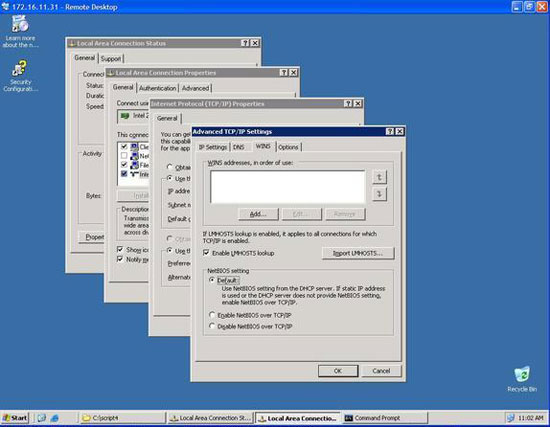 Figure 7: NetBIOS settings for TCP / IP on a Windows Server 2003 machine
Note that the current NetBT setting for this machine is 'Default' corresponding to the 0 value of the SetTcpipNetbios method (see Figure 6 above). Copy the new script into Notepad (remember to turn off Word Wrap) and write it with the file DisableNetbios.vbs. Then run this script on our server in the Command Prompt command line using cscript (Figure 8):
 Figure 8: Disabling NetBIOS for TCP / IP using a script
Now let's see if it works. We need to close the TCP / IP properties page and reopen them to refresh the NetBT setting in the GUI interface, which looks like this (Figure 9):
 Figure 9: NetBT has been successfully removed
Conclude
The best way to learn Windows scripting is to build practical examples. You should do the following exercises to reinforce what you have learned in this lesson:
-
Change the script, use parameters like DisableNetbios.vbs 1 to use NetBT, DisableNetbios.vbs 2 to remove it and DisableNetbios.vbs 0 to return it to the default settings using DHCP to determine if NetBT is used or not Remove on the adapter.
-
Edit the SELECT statement in the script to select network adapters based on some other properties of the Win32_NetworkAdapterConfiguration class, and more advanced editing to call some other methods of the class to perform some other operations on the TCP configuration. / IP of network adapters.
-
Searching on MSDN to learn more about other WMI classes can be very helpful in other Windows administration activities.
 Part 5: Overcoming challenges
  Part 6: The first steps for remote scripting
  Part 7: Troubleshooting errors
  Part 8: Remote script error handling with Network Monitor 3.0
  Part 9: Understanding remote control scenarios
  Part 10: Tricks of remote control scenarios
  Part 11: Other script tricks
  Part 12: Properties of the WMI class
  Part 13: The script returns all values
FAQ
What is Manage Windows Networks Using Scripts -- Part 4: Use about?
It provides a structured overview of class, explains the main context, and highlights practical takeaways for readers.
Why does this topic matter?
Understanding the main concepts helps readers evaluate the issue, avoid common mistakes, and make better-informed decisions.
How should readers use this information?
Use the guidance as a practical starting point, confirm details that may have changed, and follow current product, safety, or security recommendations.
Related Articles
 Manage Windows Networks Using Scripts -- Part 2: Complete Scripts15 minutes read
 Manage Windows Networks Using Scripts -- Part 6: First Steps for10 minutes read
 Managing Windows Networks Using Scripts -- Part 1: Basic Concepts2 minutes read
 Managing Windows Networks Using Scripts -- Part 5: Overcoming13 minutes read
 Managing Windows Networks with Scripts -- Part 10: Tricks of11 minutes read
 Microsoft Windows Powershell and SQL Server 2005 SMO - Part 1010 minutes read
Reader Comments 0
Sign in with email or Google to join the discussion.