Table of Contents
This updated guide explains how to use wildcards to match file names in Linux with clear steps, practical tips, and useful context. Searching for files in Linux can seem confusing at first, but do not worry, it gets easier once you understand wildcards. Wildcards are special symbols that help you select multiple files or folders without having to type each name individually.
- File Management in Unix/Linux
1. Asterisk (*)
The asterisk (*) is a Linux wildcard that matches zero or more characters in a file or directory name. It helps to search for, list, or manipulate multiple files at once. It is often used with commands like cp, mv, and rm to perform batch operations.
Match Files by Extension
We can execute the command ls *.txt to match all file names with the.txt extension:

Match Files by Prefix
If you need to list files that start with the word example , you can use the command ls example* :

Match Files by Suffix
To list or modify files with a certain extension like '_1', use the ls *_ command:

Match Files Containing a Specific Word
We can match file names containing a specific substring by using the asterisk wildcard. for instance, the ls *ample* command lists all file names containing the substring 'ample':

Match Hidden Files
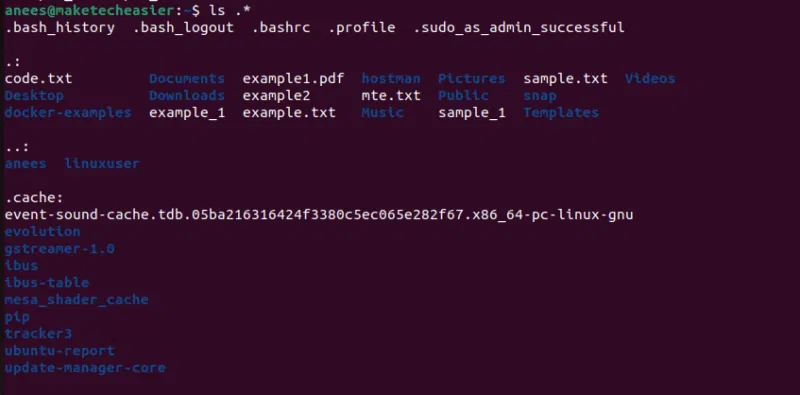
In Linux, hidden files start with a dot. We can use the ls.* command to list hidden files:
2. Question Mark (?)
The question mark (?) wildcard is used to match a single character in a file name. It helps to find files whose names follow a specific pattern but differ by one character. It is often used to find or manage files with similar names but differ by a single character. for instance, file.txt matches "file1.txt", "fileA.txt", "fileB.txt", etc.
Matches Files That Have Any Single Character at a Specific Position
We can use the question mark (?) wildcard to match file names where the specified position can be any single character. for instance, the command ls file.txt matches any file name that begins with file, followed by any single character, and ends with the.txt extension:

Match Files with a Fixed Number of Characters
We can use the question mark wildcard character? multiple times to match a fixed number of characters in a file name. for instance, the command ls example.txt matches any file that starts with the word example , followed by any two characters, and ends with the.txt extension:

Combine the Wildcard Character? With *
We can combine the? wildcard with the * wildcard to do some advanced pattern matching. for instance, the pattern ?ile* matches a filename whose first character can be any character, followed by "ile", then any number of characters:

3. Square Brackets ([ ])
Square brackets ([ ]) match any character enclosed within the brackets. You can include different types of characters, such as letters, numbers, or special symbols, to specify a specific set of matches. for instance, the command ls [1ab]file.txt lists all files that begin with 1, a, or b, followed by "file.txt":
![3. Square brackets ([ ]) example 9](../data8/images/how-to-use-wildcards-to-dfuyz-picture-9-bVtdWHFTm.jpg)
4. Exclamation Mark (!)
We can negate a set of characters using the! symbol. for instance, the command ls file[!a-zA-Z] lists all file names that start with file , followed by any character except a letter (az or AZ). It matches "file1", "file_" or "file@" but not "fileA" or "filez":

5. Curly Brackets ({ })
Curly braces ({ }), also known as range expansions, allow us to specify multiple patterns separated by commas. They expand to specific file names instead of acting as wildcards. for instance, the command ls file{1,2,3}.txt is equivalent to ls file1.txt file2.txt file3.txt . This command lists all of these specific files if they exist:

6. Using Wildcards with Linux Commands
We can use wildcards with various Linux commands like find, ls, cp and rm to make file management easier by allowing selection based on patterns. for instance, we use the command find Documents -name "*.txt" to locate all.txt files in the Documents directory:

Similarly, we can use wildcards with any other Linux command to achieve a specific purpose.
7. Use Wildcards with Case - sensitive File Names
Wildcards in Linux are case sensitive, meaning file names with different letters are treated as separate. To match both uppercase and lowercase variants, we can use character classes or the case-insensitive option in the command.
for instance, we can use the command ls [fF]ile.txt to match both file.txt and File.txt:

Now you know how to use wildcards to manage files in Linux faster and easier. Whether you're searching for files, organizing folders, or automating tasks, these wildcard techniques will save you time and effort.
We recommend starting with * and? as these are the most commonly used. Then experiment with square brackets and curly braces to refine your search. Once you're comfortable, explore regular expressions for more advanced pattern matching.
FAQ
What should I prepare before I use wildcards to match file names in linux?
Review the requirements and options in the guide first. Having the correct device, app version, account access, or materials ready helps prevent avoidable errors.
How long does it take to use wildcards to match file names in linux?
The time depends on the task and your setup. Most basic steps can be completed quickly, while downloads, updates, scans, or troubleshooting may take longer.
What should I do if the steps do not work?
Repeat the instructions in order, confirm that your software or device is supported, and check permissions, connectivity, and available updates before trying again.
Related Articles
 MS SQL Server: Condition LIKE in SQL Server6 minutes read
 How to Completely Delete a File in Linux So That It Cannot Be9 minutes read
 Variable Names in Unix // Linux: Use Variables in Shell5 minutes read
 Why Does Linux Have So Many Distributions?10 minutes read
 How to Use Zsync to Transfer a File Part in Linux7 minutes read
 Linux File System and Directory Structure Explained24 minutes read
Reader Comments 0
Sign in with email or Google to join the discussion.