Table of Contents
Chrome profiles keep everything separate—different tabs, bookmarks, extensions for work and personal. When you're working, you can choose the profile that's right for you and stay focused.
You can find plenty of practical ways to organize your browser tabs and boost your productivity, but you may not be using a little-known productivity tool that lets you completely separate work and personal browsing: Chrome profiles. Most people keep work tabs mixed with personal data, messy bookmarks, and the same extensions running whether they're in a meeting or just browsing the web.
Chrome profiles keep everything separate—different tabs, bookmarks, extensions for work and personal. When you're working, you can choose the profile that's right for you and stay focused.
Why use multiple Chrome profiles?
Tab hoarding is killing productivity
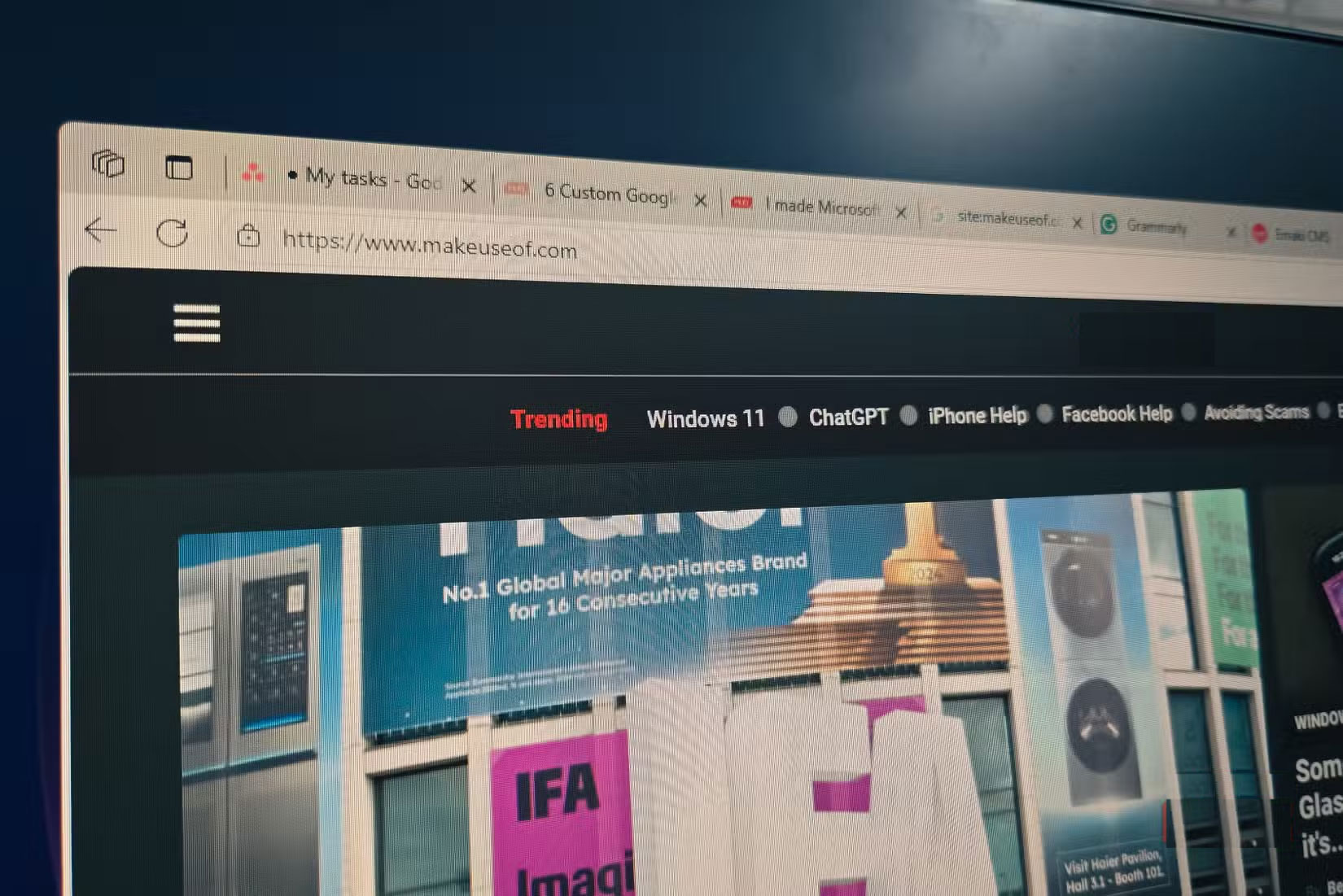
Like most people, you probably keep tabs open to read later. An interesting article here, a potential opportunity there, maybe a product you're researching. Before long, you've got 30 tabs across multiple windows, and finding anything becomes a pain. While Tab Groups can help you organize your browsing, they don't solve the core problem of mixing work and personal in the same browsing session.
Bookmarks are another option, but most of us rarely revisit our bookmark folders once they start filling up. Even Chrome's built-in reading list doesn't solve this problem. So tabs stay open, piling up until the browser slows to a crawl, or you give up and close them all just to free up memory.
This is where Chrome profiles come in. Instead of mixing things up, you can keep your work browsing and personal browsing separate. When you're done, you can close the profile without losing any of your research.
Browser profiles do not share any information
Extensions, logins, history - everything is separate
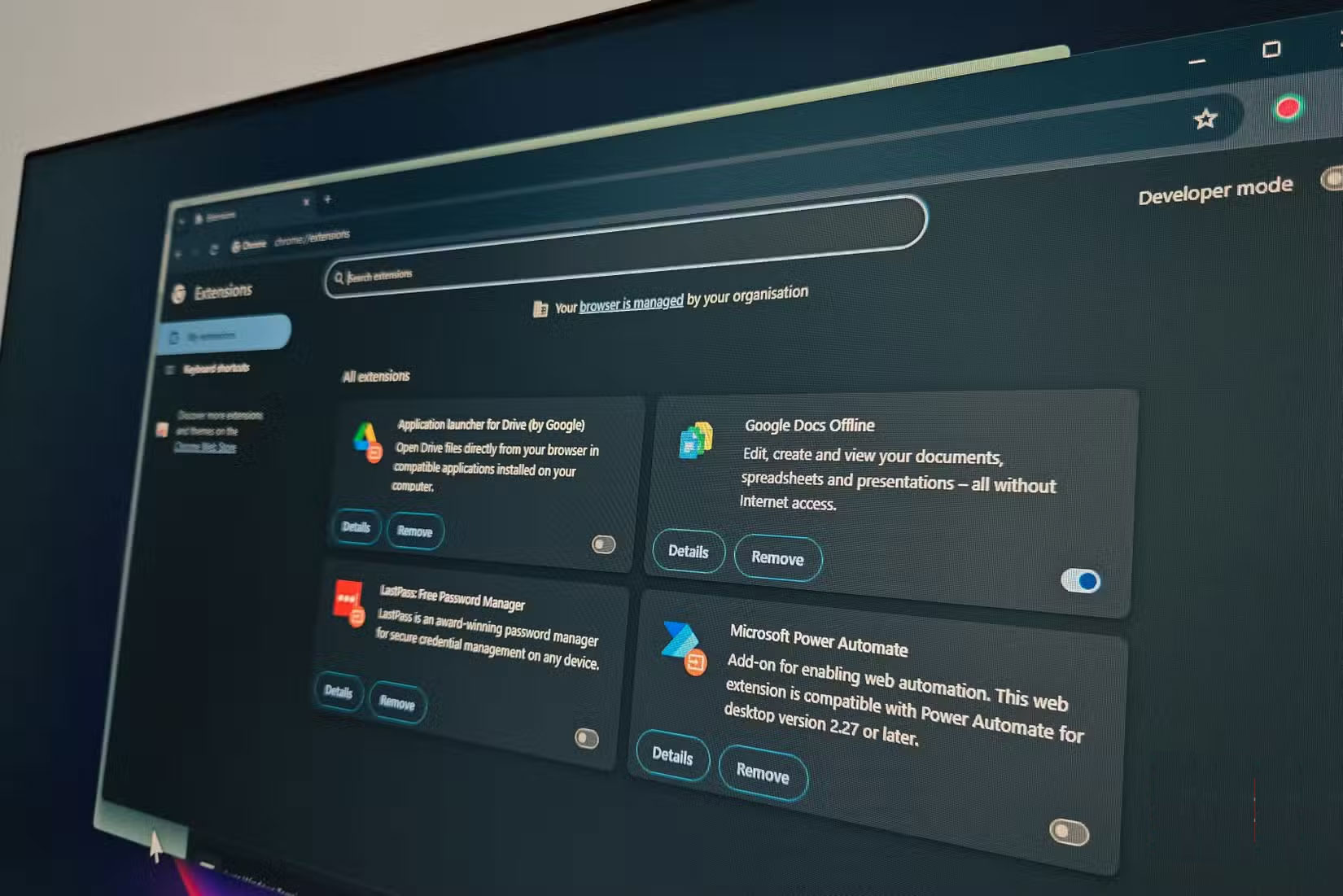
Each Chrome profile has its own set of extensions. The work profile runs a custom focus session plugin that blocks social media, YouTube, and other time-wasters. Install a few productivity extensions for Chrome, like Session Buddy for tab management, an ad blocker, and Just Read, which helps eliminate web clutter. After work, you can switch to your personal profile, which doesn't have any of these restrictions.
Chrome profiles only let you sign in to relevant accounts, which is important when working from home. X (formerly Twitter), YouTube, and Netflix are still in your personal profile. Switch to your work profile, and those accounts disappear. You won't be tempted to quickly check social media just because you're not signed in. That small distinction should limit most impulsive browsing.
Separate profiles also help eliminate bookmark clutter. Work bookmarks and personal bookmarks get their own space. This separation makes bookmarks more useful than having everything in the same folder. The same goes for search history. No more scrolling through dozens of YouTube and X (formerly Twitter) links to find a post from last week. Everything stays in its own dedicated section.
How to add a new Chrome profile
Just 2 minutes to better web browsing
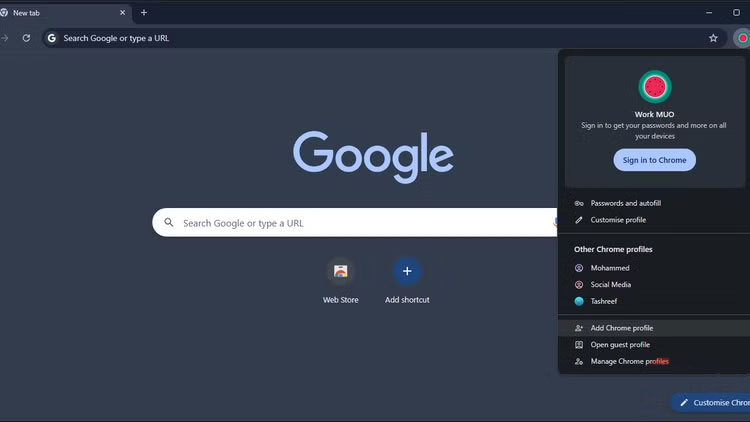
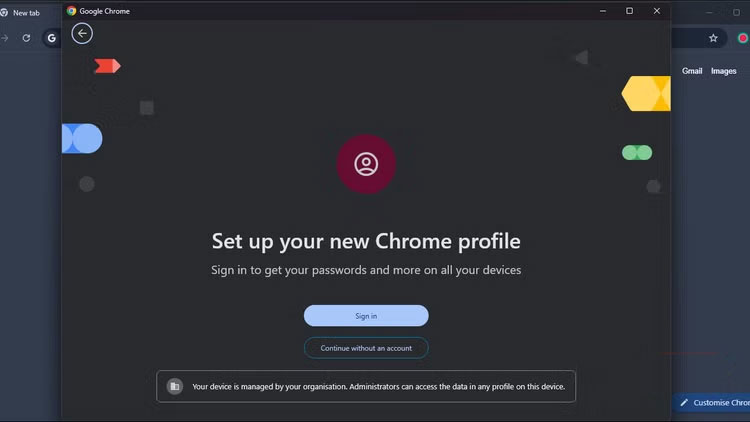
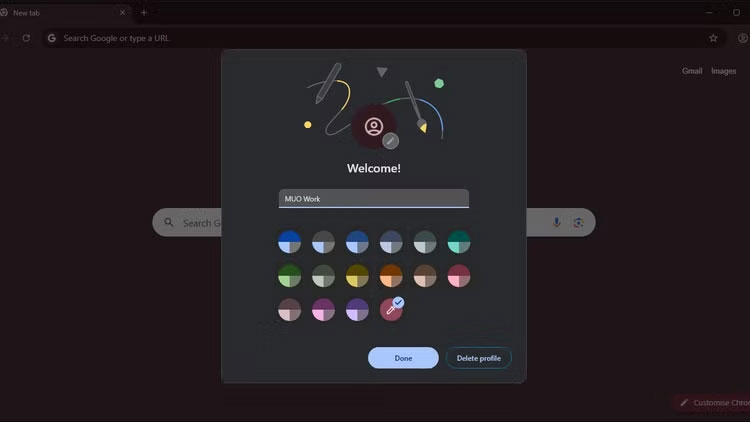
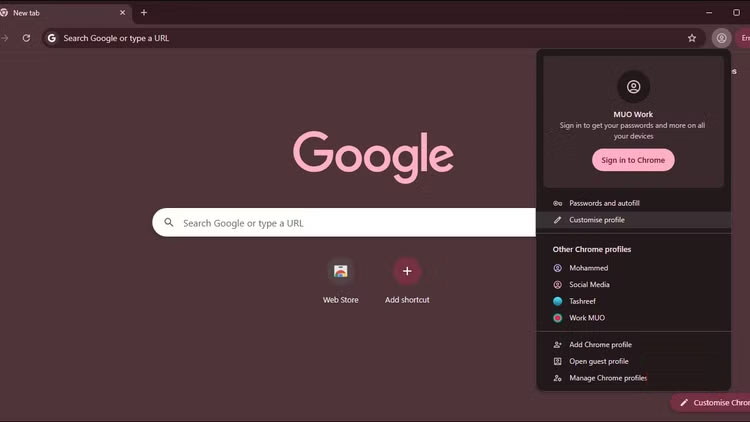
Creating a new profile in Chrome is easy. Click the Profile Icon in the upper right corner and select Add Chrome profile From the menu. You'll see two options: Sign in with a Google account Or Continue without one .
We recommend using separate Google accounts for full sync across all devices, but profiles work just fine without signing in. Choose the option that works for your situation.
Enter a name for your profile. You can choose a name based on what you want to use it for, such as " Work " for work and " Personal " for personal use. Choose a theme color to make your profile stand out. Click Done To save your profile.
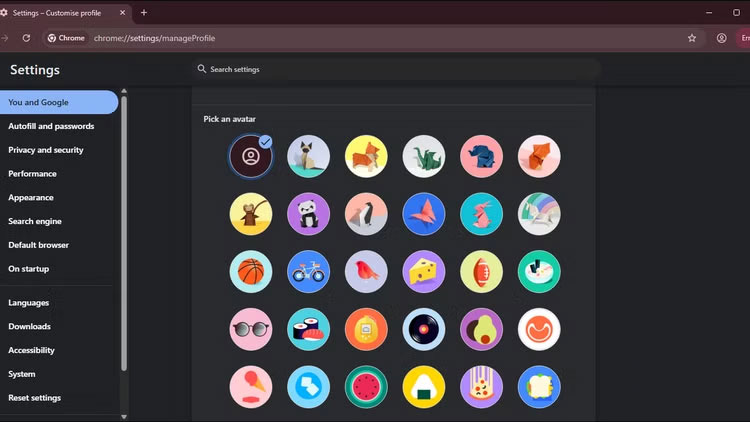
To further customize, click the Profile Icon again and select Customize profile . Choose a profile picture if you want, but more importantly, create a desktop shortcut. This way, you can go directly to your work profile without having to look at your personal tabs first.
FAQ
How do you use Chrome profiles to organize tabs: step-by-step guide?
In practical terms, Chrome profiles keep everything separate—different tabs, bookmarks, extensions for work and personal. When you're working, you can choose the profile that's right for you and stay focused.
What should you check before getting started?
Review the requirements, compatible device or software version, and any warnings described in the guide before making changes.
What should you do if the steps do not work?
Repeat the steps in order, confirm that your app or system is up to date, and review the troubleshooting details provided above.
Related Articles
 How to Pin Tabs in Chrome for Android3 minutes read
 How to Hide Tabs for Later Viewing on Chrome6 minutes read
 How to Group Tabs with Web Pages on Chrome5 minutes read
 How to Reopen Many Tabs on Google Chrome: Keeper Chrome Tab4 minutes read
 How to Use Switch Workstation to Manage Tabs on Chrome3 minutes read
 How to Use Chrome's New Split Tabs Feature for Better Multitasking5 minutes read
Reader Comments 0
Sign in with email or Google to join the discussion.