Table of Contents
This updated guide explains how to recover lost WhatsApp profile picture with clear steps, practical tips, and useful context. Your friends cannot see your WhatsApp profile picture? There could be a number of reasons why your WhatsApp profile picture is missing. You may have changed your profile picture privacy settings, accidentally blocked a user, or there may be a bug in the app.
1. Ask the Other Person to Add You as a Contact
Since you can message someone on WhatsApp without saving their number, it is possible that the person who cannot see your profile picture hasn't added you as a contact.
Ask them if this is the case and ask them to add you as a contact, first on their phone via the Phone app. They can then search for you on WhatsApp via the New Chat feature. Your profile picture should now appear.
2. Delete Contact
Alternatively, you can try doing the same on your end. Check to see if you have added the contact to your device. If so, try adding the contact back to your phone by first deleting the contact and then saving their number to a new contact.
Once re-added, relaunch the WhatsApp app by removing that contact from the recent apps list, then reopen it.
3. Check Your Profile Picture Privacy Settings
WhatsApp offers privacy settings that let you decide who can see your profile picture. You may have accidentally changed the setting to Nobody so that no one else can see your profile picture.
To change the privacy settings for your WhatsApp profile picture, launch WhatsApp on your phone. On Android, tap the three-dot icon in the top right and select Settings . On iPhone, tap the Settings tab at the bottom.
Navigate to Privacy -> Profile photo .
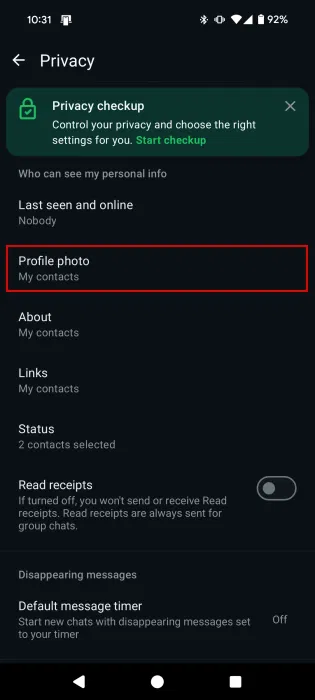
Choose one of these privacy settings based on your requirements.
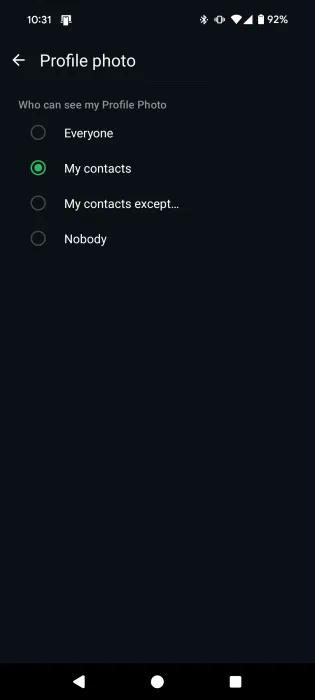
The safest option is to select My contacts .
- Everyone : Anyone who has your phone number saved will see your profile picture on WhatsApp
- Contacts : Only people whose names are saved in your contacts can see your profile picture
- My contacts except : All your contacts except those added to the exceptions list will see the photo.
- Nobody : No one can see your profile picture.
4. Add Profile Picture Again
If your photo didn't upload properly or you accidentally deleted it, it will not be visible to others. You can try to fix this by adding it again. Before you continue, ensure you check that your Internet connection is working properly.
On Android, reopen WhatsApp Settings and tap the profile picture icon.
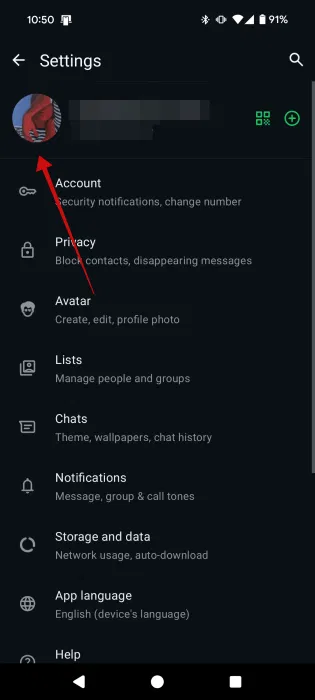
choose the Edit button below your photo on your Profile page.
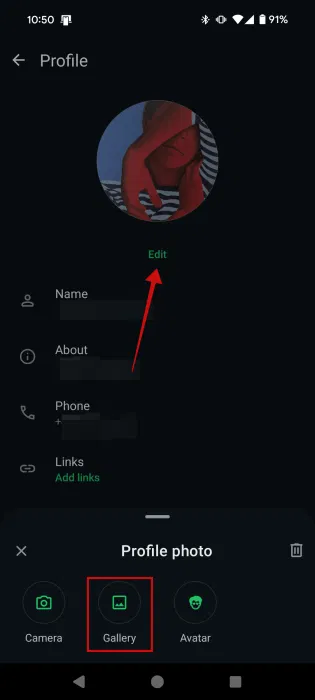
Select Gallery from the menu at the bottom to re-upload your profile picture.
Note : You can choose the safest way and delete the photo first by clicking on the Trash icon and then uploading the photo.
On iPhone, tap your profile picture at the top of the Settings page.
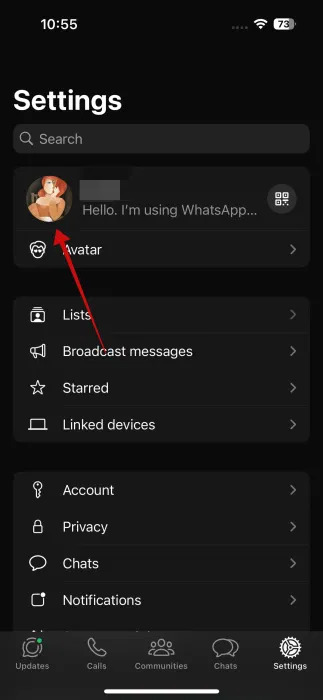
Tap Edit below your profile picture on the next screen.
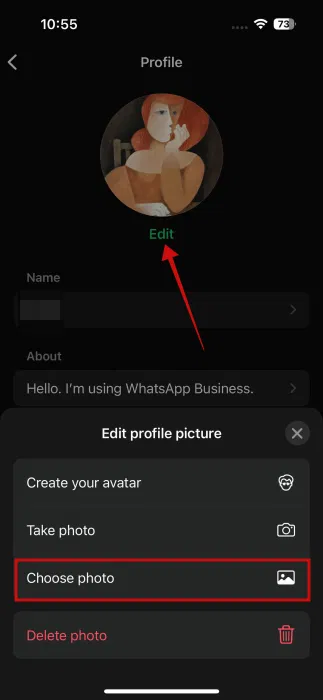
Select Choose Photo from the menu and select your photo.
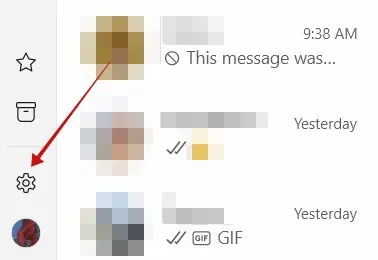
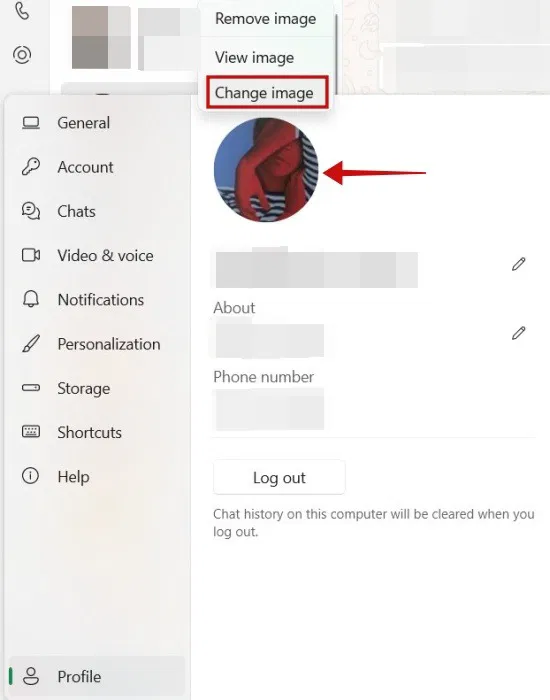
If you are using WhatsApp on PC, select the gear icon at the bottom left.
Select Profile below.
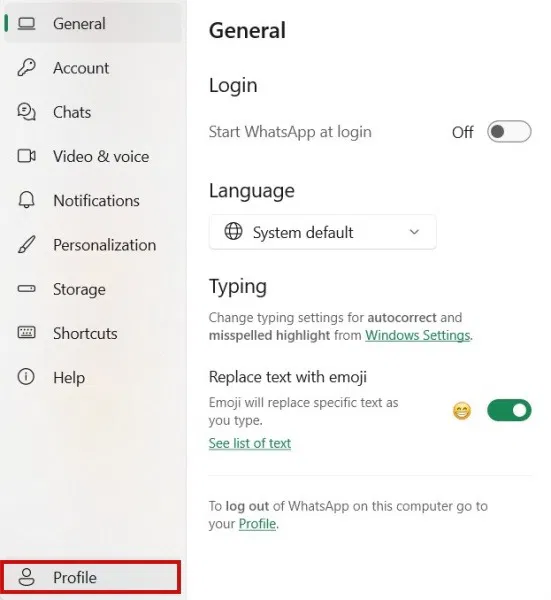
select your profile picture and select Change image to add your picture again.
5. Grant Permissions to WhatsApp
To let WhatsApp show your profile picture to your contacts, you need to grant the app permissions for photos/storage and contacts. If you forget to do so, your picture may not appear.
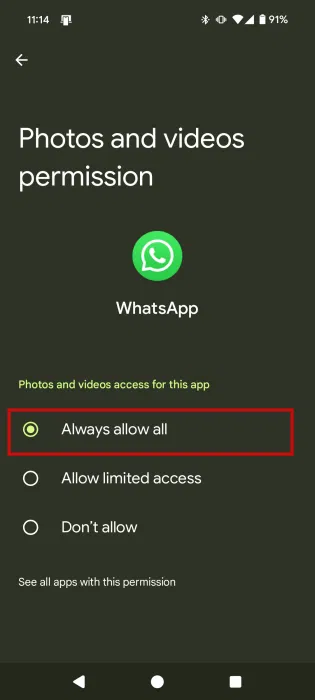
On Android, open the Settings app and navigate to Apps .
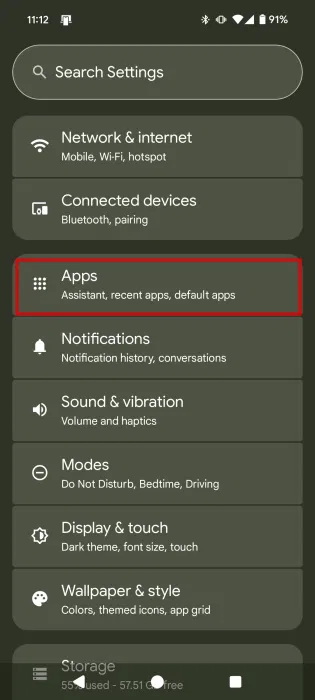
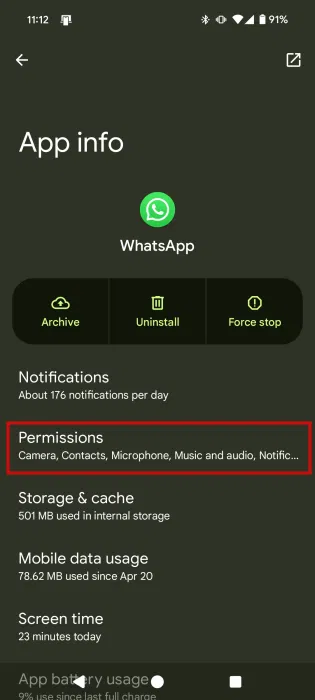
Select WhatsApp from the list of apps.
On the next page, open Permissions .
Swipe down to Not Allowed and see if you can spot Contacts and Photos and videos/Storage . If so, tap each item.
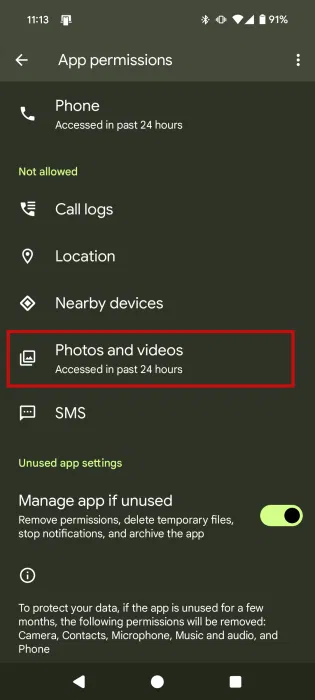
Change the permission to Allow or Always Allow All .
On iPhone, open Settings -> Apps .
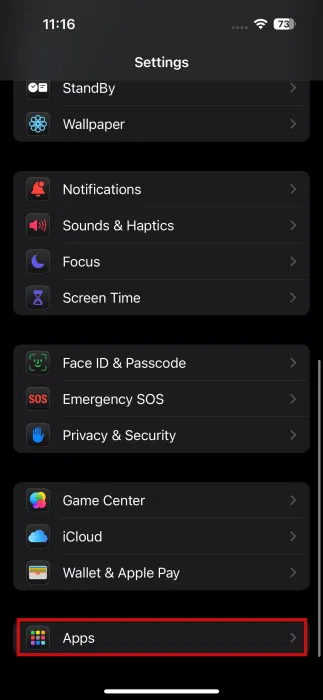
Select WhatsApp from the list.
Tap both Contacts and Photos on the next page.
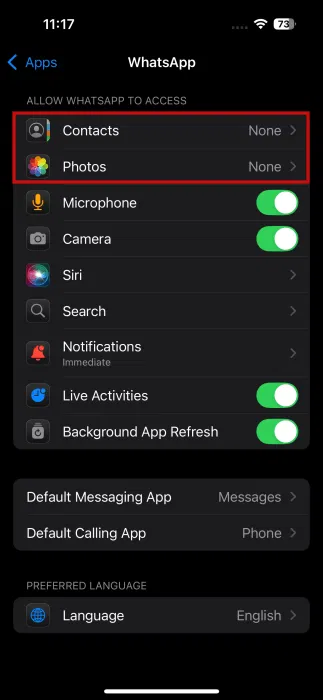
Give them Full Access .

6. Clear Cache (Android)
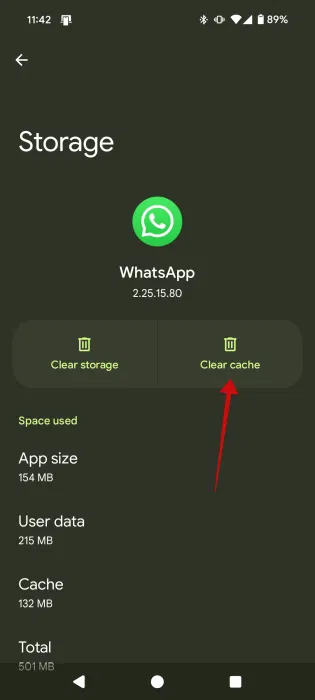
On Android, try the popular WhatsApp cache clearing trick. Clearing the cache will not delete your WhatsApp chats or files. Instead, it will delete temporary files that might be causing issues with your profile picture, thus fixing the missing WhatsApp profile picture issue.
open Settings -> Apps -> WhatsApp -> Storage & cache .
choose the Clear cache button.
Restart your phone.
7. Unblock Contact
Are there any specific contacts who cannot see your profile picture on WhatsApp? You may have accidentally blocked them and blocked users will not be able to see your profile picture or online status or last seen.
To check the blocked list and unblock users on WhatsApp, open Settings -> Privacy -> Contacts .
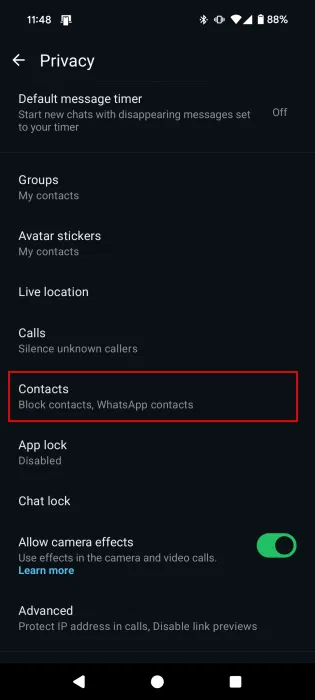
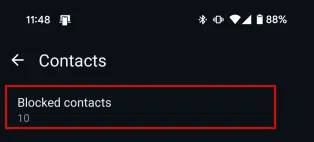
Select Blocked contacts .
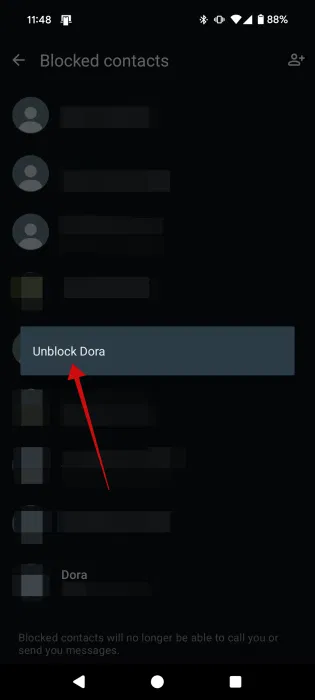
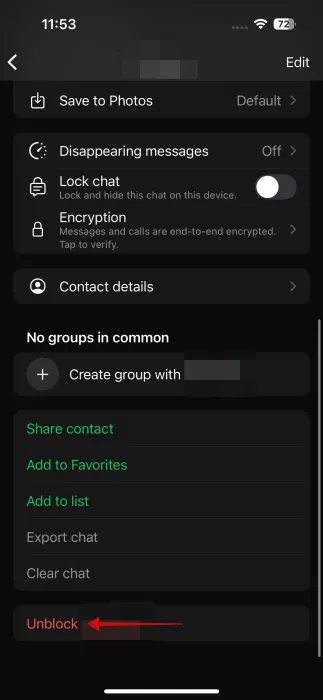
Here you'll see all of your blocked contacts. On Android, tap the contact you want to unblock and select Unblock [name] from the pop-up.
On iPhone, tap the contact in question.
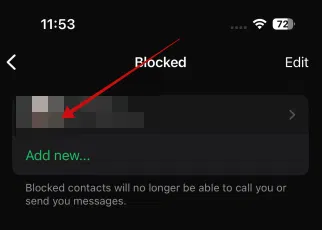
Select Unblock [name] at the bottom.
8. Refresh Contacts (Android)
WhatsApp may have trouble creating your contact list properly, so affected contacts may not be able to see your profile picture. To fix this, open the WhatsApp app and tap the New Chat button in the bottom right corner.
Tap the three dots in the upper right corner and tap Refresh .
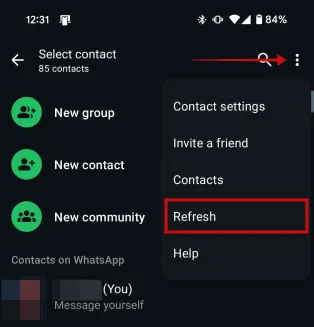
Select the contact in question after the list refreshes. You will be taken to your chat window. Ask them if they can see your profile picture now.
9. Reinstall WhatsApp
If there is no way to recover your WhatsApp profile picture, you will have to uninstall and reinstall WhatsApp on your phone.
Note : Create a WhatsApp backup before uninstalling WhatsApp so you do not lose your WhatsApp chats.
On Android, press and hold the WhatsApp icon until the shortcut options appear on the screen. Then, try moving the icon to the home screen. It is best to see an Uninstall option appear at the top. Drag and drop that option up.
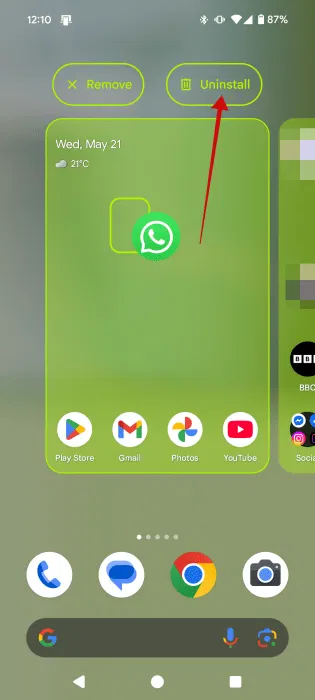
Tap OK in the pop-up window to uninstall the app. Go ahead and restart your phone.
Once done, open the Google Play Store and re-download the WhatsApp app on your device. Proceed to sign in with your phone number.
On iPhone, press and hold the WhatsApp icon and select Remove App . Tap Delete app in the pop-up window. Restart your phone.
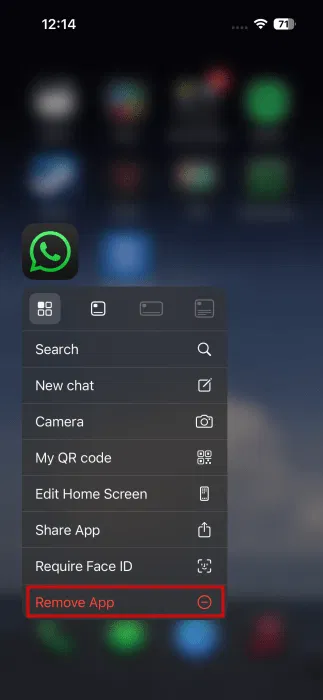
Then open the App Store and download WhatsApp again.
On desktop, you'll need to go into your device's Settings app to uninstall the WhatsApp desktop app. On the other hand, if you're using WhatsApp web, you can simply refresh your browser. Or you can try accessing WhatsApp in a different browser.
FAQ
What should I prepare before I recover lost whatsapp profile picture?
Review the requirements and options in the guide first. Having the correct device, app version, account access, or materials ready helps prevent avoidable errors.
How long does it take to recover lost whatsapp profile picture?
The time depends on the task and your setup. Most basic steps can be completed quickly, while downloads, updates, scans, or troubleshooting may take longer.
What should I do if the steps do not work?
Repeat the instructions in order, confirm that your software or device is supported, and check permissions, connectivity, and available updates before trying again.
Related Articles
 4 Ways to Save Anyone's Profile Picture on WhatsApp8 minutes read
 Click: How to Change Your Profile Picture on a Mac Computer4 minutes read
 5 Ways to Create and Share WhatsApp Profile Links: Recommended Choices7 minutes read
 How to Turn On Facebook Profile Picture Guard Safely10 minutes read
 How to Recover Locked WhatsApp Account: Complete Guide4 minutes read
 How to Change the Profile Picture in Microsoft Edge Chromium5 minutes read
Reader Comments 0
Sign in with email or Google to join the discussion.