Table of Contents
This guide organizes the entries in "4 Ways to Save Anyone's Profile Picture on WhatsApp" and explains what each option, idea, or example offers. It also highlights practical details that matter when comparing the choices.
Note : Saving someone else's profile photo is not illegal or against WhatsApp's terms of service. However, using the photo for illegal purposes – like identity theft or blackmail – is illegal. To be safe, it's best to ask the person for permission and explain why you want to save the photo.
1. Take a screenshot of the smaller preview
If photo quality isn't important to you, this method should be more than enough. WhatsApp blocks screenshots of full photo previews inside contact information. However, the app still allows you to take screenshots of small previews.
In Chats , tap a contact's profile picture to zoom in. The app will open a small preview with the rest of the conversation still visible. Just take a screenshot.
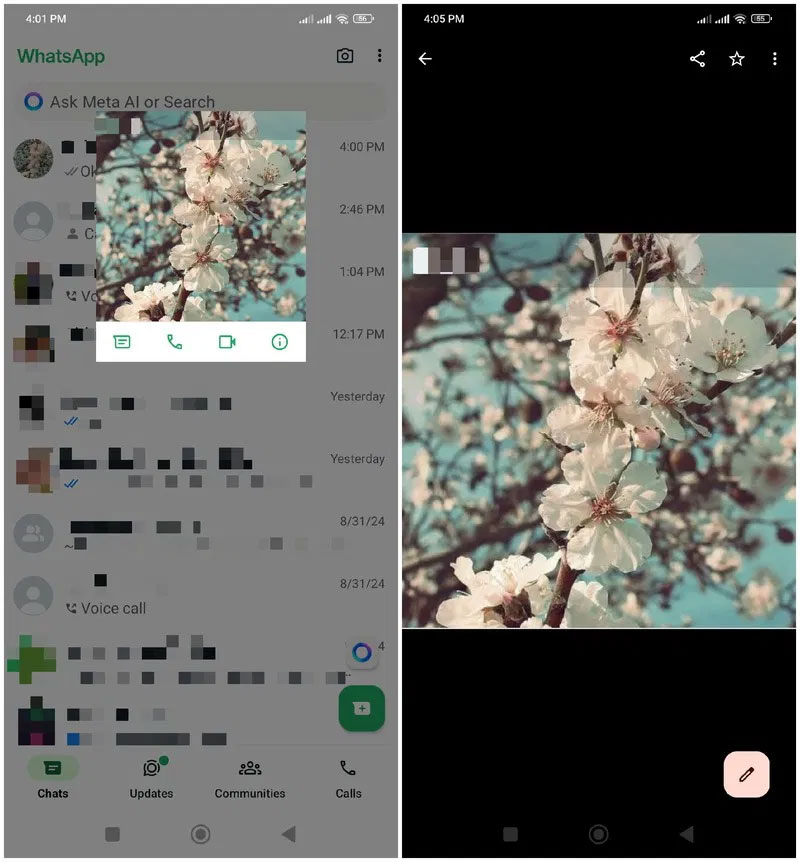
Edit the screenshot using a native image editor to crop out the excess content on the sides. The image will be low quality but good enough to identify the content in the image.
2. Use an online WhatsApp profile picture downloader tool
You can also use WhatsApp profile picture downloader tools. However, these tools rely on the profile picture privacy being set to Everyone instead of just contacts. Therefore, the tool won't work if the user hasn't made their profile picture public.
We recommend using the WhatsApp DP Downloader web app because it is free and fast. Access the app from your computer or mobile browser by following the steps below:
Select the phone number's country of origin to add the country code, enter the phone number and click the Download Now button.
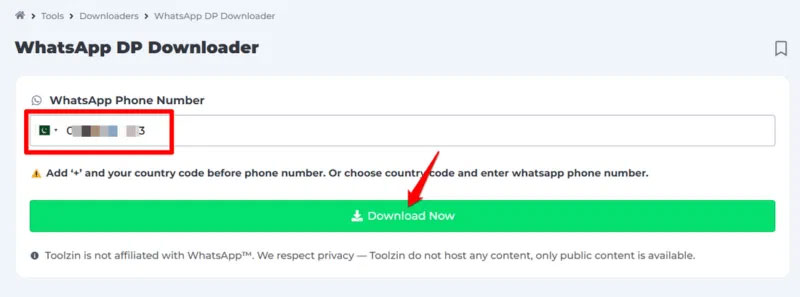
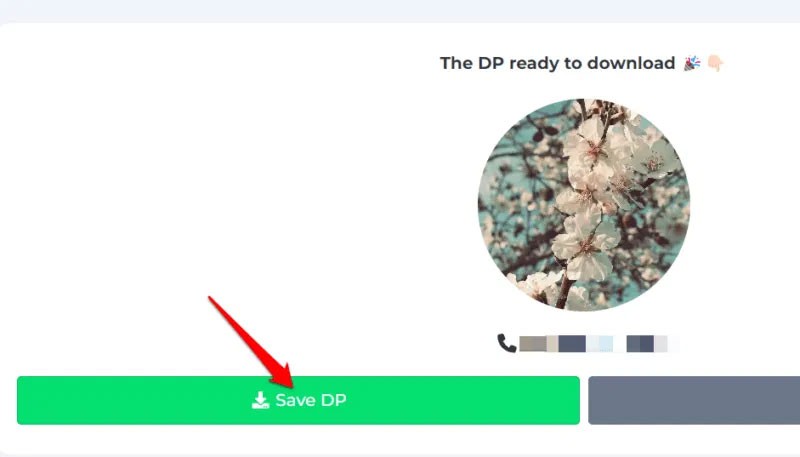
If the profile picture is publicly available, a preview will appear and you can click Save DP to download the picture.
Alternatively, you can try WATools. IO. It works similarly, allowing you to preview and save profile pictures.
3. Download profile picture from WhatsApp web app
WhatsApp's restrictions on taking screenshots or downloading photos are limited to the mobile app. The web version of WhatsApp does not have these restrictions. You can take a screenshot or use your browser's built-in image saving feature to save your profile picture.
It's easier to do on a PC, but you can also use your phone's browser to do it by enabling desktop mode. On both Android and iOS, go to Settings -> Site settings -> Desktop site and enable the Desktop site option.
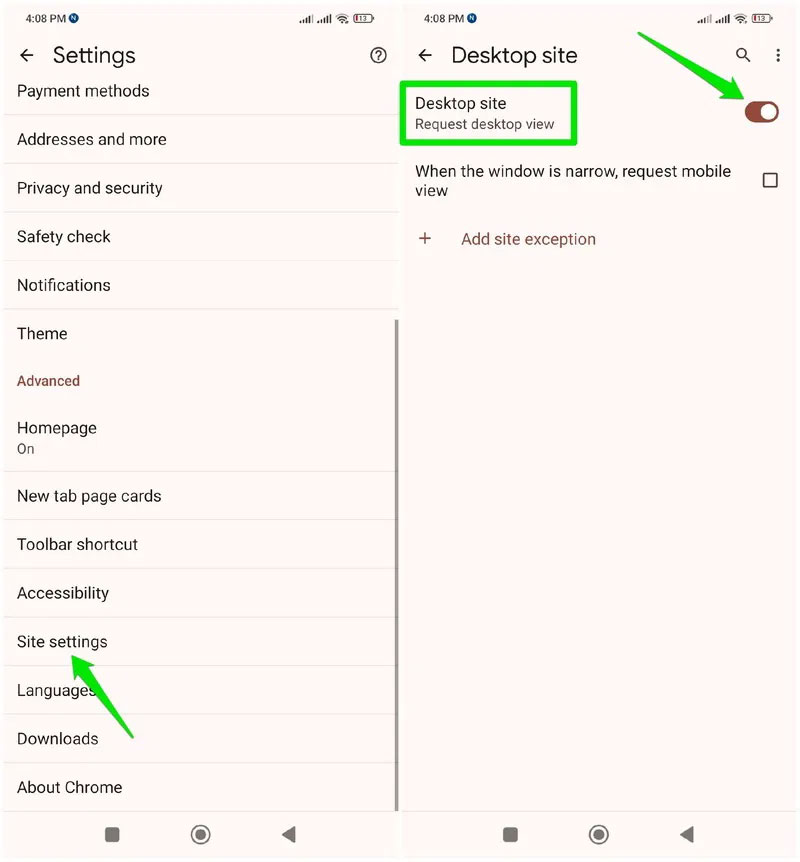
The instructions below can be followed on both desktop and mobile browsers with desktop mode enabled:
Go to web.whatsapp.com and log in by scanning the QR code or using the Link with phone number option. If you do this on a mobile browser, use the phone number to log in as the QR code will require another phone to scan.
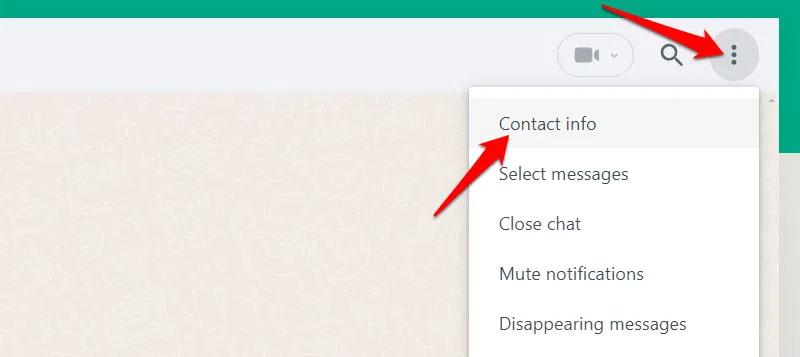
Open that person's chat window. Click the three-dot menu in the upper right corner and select Contact info .
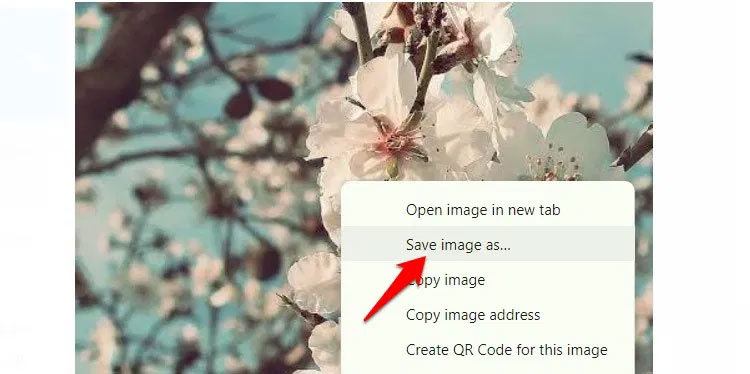
select the profile picture to open a full-size preview, then right-select it and select Save image as .
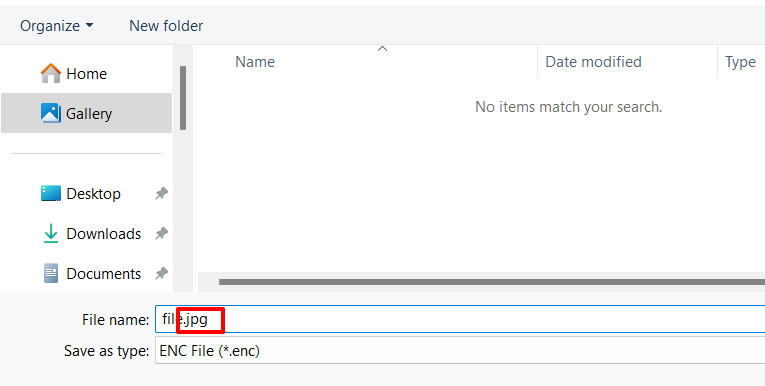
It will download as an ENC file, which your operating system cannot open. You can convert the file to a.jpg file using any image conversion software you have on your computer or mobile device. On Windows, change the.enc extension to.jpg when saving. Mac users can also edit the file name and change the extension to.jpg.
4. Download WhatsApp profile picture on computer
On Windows or Mac, WhatsApp offers a full preview of your profile picture with the ability to zoom in. You can take advantage of this feature to take a screenshot of the entire picture, similar to downloading it, if done correctly. Here's how:
On WhatsApp desktop, open the user's chat window and click their name at the top. From the pop-up window, click the user's profile picture.
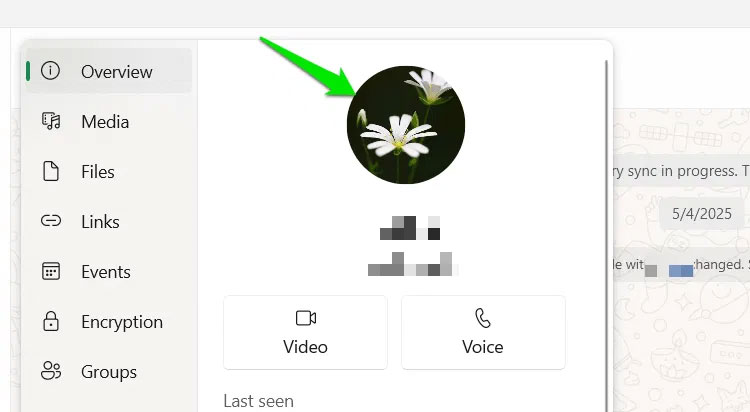
This will open the profile photo in WhatsApp's photo preview tool. For best results, click the Zoom to actual size button in the top right corner to display the photo at its original size. Then, take a screenshot of the profile photo using a Windows or Mac screenshot tool.
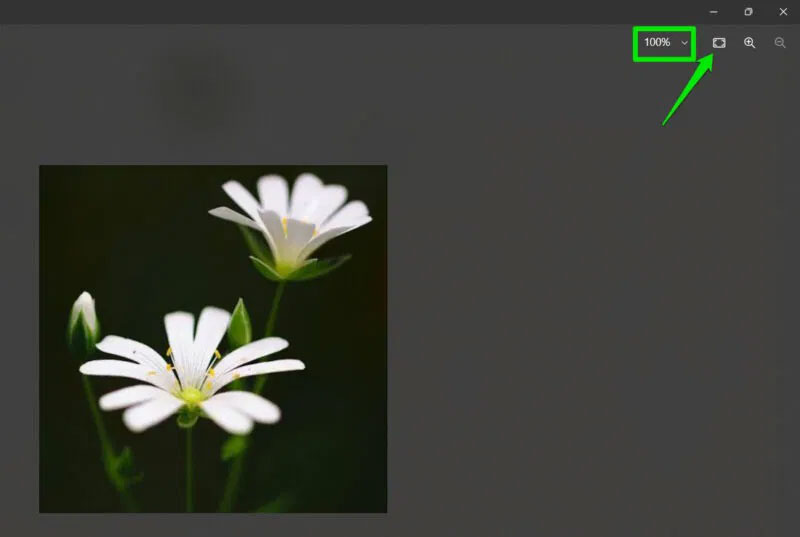
One great thing about digital screenshots is that they capture the image detail pixel by pixel. So as long as the image is opened at its original size, it will be captured as is. If it is too small, you can zoom in, sacrificing a bit of quality to get a larger profile image.
Keep in mind that WhatsApp compresses images, including profile pictures, to save bandwidth and storage space. So you won't get the original high-resolution image that the user uploaded. However, these methods will give you the exact image you see when you open the user's profile.
FAQ
What should you know about 1. Take a screenshot of the smaller preview?
If photo quality isn't important to you, this method should be more than enough. WhatsApp blocks screenshots of full photo previews inside contact information. However, the app still allows you to take screenshots of small previews.
What should you know about 2. Use an online WhatsApp profile picture downloader tool?
You can also use WhatsApp profile picture downloader tools. However, these tools rely on the profile picture privacy being set to Everyone instead of just contacts. Therefore, the tool won't work if the user hasn't made their profile picture public.
What should you know about 3. Download profile picture from WhatsApp web app?
WhatsApp's restrictions on taking screenshots or downloading photos are limited to the mobile app. The web version of WhatsApp does not have these restrictions. You can take a screenshot or use your browser's built-in image saving feature to save your profile picture.
What should you know about 4. Download WhatsApp profile picture on computer?
On Windows or Mac, WhatsApp offers a full preview of your profile picture with the ability to zoom in. You can take advantage of this feature to take a screenshot of the entire picture, similar to downloading it, if done correctly. Here's how:
Related Articles
 How to Recover Lost WhatsApp Profile Picture9 minutes read
 5 Ways to Create and Share WhatsApp Profile Links: Recommended Choices7 minutes read
 Click: How to Change Your Profile Picture on a Mac Computer4 minutes read
 How to Turn On Facebook Profile Picture Guard Safely10 minutes read
 How to Change the Profile Picture in Microsoft Edge Chromium5 minutes read
 How to Set Public Telegram Account Profile Picture3 minutes read
Reader Comments 0
Sign in with email or Google to join the discussion.