Table of Contents
Learning how to set public telegram account profile picture doesn't have to be complicated. This updated guide presents a clear workflow, practical checks, and troubleshooting advice you can use while completing the process.
Key Takeaways
- Review instructions for setting public telegram profile picture.
- Follow the recommended steps in order to avoid common mistakes with set public telegram account profile picture.
- Review compatibility, settings, or requirements before making changes.
Instructions for Setting Public Telegram Profile Picture
Step 1:
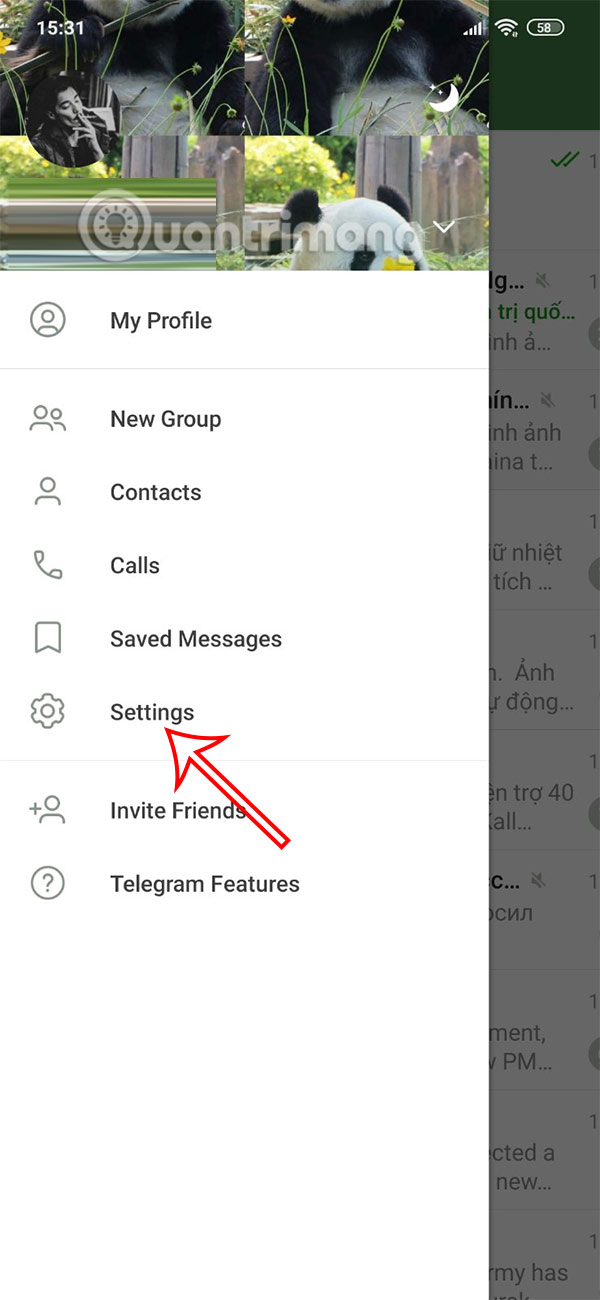
At the Telegram application interface, users select the 3-dash icon. Next, we select Settings to adjust.

Step 2:
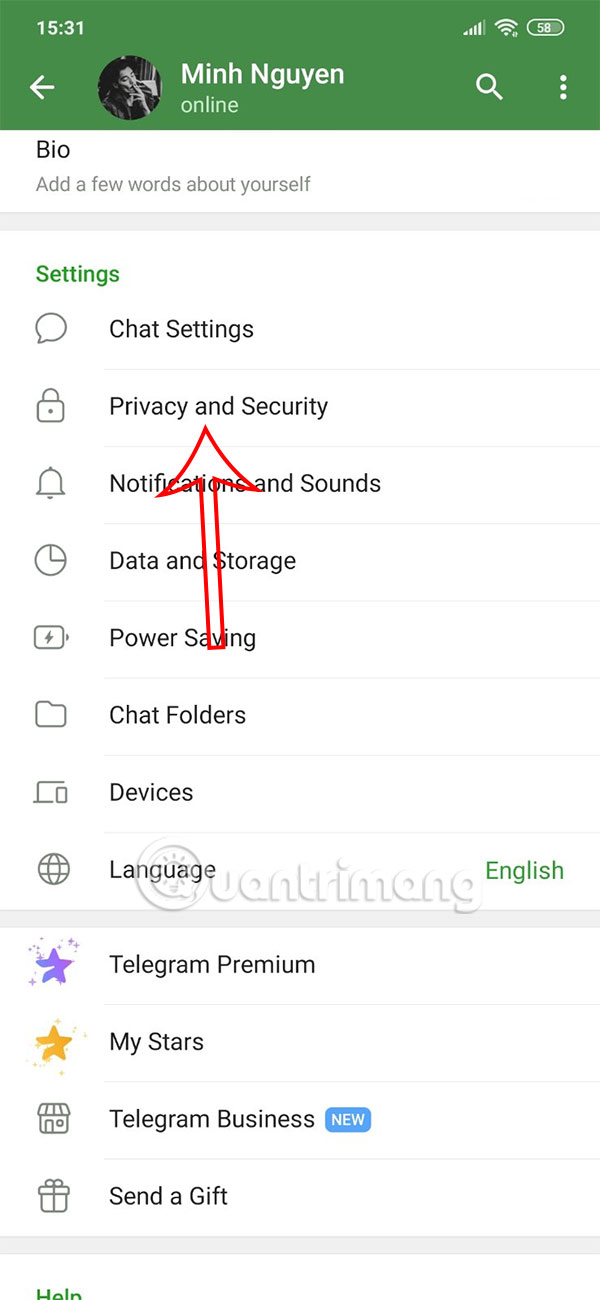
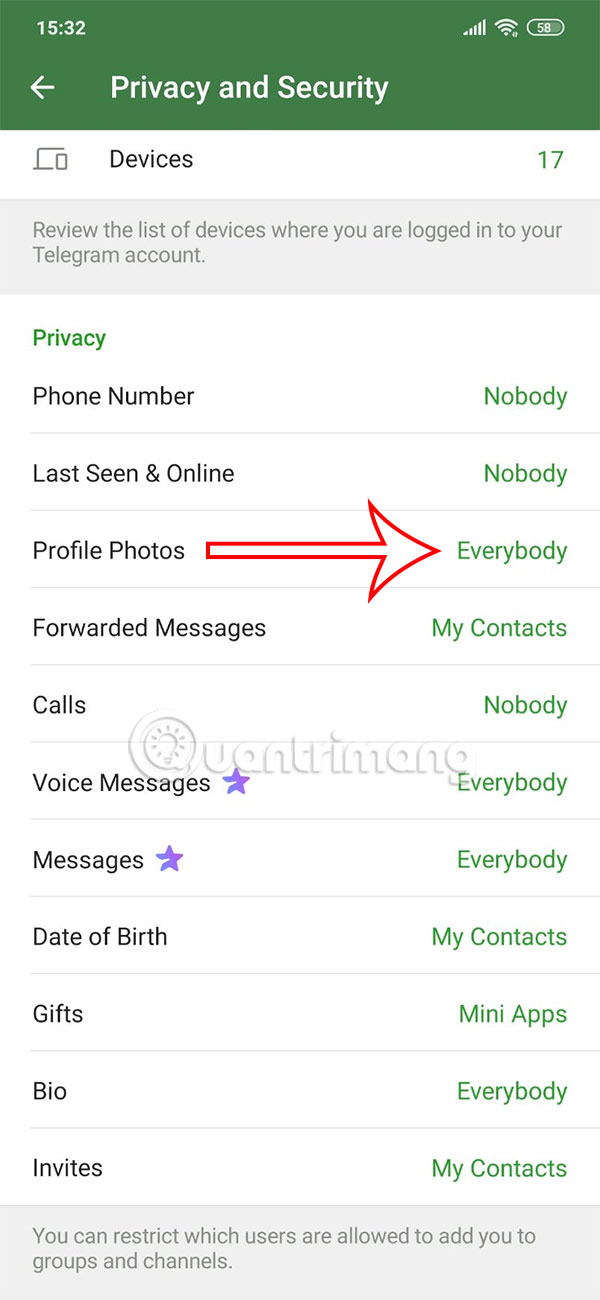
In the settings interface for Telegram accounts, we select Privacy and Security to adjust privacy mode. In this interface, select Profile Photo to change privacy mode.
Step 3:
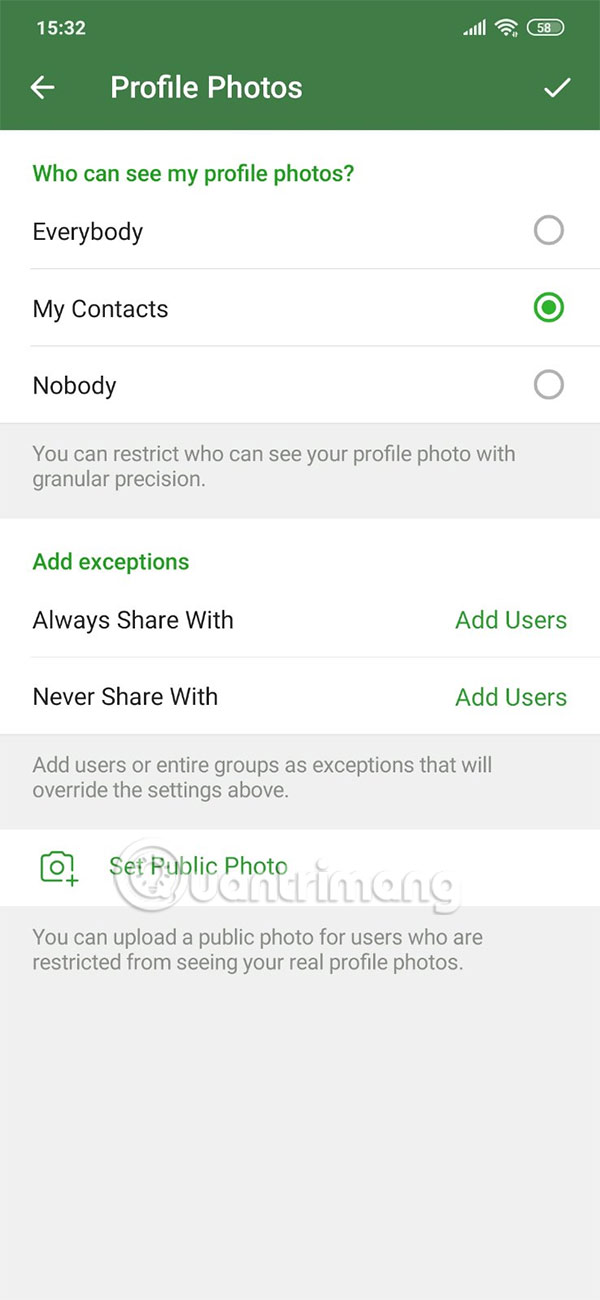
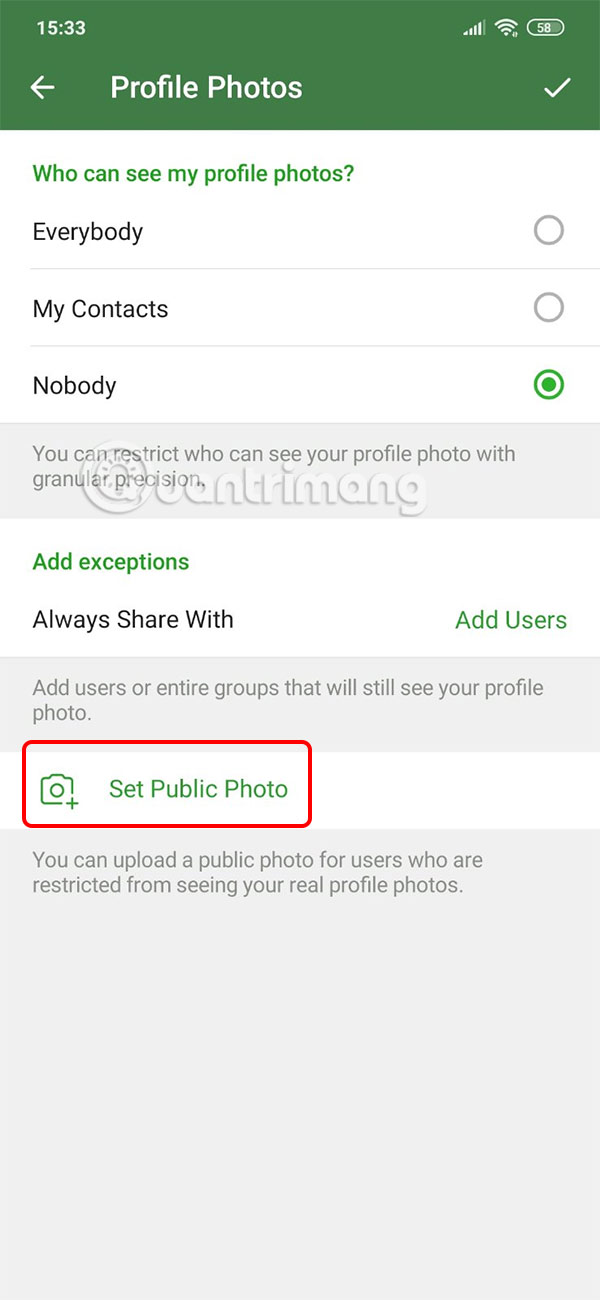
Here we will first adjust the privacy mode for the current Telegram profile picture. You can hide the profile picture by clicking on Nobody, or only show it to people in My Contacts.
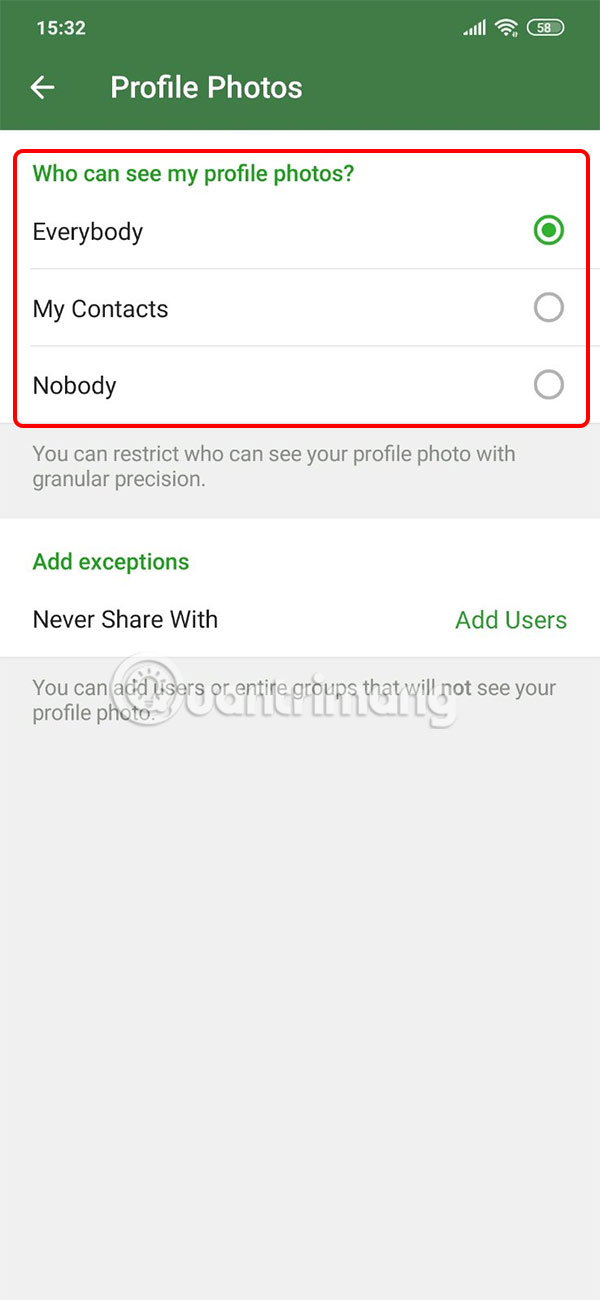
Once you have hidden your Telegram avatar or blocked anyone from seeing it, click Set Public Photo.
Step 4:
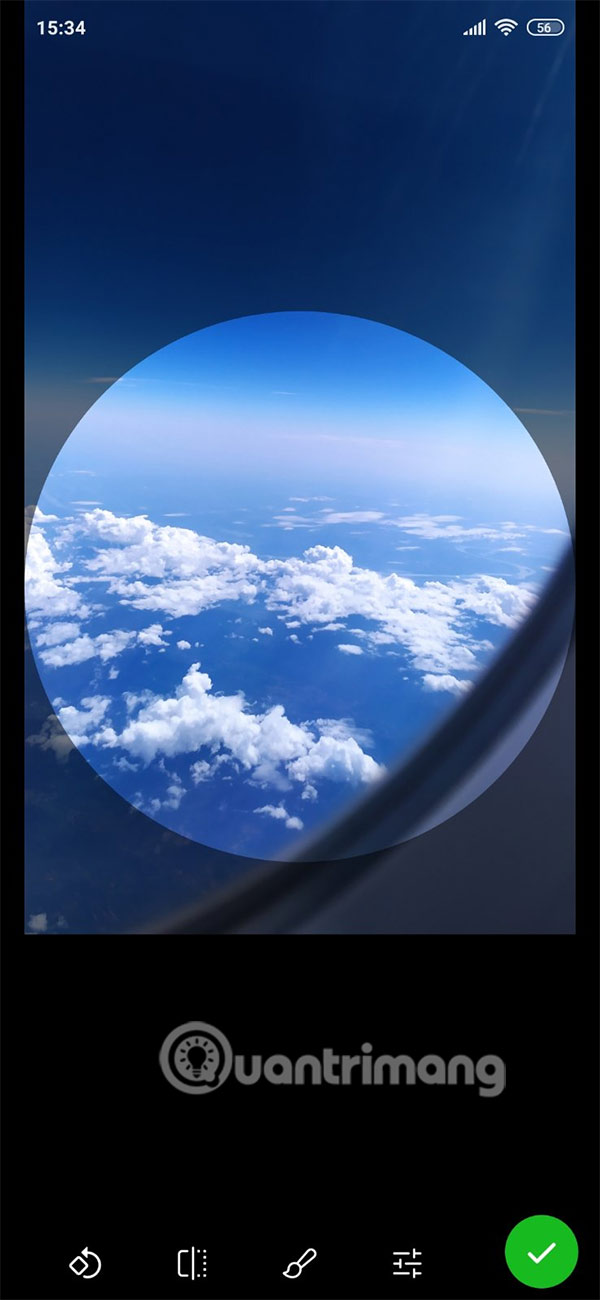
We open the album on the phone and then select the photo as a public avatar that we want to show to everyone, including the person you blocked, and edit it to our liking. Finally, click save to save the public Telegram profile photo.

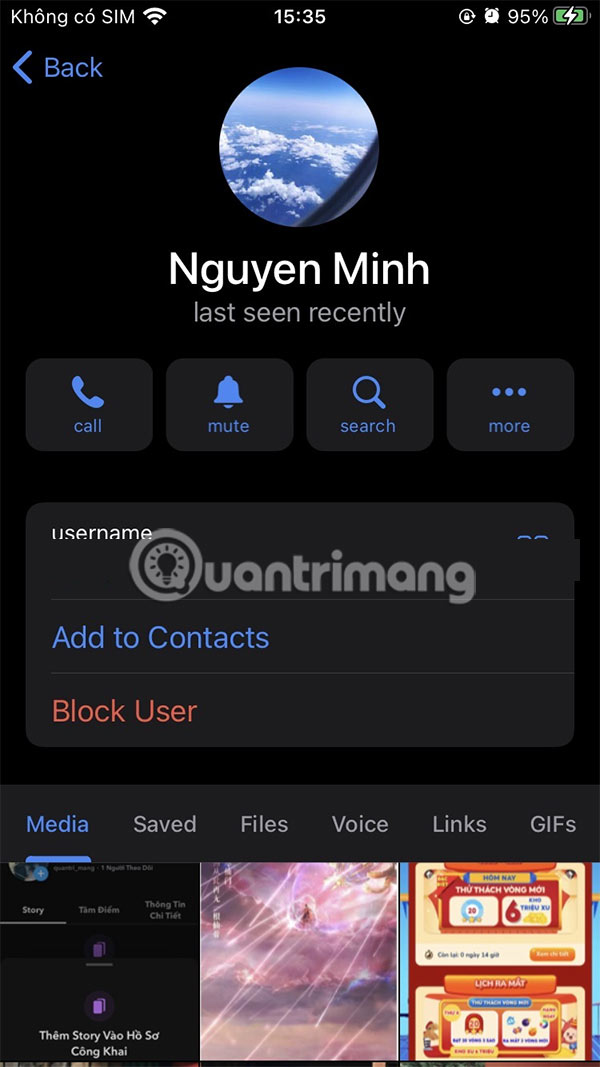
As a result, other people will see this public Telegram profile photo, including people you've blocked or even if you're set to Nobody.
Final Thoughts
The most reliable way to handle set public telegram account profile picture is to follow the process in order, verify each important setting, and test the result before moving on. Use the guidance above as a practical reference, then adjust the details for your device, software version, or specific goal.
FAQ
What should I check before I set public telegram account profile picture?
Use the latest available software, confirm that your device meets the requirements, and make sure you have the necessary permissions, account access, or backup before changing anything.
Why might I be unable to set public telegram account profile picture?
Common causes include outdated software, missing permissions, incompatible settings, incomplete setup steps, or a temporary network problem. Recheck the process from the beginning and restart the app or device if needed.
Is it safe to set public telegram account profile picture?
It is generally safe when you use official tools, review every permission, and back up important data before making system-level or account-level changes.
Related Articles
 How to Hide Your Telegram Account Profile Picture4 minutes read
 How to See Instagram Account Profile Picture2 minutes read
 How to Create a Public Profile on Snapchat5 minutes read
 How to Set a GIF Image as Your Telegram Avatar4 minutes read
 Click: How to Change Your Profile Picture on a Mac Computer4 minutes read
 Instructions for Changing Profile Information on LINE3 minutes read
Reader Comments 0
Sign in with email or Google to join the discussion.