Table of Contents
People are always looking for efficient ways to manage system tasks without leaving the terminal, even when using Windows. On Windows, services run in the background to keep the system and applications running smoothly. Instead of opening the Services Manager, many people prefer to manage Windows services through the command line. In today's tutorial, we will explore these methods and see how you can manage Windows services right from the terminal.
- All ways to open Windows Services on Windows 10/8/7
1. Manage Windows service using sc.exe
sc.exe is a built-in command-line tool for managing Windows services. It allows you to configure, query, and control services directly from the terminal. With sc.exe, you can have complete control over Windows services without the need for the graphical Services Manager.
Check service status with sc
We can use the sc query serviceName command to check the status of a specific service. For example, we run the sc query MySQL80 command to retrieve detailed information about the MySQL80 service, including its status:
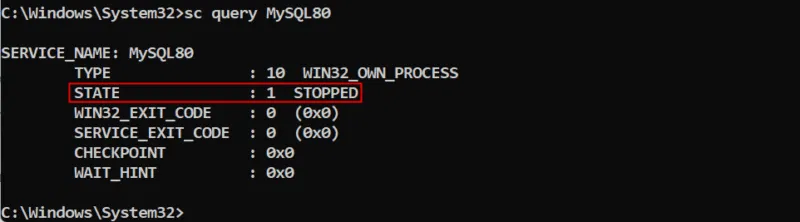
MySQL is not running on the machine at the moment.
Start a service with sc
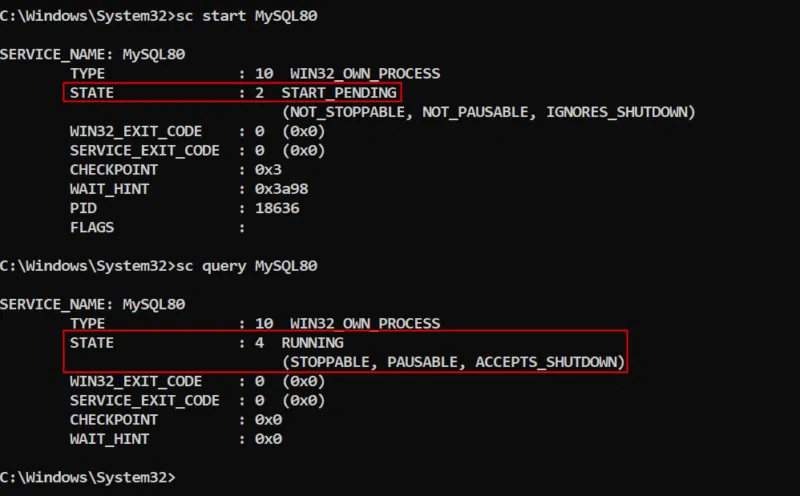
To start a specific service using sc.exe, we can use the sc start ServiceName command. For example, we run sc start MySQL80 to start the MySQL80 service. To verify whether the service has started successfully, we can check the status of the service using the sc query MySQL80 command:
Stop a service with sc
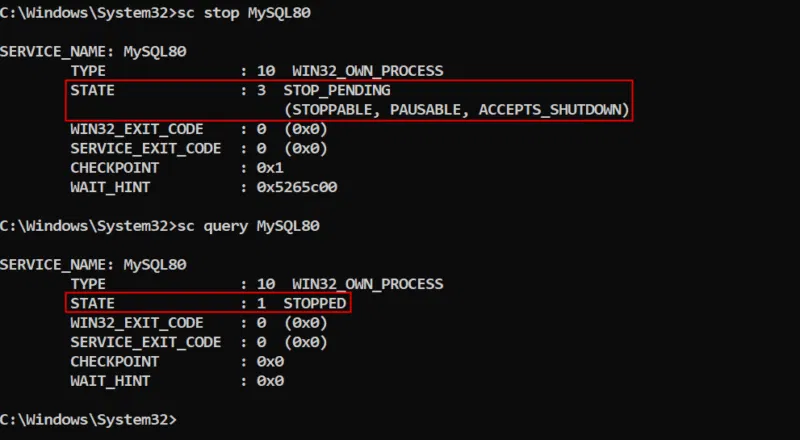
You can stop a service to free up system resources. For example, the sc stop MySQL80 command stops MySQL, which can be verified with the sc query MySQL80 command:
Create a new service using sc
We can create a new service using the sc create command. This command requires specifying the service name, executable path, and startup type. For example, to create a new service called "mte" that will start automatically on boot, type:
sc create mte binPath= "C:UsersHPDesktopExamplesService.exe" start= auto
Update a service using sc
We can use the sc config command to configure an existing service. For example, to change the startup type to manual, run the command:
sc config serviceName start= demand
Delete service using sc
When the service is no longer needed, we can permanently remove it from Windows with the command:
sc delete srviceName
2. Manage Windows services using the Net command
The net command in Windows allows us to manage services from the command line. This command allows users to start, stop, pause, resume, and query services without using the graphical Services Manager.
Start and stop services using the net command
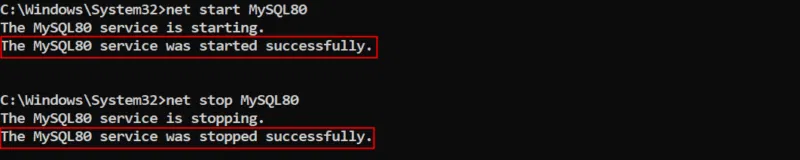
We can start or stop Windows services using the net start serviceName and net stop serviceName commands respectively:
Pause and resume service using net command
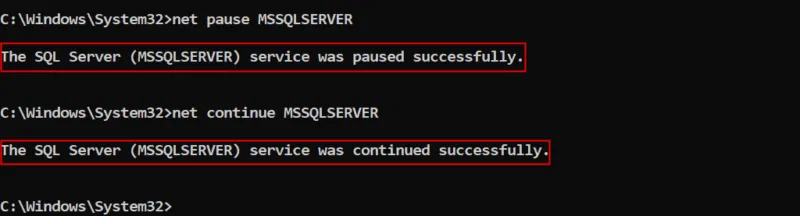
Some Windows services support pausing and continuing instead of stopping completely. In that case, we can use the net pause ServiceName and net continue ServiceName commands respectively:
Check service status with net command
The net command itself does not provide a direct way to check the status of a specific service, but we can use it in conjunction with the findstr command to filter the results. For example, to check if a specified service is running, type:
net start | findstr "ServiceName"
If the specified service is running, the command returns the name of that service; otherwise, there is no output.
Manage remote services using the net command
We can use the net command to manage services on a remote computer by specifying the computer name. For example, the net start ServiceName /S RemotePC and net stop ServiceName /S RemotePC commands are used to start or stop services on a remote computer.
3. Manage Windows services using PowerShell cmdlets
PowerShell provides more advanced control over Windows services with built-in cmdlets such as Get-Service, Start-Service, Stop-Service, and Restart-Service. These cmdlets allow users to check the status of a service, start or stop the service, and even restart it when needed.
PowerShell cmdlets provide detailed output, including service status, display name, and service dependencies. These cmdlets enable scripting and automation, allowing efficient management of multiple services.
PowerShell's flexibility and powerful features make it the preferred tool for Windows service management administrators.
Get service status using cmdlet
We can use the cmdlet Get-Service -Name ServiceName to get detailed information about the specified service. For example, the following command returns the status of the MySQL80 service, showing whether the service is running or stopped:
Get-Service -Name MySQL80
Query service using PowerShell cmdlet
We can use the Get-Service command to query services based on specific criteria. For example, we can retrieve all running services using the command:
Get-Service | Where-Object {$_.Status -eq 'Running'}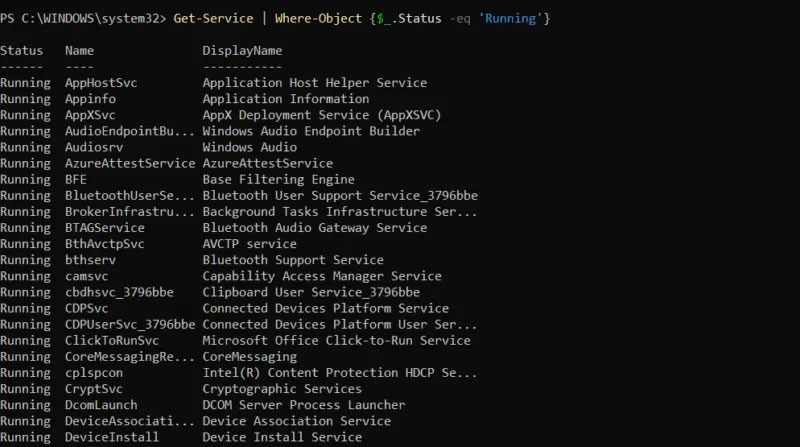
Start and stop services using PowerShell cmdlets
We can start or stop a specific service using the Start-Service and Stop-Service cmdlets respectively. For example, use the following PowerShell command to start, stop, and check the status of the MySQL80 service:
Start-Service -Name MySQL80 Stop-Service -Name MySQL80 Get-Service -Name MySQL80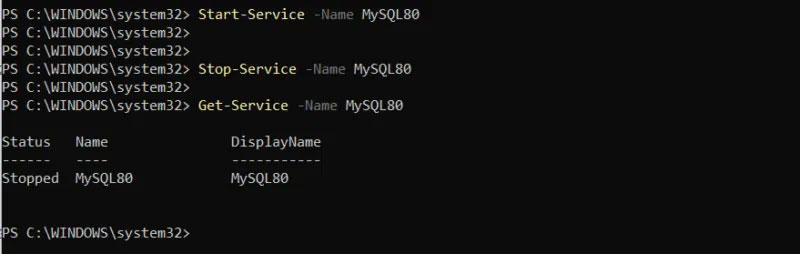
Change service startup type using PowerShell cmdlet
PowerShell cmdlets allow us to update the service startup type. For example, we can run the following cmdlets to configure a service to start automatically on system startup, require manual startup, or be disabled, respectively:
Set-Service -Name ServiceName -StartupType Automatic Set-Service -Name ServiceName -StartupType Manual Set-Service -Name ServiceName -StartupType DisabledThese cmdlets help administrators manage service behavior efficiently, ensuring essential services start when needed, while preventing unnecessary services from running.
Remote service management using cmdlets
PowerShell also allows you to manage services on a remote computer by specifying their names. For example, the Get-Service -Name ServiceName -ComputerName RemotePC command retrieves the status of a specific service running on a remote computer named RemotePC, allowing administrators to monitor services remotely.
Similarly, the Restart-Service -Name ServiceName -ComputerName serviceName command attempts to restart the specified service on the remote computer. This command ensures that the service restarts without requiring direct access to the machine. However, managing the service remotely requires appropriate permissions and enabling PowerShell remoting.
4. Automate service management tasks
PowerShell scripts allow for automated service management, making it easier to monitor and control Windows services without manual intervention. We can create a script that continuously checks the status of a particular service and restarts it if it stops unexpectedly.
For instance, the following script checks if the MySQL80 service is running and restarts it if it is stopped:
$serviceName = "MySQL80" $service = Get-Service -Name $serviceName if ($service.Status -ne "Running") { Restart-Service -Name $serviceName -Force Write-Output "$serviceName was stopped and has been restarted." } else { Write-Output "$serviceName is already running." }By default, Windows restricts scripts from running. To allow execution, first execute the command:
Set-ExecutionPolicy RemoteSigned
Now navigate to the script location and run the command.serviceScript.ps1 to run the script:

Managing Windows services from the command line gives you complete control without relying on a graphical service manager. Whether you use SC. EXE, NET, or PowerShell CMDLET, each method provides efficient ways to start, stop, and configure services.
PowerShell scripting capabilities, which make automation easy, allow you to monitor and manage services seamlessly. By mastering these tools, you can troubleshoot, optimize system performance, and ensure critical services run smoothly.
Final Thoughts
Following the steps in order and checking version-specific settings should make it easier to Manage Windows Services via Command Line. If an option looks different, verify the device, app, or operating-system version before changing additional settings.
FAQ
What is the best way to Manage Windows Services via Command Line?
Start with the requirements described in the article and follow the steps in order. People are always looking for efficient ways to manage system tasks without leaving the terminal, even when using Windows. On Windows, services run in the background to keep the system and applications running smoothly.
What should you know about 1. Manage Windows service using sc.exe?
sc.exe is a built-in command-line tool for managing Windows services. It allows you to configure, query, and control services directly from the terminal.
What should you do if the instructions do not match your screen?
Check the device, software version, account permissions, and regional settings. Interfaces can change after updates, so use the closest matching option and consult the official support documentation when necessary.
Related Articles
 How to Manage Linux Services Using Systemd6 minutes read
 Manage the Event Log with the Command Line6 minutes read
 5 Best Command Line Emulation Software for Windows 106 minutes read
 Mapadmin Command in Windows: What You Need to Know13 minutes read
 Forget the GUI, the Command Line Is Returning9 minutes read
 12 Top Command Line Emulators for Windows: Best Options Compared14 minutes read
Reader Comments 0
Sign in with email or Google to join the discussion.