Table of Contents
You can find plenty of tools that help you reset your keyboard and optimize its layout to suit your workflow.
You use your keyboard every day, but odds are you rarely think about why the keys are where they are. In the 1870s, typewriter manufacturers arranged every key to avoid mechanical jams. More than a century later, we're still using the same layout, designed to slow us down.
The good news is that you don't have to accept this. There are plenty of tools that can help you remap your keyboard and optimize its layout to fit your workflow.
QWERTY is not designed for you
This typewriter-era layout is slowing us down
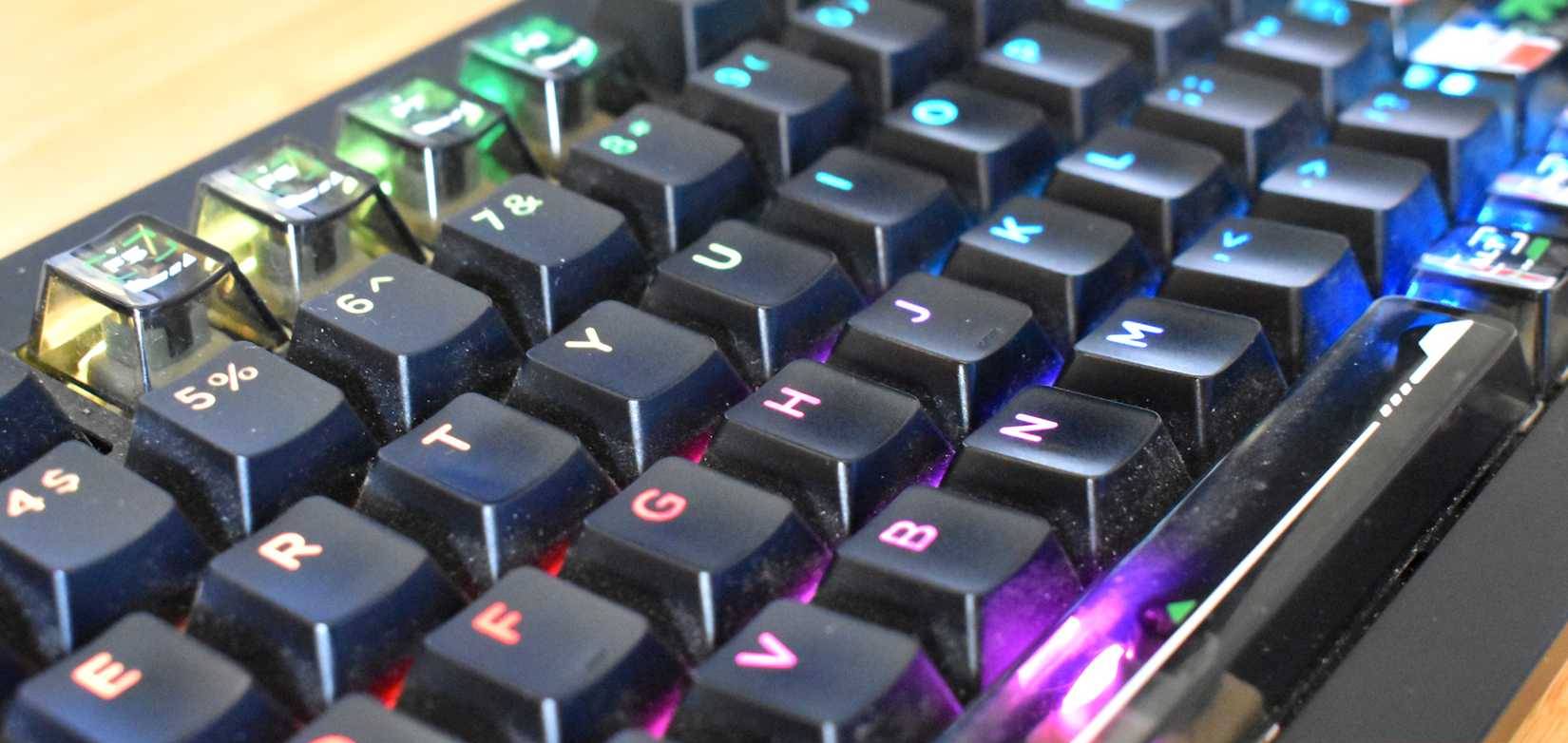
One of the biggest problems with the QWERTY layout is ergonomics. The keyboard layout affects your entire body posture. With QWERTY, your hands are forced outward, causing your shoulders to rotate inward, which can lead to poor posture, shoulder strain, and even back pain over time.
Even commonly used keys like Backspace and Enter are placed where they put the most pressure on your weakest fingers. There are specialized keyboards like the Alice, which are ergonomically designed to minimize wrist movement, but they tend to be more expensive than regular keyboards and require some learning curve.
Another reason for remapping keys is productivity. Every time you switch between keyboard and mouse, your brain has to context-switch between typing and pointing. That's cognitive overload you don't need.
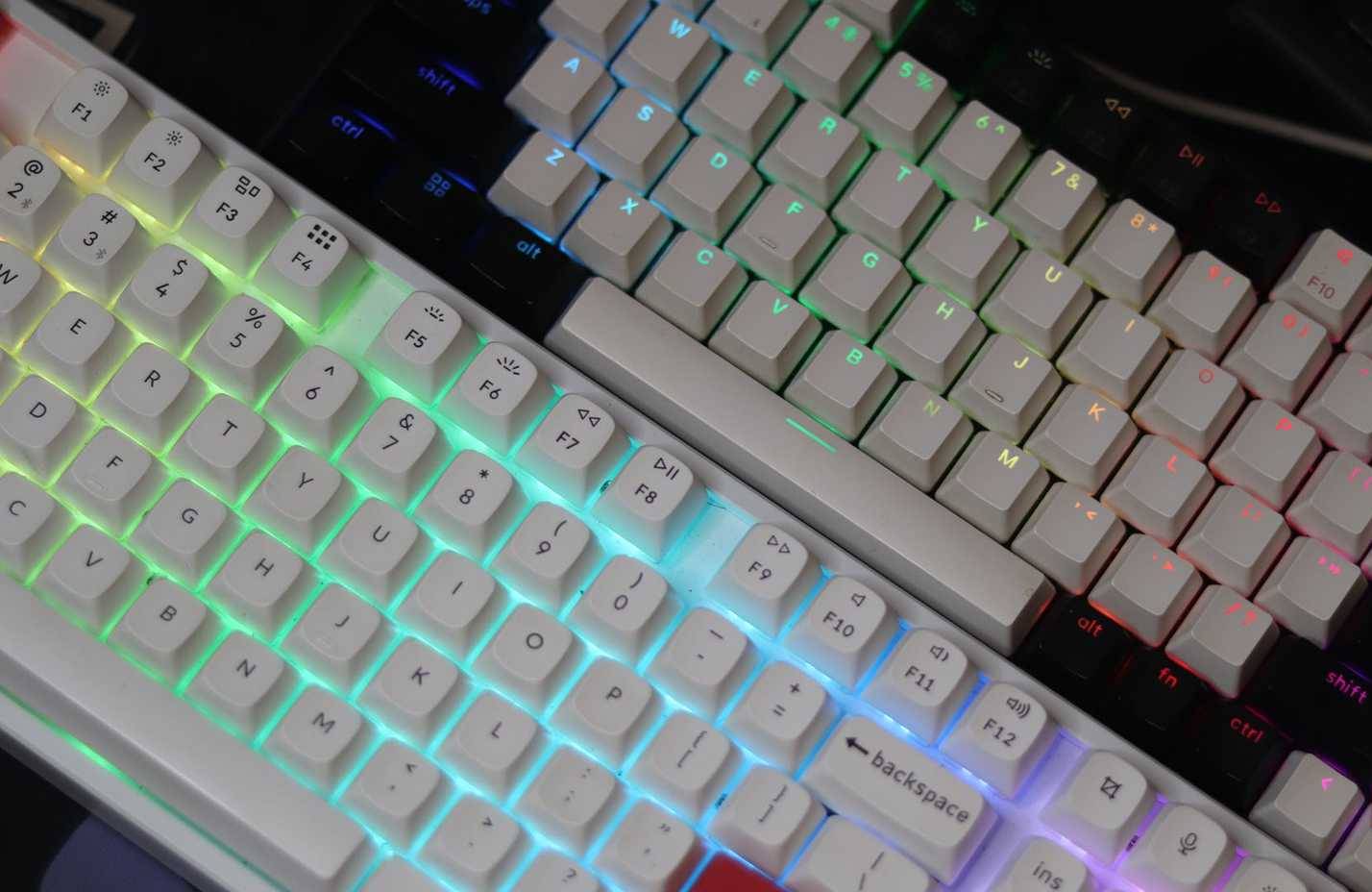
Power users who minimize mouse use and work only at the keyboard get things done faster, are less stressed, and maintain better focus. They're not superhumans—they just eliminate unnecessary movements.
Additionally, for people with repetitive strain injuries or those who work long hours, remapping keys can significantly reduce wrist and hand pain. It's also quite useful for programmers, writers, and anyone whose workflow involves specific commands being hidden behind awkward keyboard shortcuts.
Keys should be reset first
Get started with these changes for instant results!
The biggest hurdle you'll face when changing your keyboard layout is memorizing all the new keys. For this reason, it's best to start simple and slowly incorporate new keys and shortcuts into your workflow one by one.
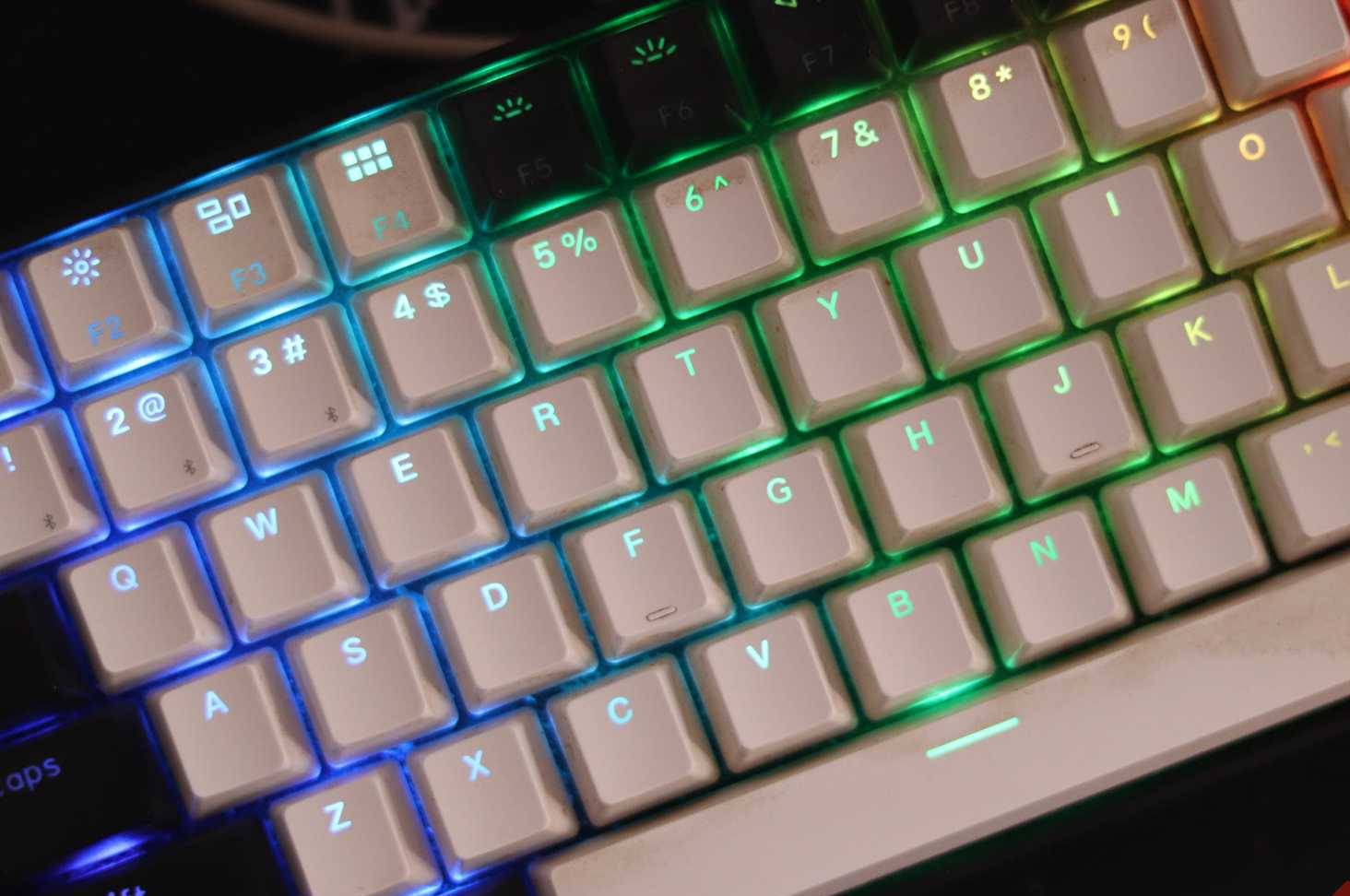
One of the easiest keys to start with is Caps Lock. It takes up the most accessible space on the keyboard and is essentially useless on a modern computer. After all, you already have the Shift Key for capital letters and special characters.
Resetting Caps Lock to a more frequently used key, like Escape or Backspace, is a good start because it puts a more useful key closer to your hand. Another key you can replace Caps Lock with is Control. This will help with shortcuts and reduce the stress on your pinky when using them.
If a simple reset doesn't work, you can also go a step further and reset the entire layout. Instead of QWERTY, you can switch to Dvorak or Colemak. Dvorak, designed in the 1930s by Dr. August Dvorak, prioritizes the most frequently used characters on the home row, minimizing finger movements. Colemak takes a similar approach, but keeps common shortcuts like Ctrl + Z, X, C , and V In place to make the transition from QWERTY easier.
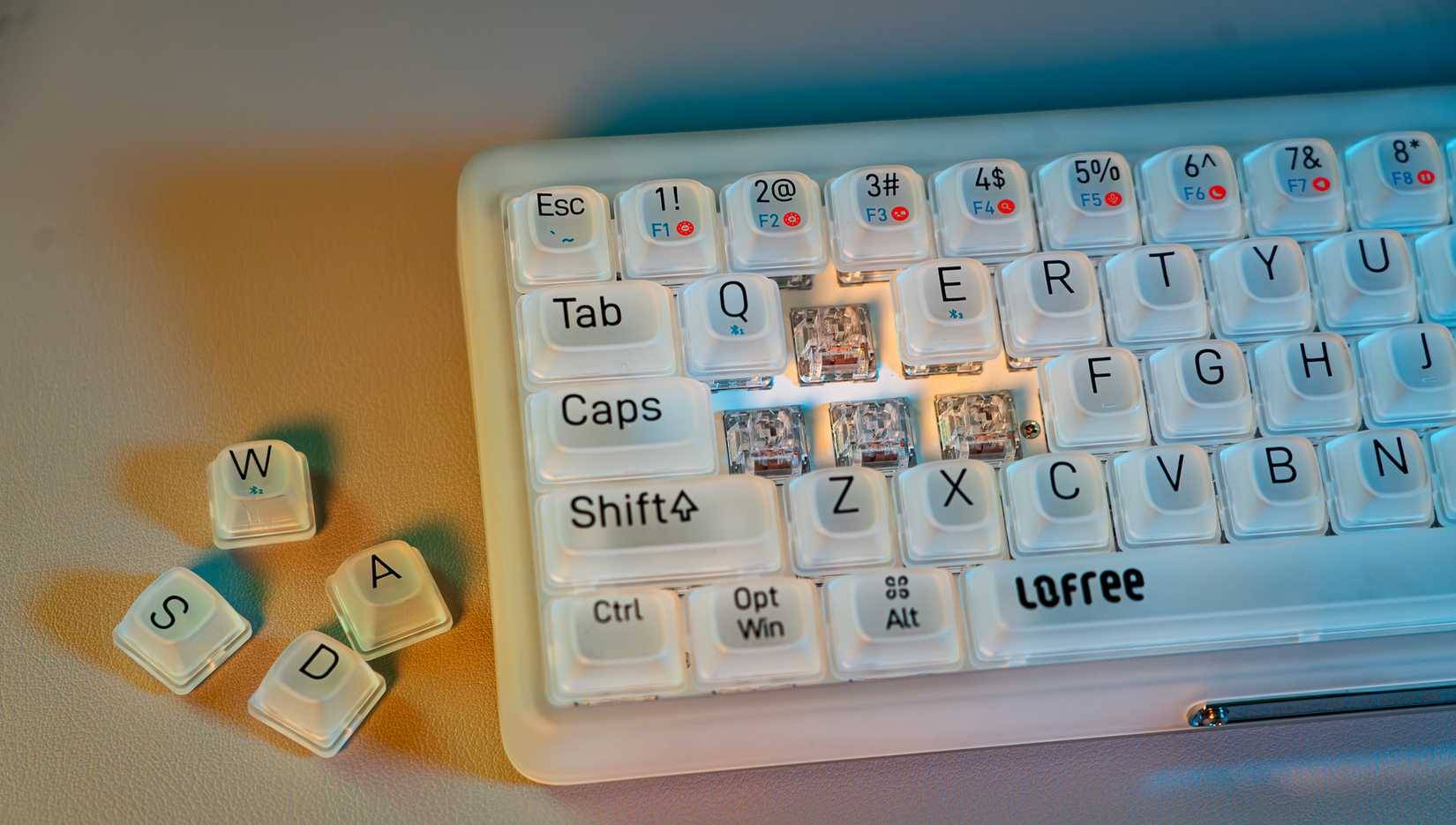
The problem is that learning a completely new keyboard layout takes time and effort. If you use two different computers for work and personal use, you'll need two keyboards, which is a significant financial investment. Additionally, since most other keyboards are QWERTY, you'll find yourself constantly switching between two different layouts. However, if you type for hours every day, the long-term benefits can be significant.
Tools that make keyboard remapping incredibly simple
Keyboard layout fix software in minutes
You don't need to be tech-savvy to remap keyboard keys. There are plenty of great tools for Windows, macOS, and Linux that come with graphical interfaces and can get you up and running in minutes.
For Windows, the easiest recommendation is Microsoft PowerToys. It has a module called Keyboard Manager , which lets you easily remap individual keys or entire keyboard shortcuts. What's more, PowerToys can even help you type faster once you learn how to use the other modules it offers. If you need more advanced control, you can use SharpKeys.
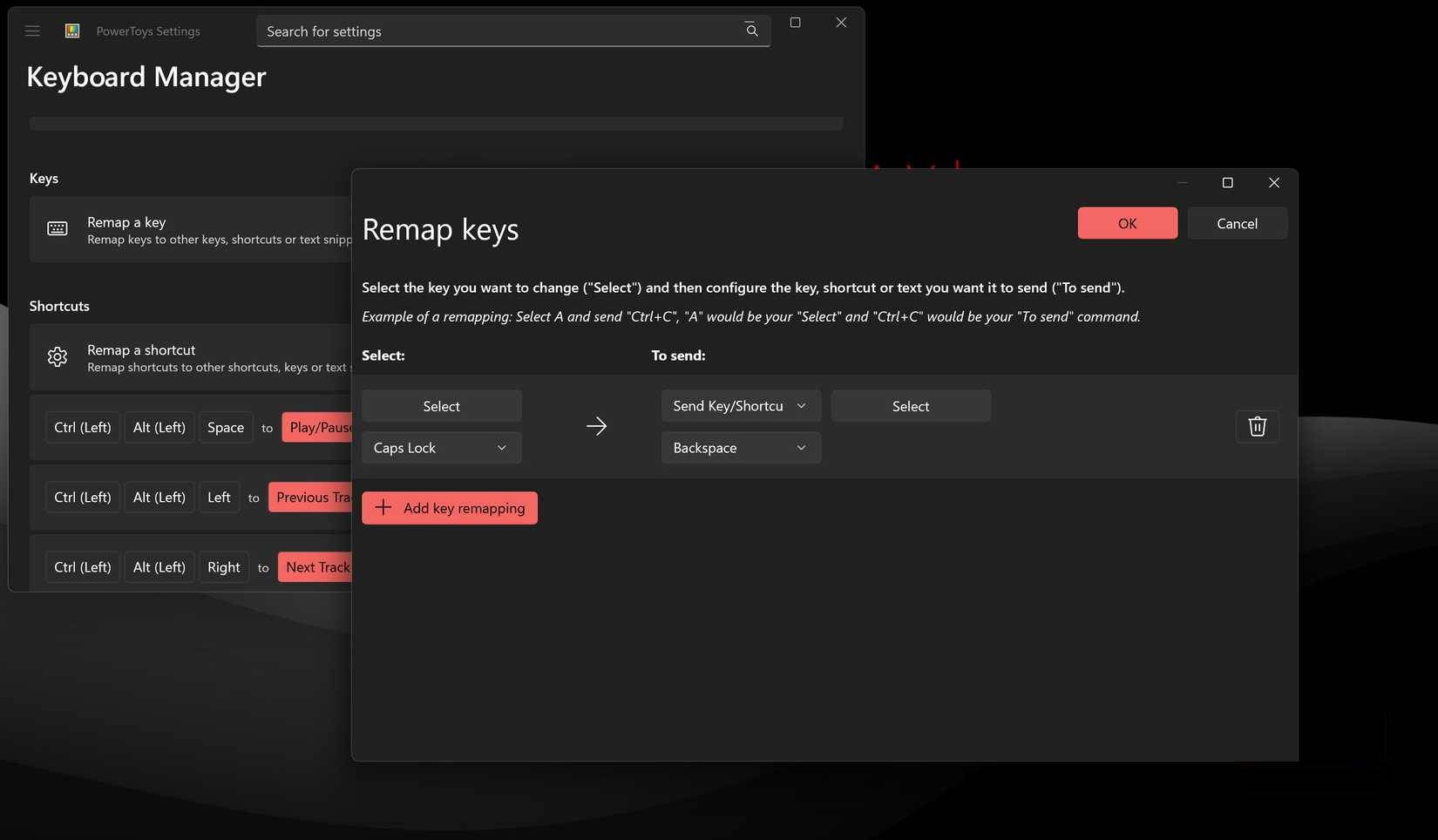
If you have a Mac, Karabiner-Elements is a good place to start. Linux users have options like Input Remapper or tweaking GNOME based on their desktop environment.
These tools let you change the keys on your existing keyboard through software, so you don't have to physically swap out the keys. Your keyboard will still look exactly the same, it will just work differently. You can also extend this approach and copy the entire Dvorak or Colemak layout, but you'll want to rearrange the keys to avoid confusion.
FAQ
How do you fix an awkward keyboard layout: step-by-step guide?
In practical terms, there are plenty of tools that help you reset your keyboard and optimize its layout to suit your workflow.
What should you check before getting started?
Review the requirements, compatible device or software version, and any warnings described in the guide before making changes.
What should you do if the steps do not work?
Repeat the steps in order, confirm that your app or system is up to date, and review the troubleshooting details provided above.
Related Articles
 How to Create a Custom Keyboard Layout for Windows 105 minutes read
 How to Enable the New Keyboard Layout in Windows 115 minutes read
 How to Change the Keyboard Layout in Linux8 minutes read
 Enable Different Keyboard Layouts for Each Windows 11 App: How-To Guide3 minutes read
 The Computer Shows Choose Your Keyboard Layout, What Can I Do to Fix It6 minutes read
 Why Aren't the Keys on the Keyboard Aligned: Key Reasons Explained9 minutes read
Reader Comments 0
Sign in with email or Google to join the discussion.