Table of Contents
When you have multiple languages or keyboard layouts installed, you can change the keyboard layout through the Windows language bar.
In Windows, you can change your keyboard layout to type in a different language or input method that you prefer. If you have multiple languages or keyboard layouts installed, you can change your keyboard layout through the Windows language bar. If you want, you can use a different input method for each application window by following the instructions below.
Enable different keyboard layouts for each app in Windows 11 Settings
Step 1:
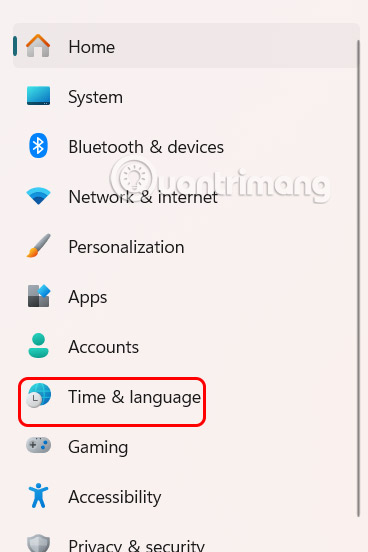
Users open Settings on Windows and then Click Time & language On the left side of the interface.
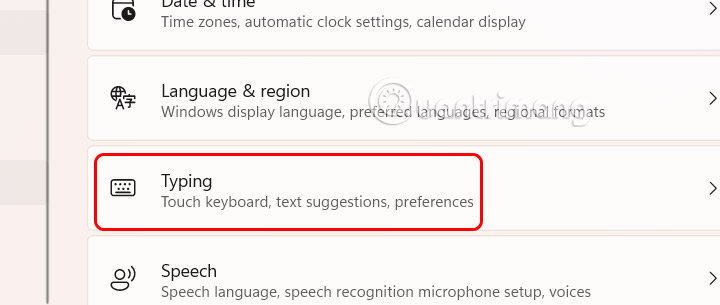
Looking to the side, the user Clicks Typing To adjust the input mode on the computer.
Step 2:
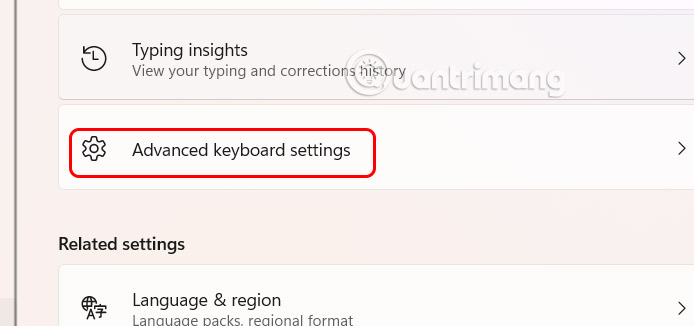
In the new interface, click on Advanced keyboard settings Below the interface.
Step 3:
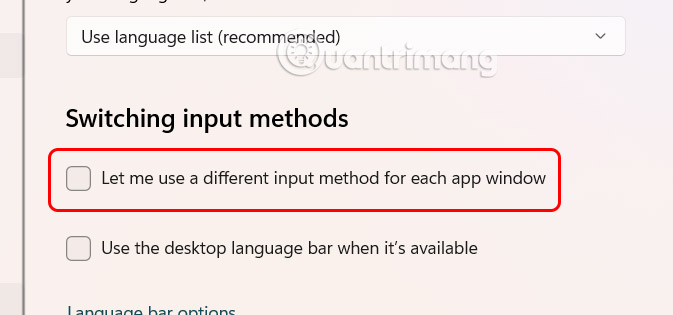
Now the user just needs To select Let me use a different input method for each app window To enable a different keyboard layout for each application on the computer.
Change keyboard layout per application in PowerShell
Step 1:
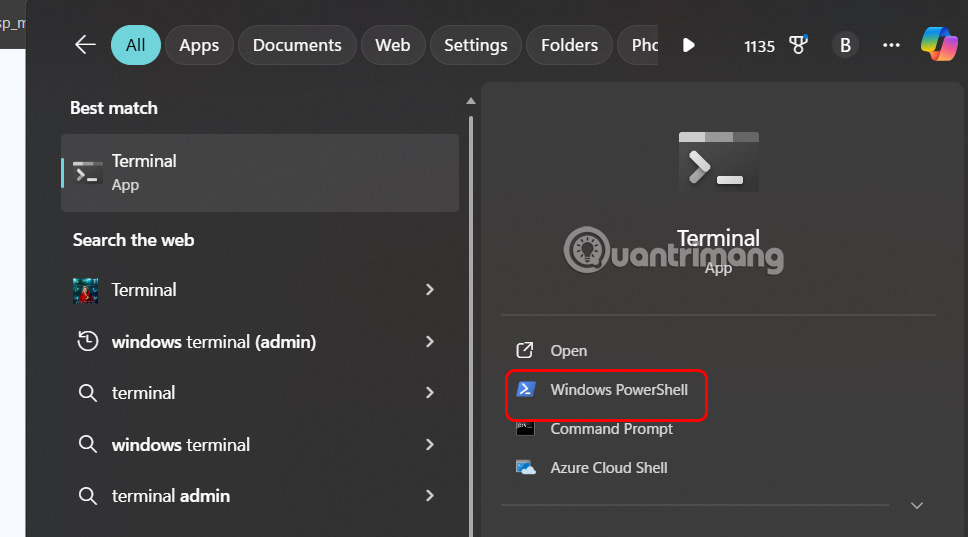
First you Type Terminal in the search bar And select Windows PowerShell In the menu that appears.
Step 2:
In this command input interface you can enter 1 of the 2 commands below.
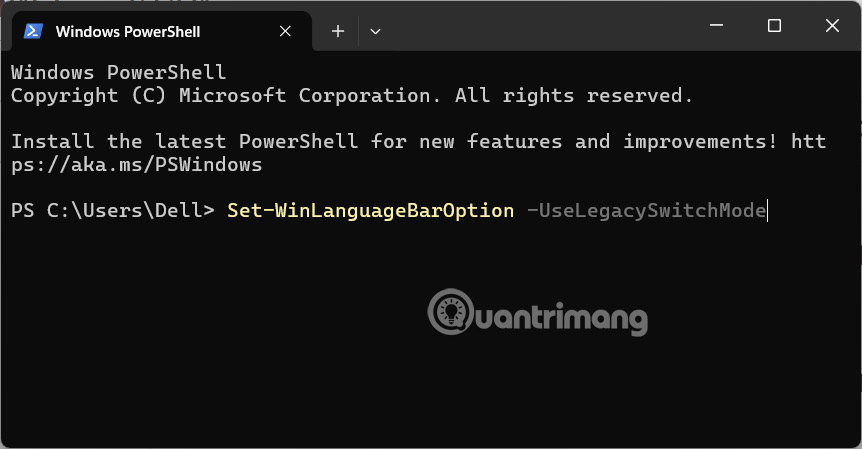
Set-WinLanguageBarOption -UseLegacySwitchMode
This command will allow you to use a different input method for each application window and deselect using the on-screen language bar when available.
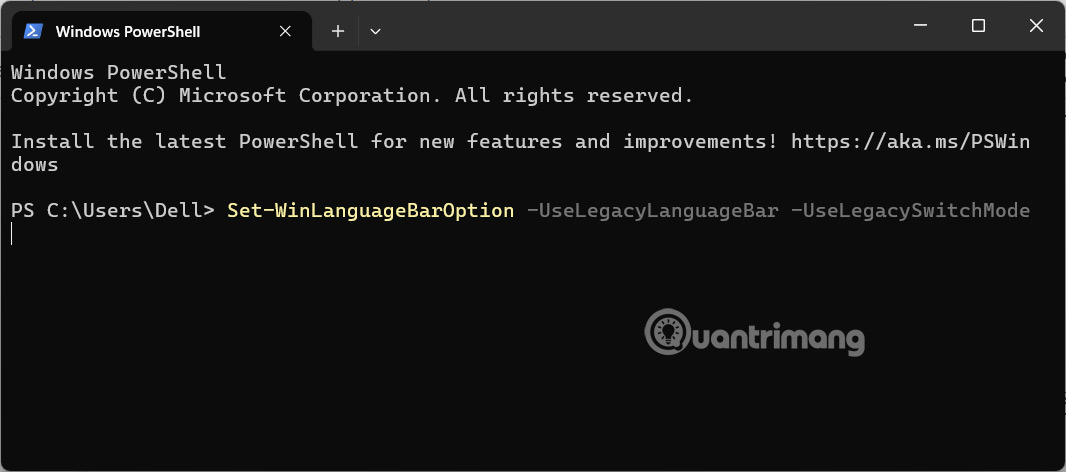
Set-WinLanguageBarOption -UseLegacyLanguageBar -UseLegacySwitchMode
This command will allow you to use different input methods for each application window and use the on-screen language bar when available.
FAQ
How do you enable different keyboard layouts for each Windows 11 app: how-to guide?
In practical terms, when you have multiple languages or keyboard layouts installed, you can change the keyboard layout through the Windows language bar.
What should you check before getting started?
Review the requirements, compatible device or software version, and any warnings described in the guide before making changes.
What should you do if the steps do not work?
Repeat the steps in order, confirm that your app or system is up to date, and review the troubleshooting details provided above.
Related Articles
 How to Enable the New Keyboard Layout in Windows 115 minutes read
 How to Add and Change Keyboard Layouts in Windows 11: Practical Guide7 minutes read
 How to Create a Custom Keyboard Layout for Windows 105 minutes read
 How to Change Keyboard Layouts on Windows 74 minutes read
 How to Enable Virtual Keyboard/touch Keyboard on Windows 114 minutes read
 If You're Not Already Using This Type of Keyboard, It's Time to Switch!: Explained7 minutes read
Reader Comments 0
Sign in with email or Google to join the discussion.