Table of Contents
Learn how to cleaning laptop keyboard without turning off the computer (safe && effective) with clear steps.
Temporarily lock the keyboard to avoid accidental pressing
To avoid accidentally opening new windows, changing the volume, or triggering unwanted actions while cleaning, you should temporarily turn off the keyboard. Some laptops have a dedicated keyboard lock key, usually marked with a small keyboard icon. Pressing this key with Fn will immediately lock the entire keyboard.
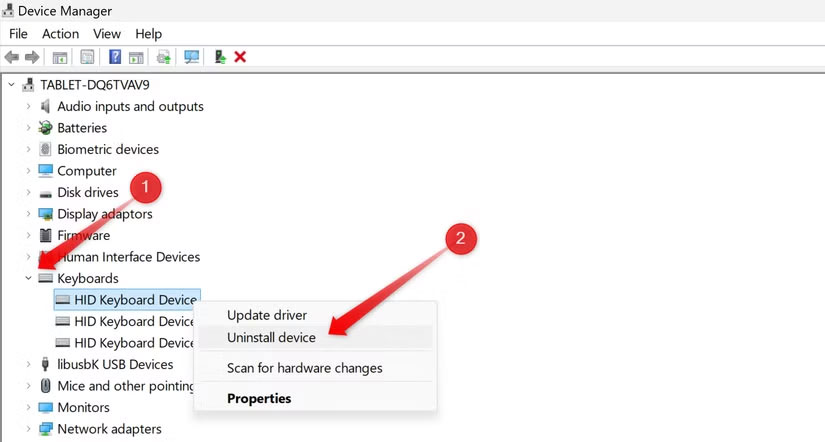
If your computer doesn't have this function key, you can disable the keyboard through Device Manager. Right-click the Start button, open Device Manager , find Keyboards , then right-click on your laptop's built-in keyboard and select ' Disable Device '. If this doesn't work, you can use additional software to temporarily lock the keyboard.
Use a separate keyboard or virtual keyboard when you need to continue working
After disabling the laptop keyboard, you may still need to enter a password, adjust settings, or type a short text. If you have an external keyboard, you can simply plug it in via USB or Bluetooth, and Windows will automatically recognize it and allow you to use it immediately.
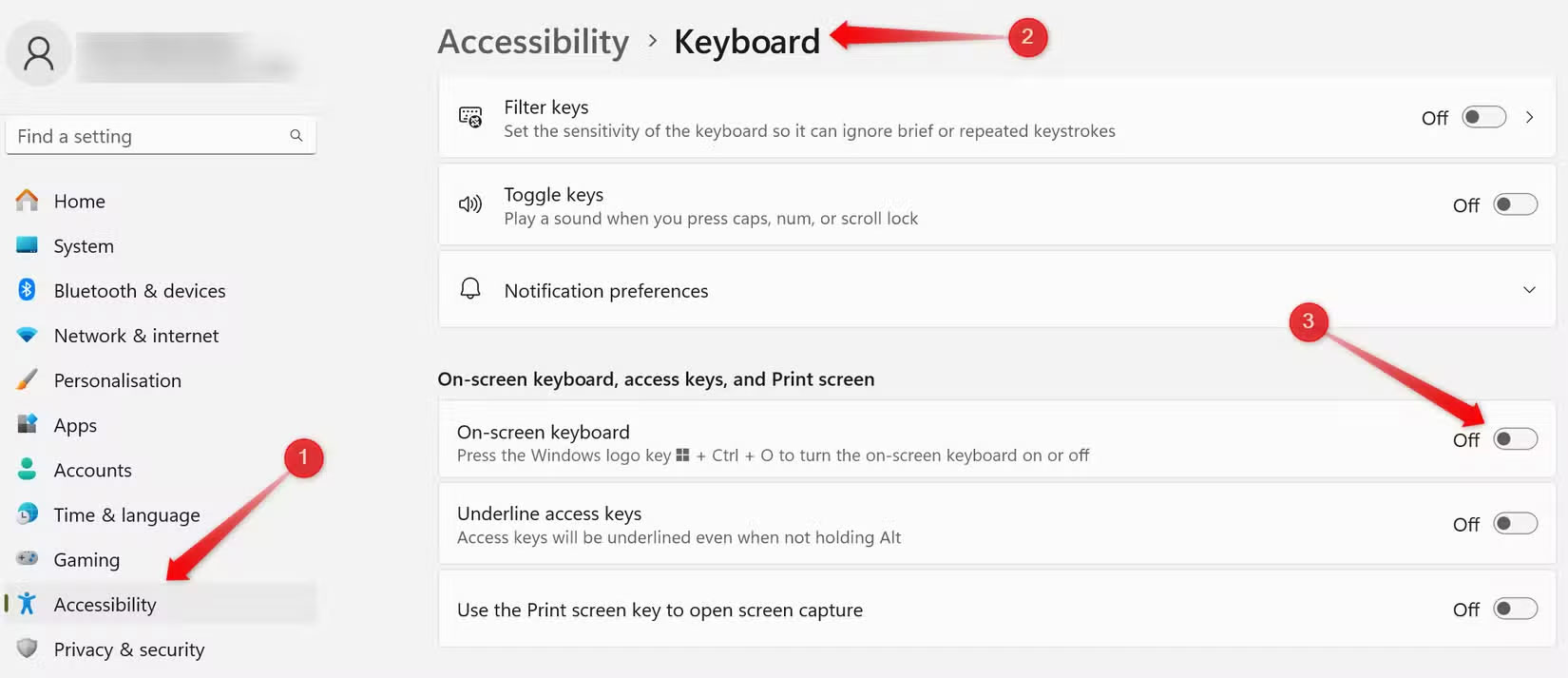
If you don't have a secondary keyboard, you can enable the virtual keyboard. Just open Settings , go to Accessibility → Keyboard, and turn on the On-Screen Keyboard option. This way, you can continue working without interrupting the cleaning process.
Safely clean the keyboard while the laptop is still on
Since the device is still in operation, you need to be gentle and limit the use of liquids. A microfiber cloth lightly moistened with 70% isopropyl alcohol is a safe choice. You should only dampen the cloth, absolutely do not spray directly on the keys to avoid liquid getting inside.
Tilt the computer about 45 degrees so that dust can fall out instead of being pushed deep down. For stubborn dust, you can use compressed air and spray diagonally. Avoid using a vacuum cleaner because it can create static electricity that can damage components. When cleaning, you can combine it with a soft brush to remove dust on the edges of the keys. When finished, try pressing each key to make sure there is no foreign object stuck underneath.
Re-enable the keyboard and test
Once you've cleaned it, you can turn the keyboard back on the same way you turned it off. If you used a keyboard shortcut, just press the same combination again. If you turned the keyboard off in Device Manager, open it again and select ' Enable Device '. If you used a key locking app, just open the app and select Unlock.
Once your keyboard is working again, open your text editor and try typing each key to test its responsiveness. If you see auto-fill characters, it's possible that a key is still stuck. You can also use online keyboard testing tools to make sure all the keys are working properly.
If you clean your keyboard often, create a shortcut
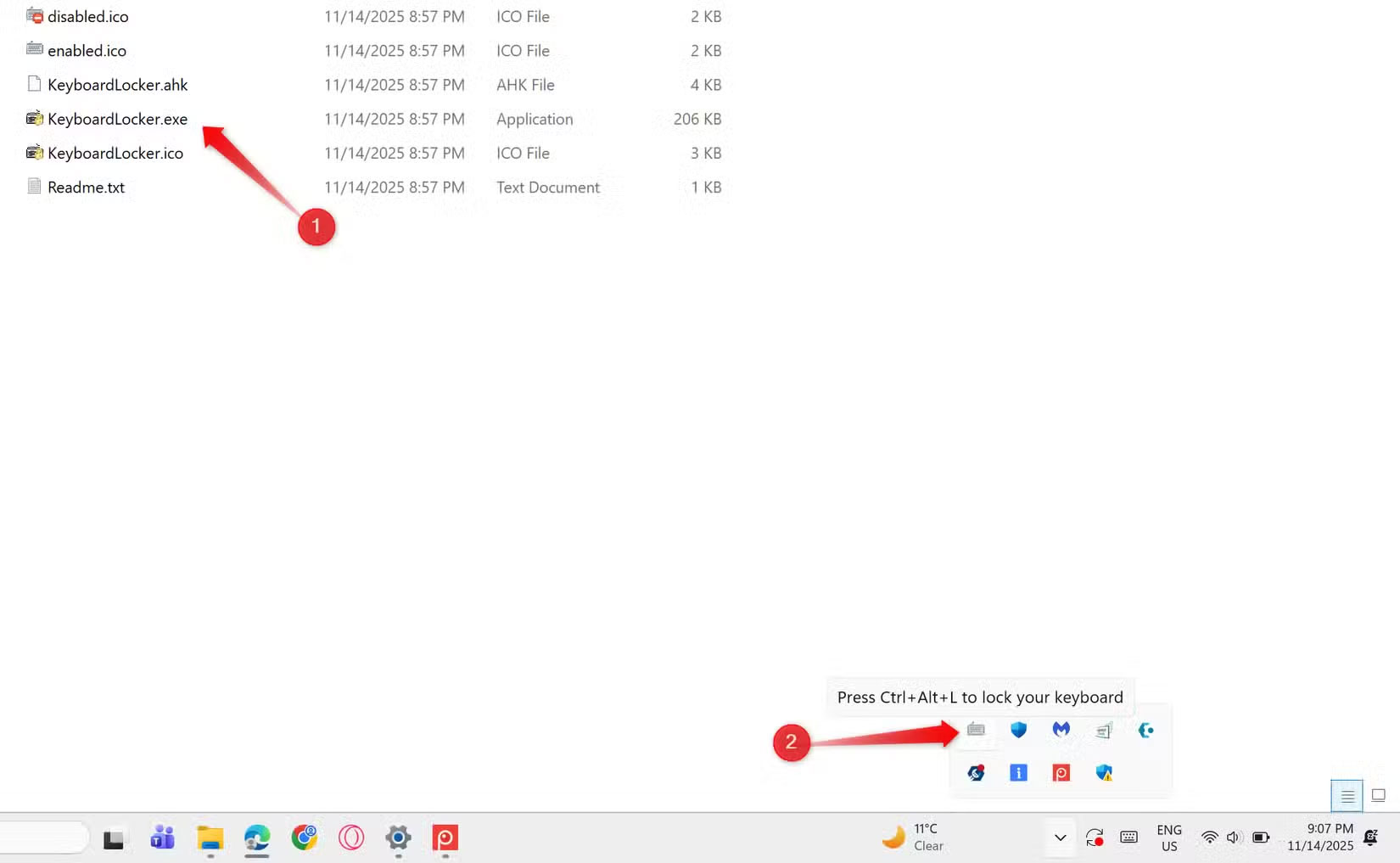
For those who often clean their laptops while they are still running, the Keyboard Locker application helps them do it much faster. You just need to download the application, unzip it and run the program. The keyboard icon will appear in the system tray. When you need to lock it, press Ctrl + Alt + L , and when you want to open it again, just type ' Unlock '. This saves a lot of time compared to opening Device Manager each time.
When deep cleaning is required, turn the machine off completely
Cleaning with your laptop on is only appropriate in extreme cases, such as when the machine is running a long process that cannot be interrupted. But if you need a deep clean, want to use more solution, or want to remove the keycaps to clean underneath, it is best to turn the machine off completely. This reduces the risk of short circuits and allows the moisture to dry completely before restarting.
Some laptop models allow the keycaps to be removed, allowing you to clean small areas more thoroughly.
You don't have to shut down your laptop just to clean your keyboard. Just locking the keyboard temporarily, cleaning it properly, and turning it back on can do the job quickly without interrupting your work. However, with a thorough cleaning, shutting down is safer and more effective.
Final Thoughts
Use this guide as a practical checklist for how to cleaning laptop keyboard without turning off the computer (safe && effective). Work through the steps in order, verify each result, and adjust the options to match your needs.
FAQ
What do you need before following this How to Cleaning Laptop Keyboard Without Turning Off the Computer (Safe && Effective) guide?
Review the required tools, accounts, settings, or materials mentioned in the article. Learn how to cleaning laptop keyboard without turning off the computer (safe && effective) with clear steps.
What are the main steps for how to cleaning laptop keyboard without turning off the computer (safe && effective)?
Follow the sections in order, especially Temporarily lock the keyboard to avoid accidental pressing, Use a separate keyboard or virtual keyboard when you need to continue working, Safely clean the keyboard while the laptop is still on. Complete each step before continuing and verify the result as you go.
What should you do if the process does not work as expected?
Recheck the prerequisites, update the relevant app or service, review the settings, and repeat the step that caused the issue. Use any troubleshooting notes included in the guide.
Related Articles
 Keyboard Cleaning: How to Clean the Most Clean Computer Keyboard6 minutes read
 How to Clean the Keyboard Yourself, Cleaning Laptop Keyboard6 minutes read
 Instructions on How to Remove the Laptop Keyboard for Quick Cleaning Explained17 minutes read
 How to Handle When the Laptop Keyboard Key Is Broken6 minutes read
 3 Easy Ways to Lock Your Acer Laptop Keyboard at Home9 minutes read
 How to Clean Laptop Screens Are Extremely Simple at Home8 minutes read
Reader Comments 0
Sign in with email or Google to join the discussion.