Table of Contents
The advantage of Windows Recall is that it is not enabled by default. Microsoft designed it this way so that you can control whether or not it runs in the background.
There's a fine line between convenience and privacy, and Microsoft's new Windows Recall feature straddles that line. On the one hand, it's supposed to be a groundbreaking addition to Windows, designed to help you retrace your steps and find anything you've previously viewed or worked on. It's like your browsing history, but across your entire computer.
On the other hand, this ability to 'remember' everything you've done naturally raises privacy concerns. That's because Windows Recall works by constantly taking screenshots of your screen. But if that doesn't sound convenient, useful, or entirely safe, it's pretty easy to check if the feature is active on your computer.
Check Windows Recall status
Is it running on your PC?
The beauty of Windows Recall is that it's not enabled by default. Microsoft designed it this way so you can control whether or not it runs in the background, so unless you accidentally accept the prompt to enable Recall during setup, it's unlikely to work.
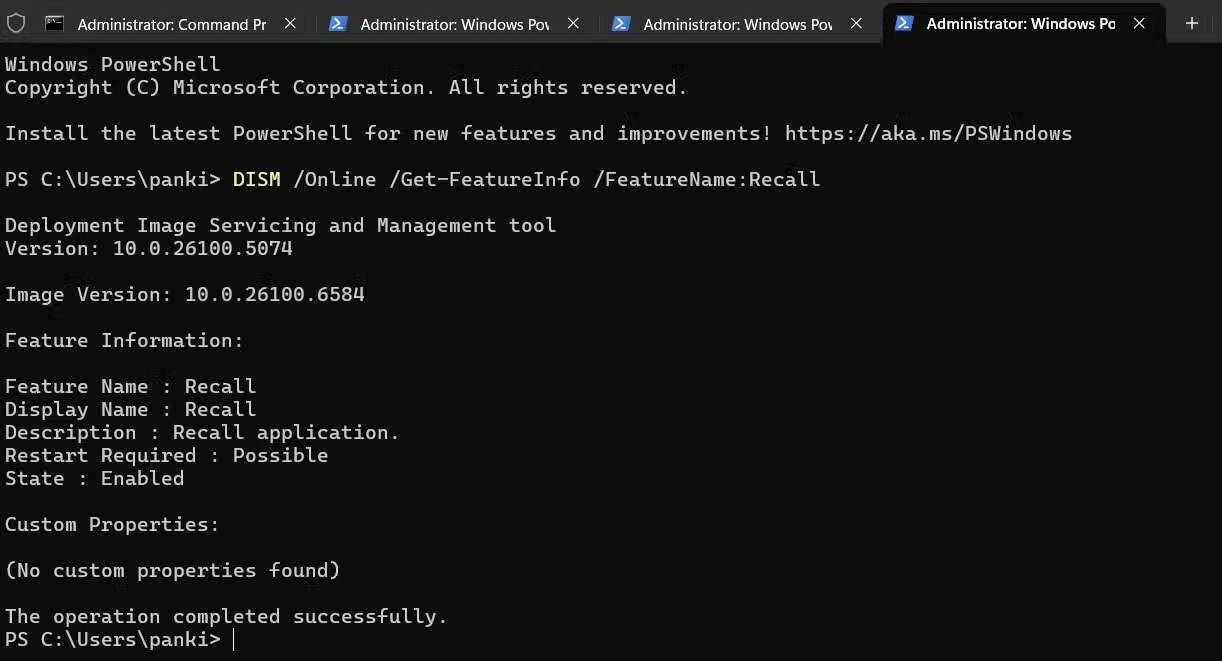
If you're curious if Recall is running on your PC, there's a simple way to check. All you have to do is open Command Prompt or Windows PowerShell with admin rights and type DISM /Online /Get-Featureinfo /Featurename:Recall And press Enter . Windows will then display the current status of the Recall feature on your system. If you see the feature listed as Enabled , then Recall is active and taking screenshots periodically. If it says Disabled , then the feature is inactive and you can rest assured that nothing is being recorded.
It's worth noting that while Recall is only available on Copilot+ computers, you can try running the same command on a computer without Copilot+ and it will show up as enabled. However, that doesn't necessarily mean Recall is working. As mentioned earlier, this feature is exclusive to Copilot+ computers, which are equipped with an NPU (Neural Processing Unit). If your computer was purchased before June 18, 2024, it won't have Windows Recall.
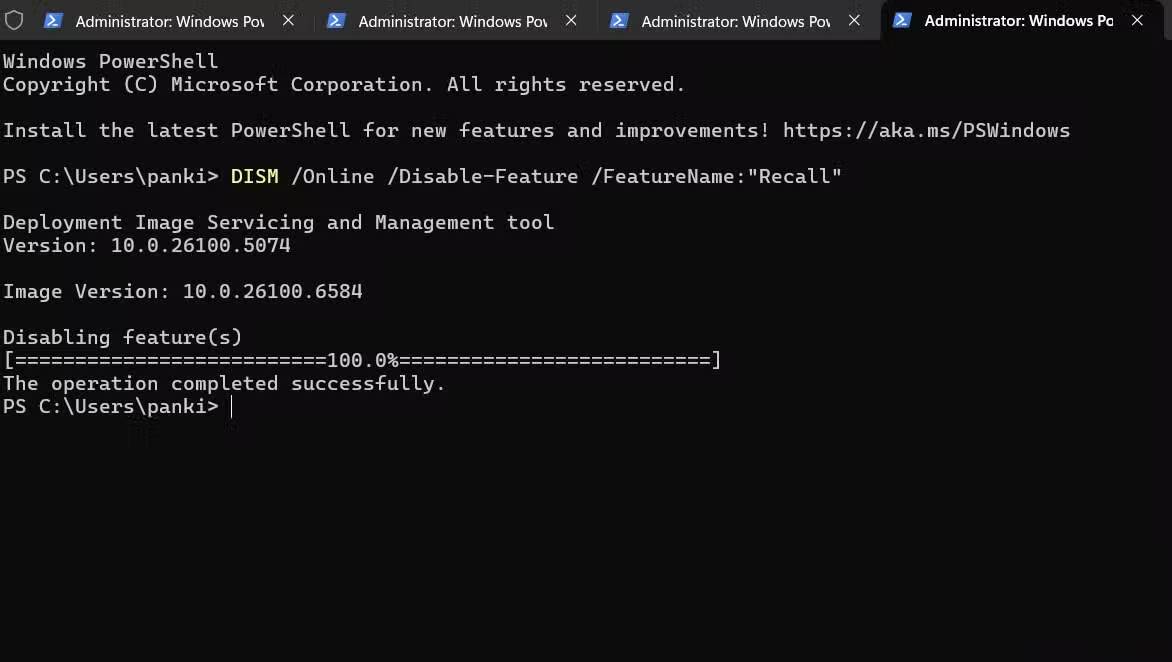
But if you find Recall enabled and want to disable it, the process is just as simple. Just run the DISM /Online /Disable-Feature /FeatureName:"Recall" Command in the same Command Prompt or PowerShell window with admin rights.
Remove Windows Recall
Take back control of your computer

If you decide that Windows Recall isn't for you and have disabled it, you should delete any existing snapshots it may have taken. You can do this by navigating to Settings > Privacy & security > Recall & snapshots, then selecting the Delete all snapshots Option. This ensures that no old data is stored on your PC.
To go further and completely remove the Recall feature from your system, there is also a simple way to do it. In the search box on the taskbar, type Turn Windows features on or off And press Enter . From the dialog box that appears, find the Recall Entry, uncheck it and then restart your PC. After the system restarts, the Recall feature will be completely removed.
Privacy is already a big issue on Windows PCs, and features like Recall only exacerbate the problem. While Windows Recall offers many powerful features, it can sometimes be a bit too much. The good news is that Microsoft lets you turn it off if you feel it's not right for you.
FAQ
How do you check if your computer has Windows recall enabled: step-by-step guide?
In practical terms, the advantage of Windows Recall is that it is not enabled by default. Microsoft designed it this way so that you can control whether or not it runs in the background.
What should you check before getting started?
Review the requirements, compatible device or software version, and any warnings described in the guide before making changes.
What should you do if the steps do not work?
Repeat the steps in order, confirm that your app or system is up to date, and review the troubleshooting details provided above.
Related Articles
 Microsoft Now Wants Users to Try Its Controversial Windows Recall Feature Again11 minutes read
 Microsoft Is Ready to Release Windows Recall After Nearly a Year of Delay3 minutes read
 How to Reset Recall in Windows 112 minutes read
 Microsoft Declares 2026 to Be the Golden Age for PC AI, and Will Heavily Promote Recall and Copilot on Windows 117 minutes read
 How to Disable Windows Recall on Copilot+ PC4 minutes read
 How to Check If the HP Laptop Battery Is Subject to Revocation4 minutes read
Reader Comments 0
Sign in with email or Google to join the discussion.