Table of Contents
Explore don't rush to buy more ram.
Turn off unnecessary startup programs
Prevent unwanted applications from loading at startup
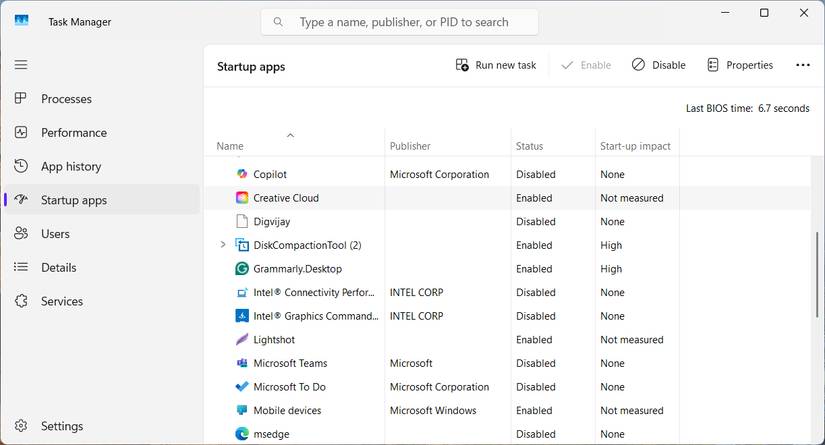
The first thing to check is which programs load when Windows starts. Many programs add themselves to the startup list and run in the background before you open anything else. Tools like OneDrive, Dropbox, and Adobe Creative Cloud are common examples. They take up memory, load support services, and slow down your system during startup.
To review these items in Task Manager:
- Press Ctrl + Shift + Esc to open Task Manager.
- Select Startup apps on the left panel.
- Go through the list of items you don't need right after startup.
- Select unnecessary items and click Disable .
Disabling an item here doesn't delete the program. It just prevents it from starting automatically.
Prevent applications from running in the background
Block hidden tasks from using RAM
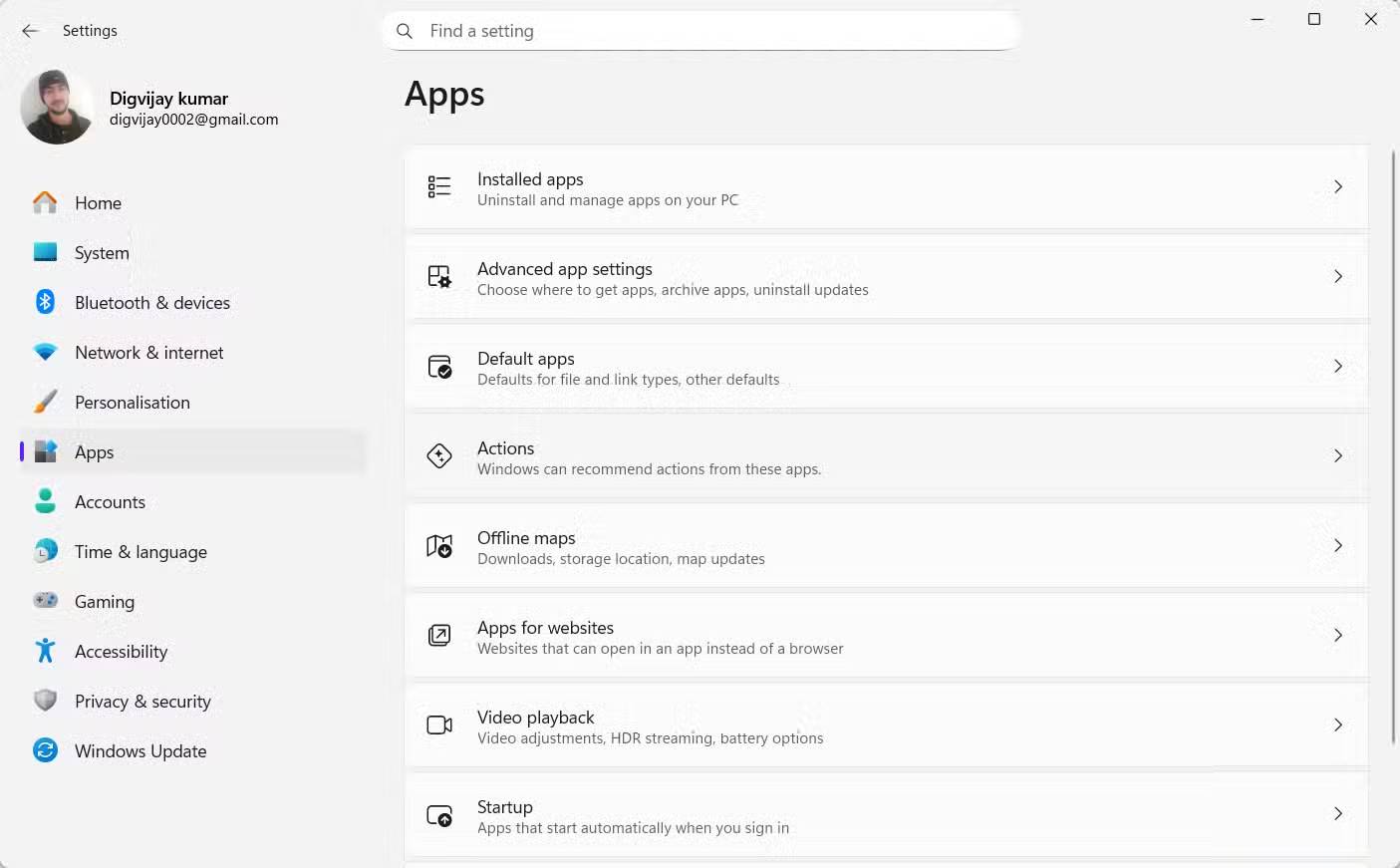
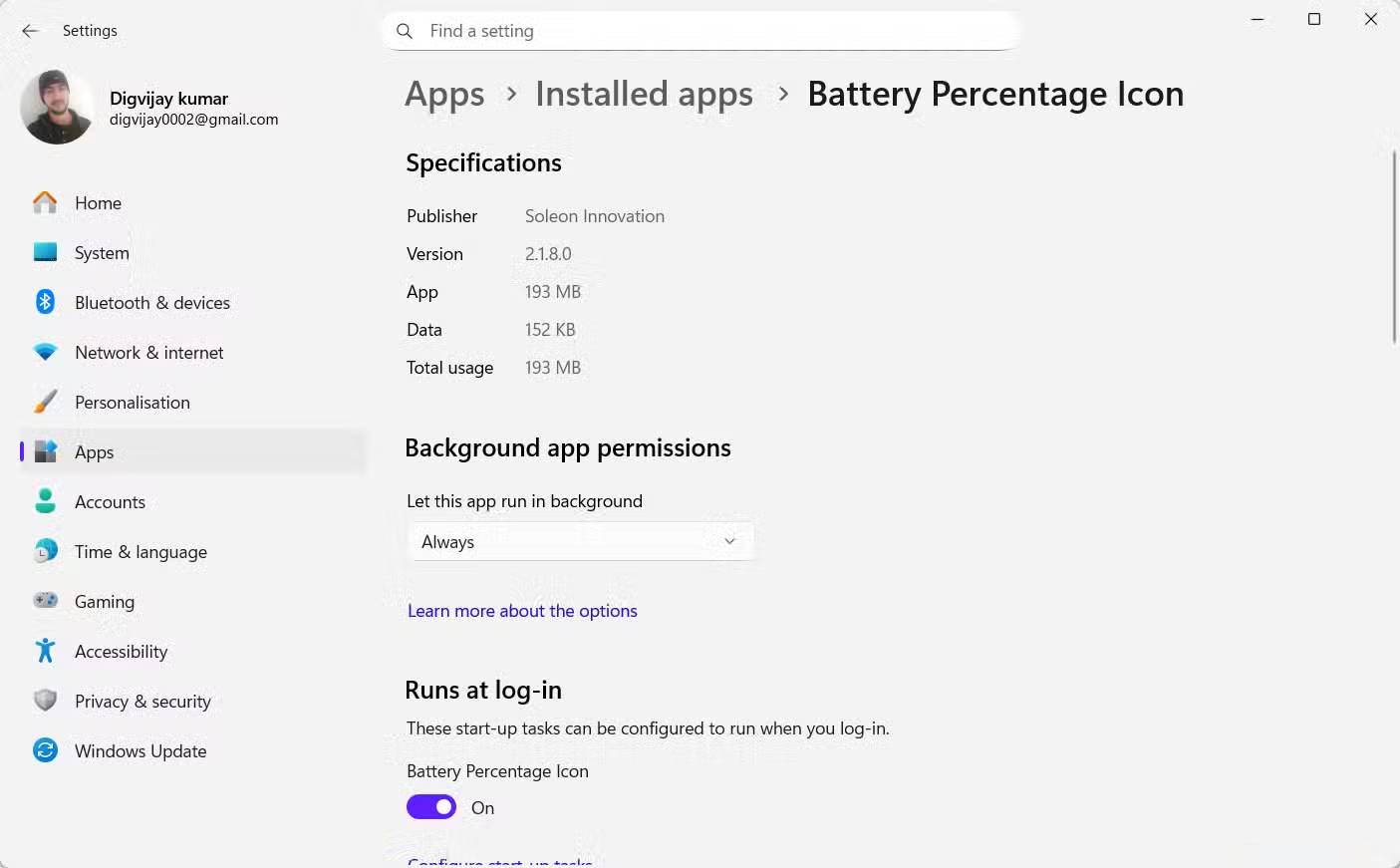
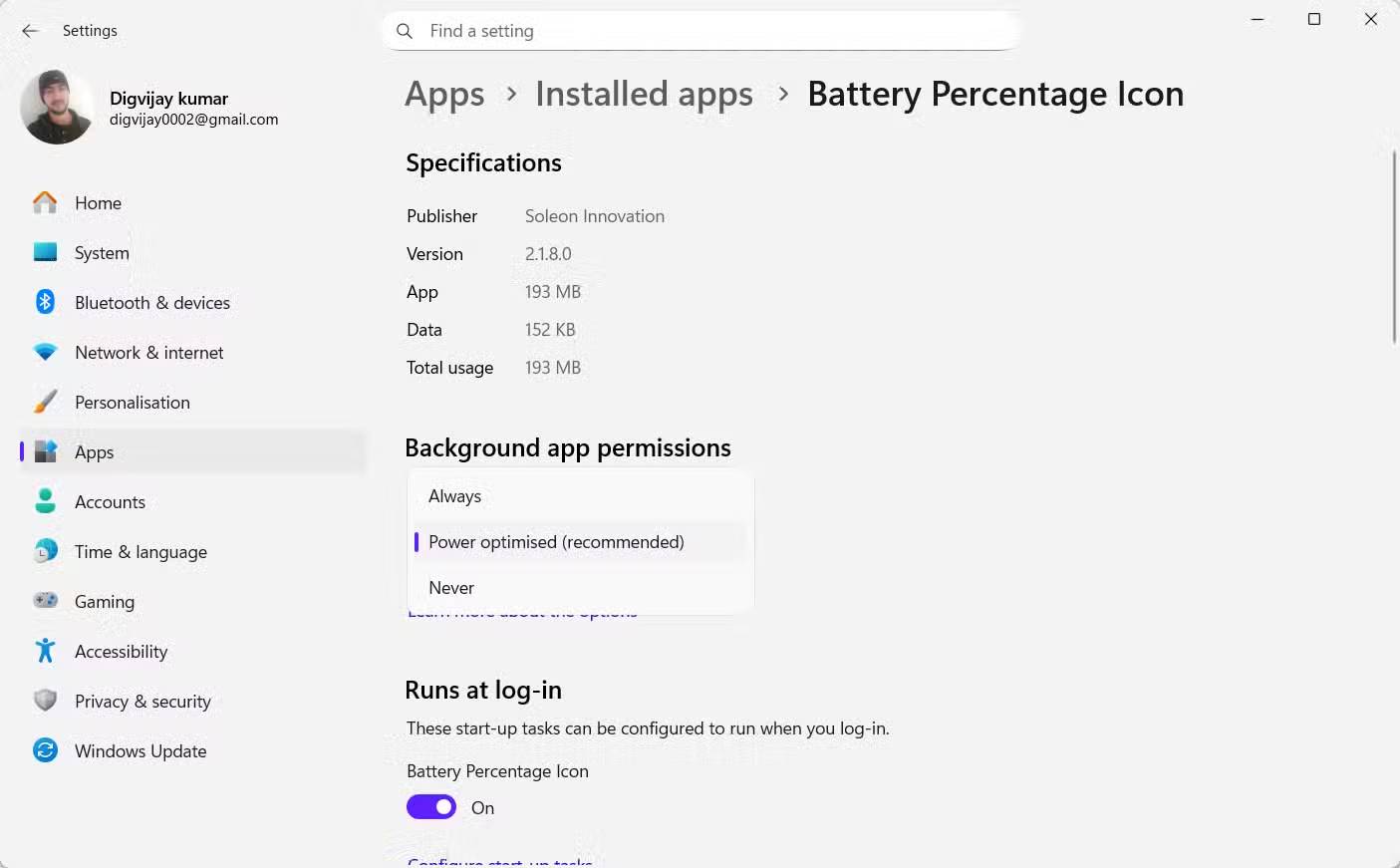
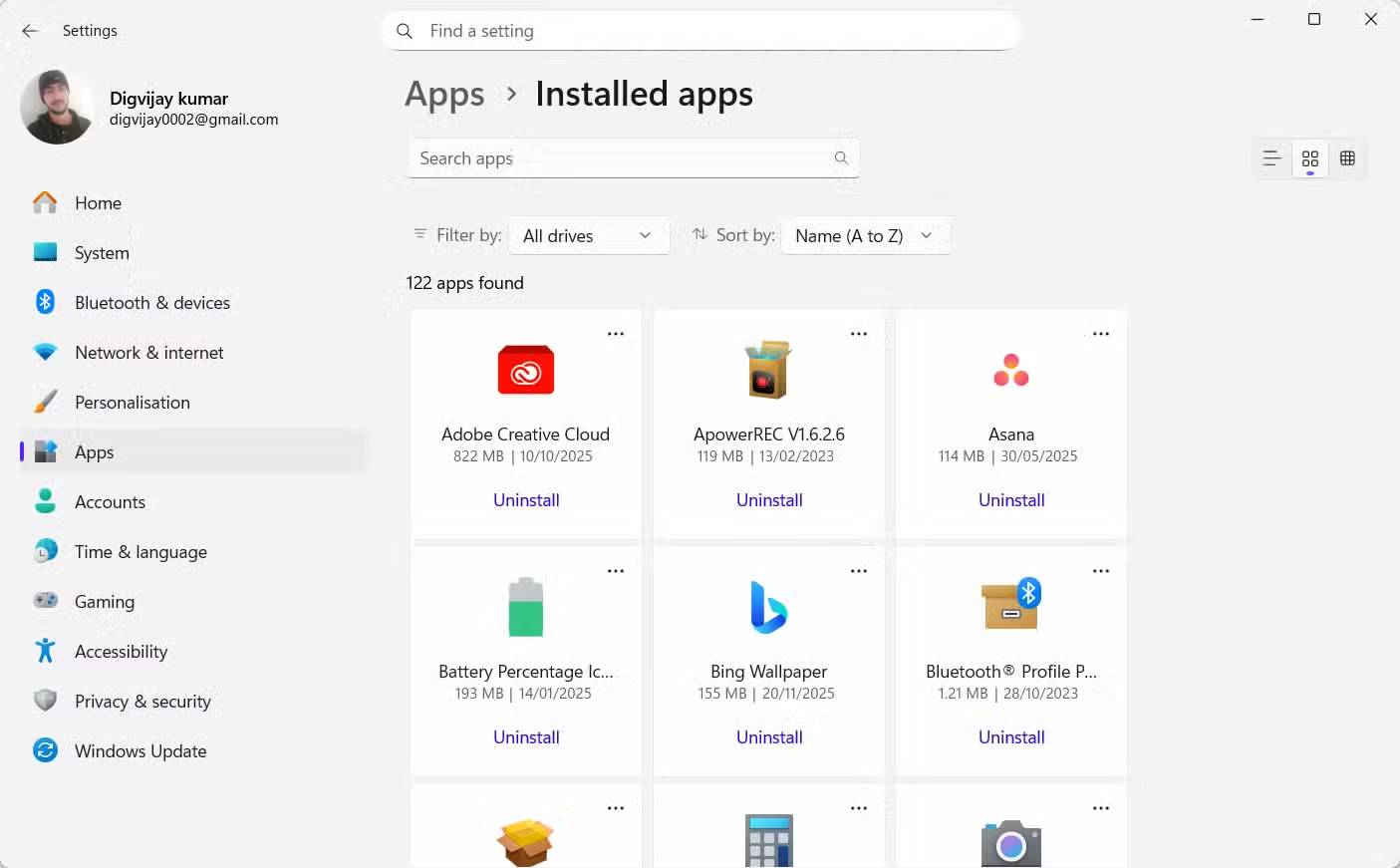
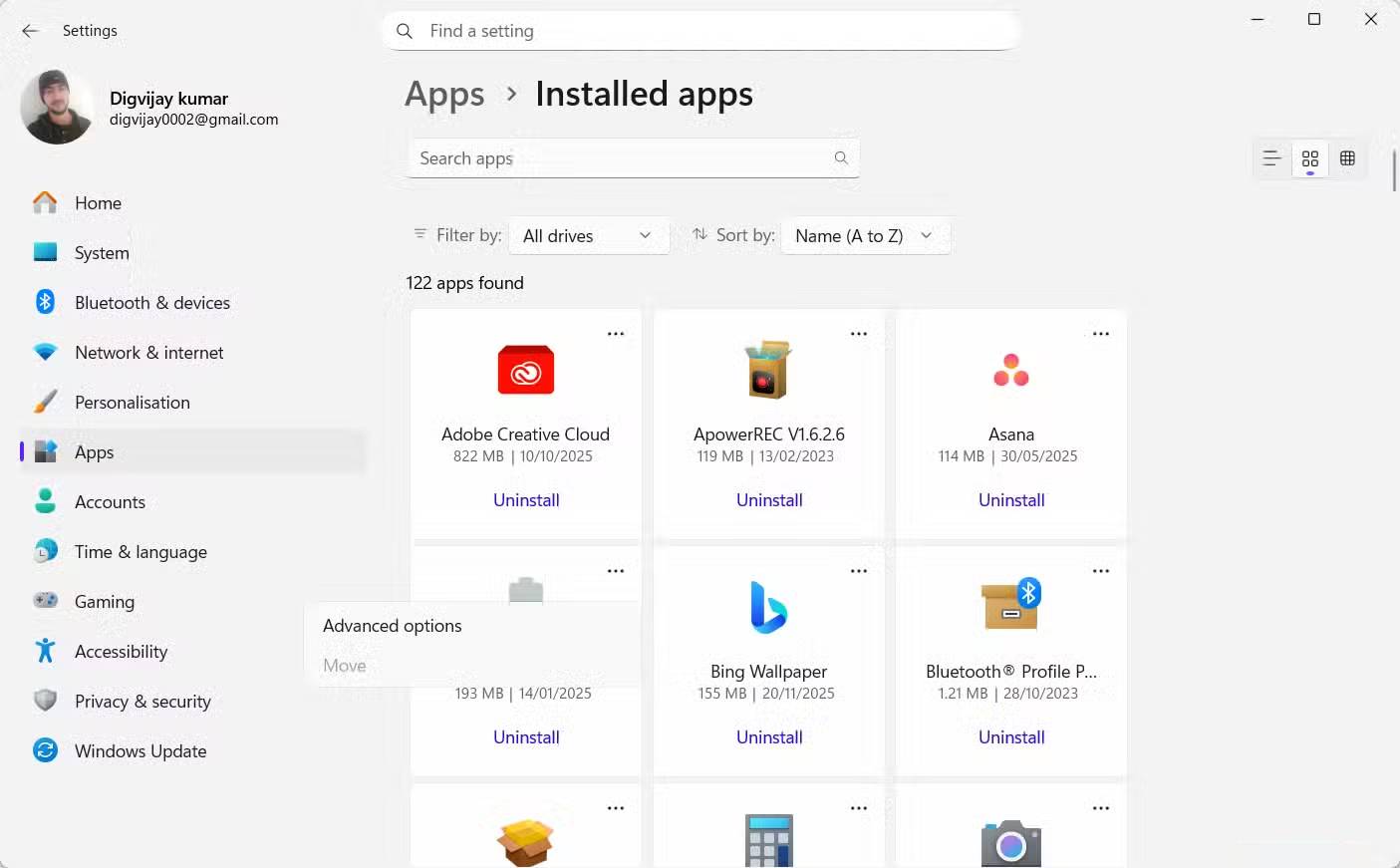
Another common cause of slow computer performance is background activity. Some applications continue to run even after you close them, keeping small services in memory. These tasks update data, synchronize information, or check for alerts in the background. When too many applications run in the background, the system maintains more processes than are necessary during normal use.
Windows lets you control which apps stay running in the background. You can adjust those permissions with the following steps:
- Press Win + I to open Settings.
- Go to Apps and open Installed apps .
- Scroll to the app you don't need running in the background.
- Select the three dots and select Advanced options .
- Under Background app permissions , select Power optimized or Never .
Reducing background activity reduces memory usage and gives Windows fewer processes to manage, helping to maintain smoother performance.
Close unused applications and browser tabs
Free up RAM from active windows
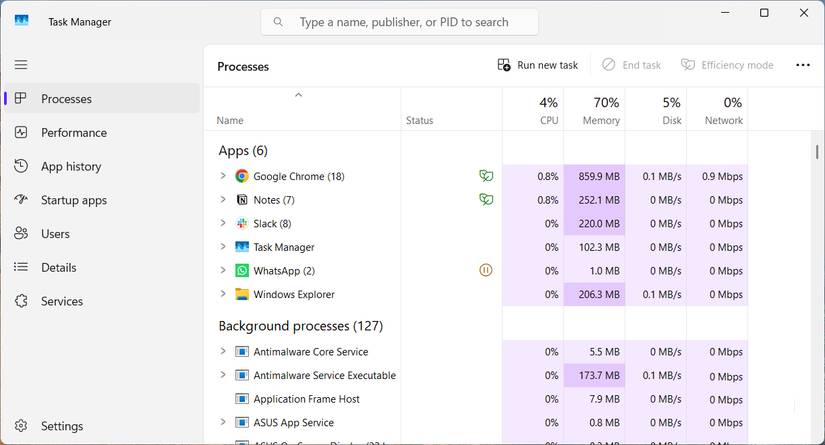
Open apps and browser tabs use up memory even when you're not using them. Some programs store large amounts of data in memory, and most modern browsers create separate processes for each tab. With too many tabs open at once, Windows has less memory available for new tasks, and simple tasks like switching apps or loading pages can slow down.
To check which program is using the most memory:
- Open Task Manager.
- Make sure Processes is selected.
- Sort the list by Memory to find the apps or browser processes that are using the most RAM.
- Close apps you don't need. If a browser is at the top, switch to that browser and close tabs you aren't using.
Adjust virtual memory (paging file)
Provide more memory for Windows
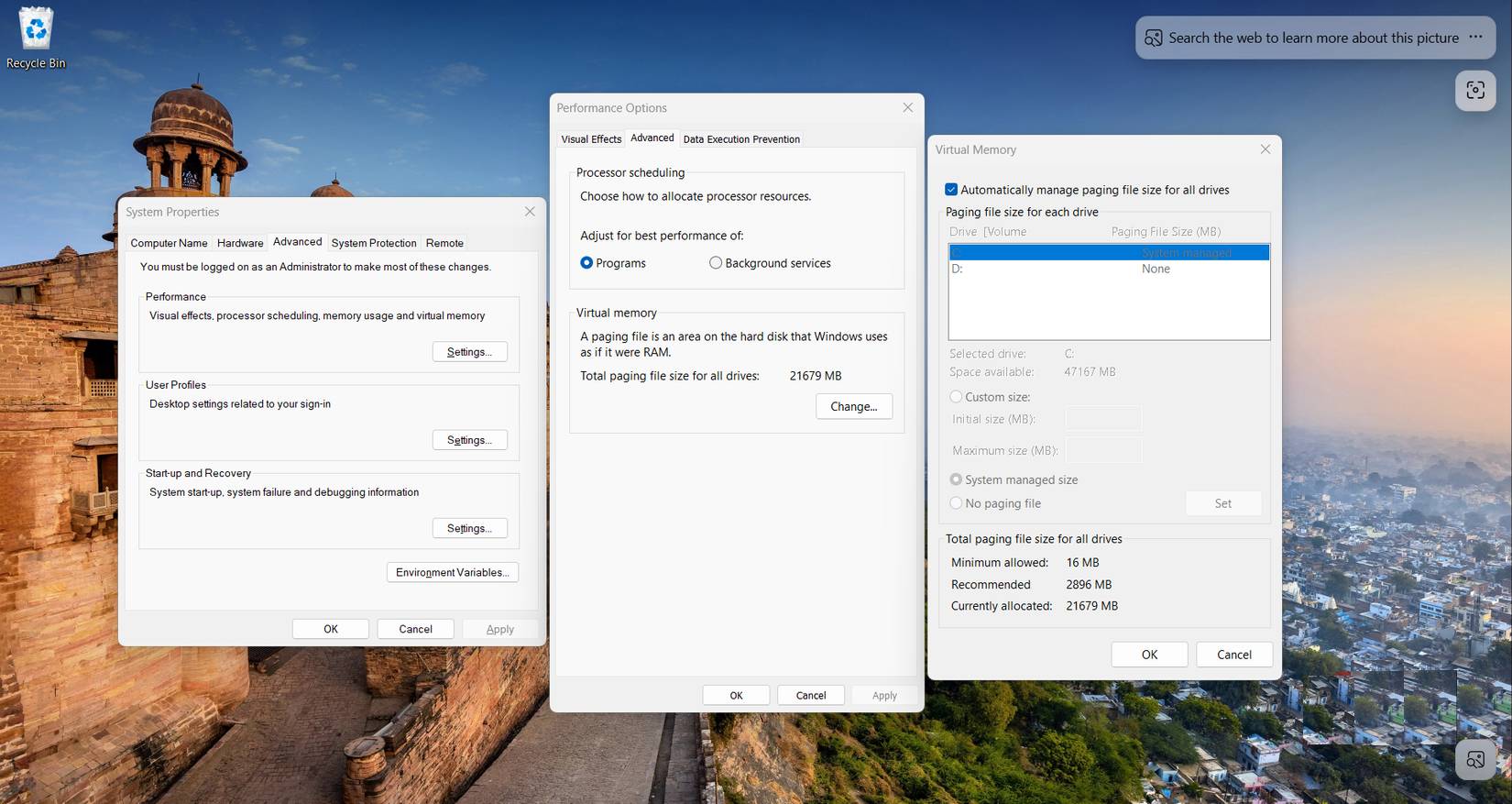
Most systems handle paging files well on their own. By managing their size automatically, Windows can expand the file when memory is low and keep your application running smoothly under heavy use. Check this setting if you see low memory warnings or your application crashes when multiple programs are running.
To review paging file settings:
- Press Win + R to open the Run dialog box.
- Type SystemPropertiesAdvanced into the text field and press Enter .
- In the System Properties window, under Performance , click Settings .
- Open the Advanced tab.
- Under Virtual memory, click Change to view paging file settings.
In most cases, the Automatically manage paging file size for all drives option should be enabled. If this option is unchecked and any drive is set to a custom size, switch back to automatic management to avoid slowdowns when the system is under heavy load.
Final Thoughts
Understanding don't rush to buy more ram makes it easier to evaluate the information and apply the most relevant recommendations. Focus on the key points above and verify details that may change over time.
FAQ
What is don't rush to buy more ram?
Explore don't rush to buy more ram.
What key points does this article cover?
The article focuses on Turn off unnecessary startup programs, Prevent unwanted applications from loading at startup, Prevent applications from running in the background, with practical explanations and examples.
How can you use this information in practice?
Use the explanations to compare options, verify important details, and make a more informed decision. Apply the recommendations that best match your goals and situation.
Related Articles
 Tips to Play Kingdom Rush Gamers Need to Know4 minutes read
 Simple Tweaks to Enhance the Audio Experience on Windows 105 minutes read
 How to Collect Rainbow Diamond in One Piece Bounty Rush4 minutes read
 Tweaks to Make Windows 11 Run Faster and Smoother9 minutes read
 7 Fire TV Tweaks That Will Make Your Streaming Setup a Lot: Key Takeaways6 minutes read
 Adobe Released the Adobe Premiere Rush Cc Video Editing2 minutes read
Reader Comments 0
Sign in with email or Google to join the discussion.