Table of Contents
If Windows 11 develops problems after an update, check what changed before resetting the PC. A recent update is a clue, not proof of the cause. Back up accessible files and locate your BitLocker recovery key, if encryption is enabled, before using recovery tools.
Identify the exact update that is causing the problem.
When you discover a problem immediately after an update, the first thing to do is see what changes Windows has made. Not all updates are the same: it could be a monthly cumulative patch, new drivers, security updates, .NET updates, or even a new feature. Just one of them having a bug is enough to cause a problem.
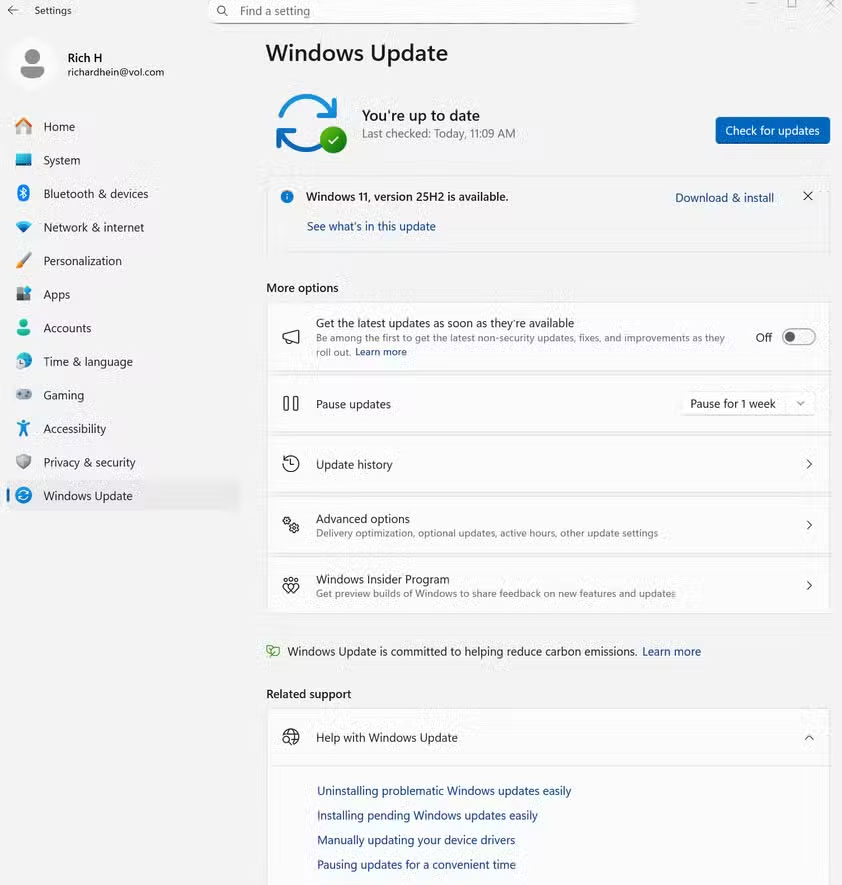
Open Settings , go to Windows Update, and select Update history. Here, Windows will list recent updates categorized by quality updates, driver updates, and security updates. Pay attention to updates that were installed on the exact day the problem started, especially those with KB codes.
If you find a 'suspect', record the KB code or take a screenshot for use in the next step. In the meantime, also scroll down and check for items with a Failed or Install error status. Repeated failed updates often indicate driver conflicts or incomplete installations.

Uninstall a recent update when the evidence supports it
If the timing and symptoms point to a particular update, removing it may help. Some updates cannot be uninstalled. The option to go back after a feature-version upgrade has separate availability requirements; it is not the same as uninstalling a monthly quality update.
Removing a security update also removes its fixes. Check for a corrected update and restore supported updates once the problem is resolved.
Go to Settings > Windows Update > Update history > Uninstall updates . A list of updates that can still be uninstalled will appear. Find the specific update, usually the Quality Update with a KB code, select Uninstall, and restart when prompted.

If the update cannot be removed, use a recovery option that matches the symptoms rather than attempting to delete update files manually.
Use Recovery or Safe Mode when rollback is not possible.
Safe Mode loads a limited set of drivers and services, which can help isolate a driver or startup-software problem. Windows Recovery Environment provides tools for a PC that cannot start normally.
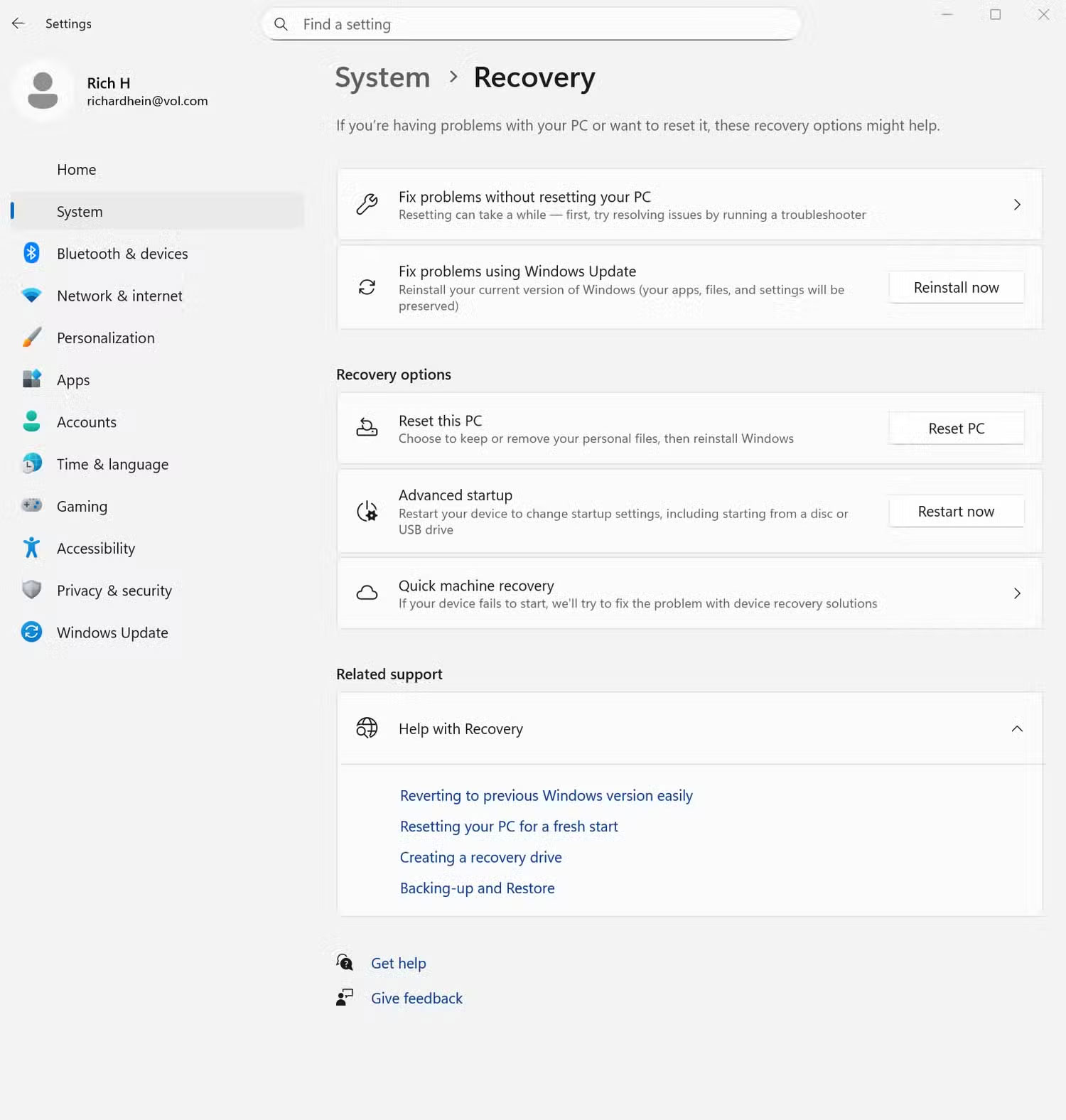
When Windows is accessible, open Settings > System > Recovery > Advanced startup > Restart now, or hold Shift while selecting Restart. For a PC that cannot start, use automatic recovery or recovery media as described in how to enter Windows Recovery Environment. Do not interrupt a firmware update or an update that is still progressing.
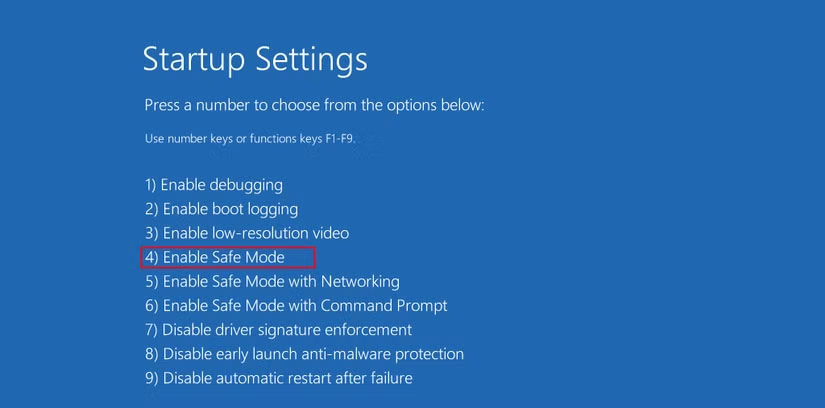
In recovery, select Troubleshoot > Advanced options > Startup Settings > Restart, then choose 4/F4 for Safe Mode or 5/F5 for Safe Mode with Networking. A Wi-Fi connection is not guaranteed in networking mode. If a driver change caused the problem, check Device Manager for a supported rollback option.
For a recent Windows update, recovery also offers Advanced options > Uninstall Updates. For startup failures, try Startup Repair. System Restore may help if a suitable restore point exists. See how to choose among recovery options before making a broader change.
Reset or reinstall: The last resort nobody wants.
If all the above methods fail and Windows is still not working properly, resetting or reinstalling is the last resort. While no one wants this to happen, sometimes an update can break the system to the point where a clean recovery is impossible.
Resetting your PC allows you to reinstall Windows while keeping your personal files, and in many cases, this is enough to resolve the issue. Go to Settings > System > Recovery > Reset this PC , then select Keep my files . If Windows won't boot, you can also access this option from Recovery.
Keep my files still removes installed apps and resets settings; it is not a substitute for a backup. Review the recovery screen carefully before confirming. If important data is inaccessible, resolve data recovery first rather than repeatedly resetting the system.
Related Articles
 How to Fix Some Errors When Updating Windows 1015 minutes read
 New Feature Helps Reinstall Windows 11 from Windows Update: What to Know4 minutes read
 What to Do When Windows Update Crashes 0% on Windows 7/8/10?5 minutes read
 Do Not Rush to Update Patch Tuesday for November 20213 minutes read
 How to Fix Common Windows 10 April 2018 Update Errors8 minutes read
 3 Ways to Update Windows 10 to the Latest Update 2023: Top Picks and Buying11 minutes read
Reader Comments 0
Sign in with email or Google to join the discussion.