Table of Contents
Change These 4 Settings to Increase Your Smart TV's Performance is easier to approach with a clear overview and reliable steps. This guide organizes the essential information, highlights practical details, and explains what to check along the way.
Key Takeaways
- Learn how to turn off power saving mode.
- Explore adjust animation settings.
- Learn how to turn off unnecessary features.
1. Turn Off Power Saving Mode
Power saving mode on your TV works the same way it does on other gadgets like laptops, phones, and tablets. It adjusts the device's performance to reduce power usage. However, if you want your TV to perform at its best, you should turn it off.
This is a simple but effective way to boost your TV's performance. You can turn off power saving mode (also called "Eco Mode" on some TVs) through your Smart TV settings, but the step-by-step instructions will vary depending on your Smart TV's operating system.
2. Adjust Animation Settings
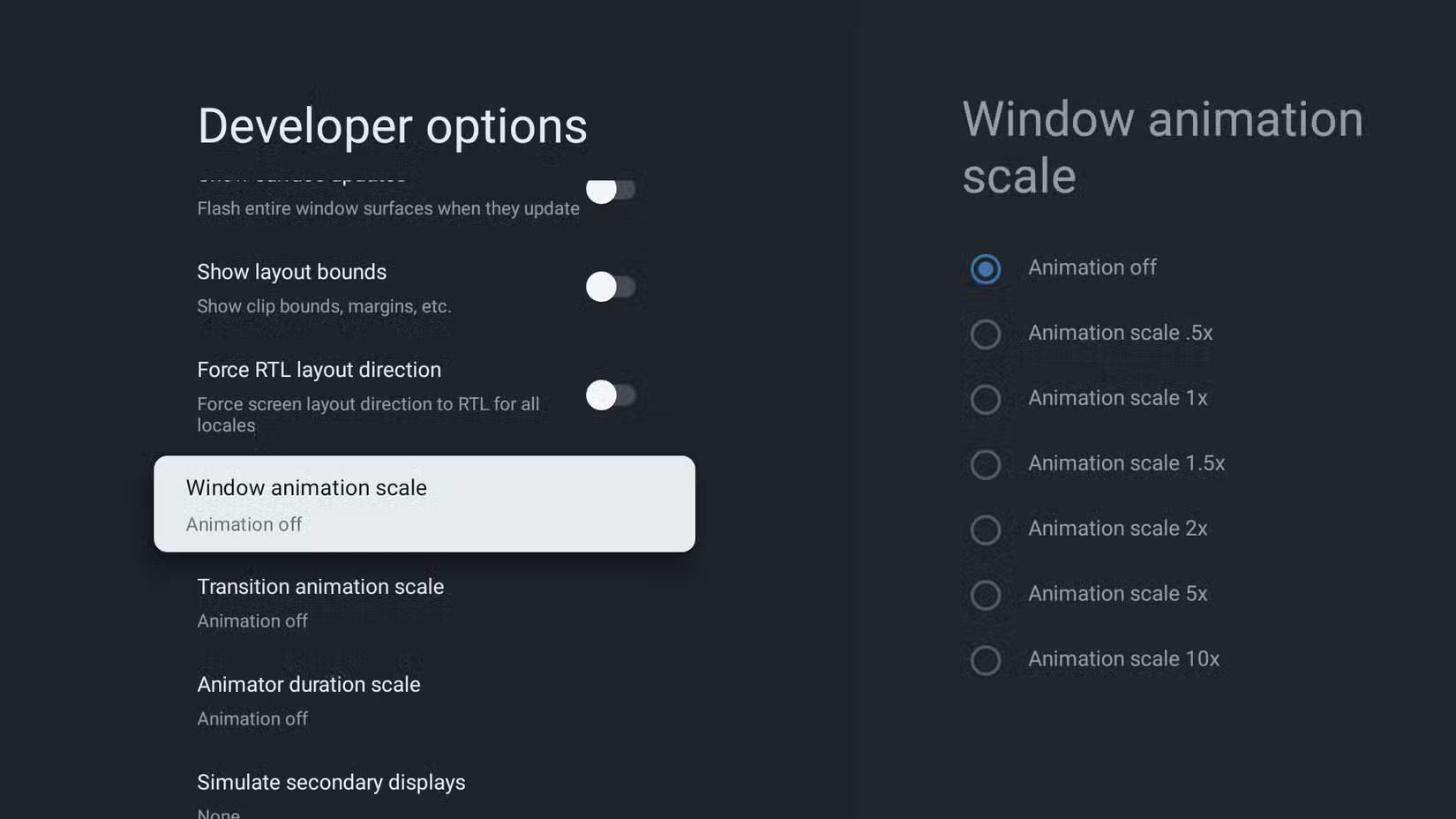
Modern Smart TV interfaces are sleek and fun, filled with animations for smooth navigation. You may notice this, especially if your device is a few years old. But these animations come with a performance penalty for the TV, as they require extra processing power to display. Thankfully, most Smart TVs have the ability to tone down the animations or turn them off completely.
Depending on your Smart TV operating system, you can disable or adjust some animation-related properties. It may not seem like a big deal, but this is one way to improve Android TV performance.
3. Turn Off Unnecessary Features
Another way to improve your Smart TV's performance is to turn off any features you don't need. Even if you have the best Smart TV on the market, like the Sony Bravia 9 or LG G4, it can still slow down if it's trying to do more than it can handle. This can cause even the best Smart TVs to feel sluggish (especially if they're a few years old), although you're more likely to run into this with budget and low-end models.
You can solve this problem by turning off unnecessary features to free up resources and improve responsiveness. These include things like voice control, motion smoothing, adaptive brightness, location, usage tracking, and more. Some of these features are also culprits for common Smart TV issues. Depending on your typical usage, you can turn off more or fewer features to boost performance.
4. Use the Appropriate Image Mode
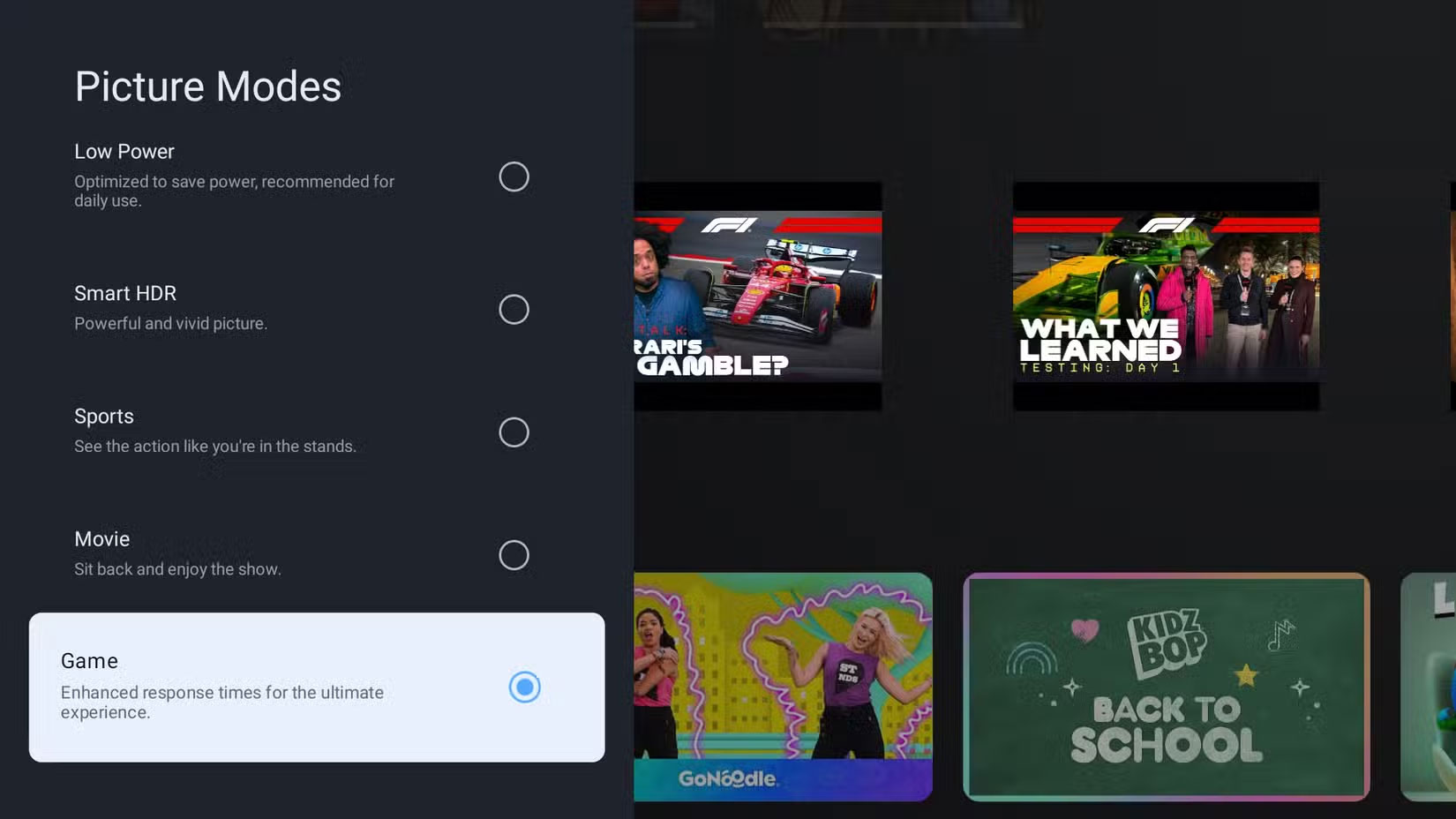
Picture modes in Smart TVs refer to various preset configurations that adjust different settings on the device for an optimized experience based on the content being displayed. Modern Smart TVs often include multiple picture modes optimized for different use cases like gaming, sports, etc. The picture mode selected may seem to be related only to the type of content you're watching, but if you're a gamer, it's also important when it comes to performance.
You should make sure your TV's picture mode is optimized for gaming if you're using your TV for gaming. This mode optimizes your TV for gaming by adjusting color accuracy accordingly and, most importantly, reducing input lag. So if you're experiencing any delays in the action being reflected on screen, make sure this picture mode is selected before starting your next gaming session. TV manufacturers use different terms for this mode, so check which one your TV uses and enable it.
Final Thoughts
The most reliable way to handle change these 4 settings to increase your smart TV's performance is to follow the process in order, verify each important setting, and test the result before moving on. Use the guidance above as a practical reference, then adjust the details for your device, software version, or specific goal.
FAQ
What should I know first about Change These 4 Settings to Increase Your Smart TV's Performance?
You don't need to automatically search for an upgrade if your Smart TV suddenly becomes sluggish.
How do I get the best results with Change These 4 Settings to Increase Your Smart TV's Performance?
Use current software or equipment, follow the steps in order, review the recommended settings, and test one change at a time so you can identify what improves the result.
What should I do if Change These 4 Settings to Increase Your Smart TV's Performance doesn't work as expected?
Check compatibility, permissions, connectivity, and version-specific settings. Restart the relevant device or app, then repeat the process carefully before trying a more advanced fix.
Related Articles
 How to Change HDR Settings on Smart TV for Better Picture Quality7 minutes read
 Change These 5 Settings to Make Your Smart TV More Private Instantly!6 minutes read
 How to Change DNS Settings on Smart TV6 minutes read
 The First 6 One UI 8 Settings You Should Change on Every Samsung: Key Facts6 minutes read
 5 Wrong Settings on Smart TV That Need to Be Adjusted8 minutes read
 Botnets Can Change CPU Settings to Increase Mining3 minutes read
Reader Comments 0
Sign in with email or Google to join the discussion.