Table of Contents
Explore block ads on your smart tv by switching to projective launcher.
You'll find auto-playing trailers and a dedicated advertising section where TV shows and movies are placed on the home screen, eventually taking up most of the screen space. But all these problems are gone, thanks to Projectivy Launcher.
Projective Launcher brings a breath of fresh air
Remove ads and suggestions
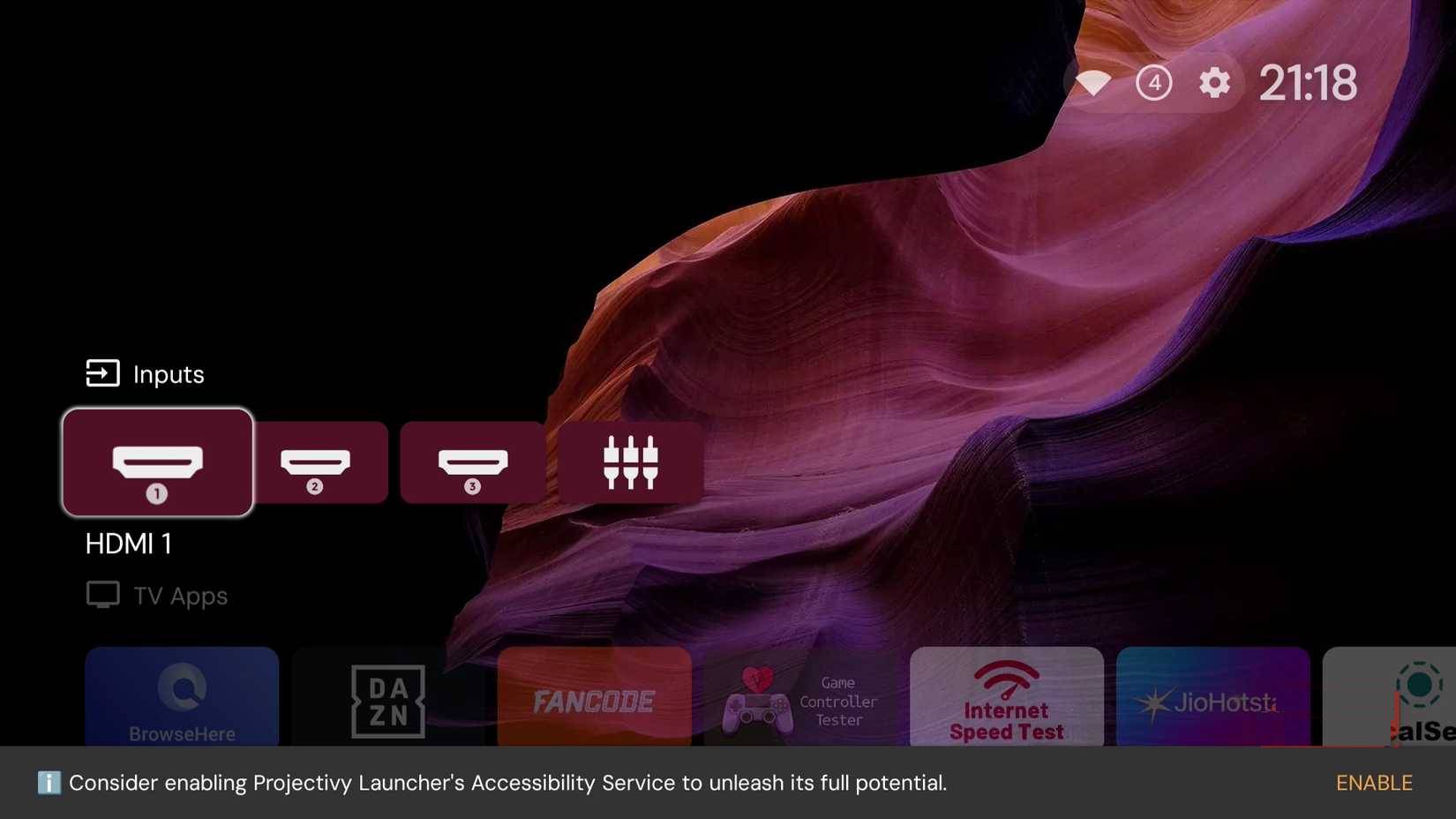
The good thing about Android TV and Google TV is that you can install third-party apps on them. You can download them from the Google Play Store or download them from third-party sources and install them on your TV.
While searching for an alternative launcher, some people have stumbled upon Projectivy Launcher. There are several other launcher apps you could try, but Projectivy Launcher is a good choice, as it suits the needs and hopefully the needs of many people.
Projectivy Launcher, unlike the default launcher, doesn't focus on recommending TV shows and movies. Instead of selling you subscription packages, it aims to provide you with a clean user interface, allowing you to access and launch applications as quickly as possible.
Take back control of your TV for the things you love
You pay for the TV, so you have the right to decide what should be displayed on it
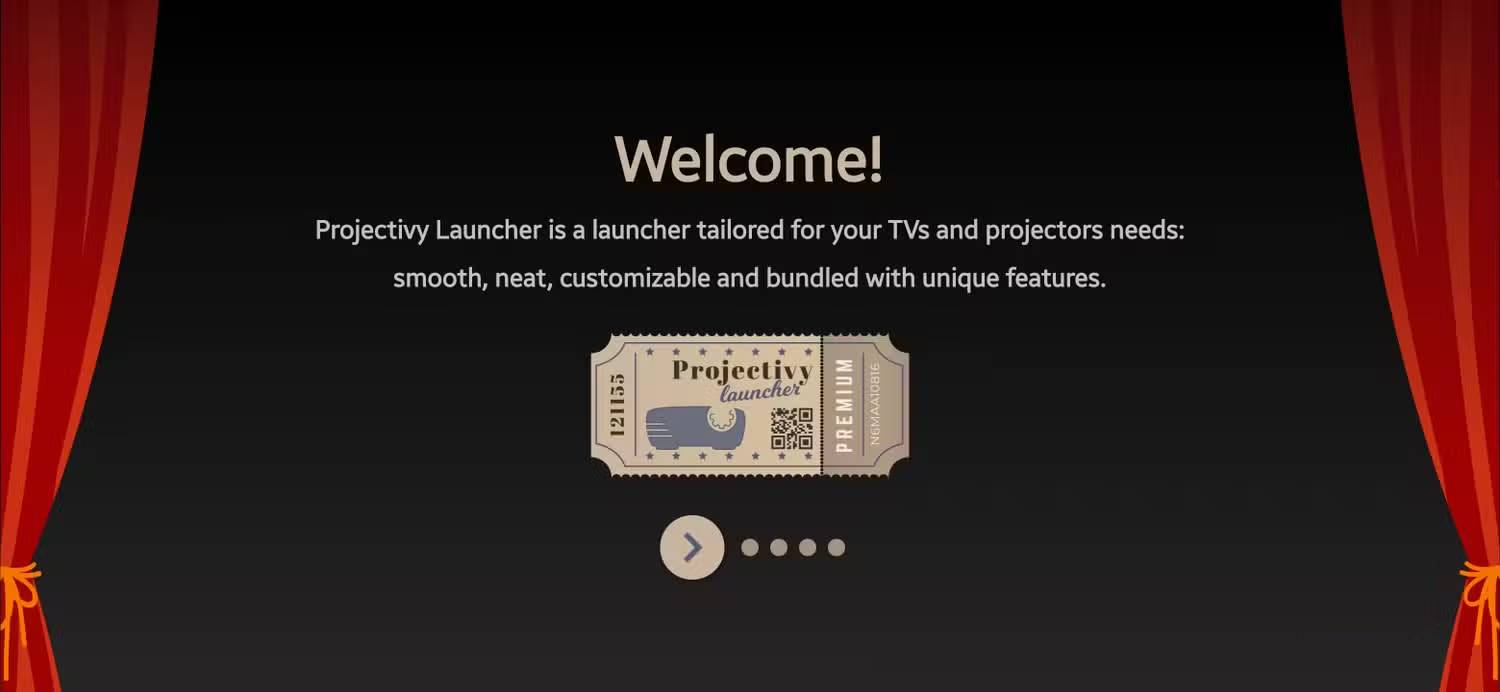
Projectivy Launcher not only has a clean and aesthetically pleasing interface, but it also offers practical applications for everyday life. On the old Google TV Launcher, navigating to specific apps was very difficult.
Additionally, Projectivy Launcher has a dedicated profile for children. This means no surprise trailers, just soothing wallpapers and colorful icons of their favorite streaming apps. It really helps you regain control.
Another highlight of Projectivy Launcher is the ability to customize the home screen to only display shows from services you've subscribed to. If you're not subscribed to Netflix, no Netflix shows or movies will appear on the home screen. This is a small change, but it's a better suggested model than displaying shows from all the apps you're not subscribed to.
Contains truly important features
Customization options make the home screen truly useful
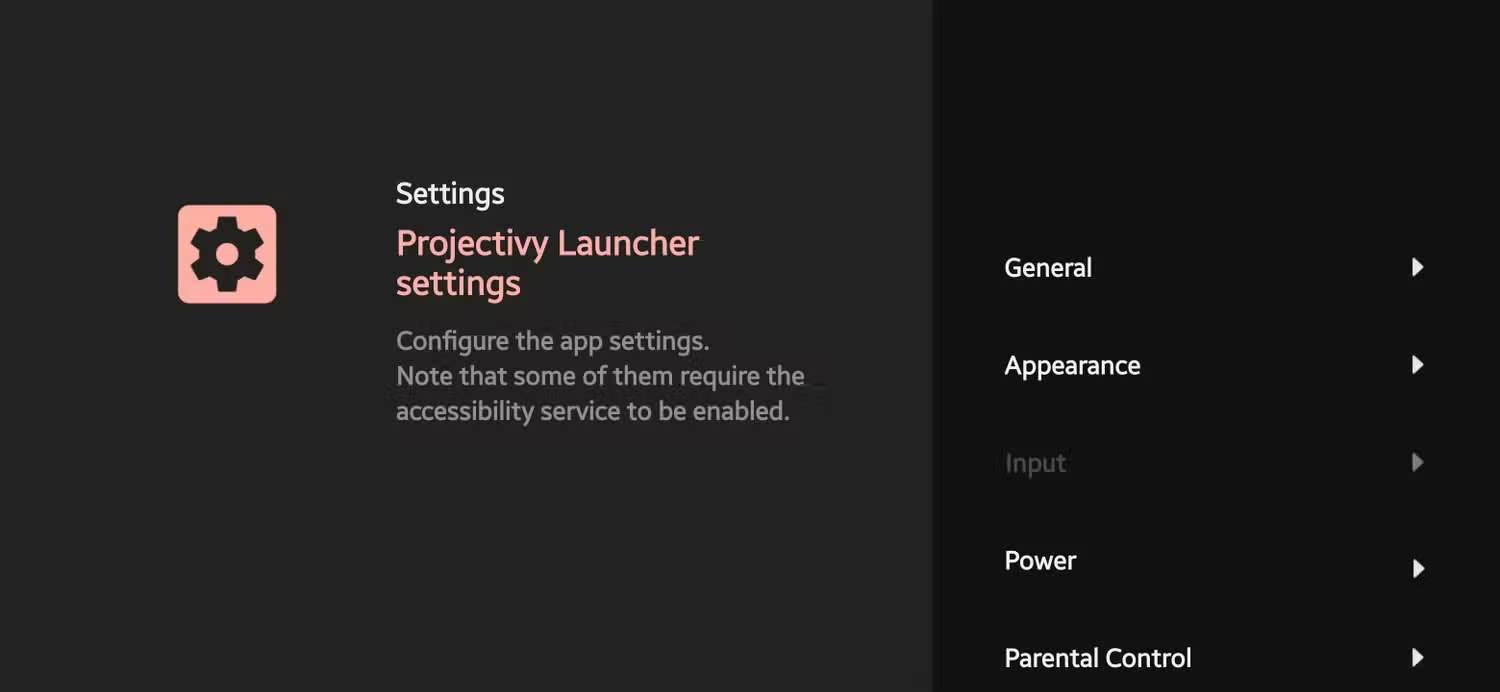
The Google TV operating system offers limited options for customizing the user interface. Because the home screen is full of ads, you don't even have the option to change the wallpaper. But with Projectivy Launcher, you do have the option to change it. You can use animated wallpapers, animated GIFs, or videos as backgrounds and change the brightness, contrast, color, and opacity. The launcher will change the interface's color based on the dominant background color.
You have the option to change icons and shortcuts. One of the best things about Projectivy Launcher is that you have a separate section for mobile apps. On Google TV, when an unsupported mobile app is installed, it doesn't show up in the app grid. But Projectivy Launcher displays and categorizes them for quick access.
Additionally, there are Parental Controls, which allow you to choose what content young children can access. You can save your settings and do even more, although some features are only available in the premium version of the app.
Setup is very easy
Surprisingly simple
Here's how you can download Projectivy Launcher:
- Open the Google Play Store on your Android TV or Google TV.
- Search for Projectivy Launcher and tap the Install button.
- After the installation process is complete, open the application.
- The app will ask you to grant access permissions. You need to grant these permissions, as this is how the launcher understands when you press the Home button on the remote control.
- In Projectivy Launcher settings, find the Override current launcher option and enable it.
Now you are ready to use it.
Final Thoughts
Understanding block ads on your smart tv by switching to projective launcher makes it easier to evaluate the information and apply the most relevant recommendations. Focus on the key points above and verify details that may change over time.
FAQ
What is block ads on your smart tv by switching to projective launcher?
Explore block ads on your smart tv by switching to projective launcher.
What key points does this article cover?
The article focuses on Projective Launcher brings a breath of fresh air, Remove ads and suggestions, Take back control of your TV for the things you love, with practical explanations and examples.
How can you use this information in practice?
Use the explanations to compare options, verify important details, and make a more informed decision. Apply the recommendations that best match your goals and situation.
Related Articles
 Why Smart Launcher Is the Android Launcher Worth Switching To?9 minutes read
 Top 10 Best Android Launchers 201910 minutes read
 4 Android Launchers That Fill the Gap Left by Nova: Practical Guide6 minutes read
 Activity Launcher: App to Create Shortcuts on Home Screen6 minutes read
 4 Best Android Launchers for Seniors5 minutes read
 How to Block Ads on Smart TV6 minutes read
Reader Comments 0
Sign in with email or Google to join the discussion.