Table of Contents
For many Terminal users, enabling the right-click menu improves your ability to use both Command Prompt and PowerShell features.
By default, right-clicking Terminal will paste the contents of the clipboard on the computer. However, for many people who often use Terminal, you should activate the right-click menu to improve the ability to use both the features of Command Prompt and PowerShell. Below are instructions to activate the Windows 11 Terminal right-click menu.
Instructions to enable Windows 11 Terminal right-click menu
Step 1:
First you Type Terminal in the search bar And press to access.
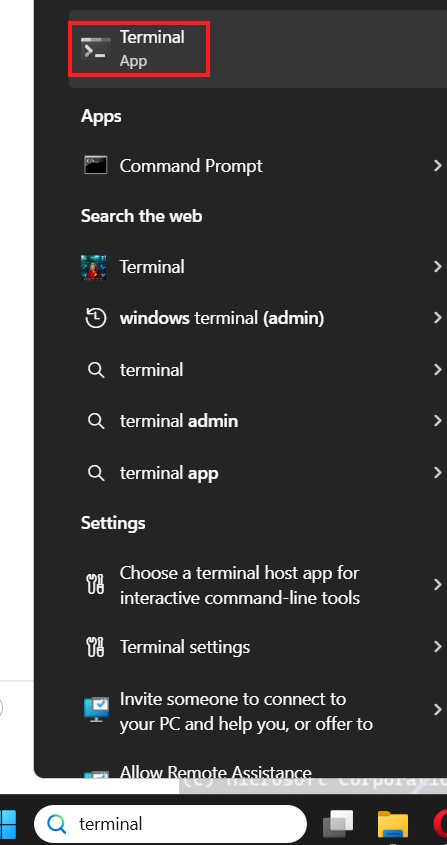
Step 2:
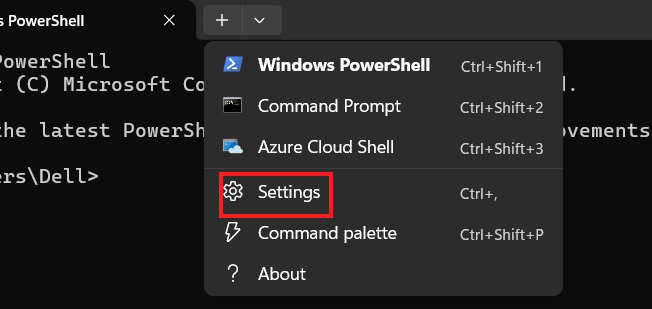
In the Windows Terminal interface, Click the drop-down arrow icon And select Settings From the displayed list.
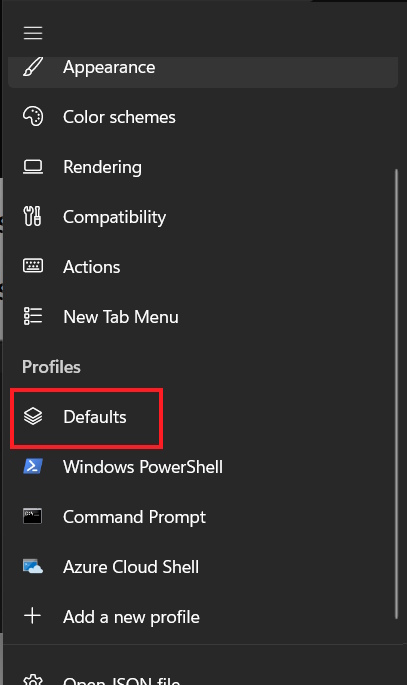
Go to the next interface, click on Defaults In the left menu of the interface as shown.
Step 3:
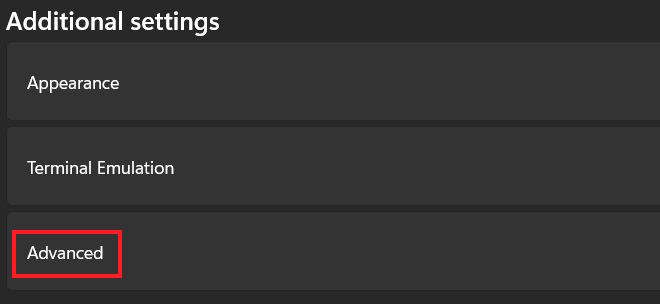
Look to the side, scroll down to the bottom and Click on Advanced To make advanced adjustments.
Step 4:
Now You should Enable the Display a menu on right-click setting To enable the Windows 11 Terminal right-click menu.

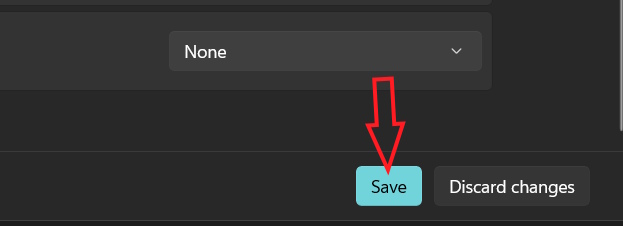
Finally Click Save Below to save the settings for Terminal Windows 11.
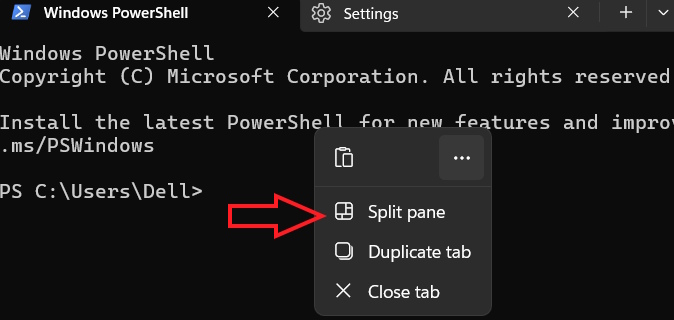
Back to the Terminal interface, right-click to display the menu instead of pasting the content from the previous clipboard.
FAQ
How do you enable Windows 11 terminal right-click menu: step-by-step guide?
In practical terms, for many Terminal users, enabling the right-click menu improves your ability to use both Command Prompt and PowerShell features.
What should you check before getting started?
Review the requirements, compatible device or software version, and any warnings described in the guide before making changes.
What should you do if the steps do not work?
Repeat the steps in order, confirm that your app or system is up to date, and review the troubleshooting details provided above.
Related Articles
 How to Activate the Windows 11 Terminal Right-click Menu3 minutes read
 How to Add / Remove 'Open in Windows Terminal' Context Menu4 minutes read
 How to Enable Transparent Background on Windows Terminal3 minutes read
 How to Change the Volume on a Mac3 minutes read
 Menu: How to Open Terminal in Windows3 minutes read
 How to Display the Pen Menu Icon on the Windows 11 Taskbar4 minutes read
Reader Comments 0
Sign in with email or Google to join the discussion.