Table of Contents
When you use Chrome's incognito mode more than normal mode, then adding the Chrome incognito mode shortcut to the Windows 11 right-click menu is ideal.
If you use Chrome's incognito mode more than the regular mode, adding the Chrome incognito mode shortcut to the Windows 11 right-click menu is ideal. Then you can just right-click to use this mode. Here is a detailed guide to open Chrome's incognito mode from the Windows 11 right-click menu.
How to open Chrome incognito from Windows 11 right-click menu
Step 1:
Open Registry Editor On your computer and then access the path below.
ComputerHKEY_CLASSES_ROOTDirectoryBackgroundshell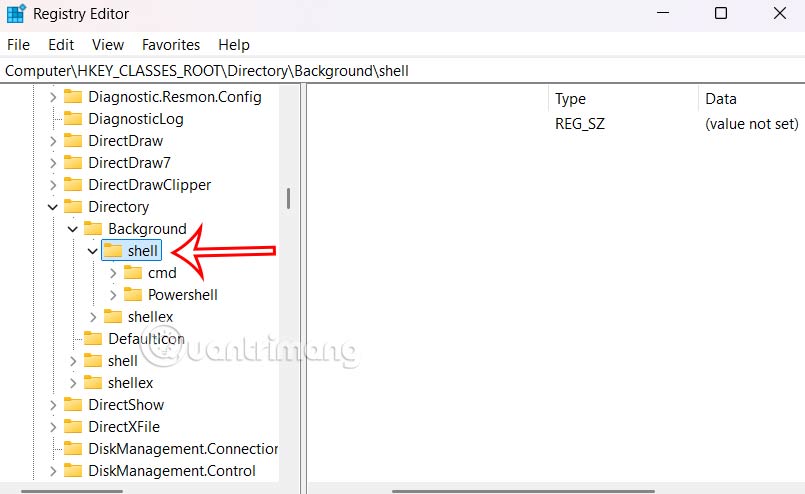
Step 2:
Right-click on The Shell folder And select New > Key .
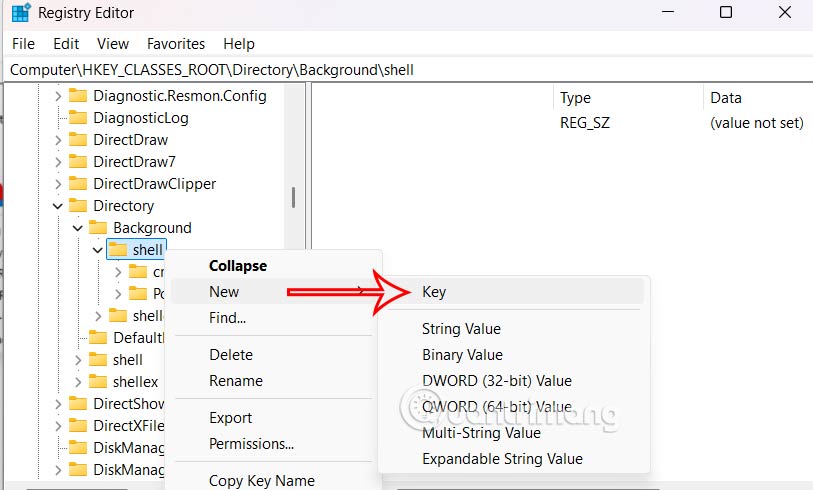
Then we Name this new key Chrome Incognito As shown.
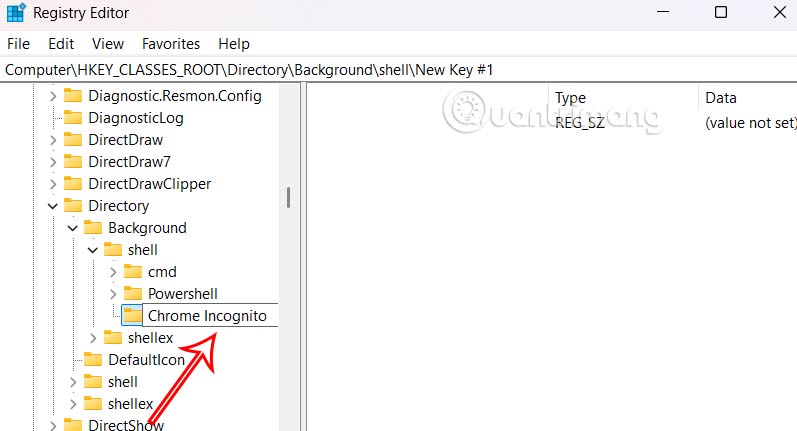
Step 3:
Continue Right-clicking on the Chrome Incognito key And select New > Key .
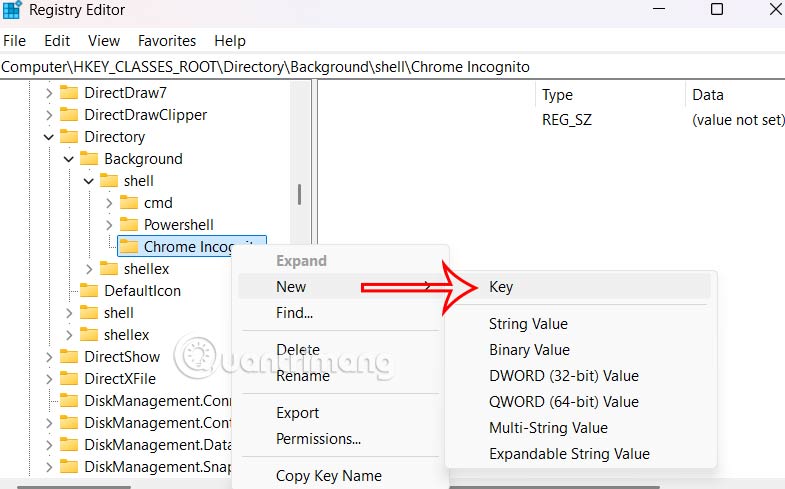
We Name this key Command .
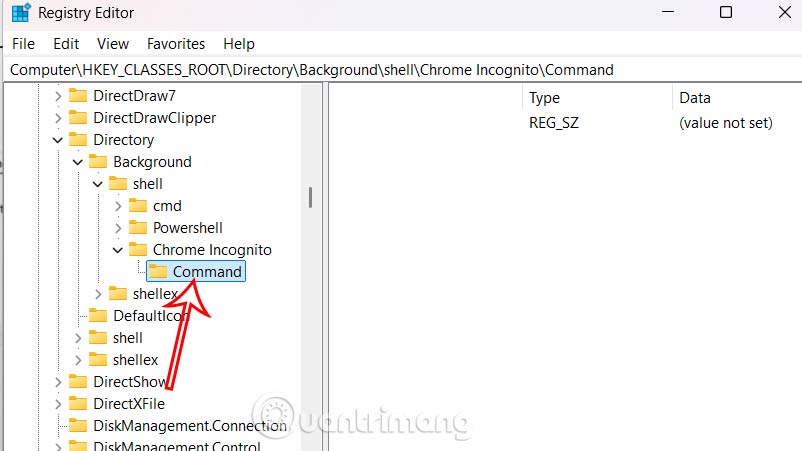
Step 4:
Look at the interface next to it, Right-click on the Default key And Select Modify In the displayed menu.
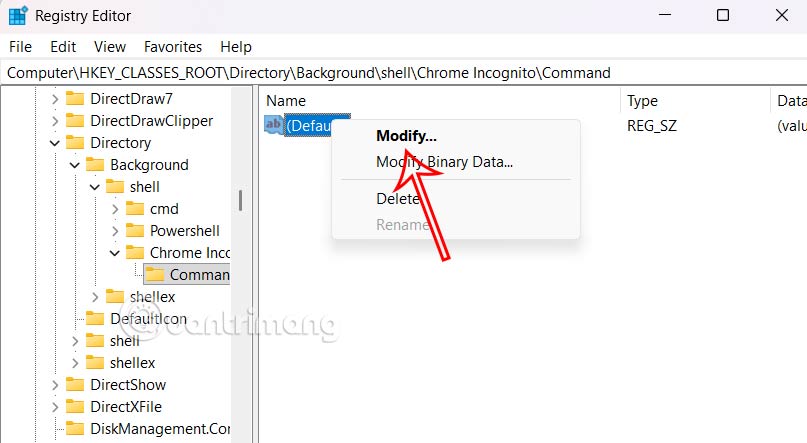
Step 5:
Right-click on The Chrome icon And Select Properties , then Copy the path in the Target Box .
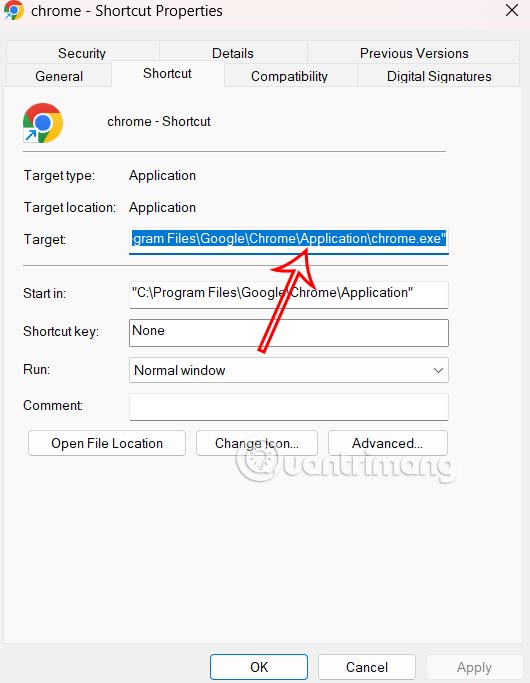
Back to the Registry Editor interface, Paste the path into Value data And Add -Incognito at the end . The complete path will be below.
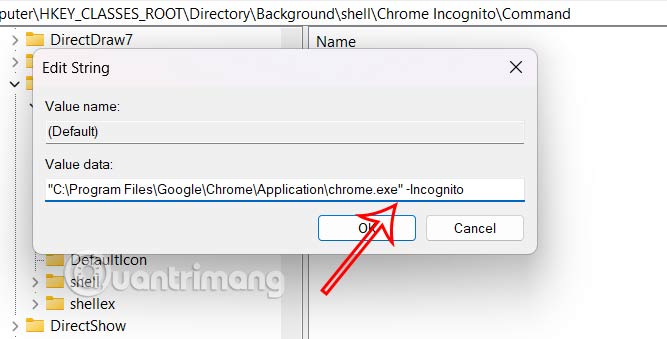
Click OK then restart your computer and you will see the option to open Chrome incognito from the right-click menu.
FAQ
What should you know about open Chrome incognito from Windows 11 right-click menu?
In practical terms, if you use Chrome's incognito mode more than normal mode, then adding the Chrome incognito mode shortcut to the Windows 11 right-click menu is ideal.
Why does open Chrome incognito from Windows 11 right-click menu matter?
The article highlights that here is a detailed guide to open Chrome's incognito mode from the Windows 11 right-click menu.
What is the main takeaway?
The main takeaway is that how to open Chrome incognito from Windows 11 right-click menu Step 1: Open Registry Editor on your computer and then access the path below.
Related Articles
 How to Open Incognito (Incognito) Automatically on Chrome3 minutes read
 How to Fix Open with Missing Errors in the Right-click Menu4 minutes read
 How to Add 'Open Powershell Window Here as Administrator' to the2 minutes read
 How to Use Incognito Tab on iPhone - Open Incognito Tab on iPhone3 minutes read
 How to Add 'Open Command Window Here as Administrator' to the2 minutes read
 How to Open Incognito Tabs on Chrome, Coc Coc, Edge, Firefox3 minutes read
Reader Comments 0
Sign in with email or Google to join the discussion.