Table of Contents
This guide organizes the entries in "7 Google Docs Shortcuts Everyone Shouldn't Forget" and explains what each option, idea, or example offers. It also highlights practical details that matter when comparing the choices.
Once you use them, you'll wonder how you ever worked without them.
1. Paste without formatting to keep things tidy
This is a favorite shortcut, and for good reason. You copy text from a website, paste it into a document, and suddenly you're faced with weird fonts, random colors, and mismatched formatting. Instead of spending extra time cleaning up, just use Ctrl + Shift + V (Windows) or Cmd + Shift + V (Mac) to paste the content without formatting.
2. Add comments without text spacing
Adding comments to a document usually means highlighting text, right-clicking, and navigating through menus. The keyboard shortcut Ctrl + Alt + M (Windows) or Cmd + Option + M (Mac) allows you to add comments instantly without interrupting the flow of text you're typing.
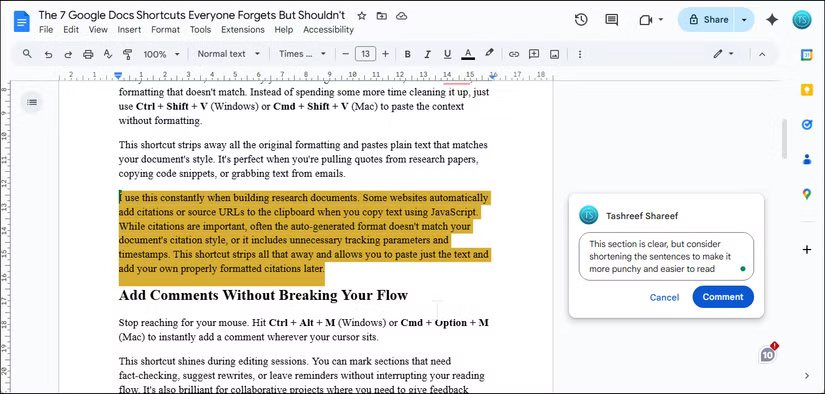
To use this shortcut more effectively, combine it with other shortcuts in Google Docs. For example, you can combine it with Ctrl + Shift + Right/Left Arrow to select text with your keyboard, add a comment, type a note, and press Enter .
3. Voice typing is more efficient
Voice Typing in Google Docs turns your speech into text with impressive accuracy. When your fingers are tired but your brain is still churning, use Ctrl + Shift + S (works on Windows and Mac) to instantly activate voice typing. Google 's speech recognition is impressive, and it understands punctuation commands too.
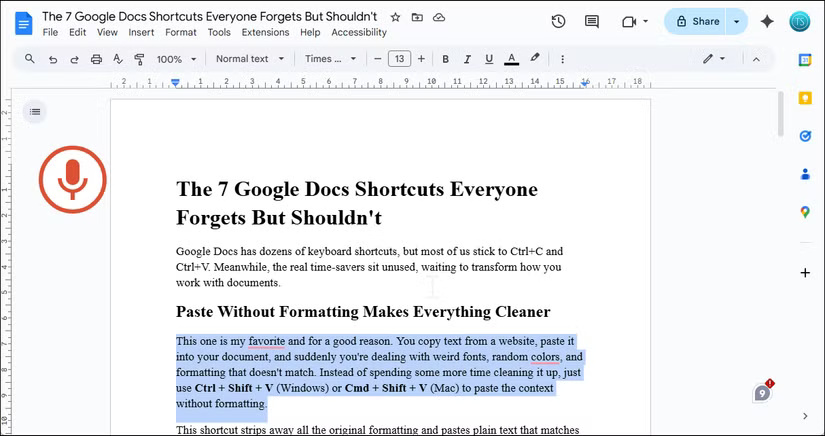
For best results when voice typing, try to speak naturally and clearly, but don't speak too slowly. AI often works better with normal speech patterns than with overly careful pronunciation.
4. Quickly select the entire paragraph
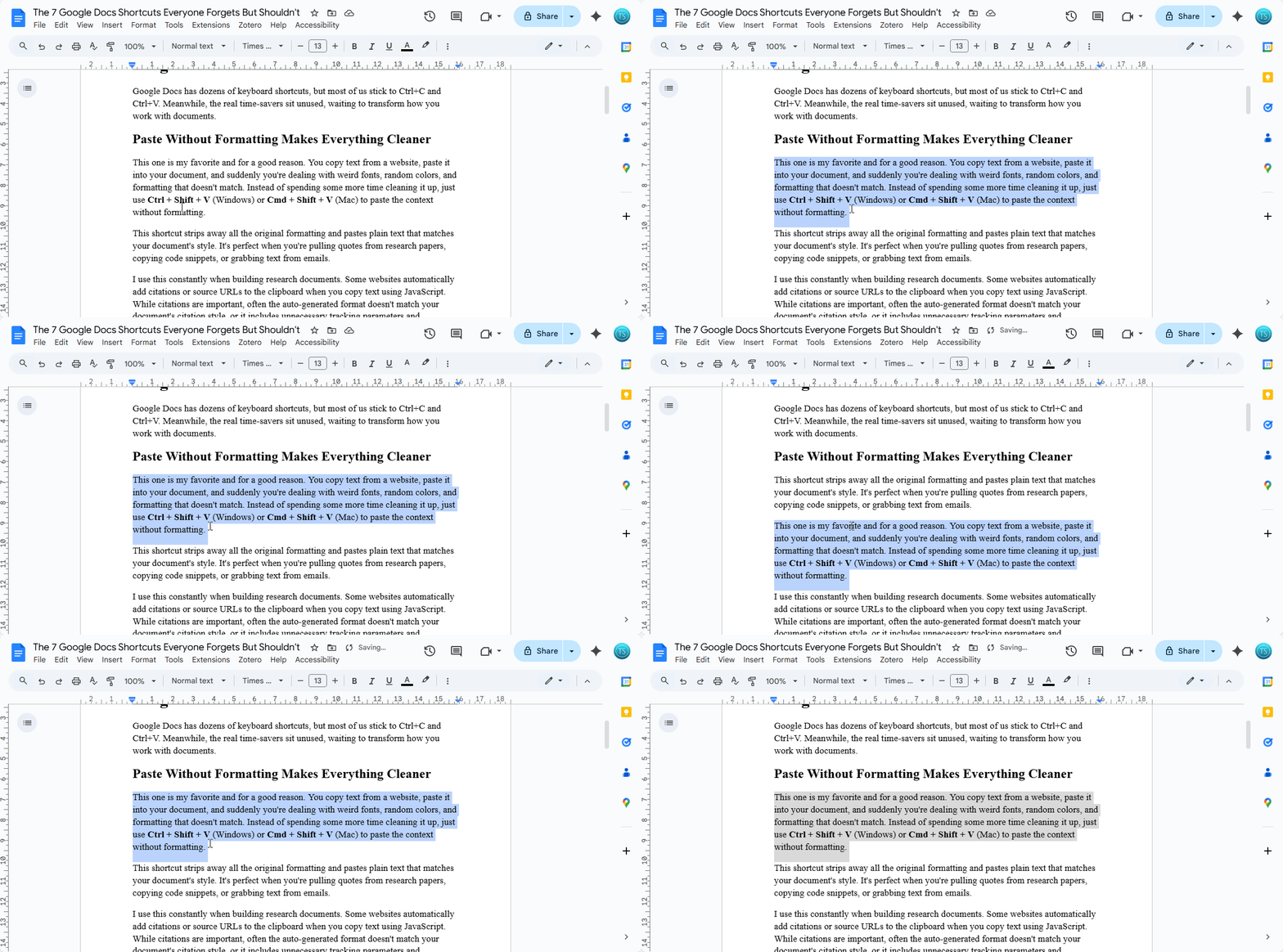
When working with long documents, you often need to adjust entire sections at once. A common problem with click-and-drag selection is that you can often miss the first word or grab unwanted text from adjacent paragraphs. For precise selection, use Ctrl + Shift + Up/Down Arrow (Windows) or Cmd + Shift + Up/Down Arrow (Mac) to select an entire paragraph at once.
5. Move paragraphs up and down instantly
Often, when you need to rearrange paragraphs to make them more coherent, you just cut and paste blocks of text, which risks breaking the formatting. Alt + Shift + Up/Down Arrow (Windows) or Option + Shift + Up/Down Arrow (Mac) will move your current paragraph up or down without touching the clipboard.
6. Jump to the beginning or end without scrolling
Scrolling through a long document is no fun when you have to jump back and forth from the beginning to the end. On Windows, press Ctrl + Home to go to the beginning and Ctrl + End to go to the end. On a Mac, Cmd + Up Arrow will take you to the top of the page, and Cmd + Down Arrow will take you to the bottom of the page immediately.
7. Show all shortcuts when you forget
People use these shortcuts every day to speed up their Google Docs workflow and use their mouse less. But there are dozens of other shortcuts worth learning, even if they're hard to remember. Luckily, you can open a list of supported shortcuts in Google Docs by using Ctrl + / (Windows) or Cmd + / (Mac).
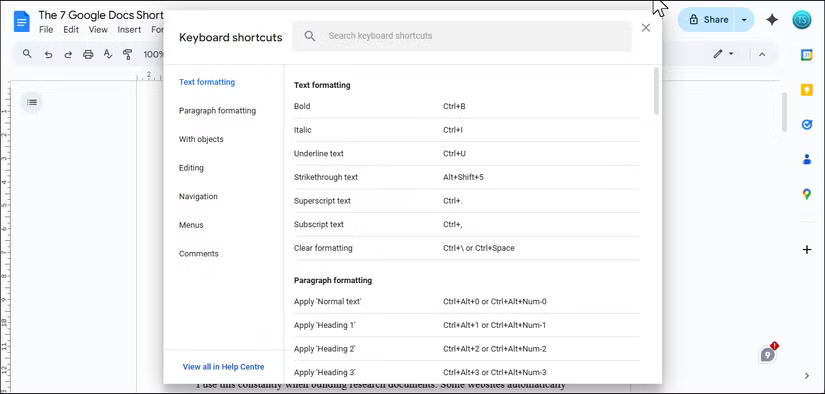
This list is also searchable. In the Keyboard shortcuts search bar, type format to find formatting shortcuts, insert to find insertion options, or browse the categories to discover shortcuts you didn't know existed.
FAQ
What should you know about 1. Paste without formatting to keep things tidy?
This is a favorite shortcut, and for good reason. You copy text from a website, paste it into a document, and suddenly you're faced with weird fonts, random colors, and mismatched formatting. Instead of spending extra time cleaning up, just use Ctrl + Shift + V (Windows) or Cmd + Shift + V (Mac) to paste the content without.
What should you know about 2. Add comments without text spacing?
Adding comments to a document usually means highlighting text, right-clicking, and navigating through menus. The keyboard shortcut Ctrl + Alt + M (Windows) or Cmd + Option + M (Mac) allows you to add comments instantly without interrupting the flow of text you're typing.
What should you know about 3. Voice typing is more efficient?
Voice Typing in Google Docs turns your speech into text with impressive accuracy. When your fingers are tired but your brain is still churning, use Ctrl + Shift + S (works on Windows and Mac) to instantly activate voice typing. Google 's speech recognition is impressive, and it understands punctuation commands too.
What should you know about 4. Quickly select the entire paragraph?
When working with long documents, you often need to adjust entire sections at once. A common problem with click-and-drag selection is that you can often miss the first word or grab unwanted text from adjacent paragraphs. For precise selection, use Ctrl + Shift + Up/Down Arrow (Windows) or Cmd + Shift + Up/Down Arrow (Mac) to.
Related Articles
 Shortcut List for Google Docs on Your Computer (Part 1)12 minutes read
 List of Shortcuts for Google Docs on Chrome OS (Part 3): Hotkeys11 minutes read
 List of Shortcuts for Google Docs on Android (Part 4): Hotkeys5 minutes read
 Some Tips When Using Google Docs6 minutes read
 List of Google Docs Shortcuts on iOS (Last Part): Hotkeys5 minutes read
 Summary of Shortcuts on Google Docs: Complete Guide12 minutes read
Reader Comments 0
Sign in with email or Google to join the discussion.