Table of Contents
This updated guide compares useful tips to organize Android notifications and highlights the details that matter most. Notifications are great for staying informed, but they can quickly get out of hand. With so many alerts coming from different apps, checking the notification center can feel like wading through a sea of information.
1. Mute or Turn Off Notifications for Less Important Apps
There are dozens of apps installed on your phone, but not all of them are equally important. One of the things you can do to tame notifications on your Android phone is to turn off alerts from unnecessary apps. This alone can make a big difference in reducing clutter.
for instance, always turn off notifications from shopping apps that constantly send alerts about promotions or deals. Likewise, turn off notifications from regular apps like Candy Crush, which often send updates or reminders every few hours.
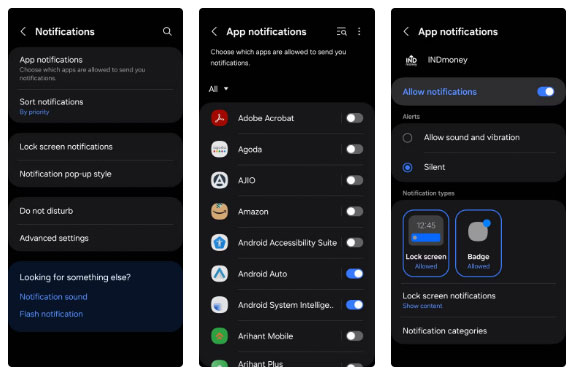
For apps you're not sure about — like news apps — take a subtle approach and mute notifications. That way, you can still get notifications if you choose to check, but without the ringing alarm in your ears.
2. Manage Notification Categories for Key Apps
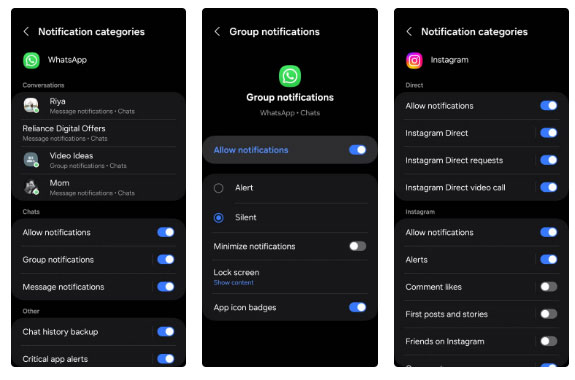
For social media, messaging, and email apps, you will not want to turn off alerts completely, but you'll want more control over what notifications you get. Luckily, Android lets you customize notifications by category, so you can choose what types of notifications you want to receive.
If you rely on WhatsApp to communicate, muting or turning off notifications completely is not practical. Instead, mute group chat notifications, which can be noisy and you do not need to be alerted every time someone messages in a non-urgent chat.
Similarly, for Instagram, keep notifications on for direct messages and calls, but turn off alerts for comments, likes, new followers, and first posts. Do this for all app alerts that aren't urgent enough to require your immediate attention.
3. Pause Critical Alerts
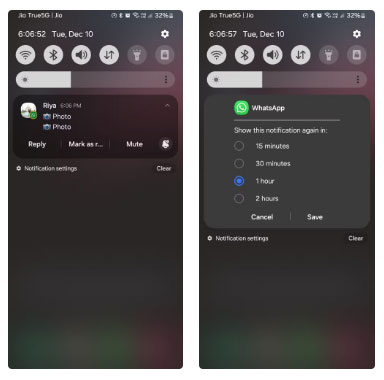
Sometimes an alert comes up that you do not want to ignore completely, but you're not ready to deal with right away. that is where Android's snooze feature comes in handy. Instead of feeling pressured to respond immediately or letting it pile up in your notification drawer, you can temporarily ignore it until you're in a better position to deal with it.
When an important alert pops up—whether it is a reminder for a meeting, a message that needs responding to, or a task that needs tackling—tap the snooze icon (a bell with a clock on top), choose a snooze duration from 15 minutes to 2 hours, and tap Save . it is quick, intuitive, and perfect for times when you need to focus on something else.
4. Use Do Not Disturb Mode
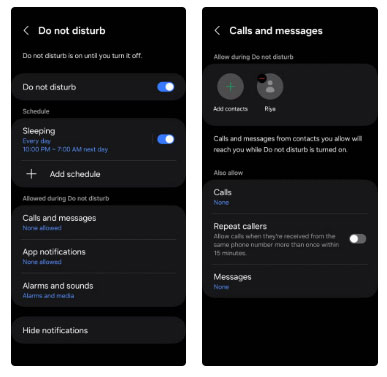
Another way to manage notification overload on Android is to use Do Not Disturb mode. it is a simple but effective way to take back control when your phone is bothering you.
Android's Do Not Disturb settings menu lets you customize the hours, frequency, and conditions under which it activates. for instance, you can schedule Do Not Disturb to automatically activate at 10 p.m. every night and last until the next morning. This ensures you get uninterrupted sleep without your phone buzzing with notifications. it is a relief to wind down at night without having to worry about constant alerts.
5. Set Priority Conversations
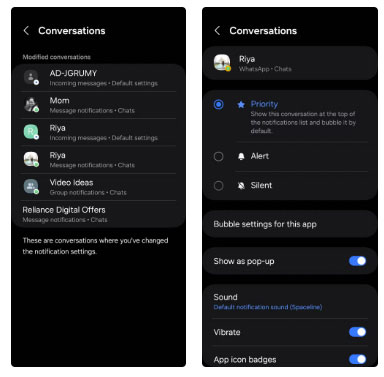
If you get many text messages and WhatsApp messages throughout the day, your notification center can get a little chaotic at times. that is where Android's ability to prioritize conversations comes in handy.
With priority conversations, you can mark specific contacts or threads to ensure their notifications always appear at the top, no matter what. Also, these priority messages open in floating bubbles, making them super easy to spot and respond to immediately. That means when a message comes in from someone you've marked as priority, it will not get lost in a list of less important notifications.
for instance, set messages from family members and activities as priority conversations. This ensures that you do not miss an important message when a person you care about or a colleague gets in touch.
FAQ
How were the useful tips to organize android notifications options evaluated?
The comparison focuses on practical features, ease of use, limitations, compatibility, and the type of user each option is most likely to help.
Which option is best for beginners?
Beginners should prioritize a clear interface, useful documentation, reliable support, and the core features needed for their first project.
Should I choose a free or paid option?
Start with a free option when it covers your needs. A paid plan may be worthwhile when you need advanced tools, commercial rights, collaboration, or professional support.
Related Articles
 Tips to Quickly Turn Off Notifications on Android8 minutes read
 How to Receive Notifications on Android Smartphone from Computer3 minutes read
 How to Enable Enhanced Notifications to Manage Android Notifications7 minutes read
 Useful Tips for Organizing Bookmarks in the Browser9 minutes read
 Get All Notifications from Your Android Phone on the Desktop Screen5 minutes read
 Do You Know How to Use the Android 5.0 Notification System8 minutes read
Reader Comments 0
Sign in with email or Google to join the discussion.